Inventory management shows how many products are stored in each warehouse and tracks product movement, including stock receipt, sales, write-offs, and transfers. The catalog contains products and services that agents use in deals, invoices, and estimates. This article answers the most common questions about inventory management and the product catalog.
In this article
- How disabling inventory management affects working with products
- How to cancel processed inventory documents
- How the "Make out-of-stock items available for purchase" setting works
- How to export product stock levels from all warehouses
- What to do if a product doesn’t appear in search when adding it to a deal
- How to convert a product into a service and vice versa
- How to change the product type from SKU to simple
- How to create a product variant (SKU) property and use it in a deal
- How to export and import products and services
How disabling inventory management affects working with products
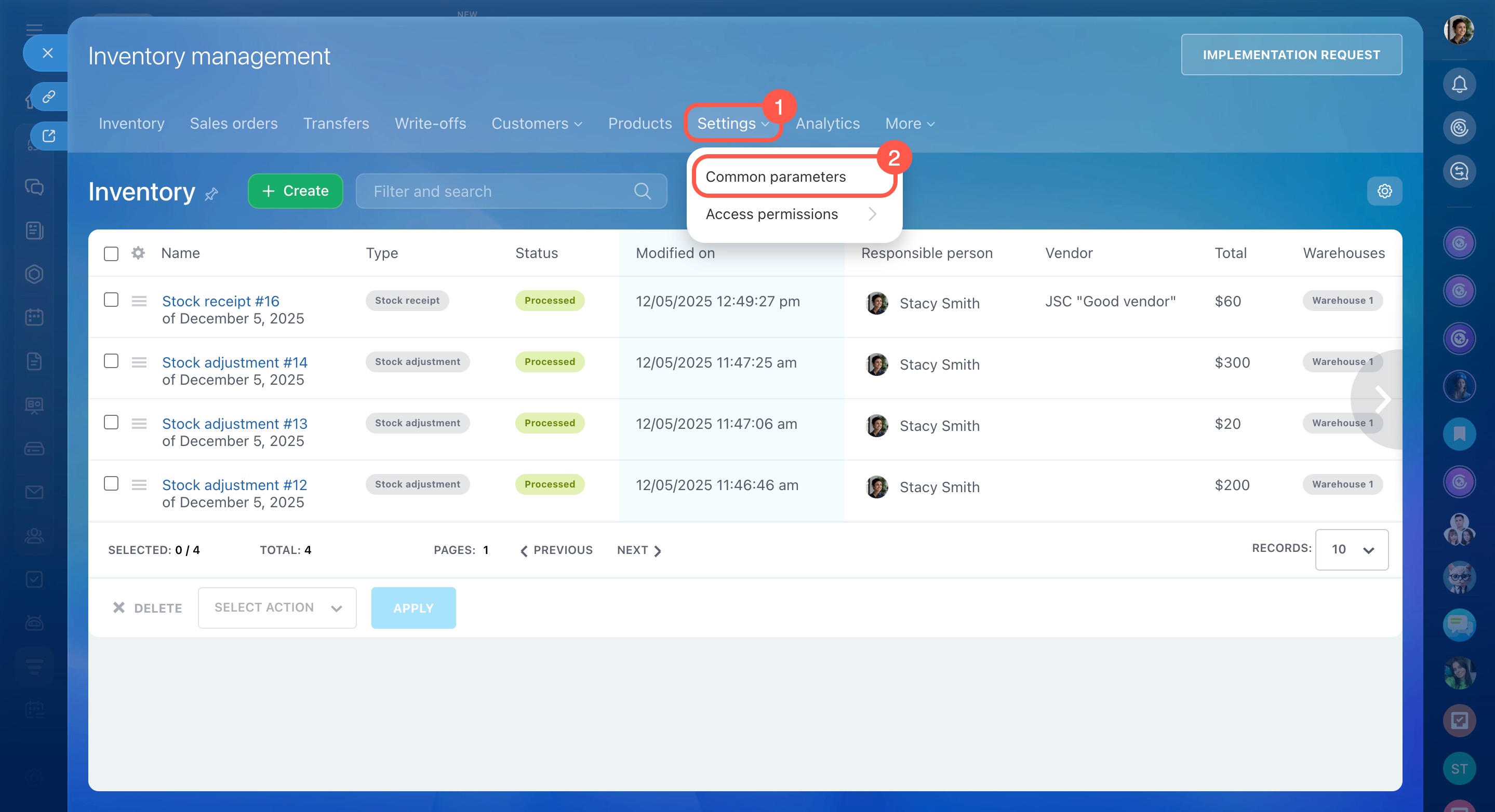
To disable inventory management, go to Inventory management > Settings > Common parameters and click Disable.
When inventory management is disabled, all inventory documents and product stock data are permanently deleted. If you turn it back on later, you won’t be able to continue working with previously processed documents. This prevents data duplication and helps keep accounting accurate.
Disabling inventory management is useful if you were only testing the feature—creating documents, checking stock levels, or simulating sales—and now want to reset all inventory data and start fresh.

How to cancel processed inventory documents
Inventory documents track product movement, including stock receipts, adjustments, sales orders, write-offs, and transfers. Once a document is processed, stock levels are updated automatically. If you find an error, you can cancel the processing—this will restore the previous stock values.
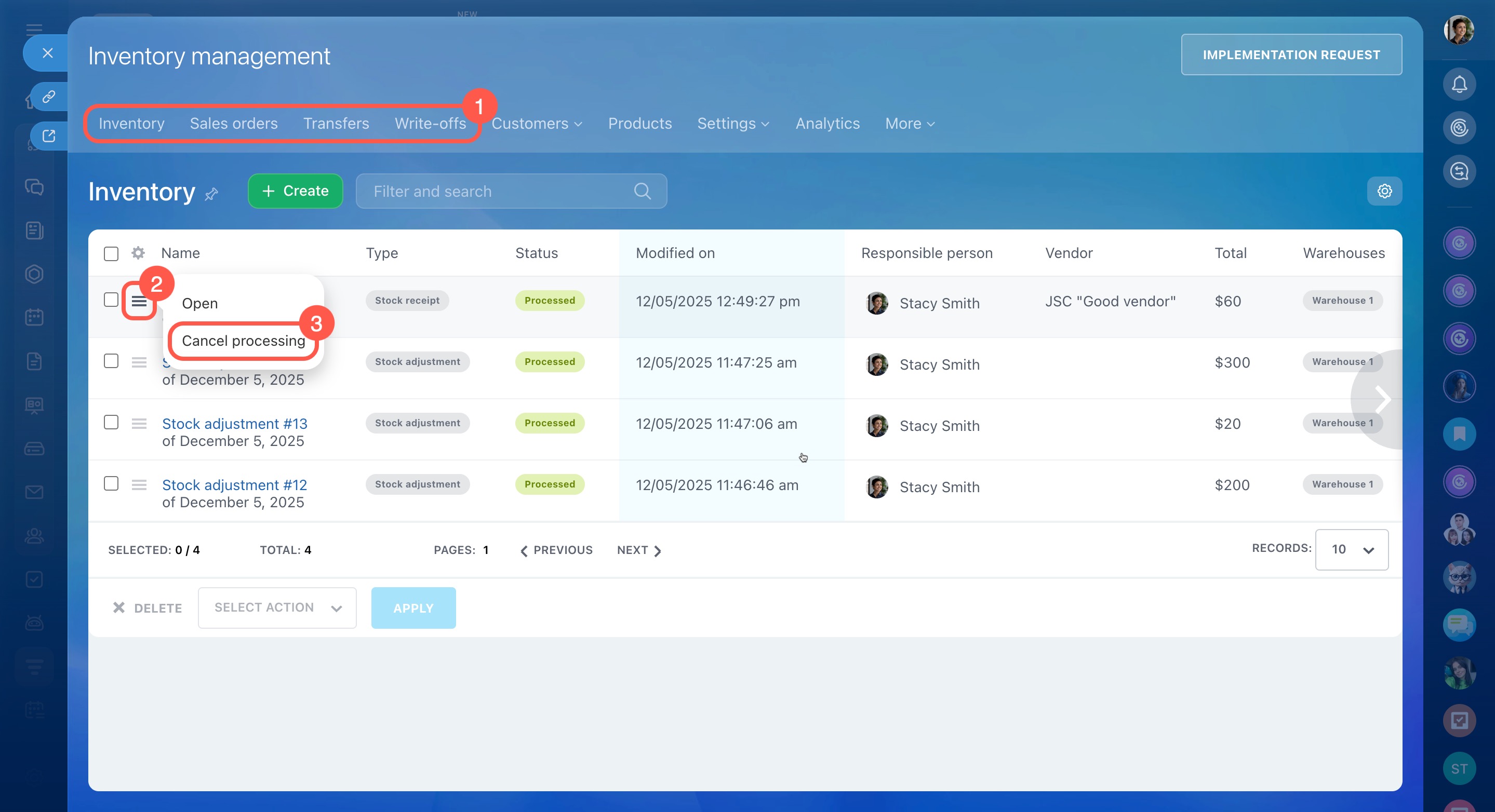
To cancel a document:
- Go to Inventory management.
- Open the section for the document type you need.
- Select the document from the list.
- Click Menu (≡) > Cancel processing.
- Confirm by clicking Yes, cancel.
After that, you can edit and process the document again.
If the cancel option is not available for an employee, check their inventory access permissions. The permission to cancel processed documents is set separately for each document type.
Configure access permissions to Inventory Management
How the "Make out-of-stock items available for purchase" setting works
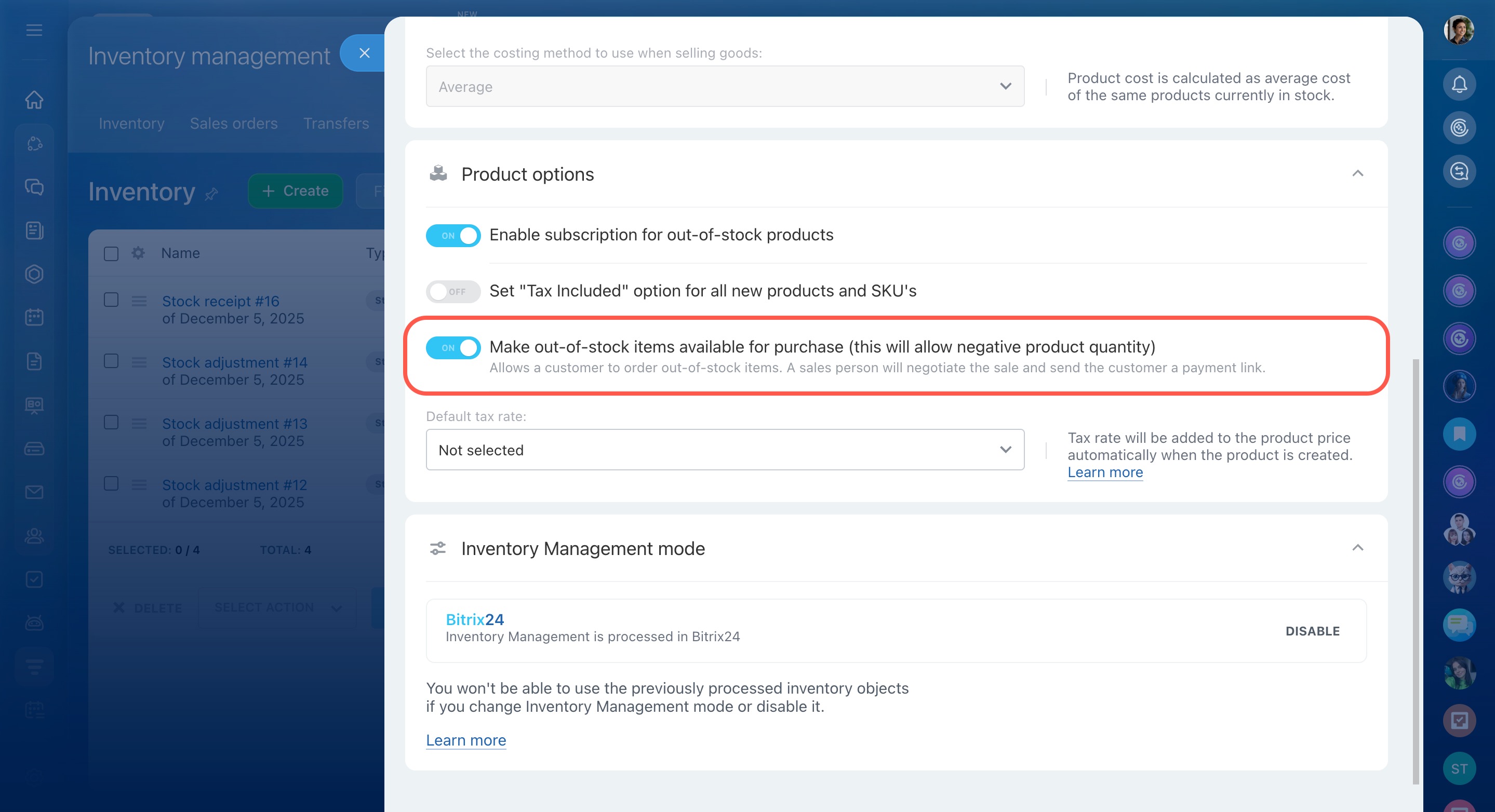
This setting lets you add a product to a deal even if there is no available stock in the warehouse. Customers will still see the product in the online store, place orders, and agents can send a payment link.
However, products cannot be deducted into negative stock. Payments may be received in advance, but the deal cannot be closed, and the sales order cannot be processed until the product is back in stock.
Why a deal cannot be closed when stock is zero
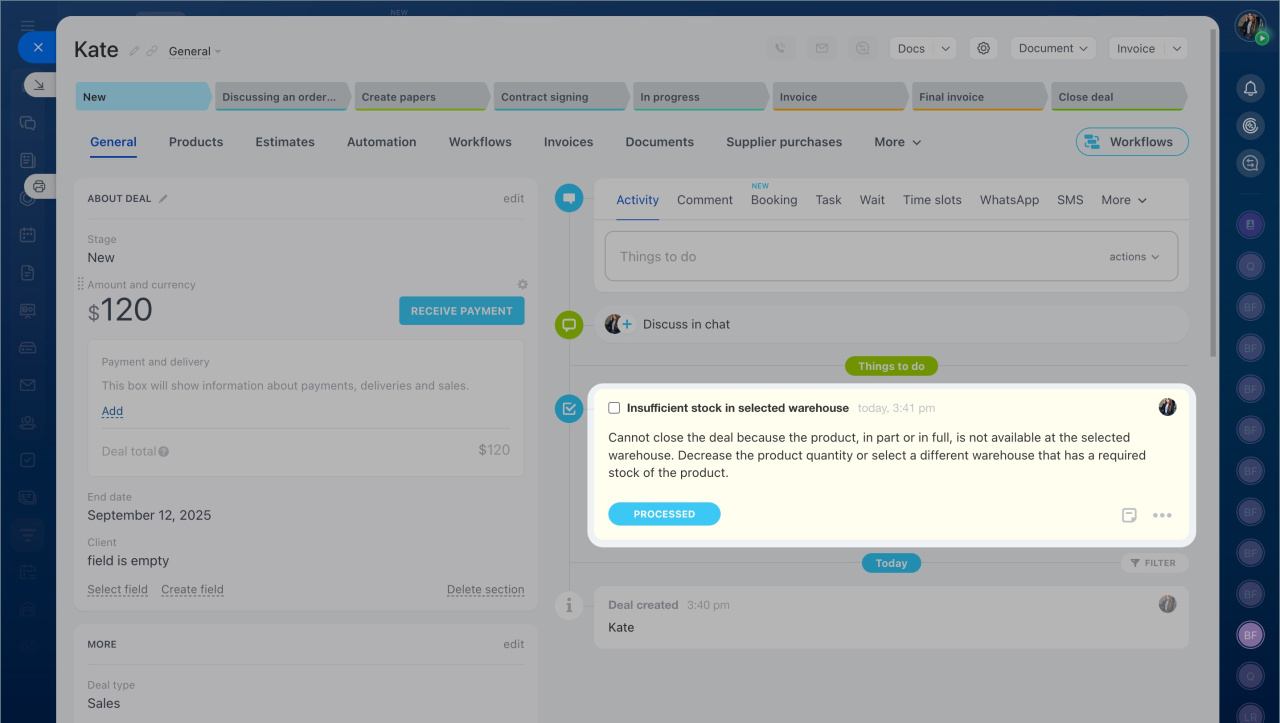
When you try to close a deal, Bitrix24 checks the stock levels and attempts to create a sales order. If the product is out of stock, the deal will not close, and you will see a warning about insufficient stock. Products can only be deducted when they are actually available.
Inventory management documents in deals
How to close the deal
You have two options:
-
Adjust the stock. If the product is already available or expected soon, create a stock adjustment to add the required quantity. Once the stock is updated, you can close the deal.
Create a stock adjustment -
Disable inventory management. If you don’t need to track stock, you can turn off inventory management under CRM > Inventory management > Settings > Common parameters. After that, deals can be closed without stock checks.
Disable Inventory management
How to export all product stock levels across all warehouses
You can export product stock levels to Excel using the built-in export feature. This method works best if your catalog contains only simple products. If your catalog includes products with variants (SKUs), not all items will be included in the export.
Importing and exporting products and services
How to export the catalog to Excel
- Clear all search filters to display all products and services in the catalog.
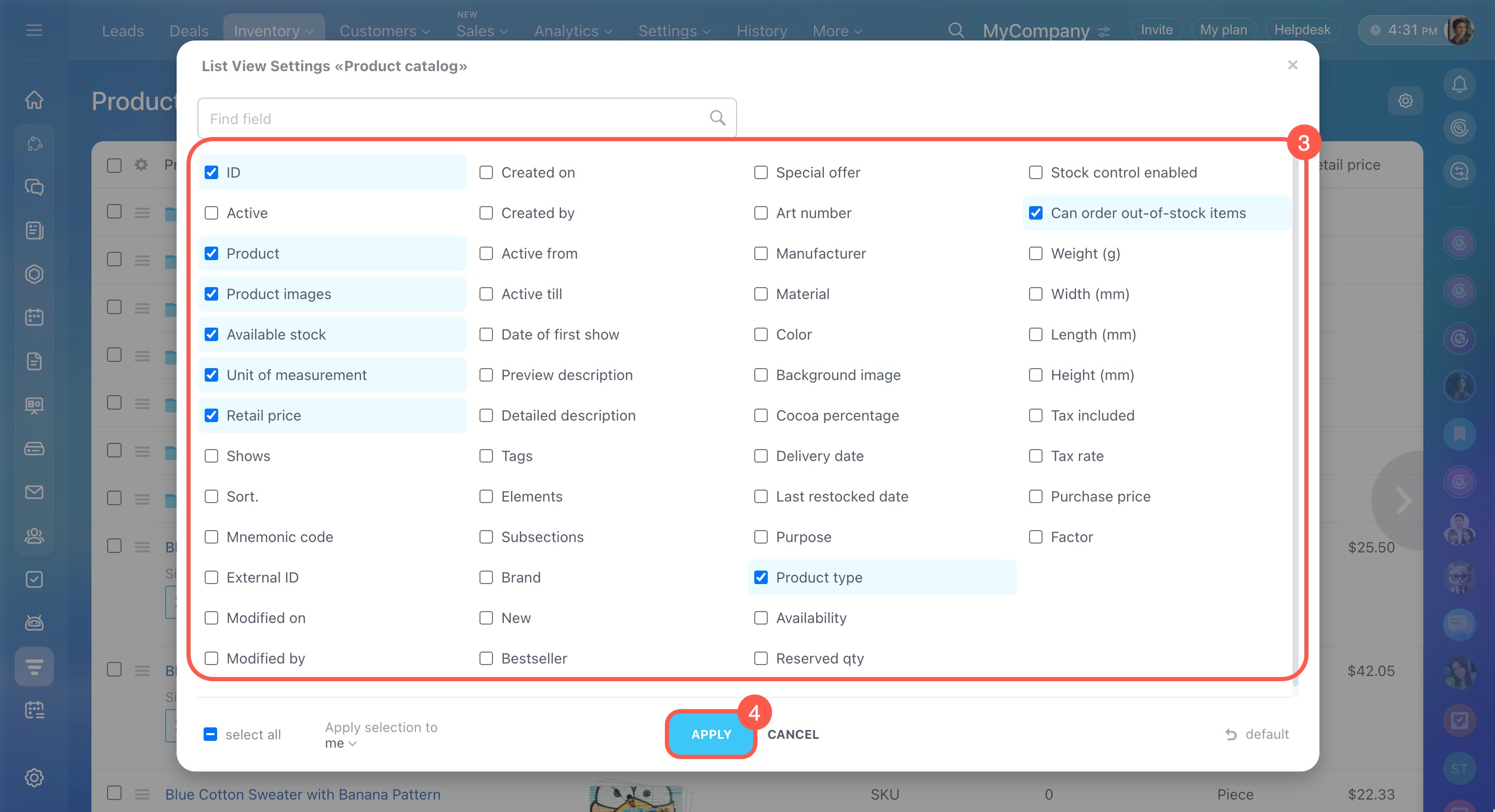
- Open the list settings (⚙️), check Available stock and any other needed fields, and click Apply.
- Click Catalog settings (⚙️) and select Excel.
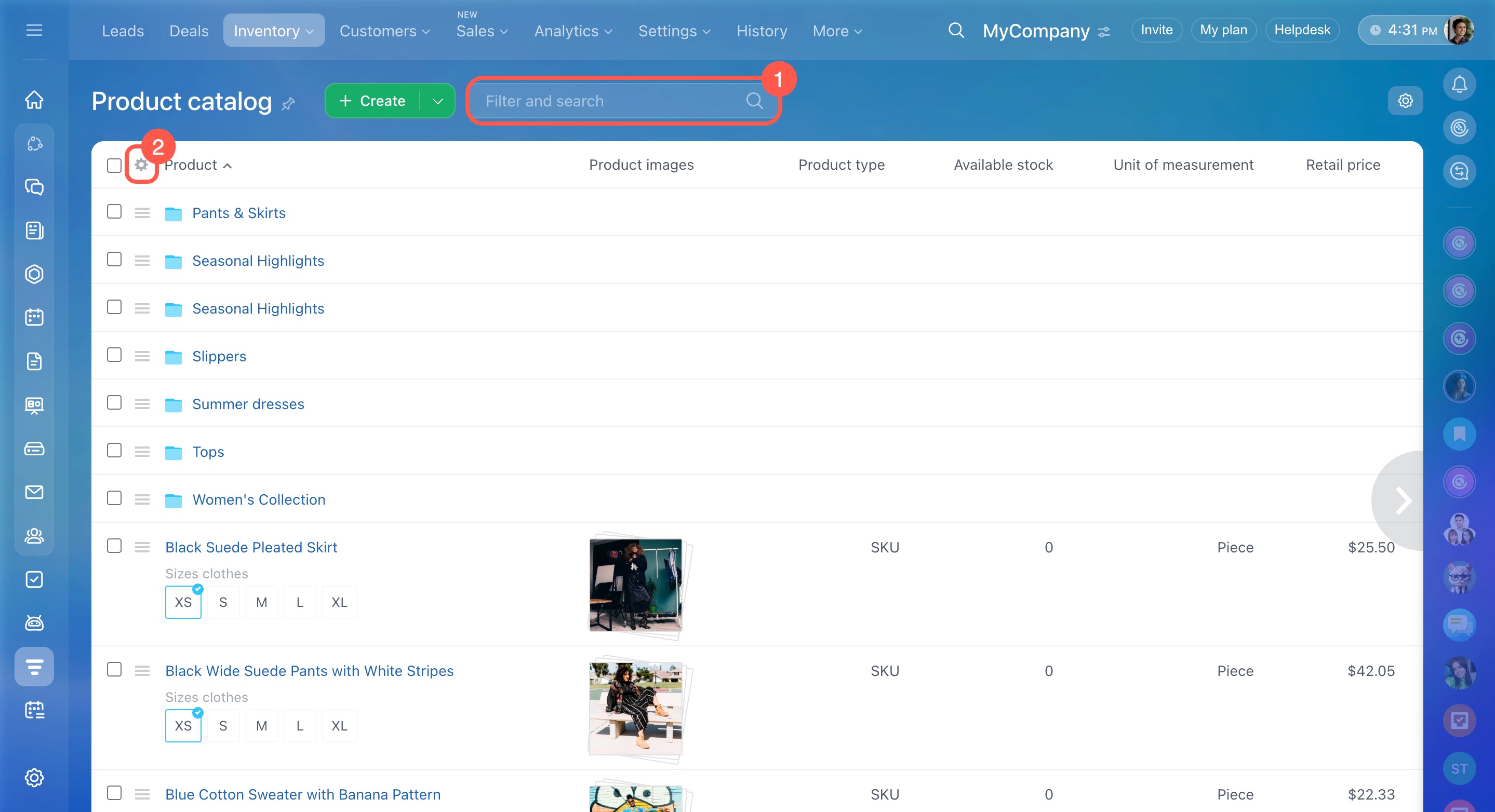
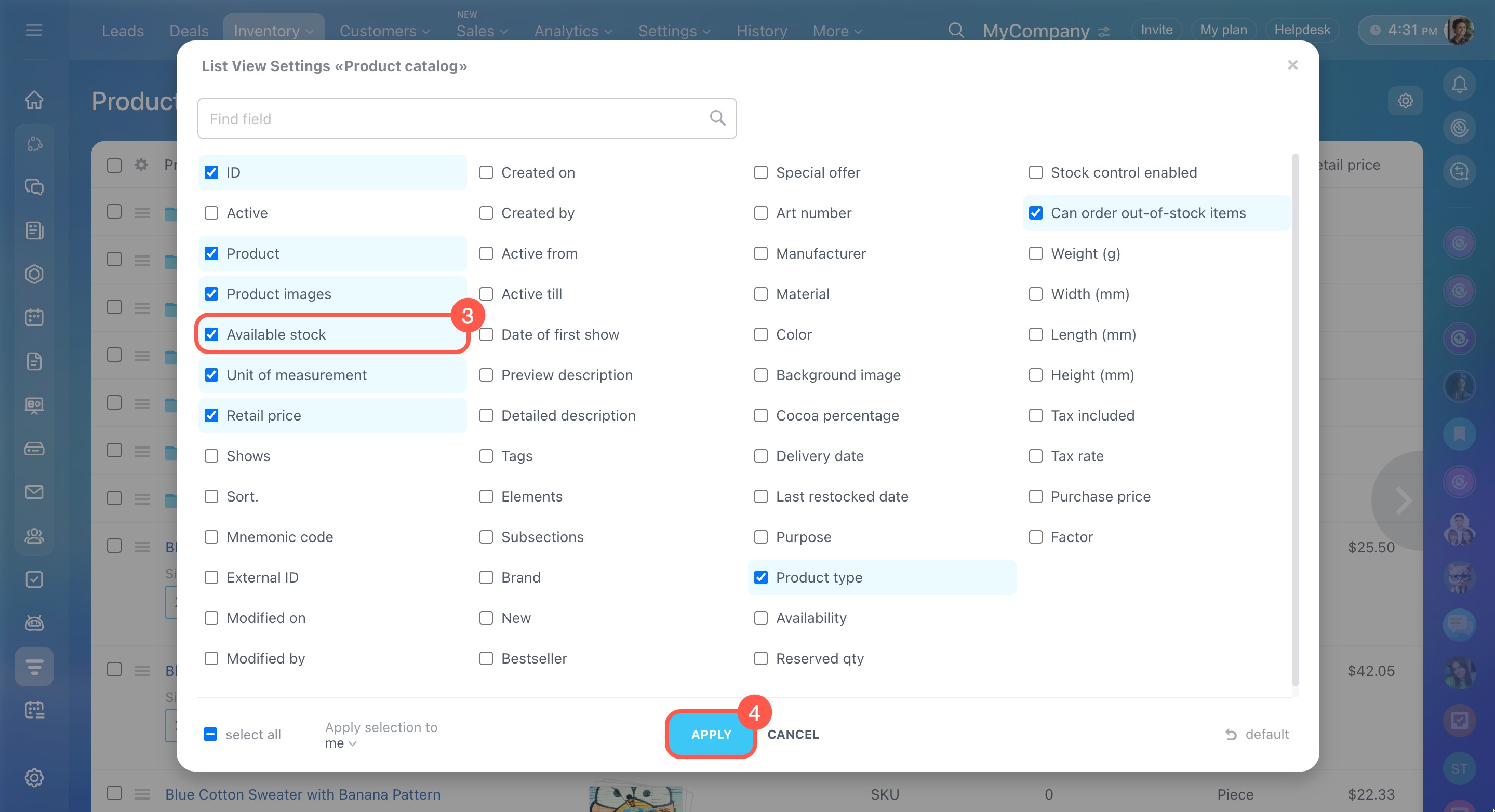
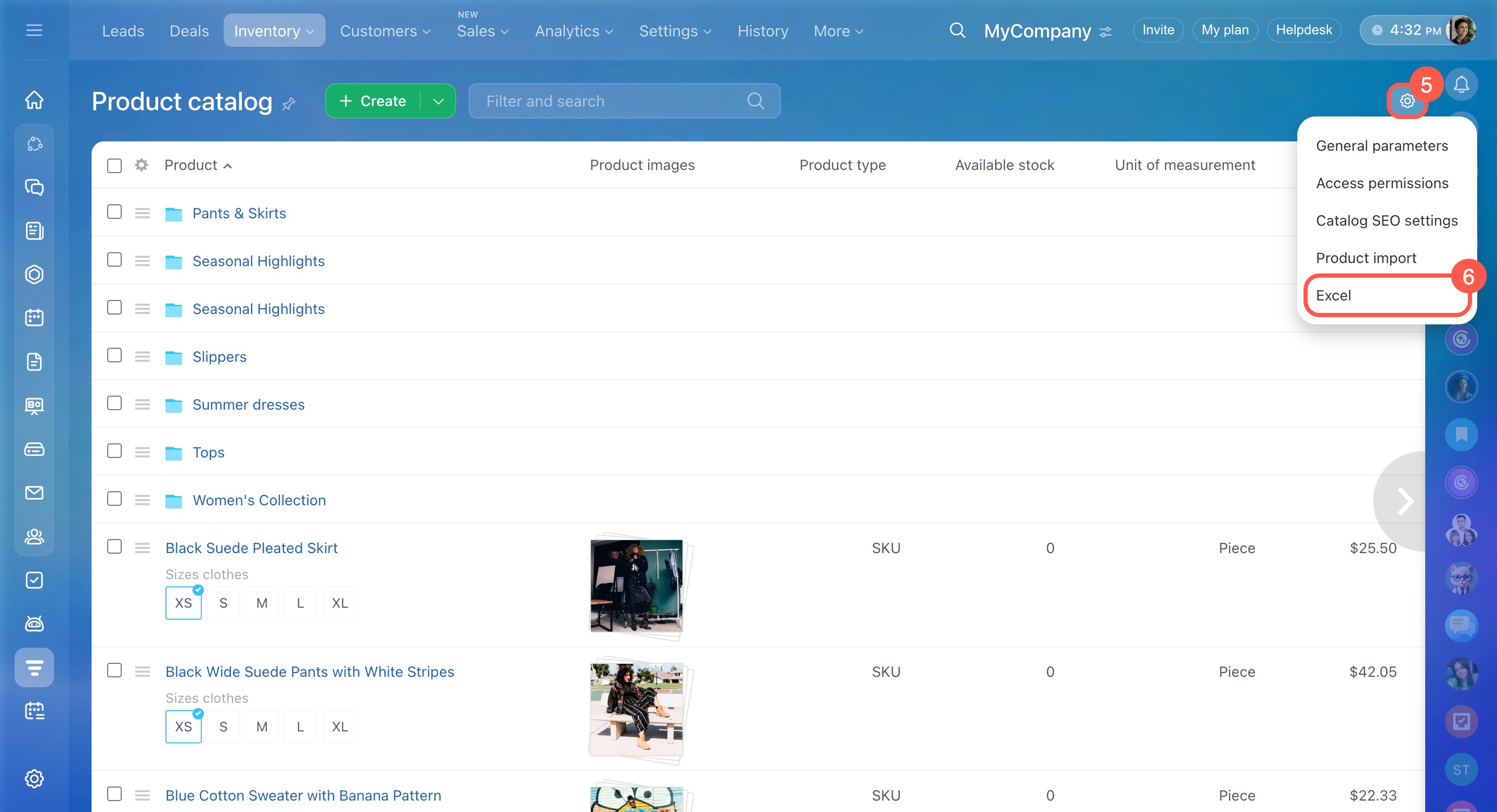
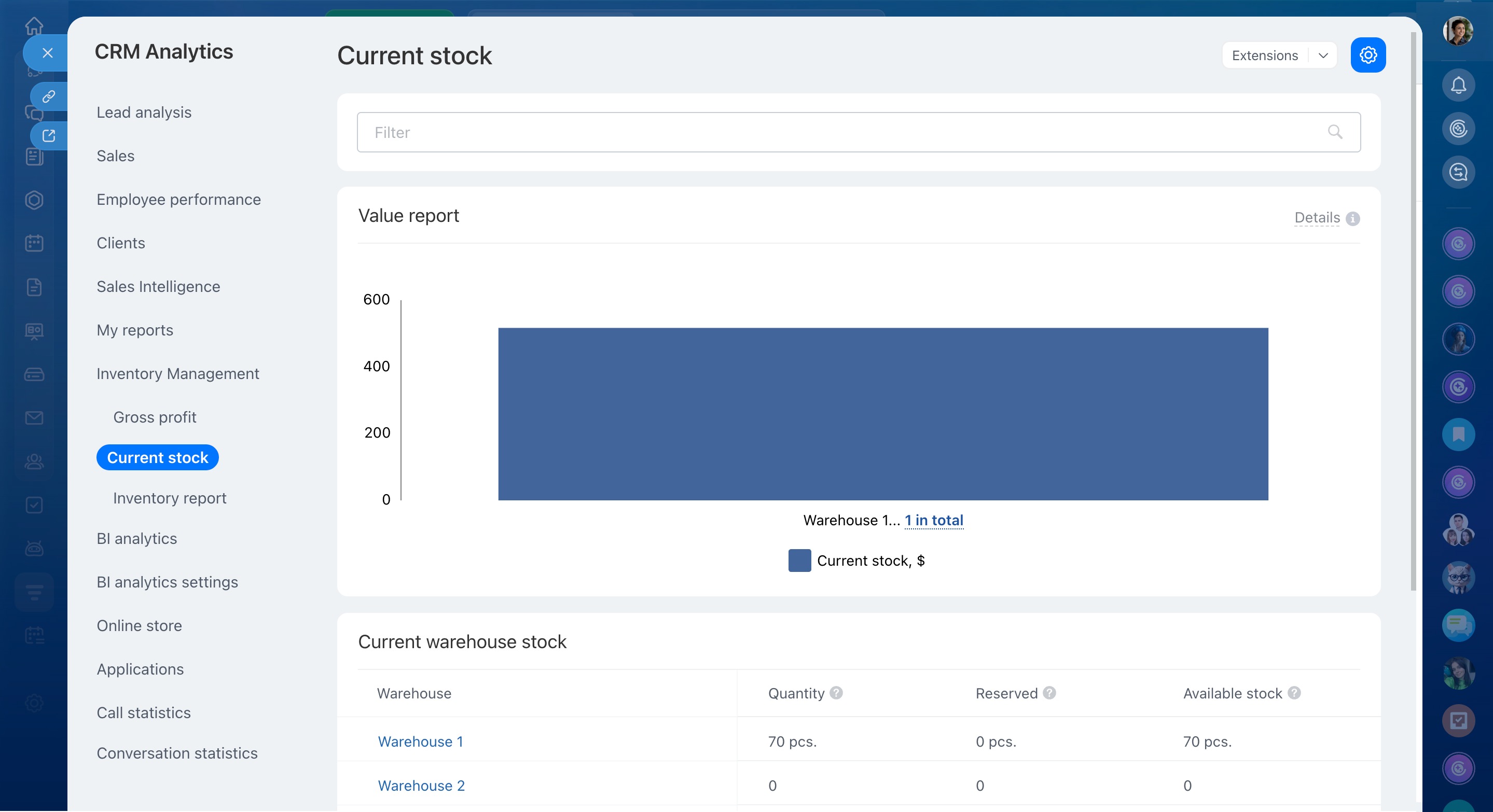
If your catalog includes products with variants, use the Current stock report instead. This report shows real-time data on total quantity, reserved stock, and available stock for each product and each warehouse.
To open the report, go to Inventory management > Analytics > Current stock. At the top, you’ll see the total inventory value at purchase prices. Below that is a detailed table with stock levels for each warehouse.
Current stock report
What to do if a product doesn’t appear in search when adding it to a deal
If a product doesn’t appear in the search when you try to add it to a deal, it’s likely inactive in the catalog.
Add products to the catalog in CRM
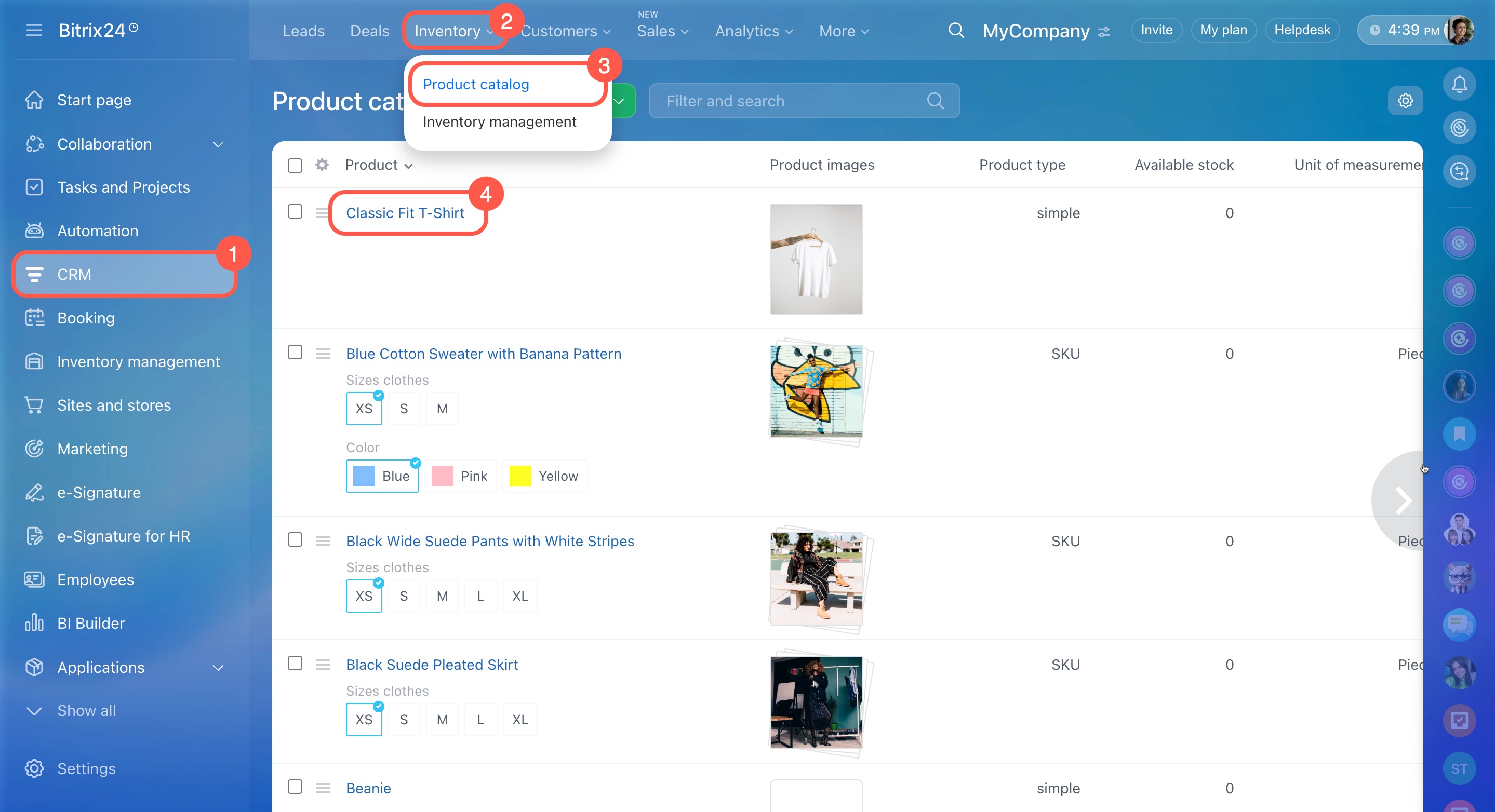
To change the product's activity status:
- Go to CRM > Inventory > Product catalog and open the product.
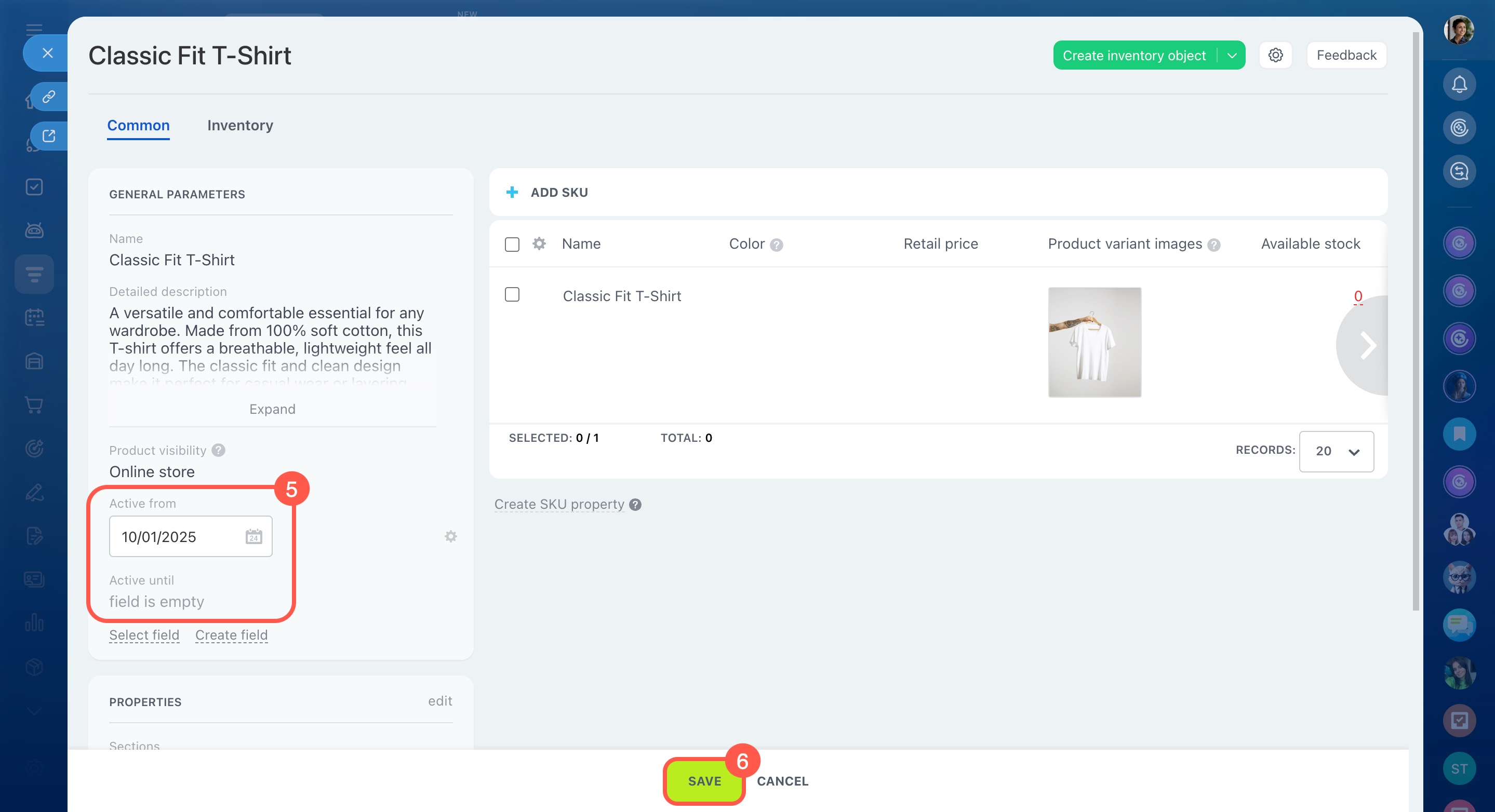
- Check the fields in the product form:
Active from — set a past date.
Active until — specify a future date or leave this field empty. - Click Save.
After that, the product will appear in the search and will be available for use in deals.
How to convert a product into a service and vice versa
Your catalog can include both products and services. Products are physical items that are tracked in inventory. Services are non-physical offerings that are not tracked in inventory and do not support variants—for example, one hour of consulting or a single dry-cleaning service.
You can change the product type if it doesn’t have variants. For example, if a service now includes physical equipment, you can convert it into a product—or change a product into a service if inventory tracking is no longer needed.
To convert an item:
- Go to CRM > Inventory > Product catalog.
- Open Menu (≡) next to an item.
- Click Convert to service or Convert to product, depending on your needs.
Organizing the product and service catalog

How to change the product type from SKU to simple
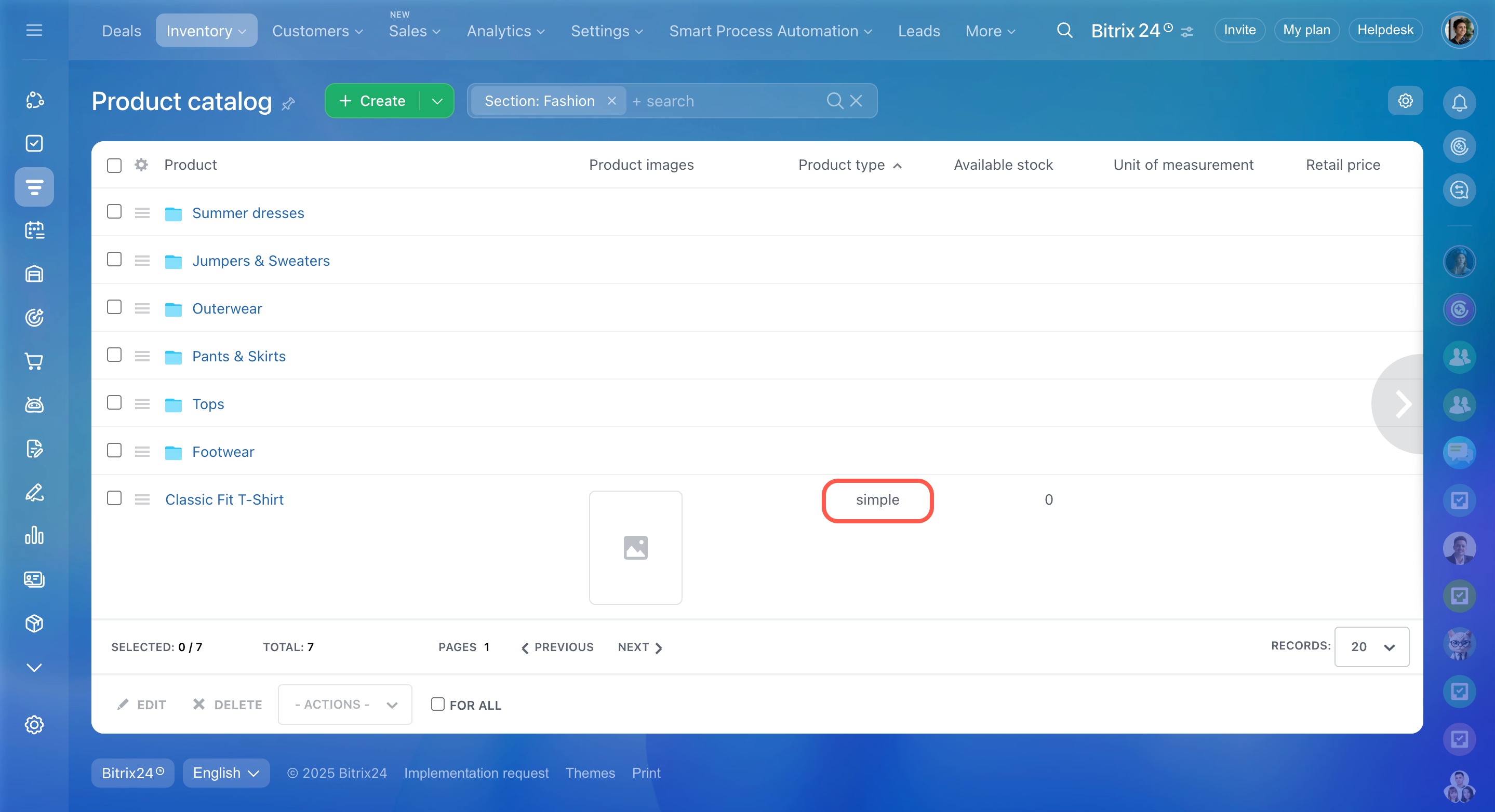
By default, all products in Bitrix24 are created with variants (SKUs). Products with variants cannot be updated through import. If you don’t use variants, you can change the product type to simple.
Working with product variants
Update products by importing CSV file
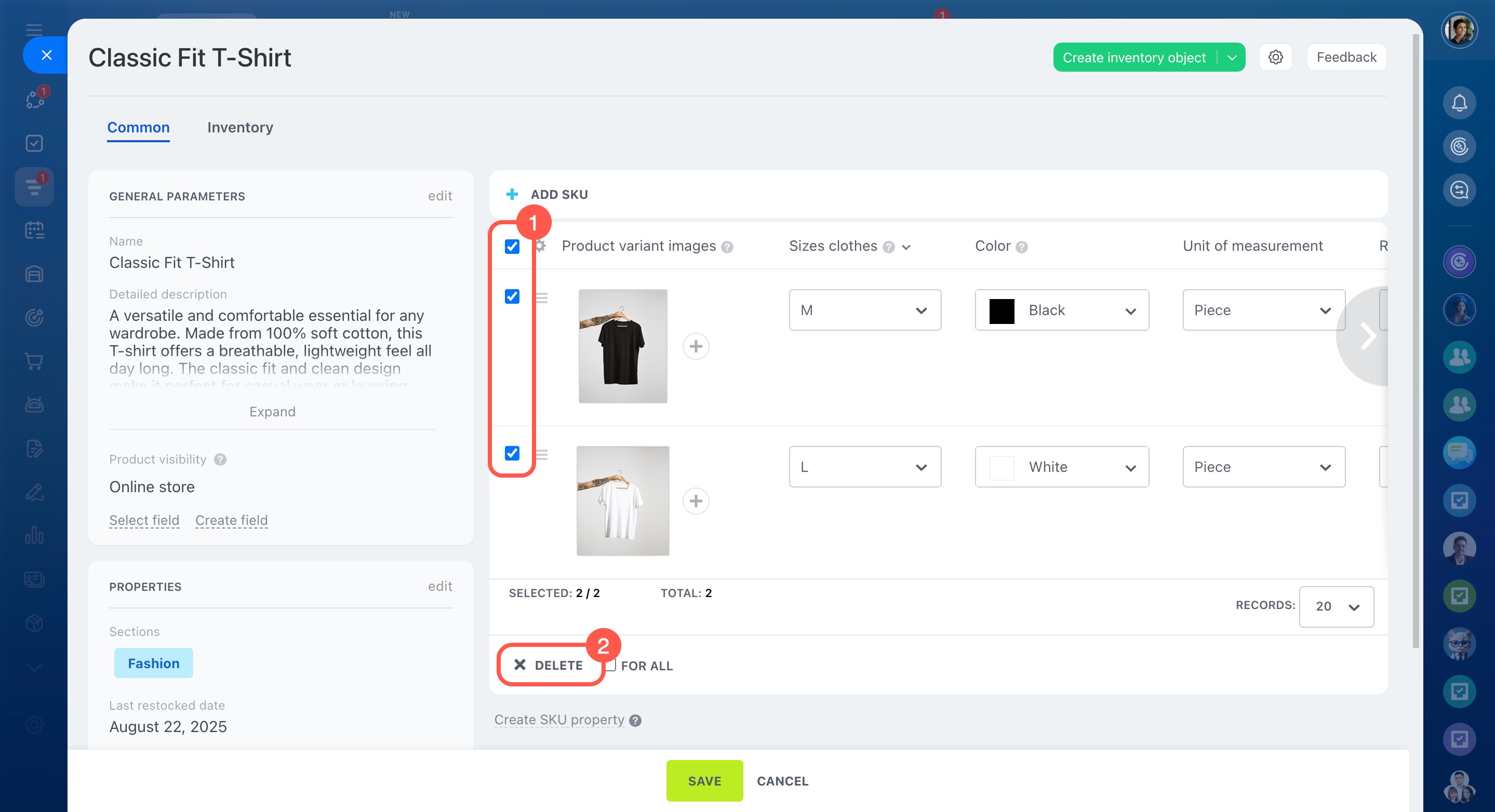
To change the product type:
- Open the product that has variants.
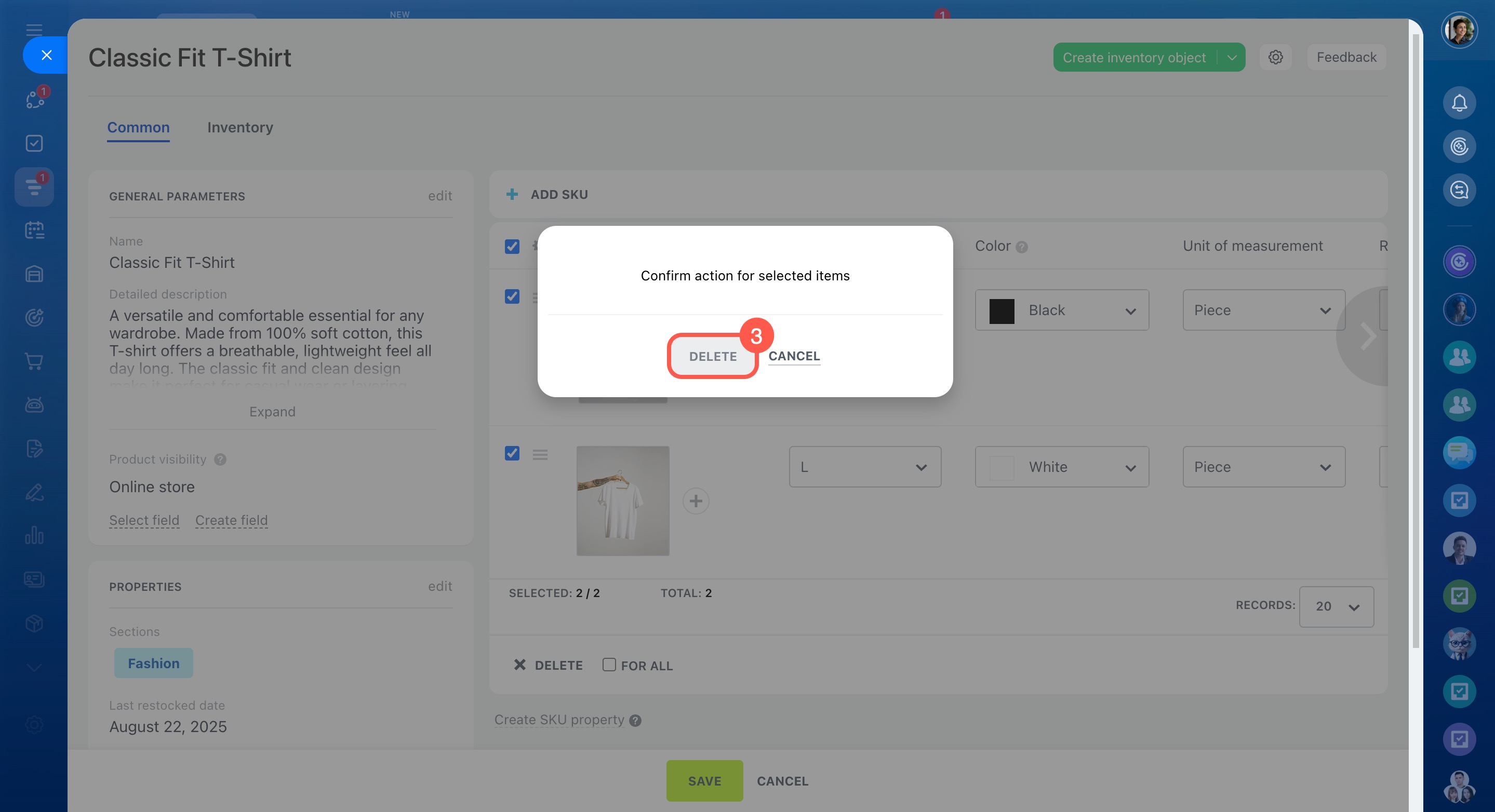
- Click Delete next to each variant and do not save the changes.
- After all variants are deleted, refresh the page. The product will appear as simple.
How to create a product variant (SKU) property and use it in a deal
SKU properties let you store additional product details such as color, size, material, supplier, and other characteristics. These properties can also be used in the deal form when adding a product.
Working with product variants
Product and variant properties
Custom product fields in the deal form
Step 1. Create a product variant (SKU) property
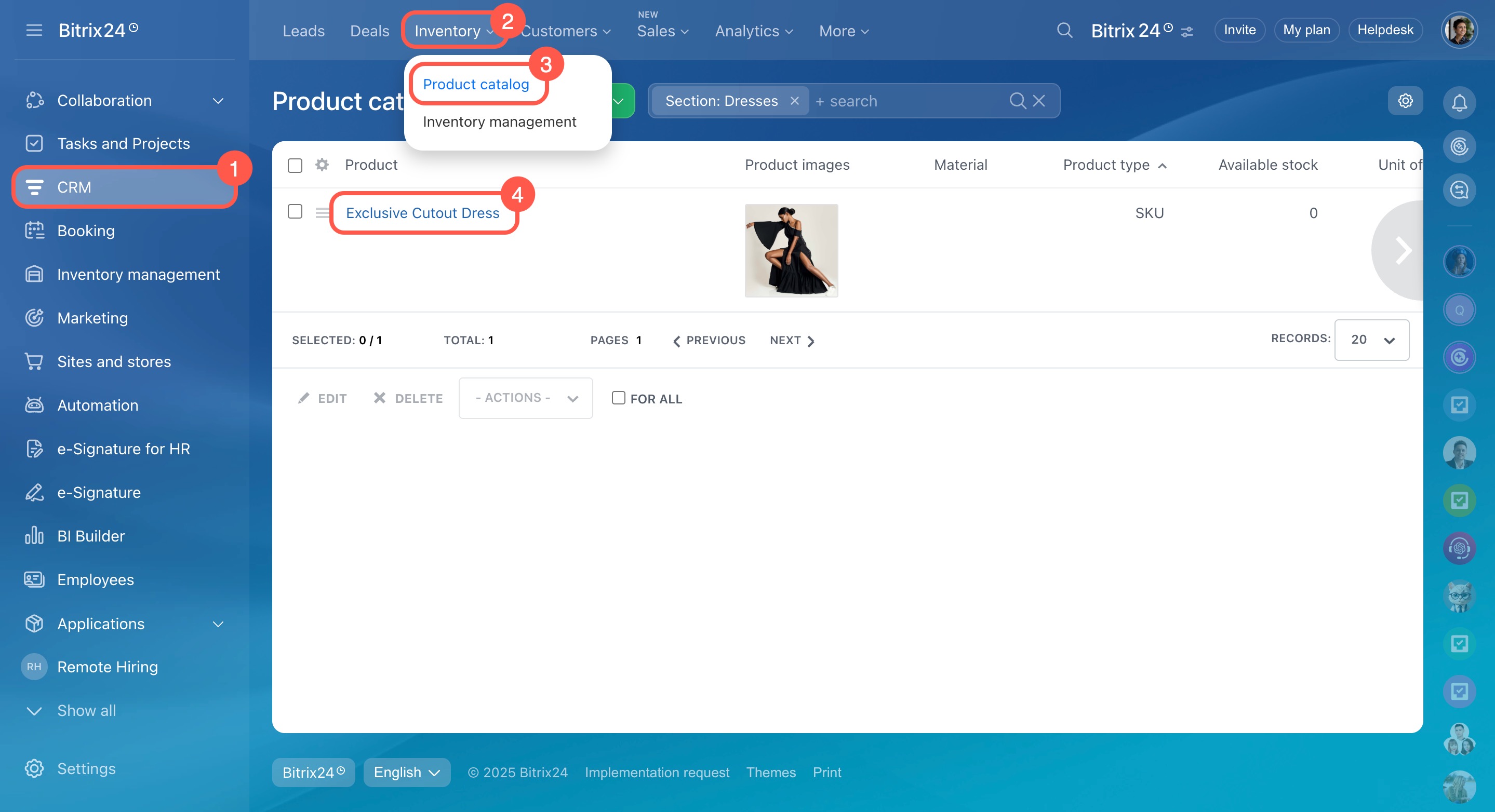
- Go to CRM > Inventory > Product catalog and open the product with variants.
- Click Create SKU property and select the appropriate type.
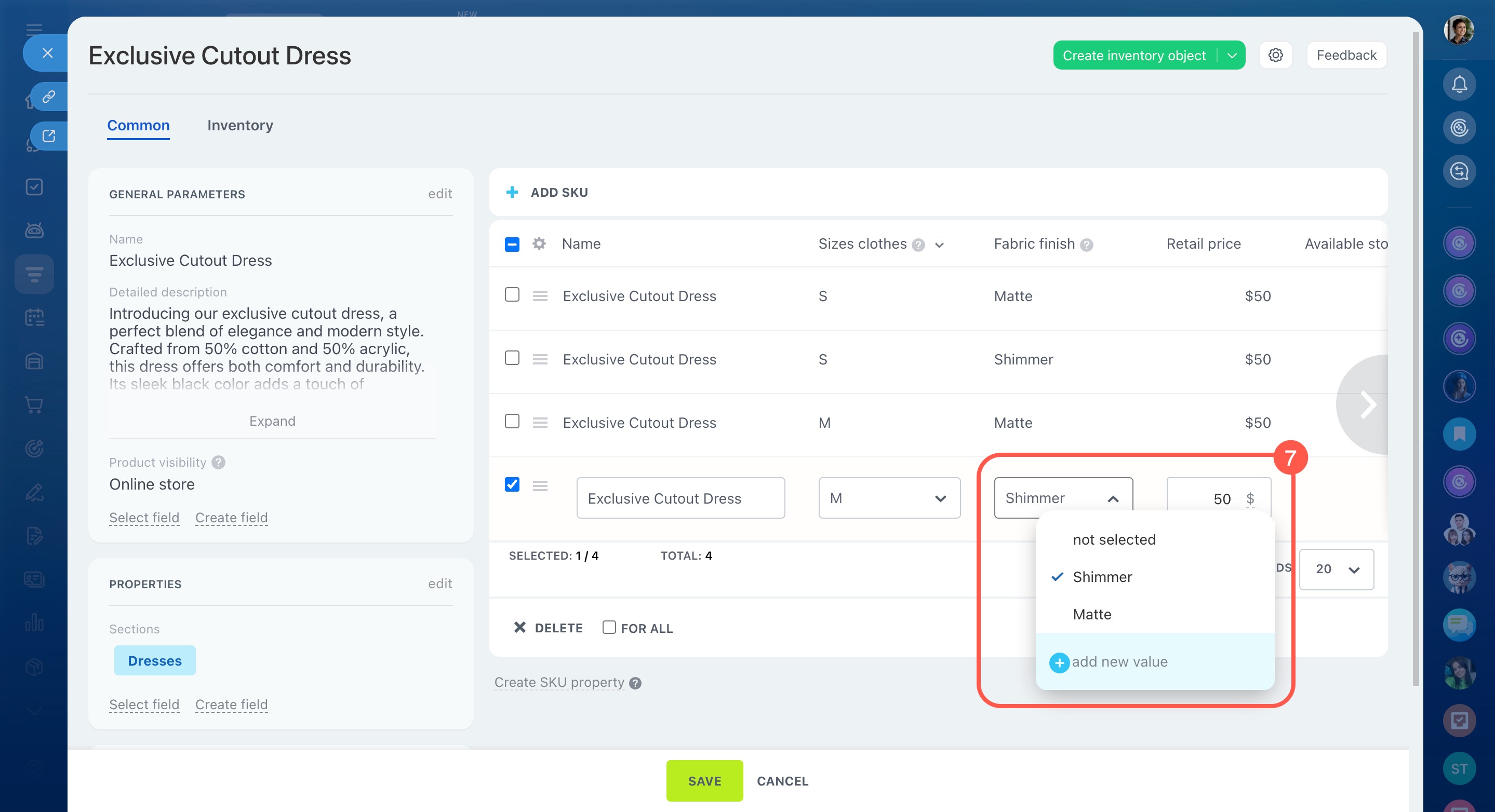
- Enter the field name and set the list values, if needed.
- Save the new property.
You can now assign unique values to each variant. For example, you can specify a different warranty period for each model.


Step 2. Use SKU properties in a deal
When you add a product to a deal, Bitrix24 shows the selected variant along with its properties. To see a different variant’s details, simply select another option—its properties will appear automatically in the product row.
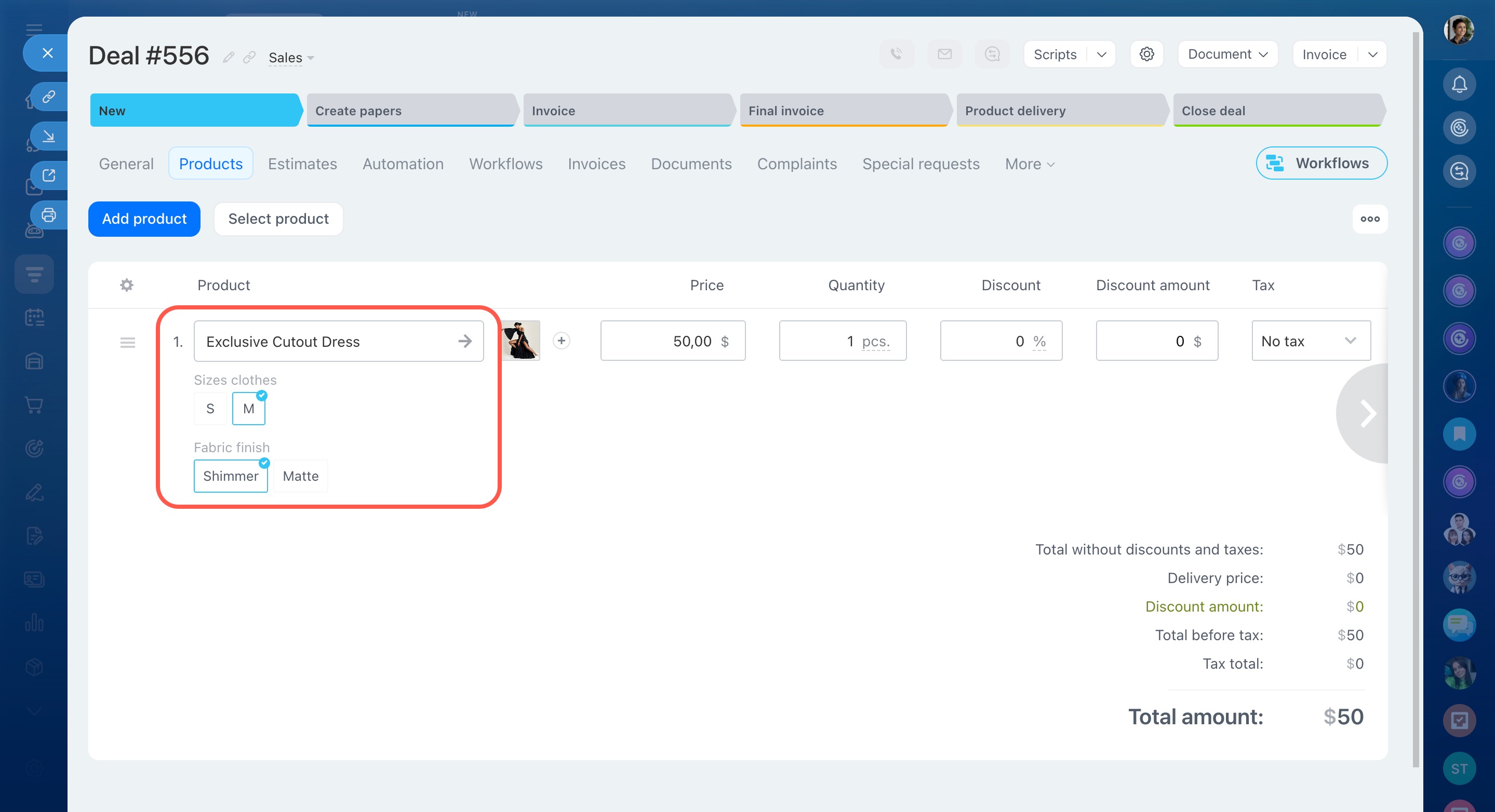
If some properties or fields don’t appear, open the product list settings (⚙️) and select which fields you want to display.

How to export or import products and services
The import and export tools help you manage large catalogs more efficiently. You can:
- Upload a ready-made list of products and services to Bitrix24
- Export your catalog to Excel to update prices or create a price list
Import and export only work with simple products (without variants). If a product has options like different colors or sizes, those variants must be added manually in the product form.
Importing and exporting products and services
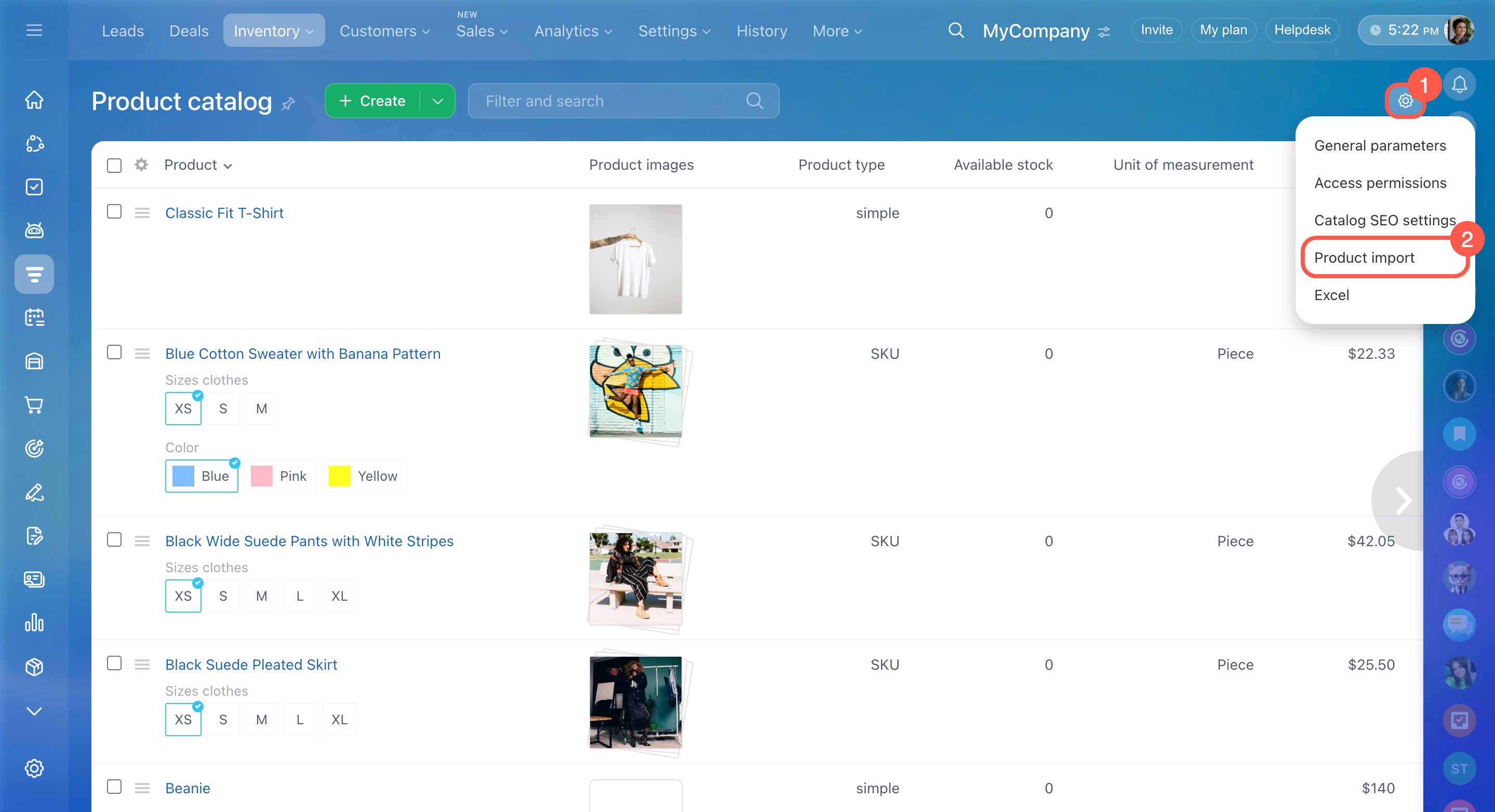
How to import products
- Click Settings (⚙️).
- Select Product import.
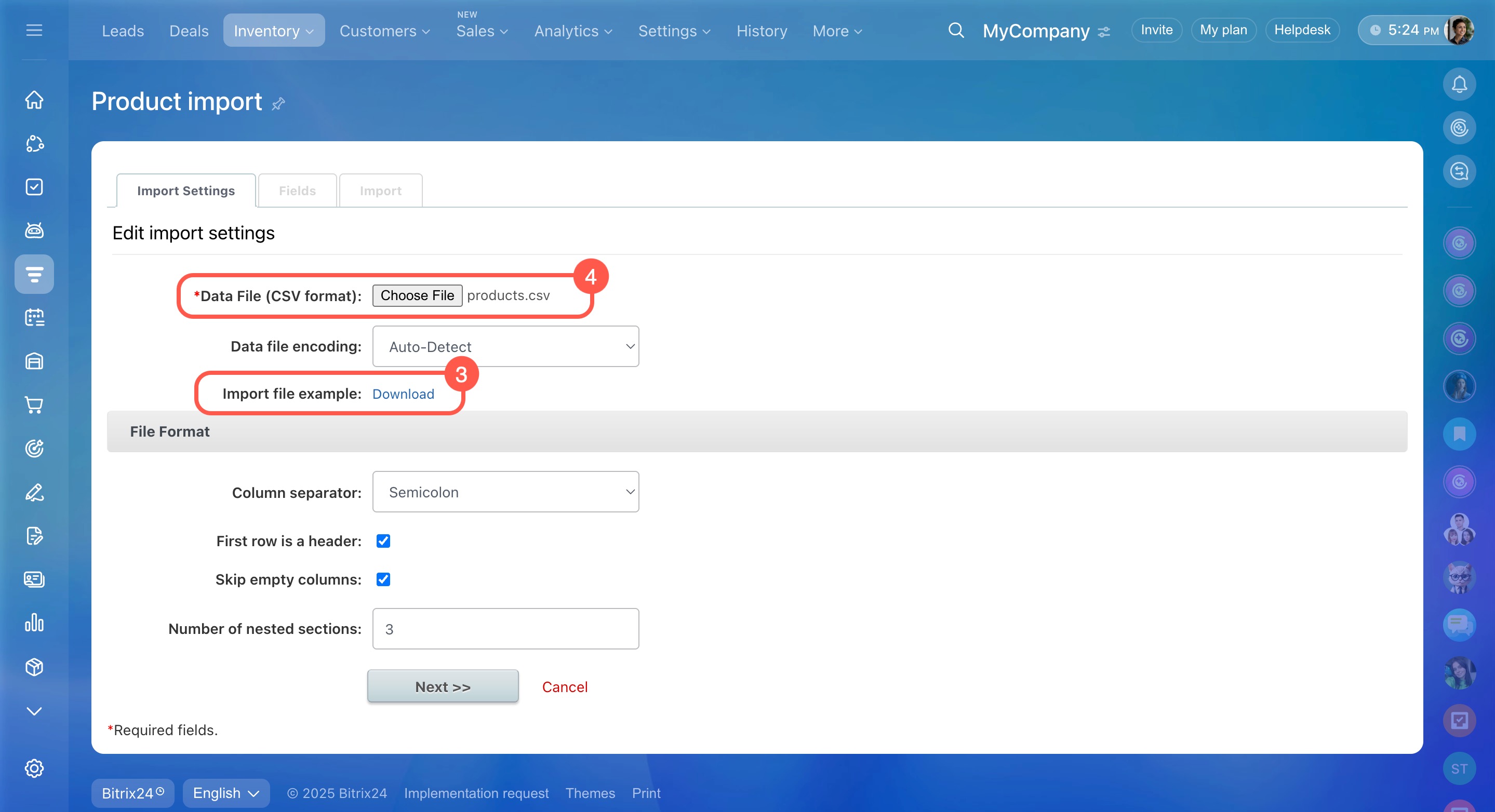
- Download the import template and fill it out.
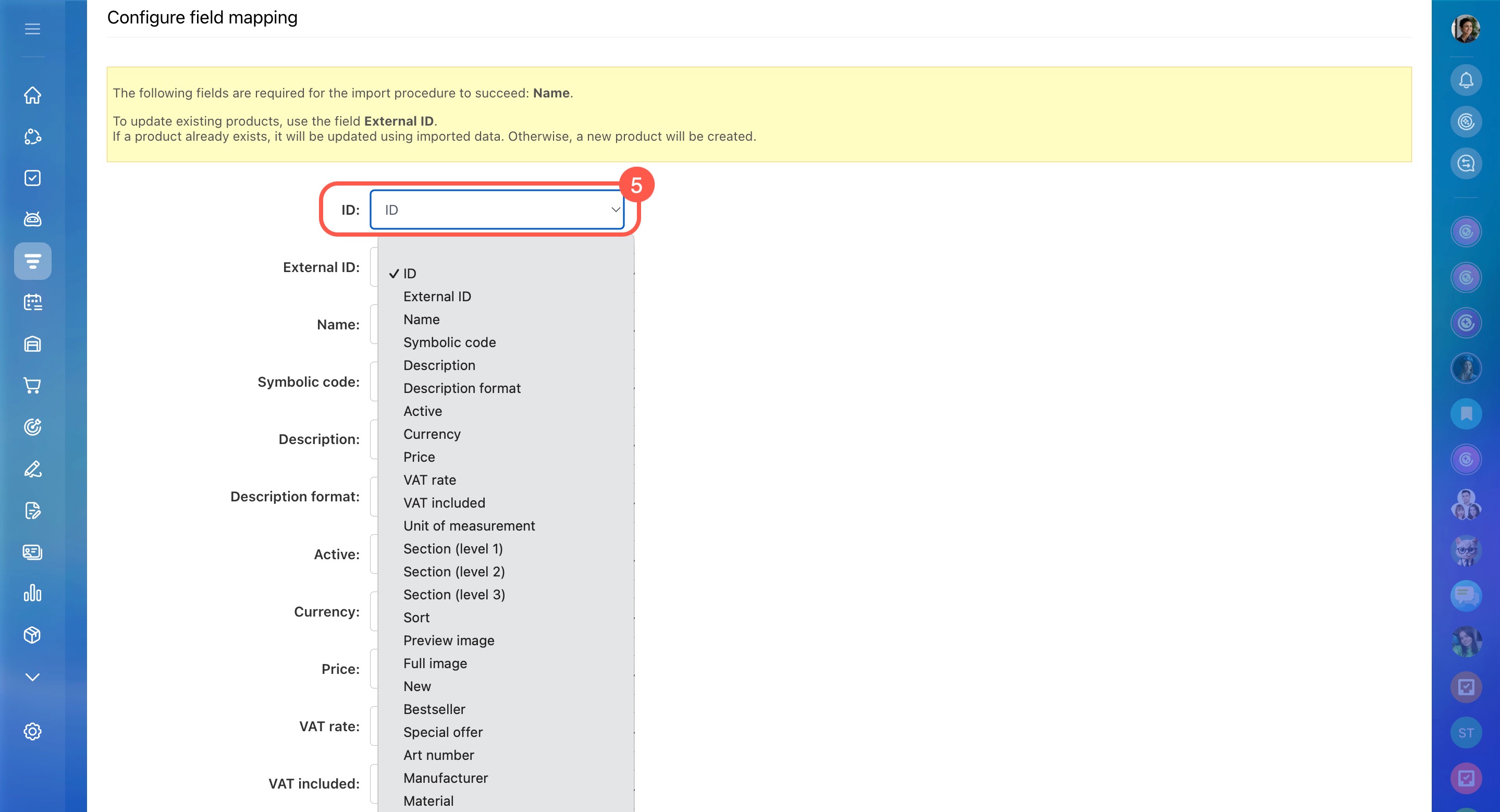
- Upload the completed file to Bitrix24 and check the field mapping.
How to export products
- Clear all search filters to display all products and services in the catalog.
- Open the list settings (⚙️), check the fields you want to export, and click Apply.
- Click Catalog settings (⚙️) and choose Excel.