
Bitrix24 sites are made up of ready-to-use blocks. If the standard set of elements doesn’t meet your needs, you can modify it using the Superblock editing mode in the site builder. This mode allows you to add or remove text, buttons, images, and other elements within a block without programming skills.
Bitrix24 plans and pricing
Site access permissions
Enable Superblock editing mode
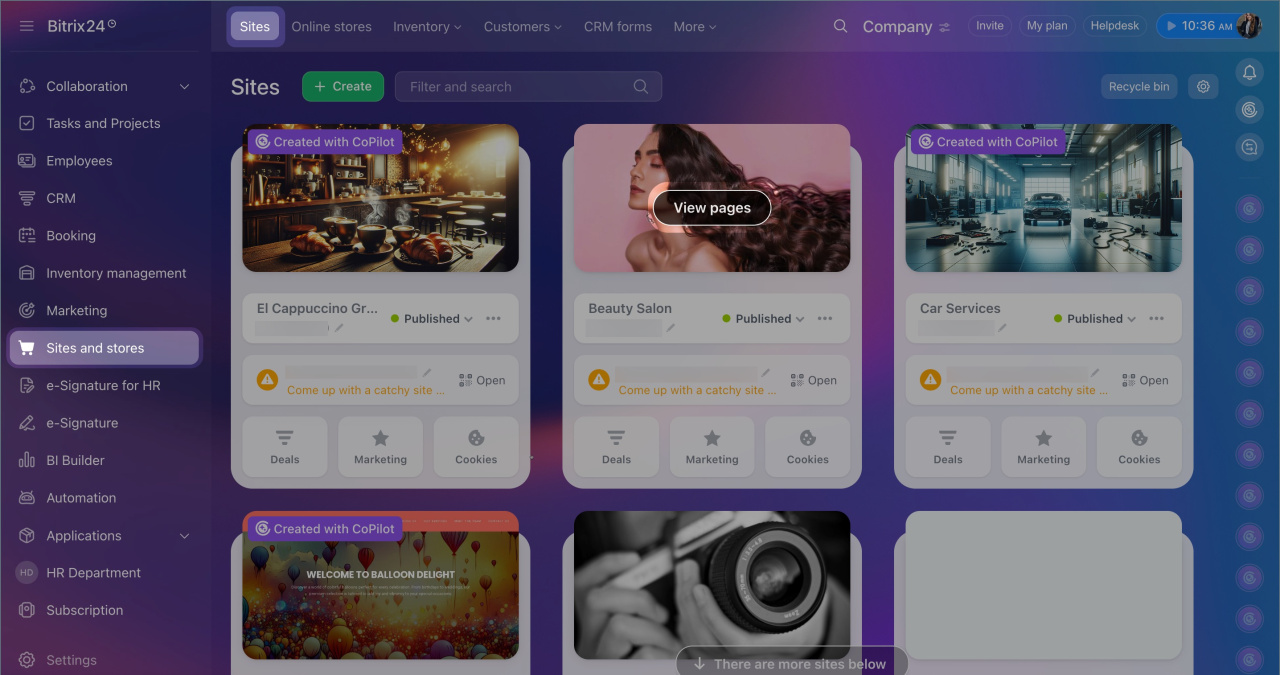
- Go to the Sites and Stores section > Sites.
- Hover over the site and click View pages.
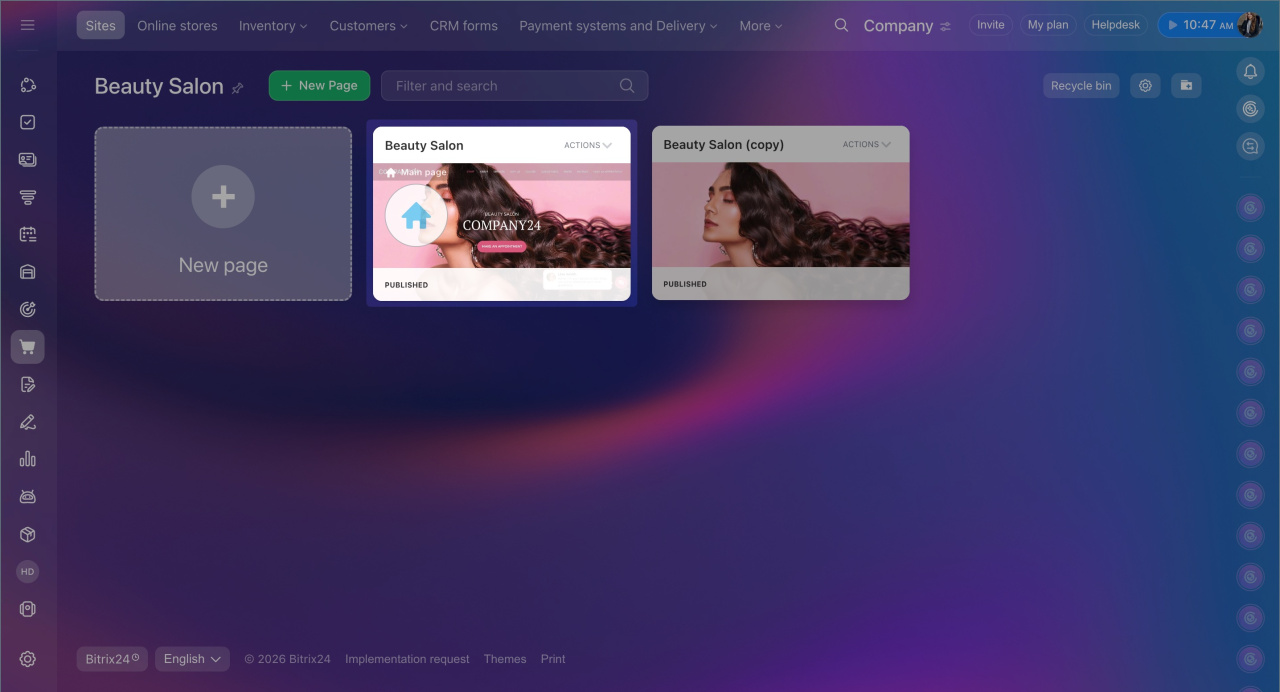
- Select the page.
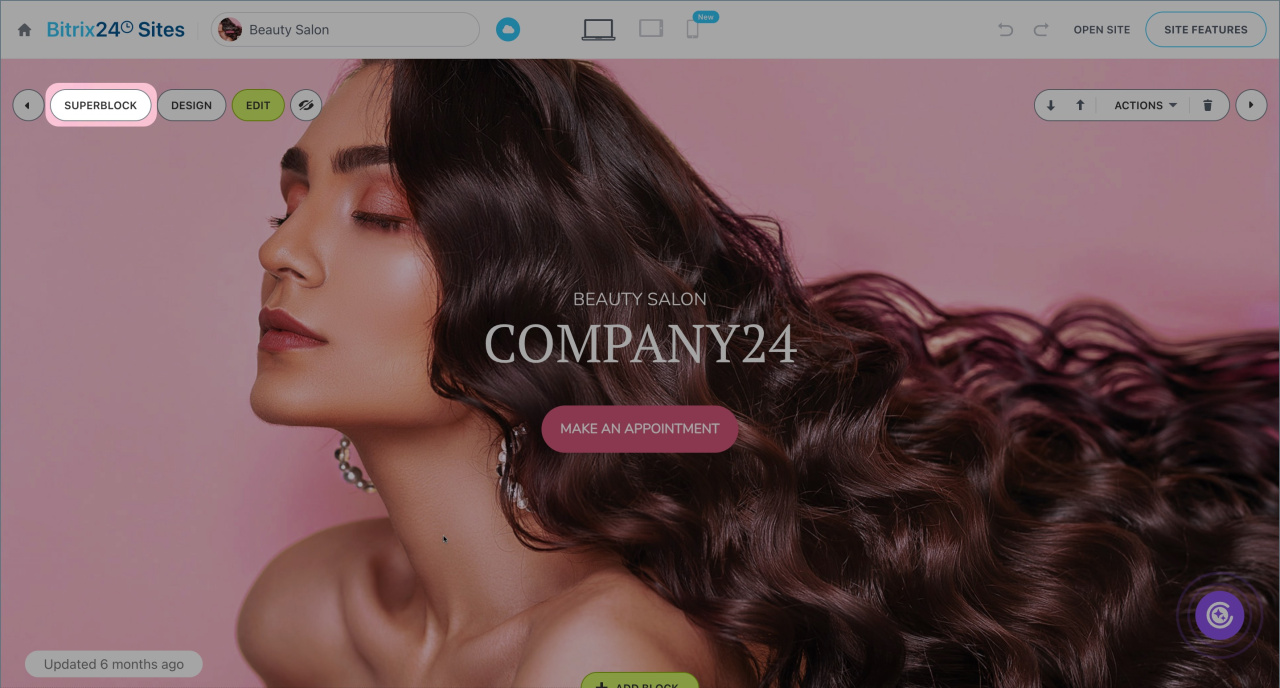
- Hover over the block you want to modify and click Superblock.
Add or remove an item
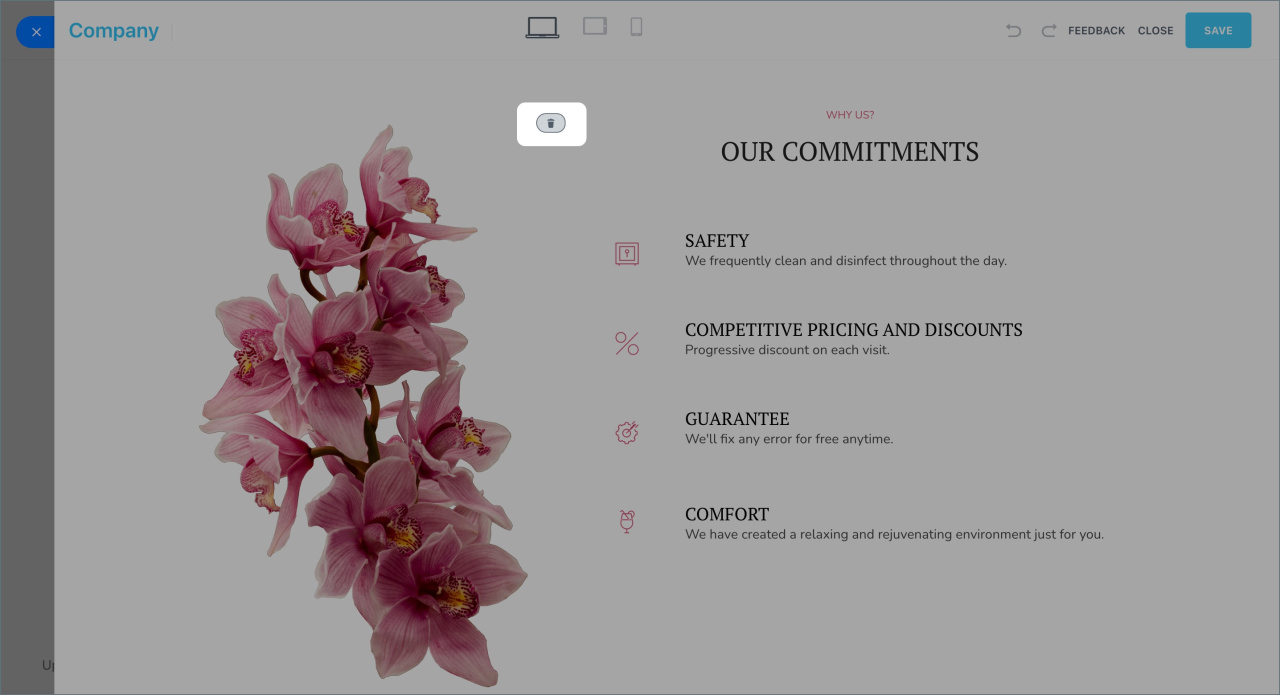
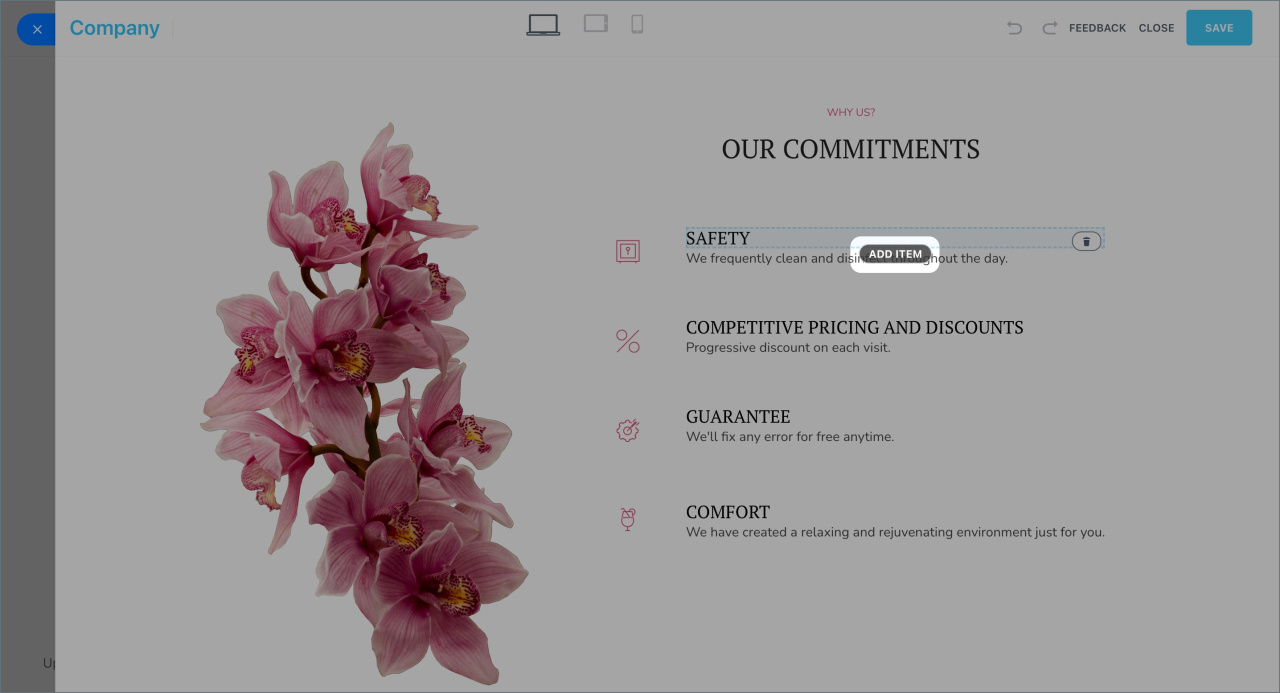
- Click the recycle bin icon to delete an item.
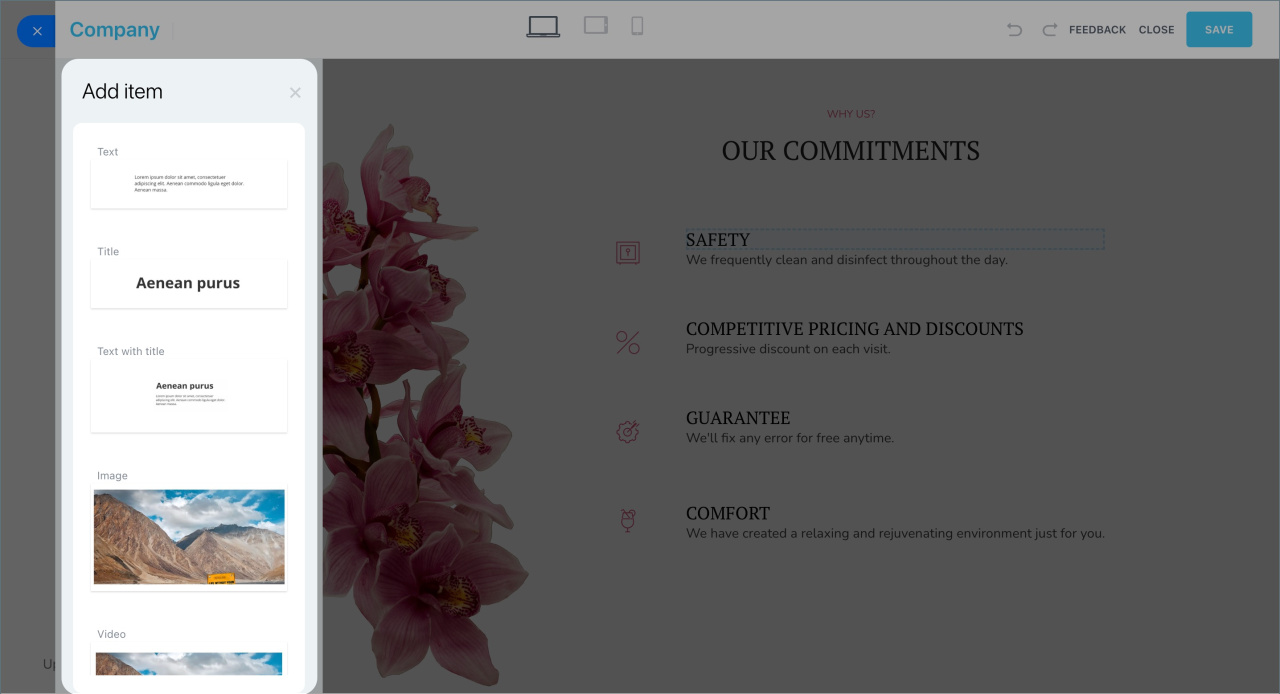
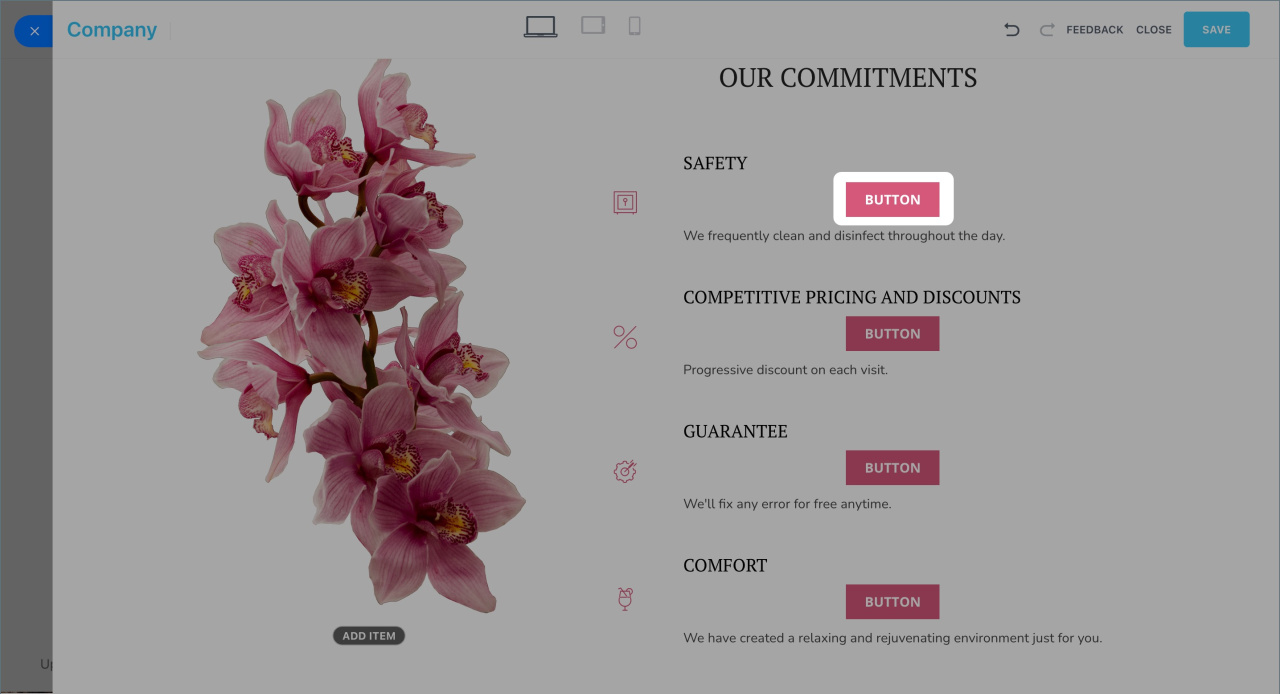
- Click Add item and select the desired one from the list to place it in the block, such as Button or Image.
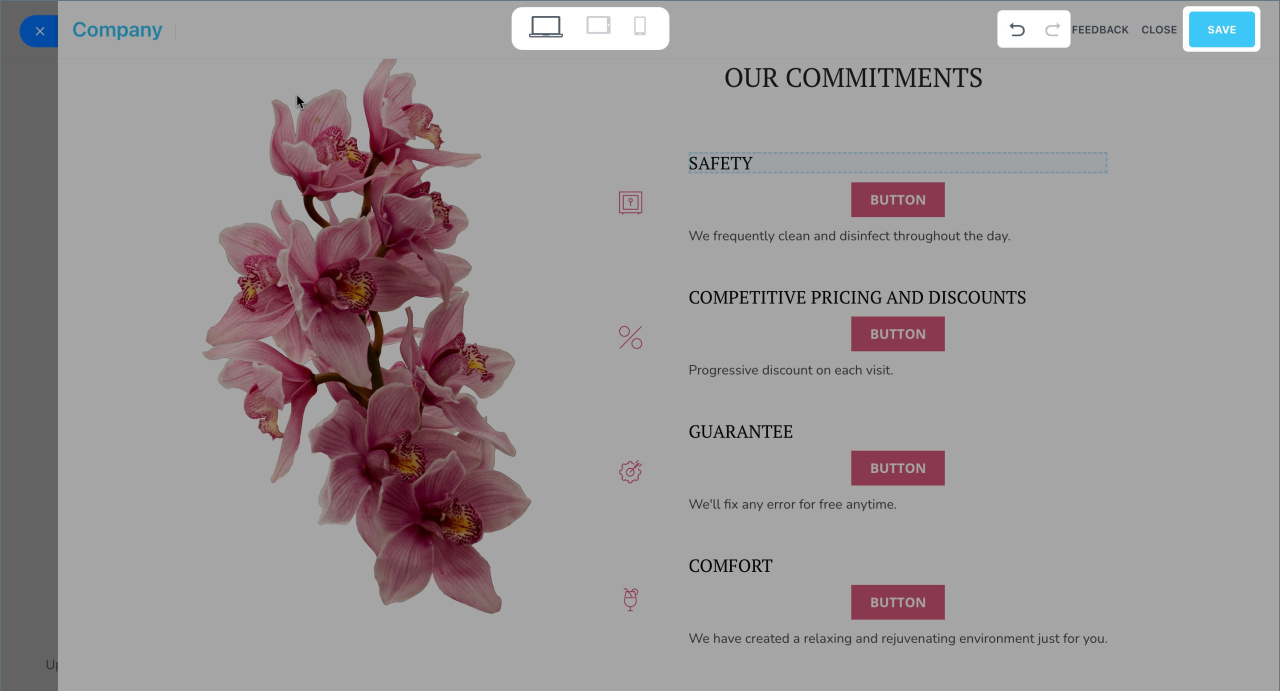
- Click the icons at the top of the screen to preview how the block will appear on different devices.
- Click Save to apply the changes and return to the regular site editing mode. The new elements will appear in the block structure, and you can configure them further.
Configure an element. Edit new elements to ensure they work correctly. For example, replace the default image or button text, or add a click action. Click the element, specify the parameters, and save the changes.
Action on click in site block elements
CoPilot in sites: how to create an image
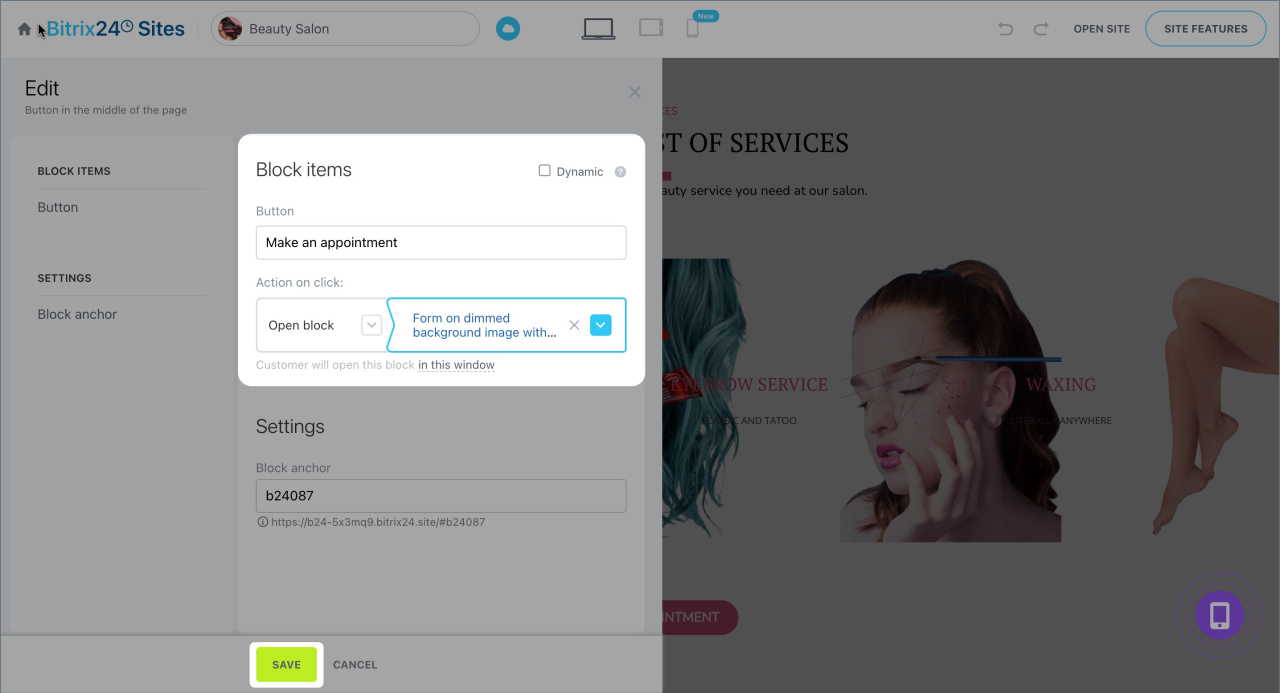
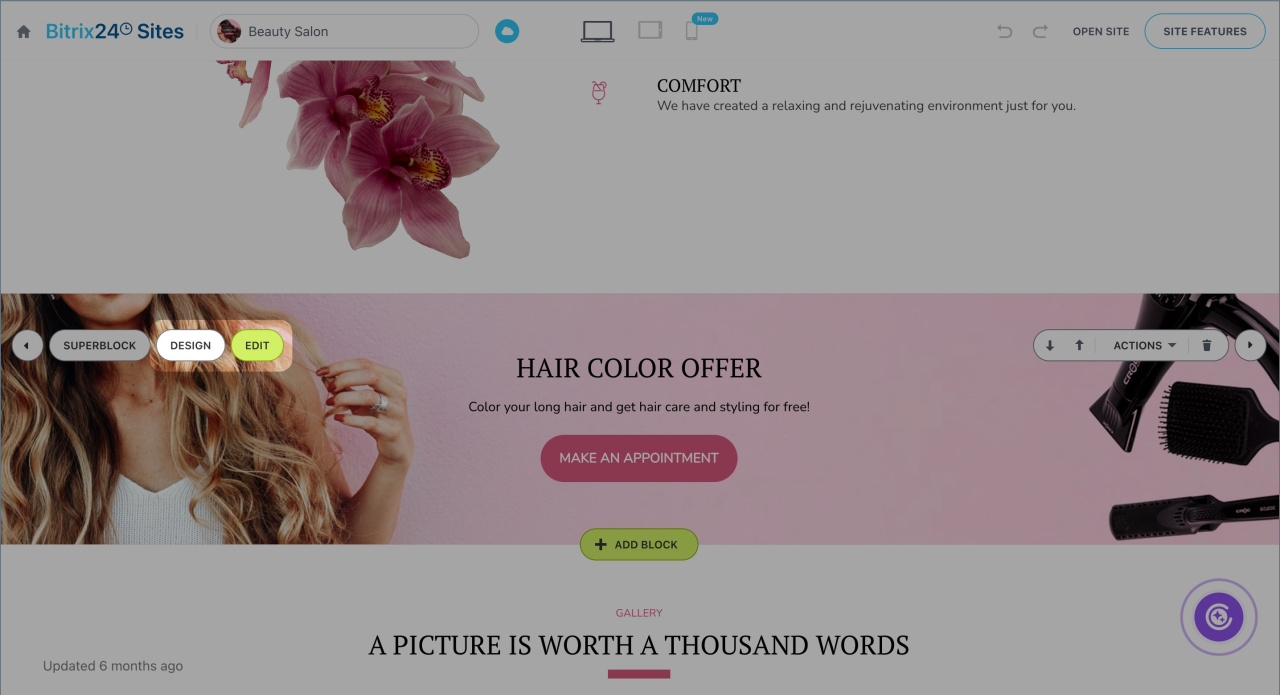
Configure a block. Adjust the settings, content, and design of the block using the Edit and Design buttons. For example, add new columns, change the background image, fonts, or spacing.
Create and configure your Bitrix24 site
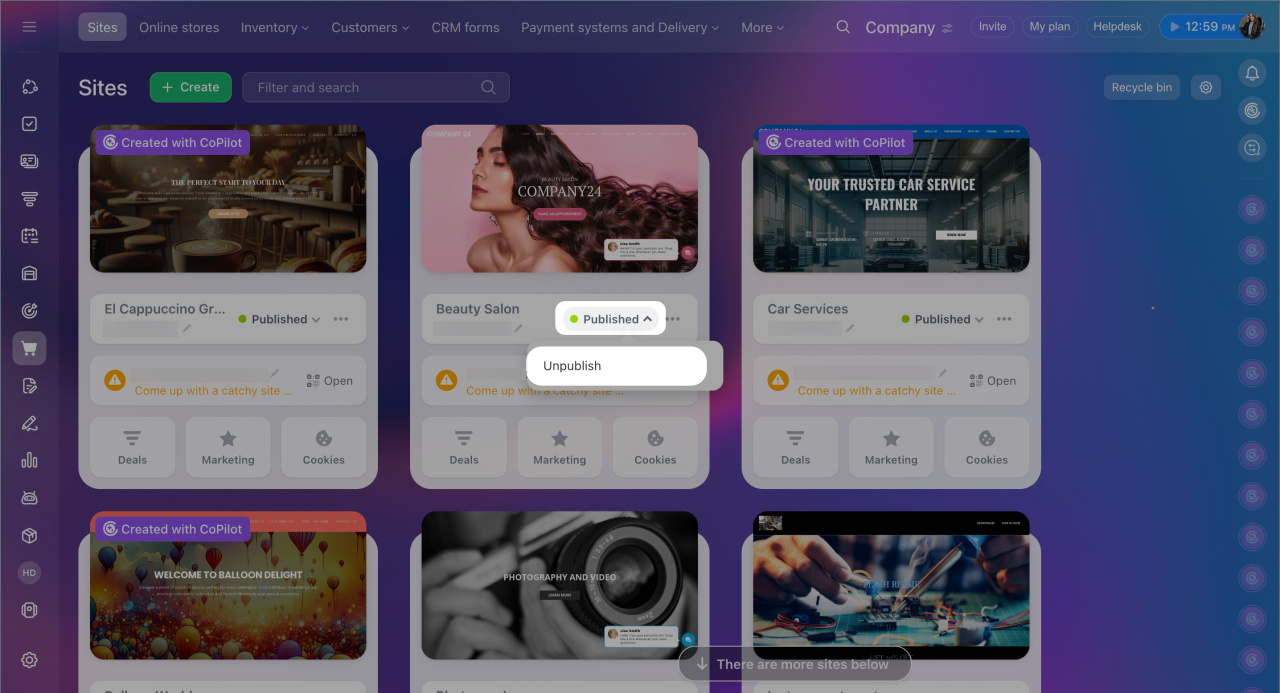
Republish the site to ensure the block displays correctly. Click the icon next to the site status, unpublish it, and then publish it again.
In brief
- Bitrix24 sites consist of ready-to-use blocks. You can modify their structure in the Superblock editing mode.
- Go to the Sites and Stores section > Sites, open the desired site, hover over the block you want to edit, and click Superblock. Add or remove elements and save the changes.
- Click an element to configure it. For example, change the button text or add a click action.
- Adjust the block’s settings, content, and design using the Edit and Design buttons.
- Republish the site to ensure the block displays correctly.
