
Recurring smart process items help ensure that repetitive actions are not forgotten. Bitrix24 automatically creates these items based on the schedule you set. For example, monthly for inventory checks or quarterly for scheduled maintenance. This reduces routine tasks and ensures important steps are not missed.
Bitrix24 plans and pricing
Only Bitrix24 administrators or employees with access permissions to add and edit items can configure recurring item creation. Access permissions are set individually for each smart process.
Role-based access permissions in CRM
Access permissions for automated solutions
In this article:
- Enable recurrence in a smart process
- Create a recurring smart process item
- Manage the list of recurring items
Enable recurrence in a smart process
To set a schedule for Bitrix24 to automatically create new items, enable recurrence in the smart process. This can be done during its creation or editing.
We will explain the setup using the CRM section as an example. It is similar in automated solutions.
Create SPA for automated solutions
During creation.
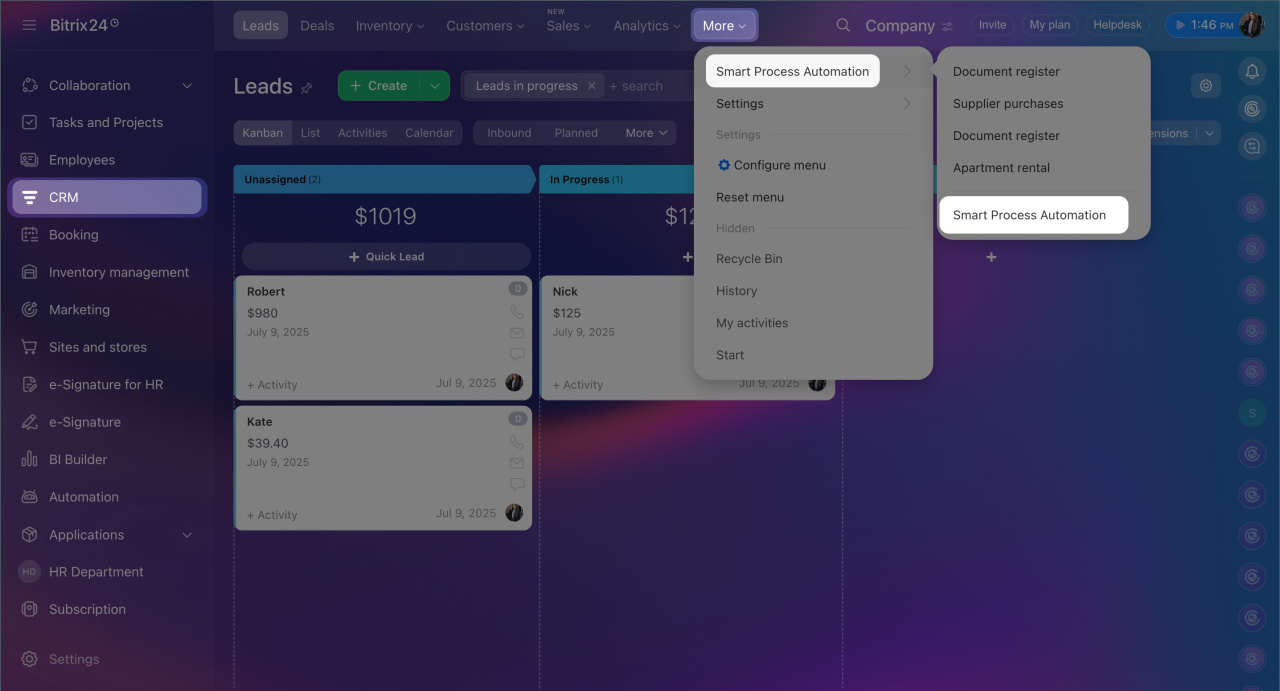
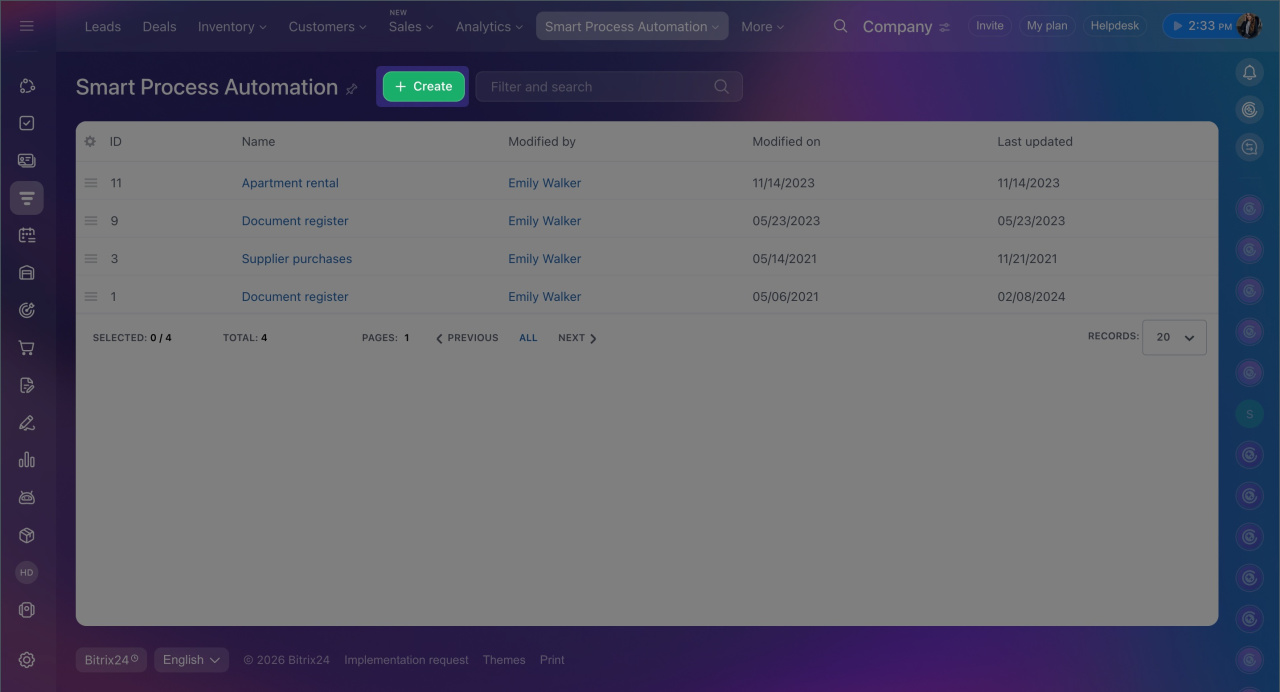
1. Go to CRM > More > Smart Processes > Smart Process List and click Create.
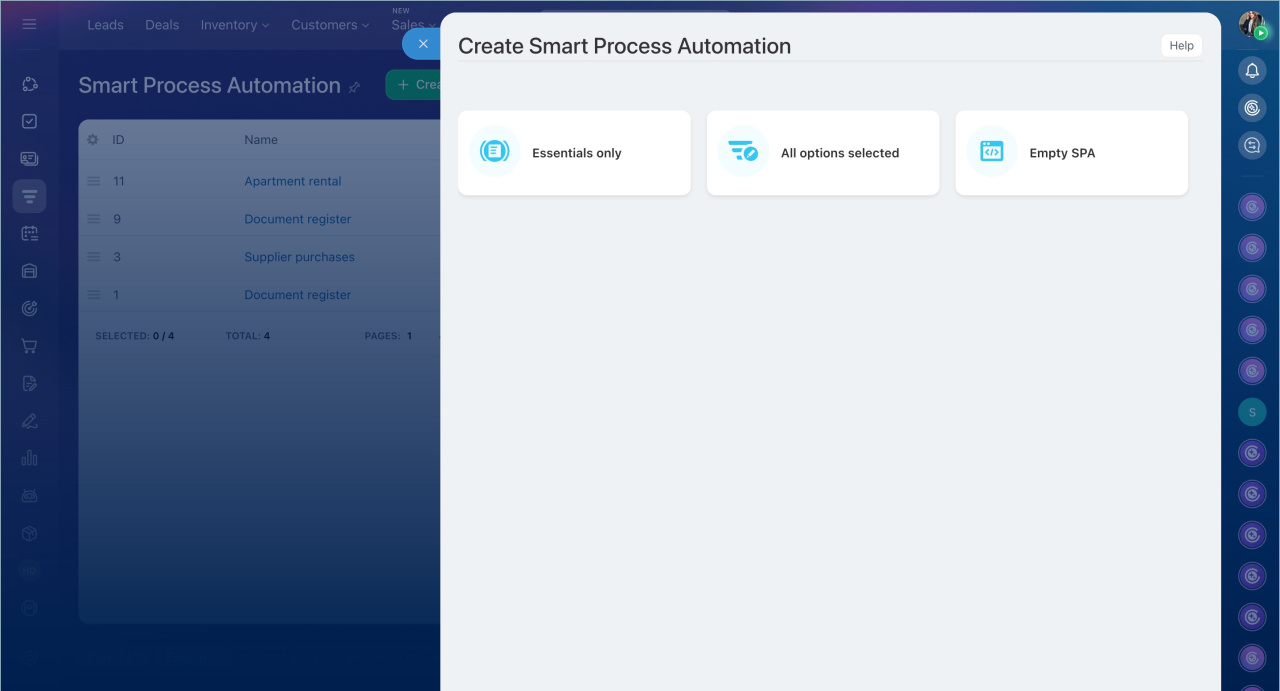
2. Select one of the predefined scenarios: List, All-in-One or From Scratch.
3. Go to the Form layout tab and in the Smart process form fields section, check Recurrence.
4. Click Save.
Create Smart Process Automation in CRM
During editing.
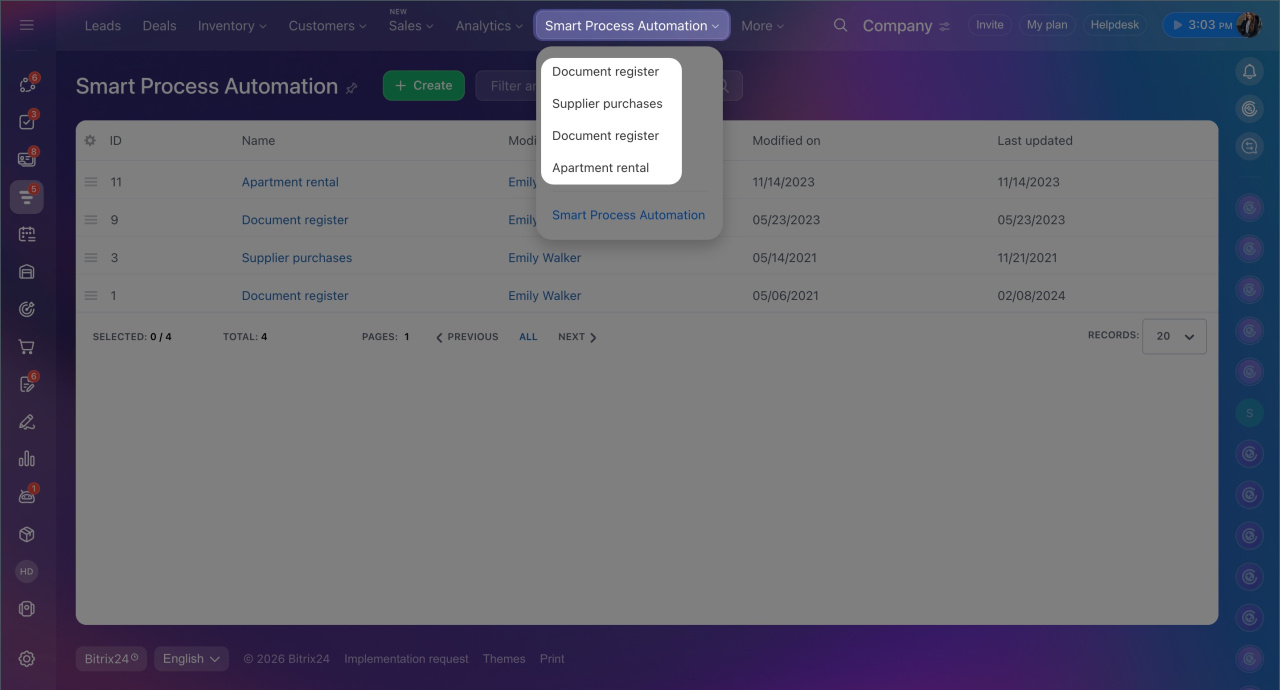
1. Go to CRM > More > Smart Process Automation and select the one.
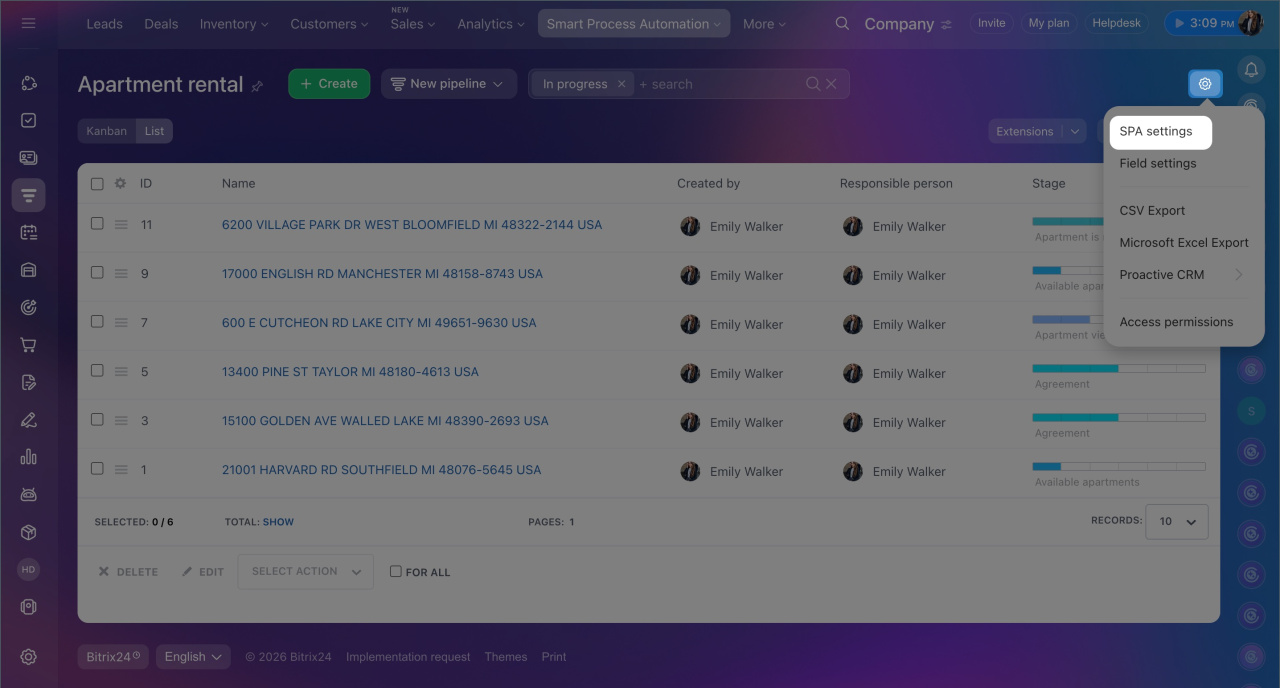
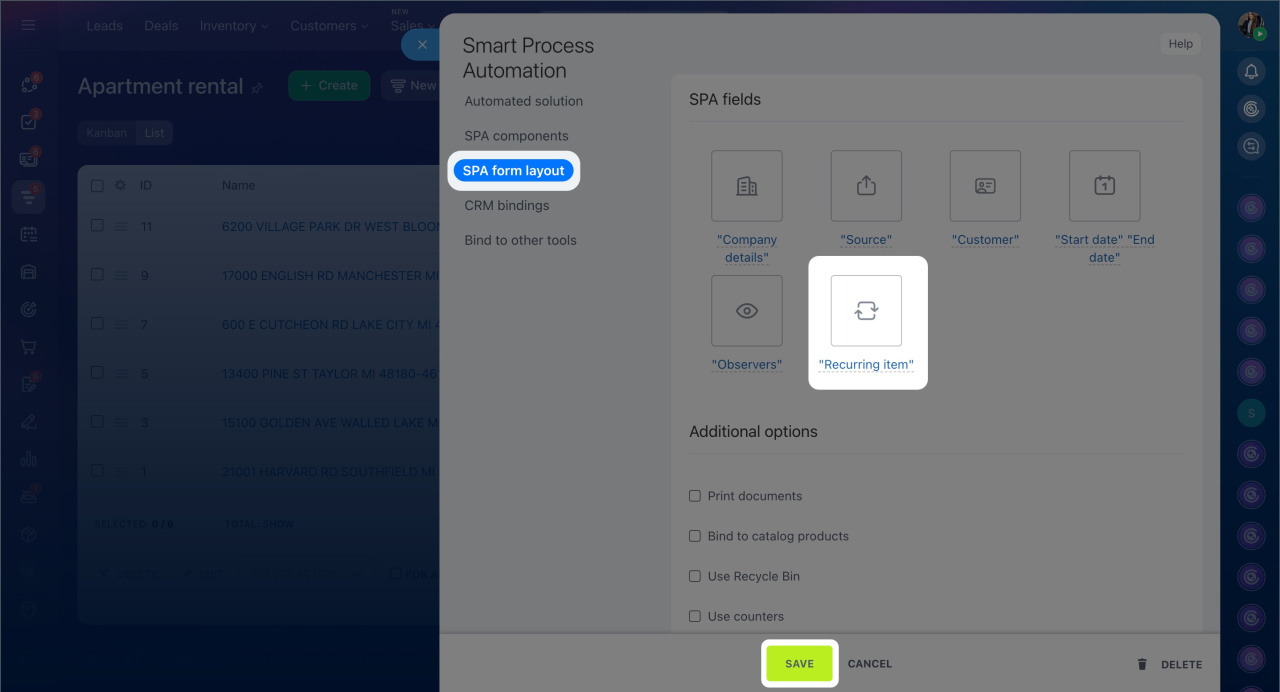
2. Click Settings (⚙️) > SPA Settings > SPA form layout.
3. Click Recurring item.
4. Save the changes.
Create a recurring smart process item
Open the required SPA, select an item, or create a new one. In the item form, fill in the fields in the Recurring item section.
CRM item form features and settings
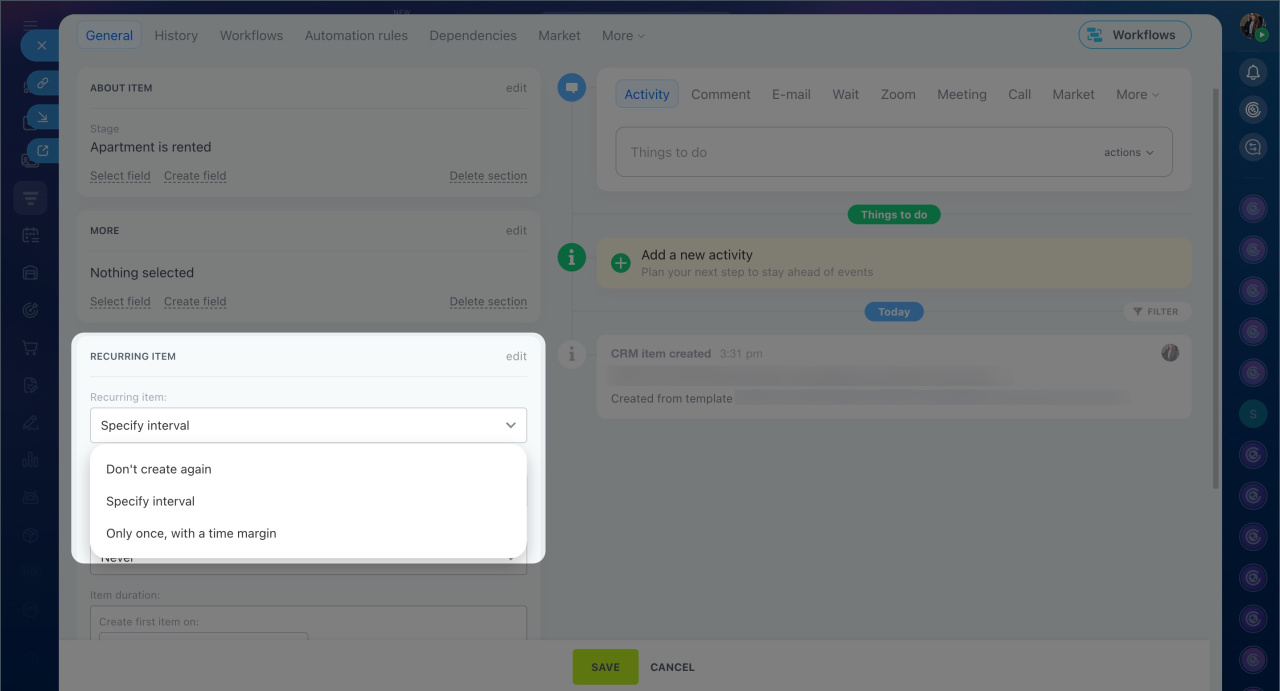
Repeat item — specify how often Bitrix24 will create new items after the first one you create manually.
- Regularly — CRM will automatically create items on a schedule, such as weekly or monthly.
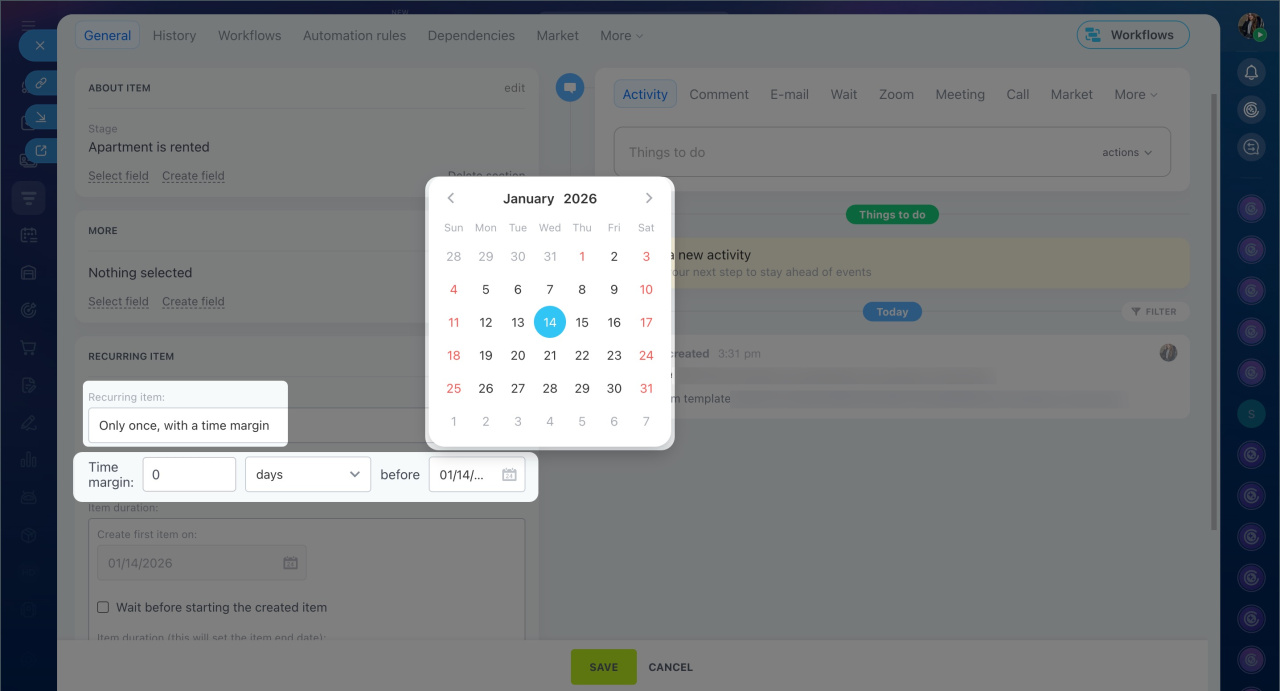
- Once — a new item will be created only once on the specified date.
When to repeat — for items created regularly, set the interval: daily, weekly, monthly, yearly, or a custom interval. For example, every three months.
End item repetition — define when to stop automatic creation:
- Don't create again — items will be created continuously.
- Specify interval — items will be created on schedule until the specified date.
- Only once, with a time margin — Bitrix24 will stop creating items after the specified number of repetitions.
First item creation date — specify when CRM will automatically create the first recurring smart process item.
Select the option Start item later than creation date to prepare item forms in advance. This gives you time to prepare documents and contact the client before starting work. For example, if the first item creation date is December 5 and a 2-day delay is set, the item will be created on December 5, and the Start date field will show December 7.
Completion period after creation — specify the period that Bitrix24 will automatically set in the Completion date field of the item form. By default, this period is 7 days, but you can choose another. This helps ensure timely closure of the smart process item.
Pipeline — select where recurring smart process items will be created.
Save the changes.
Manage the list of recurring smart process items
After creating a recurring smart process item, CRM saves it as a template. All such templates are collected in a list—separate for each smart process and pipeline. This list allows you to view key information, search for specific templates, and manage them.
View the list.
1. Open the required smart process and select the pipeline.
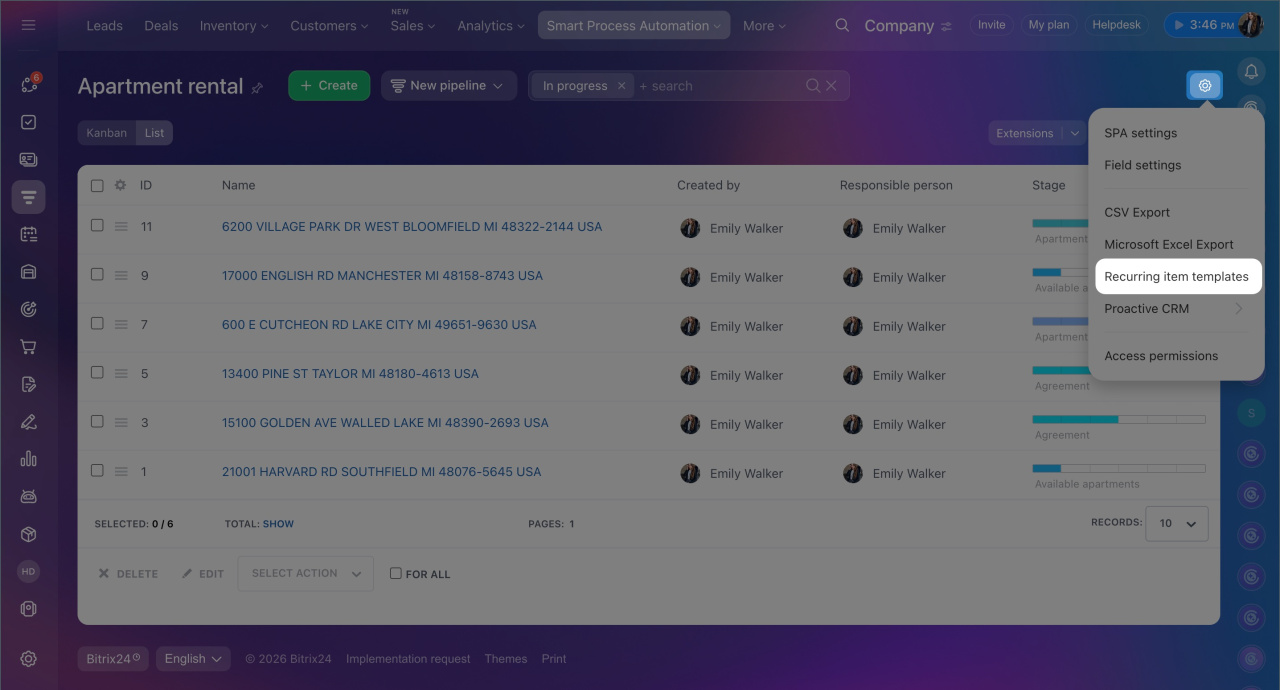
2. Go to Settings (⚙️) > Recurring item templates.
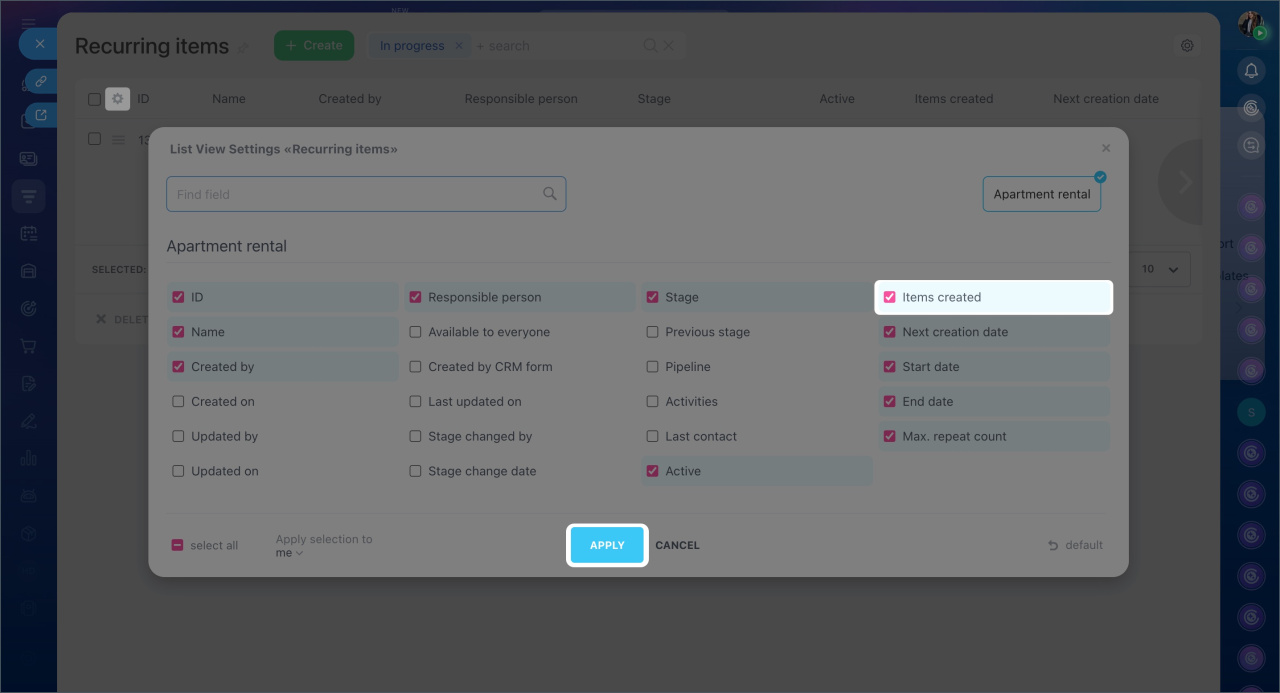
3. If the required columns are not displayed, go to Settings (⚙️) in the top-left corner of the table and select the necessary fields. For example, check the Items created field to see the total number of smart process items created from each template.
4. Click Apply.
Find a template using keywords or smart process item parameters.
1. Click Filter + Search and enter a query—for example, the name of the person responsible for the item. The list will display templates matching the query.
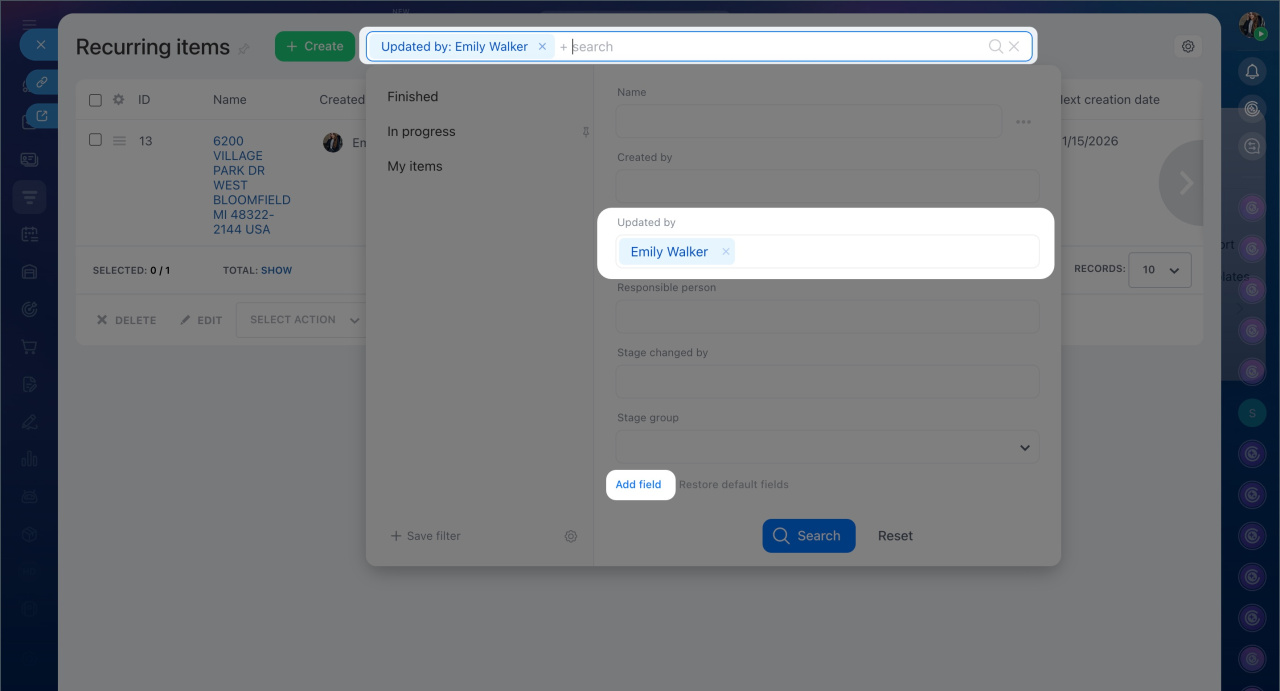
2. To narrow the search, add filters—click the search bar again and fill in the fields. For example, specify the item name or the name of the employee who updated it.
3. If the required field is not in the filter, click Add field. Check it in the list and click Apply.
4. Click Search after specifying all search parameters.
5. Click the cross in the search bar to reset the filters.
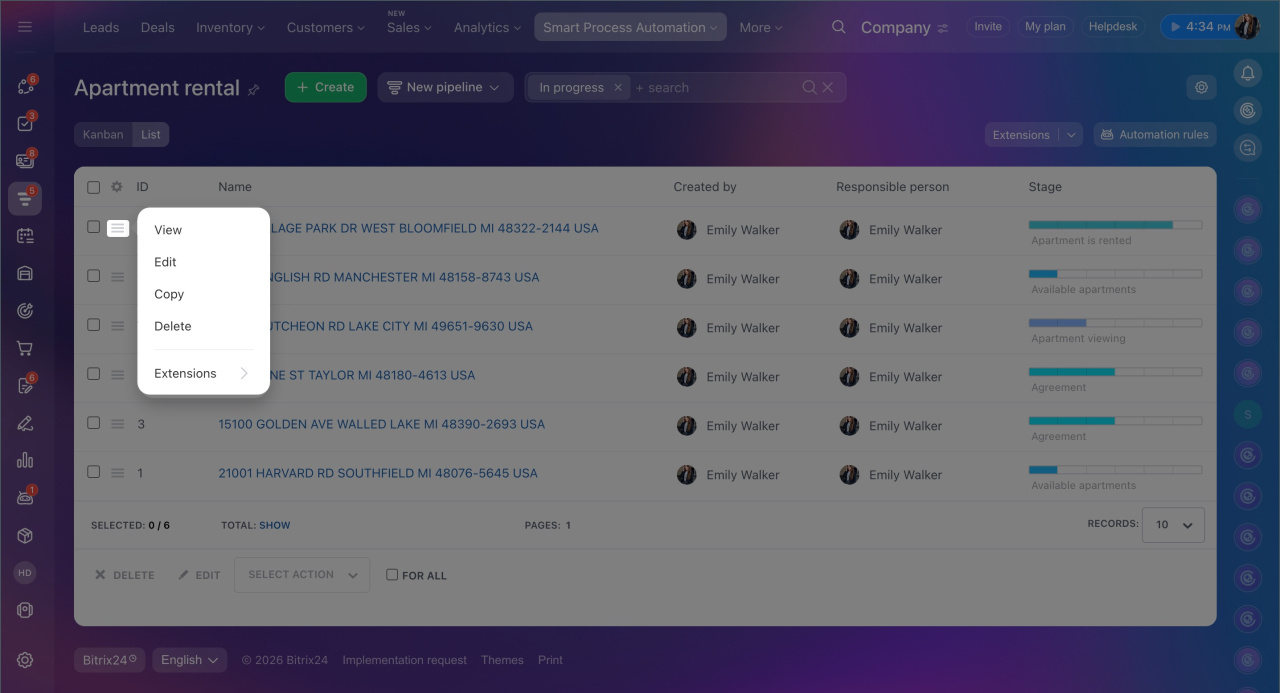
Manage templates. Click Menu (≡) next to the template name to open the list of available actions:
- View
- Edit
- Copy — all fields and their data, such as the template name, stage, and recurrence settings, will be copied to a new template.
- Delete — items created from the template will remain in CRM, but no new items will be created.
The form displays items created from this template and the date of the next creation.
In brief
- Recurring smart process items help ensure that repetitive actions within the company or with customers are not forgotten. Bitrix24 automatically creates these items based on the schedule you set.
- Smart processes are not available on all plans. Only administrators or employees with access permissions can configure recurring item creation. Permissions are set individually for each smart process.
- To set a schedule for automatic item creation, enable recurrence in the smart process during creation or editing. The setup is the same in CRM and automated solutions.
- To enable recurrence in a CRM smart process during setup, go to CRM > More > Smart Process Automation, select the required smart process, click Settings (⚙️) > Smart Process Automation Settings > Form layout, and check Recurring item.
- Open the required smart process and click Create. In the form, specify the recurrence frequency in the Recurring item section.
- After creating a recurring item, Bitrix24 saves it as a template.
- To view the list of recurring items, open the required smart process and select the pipeline. Click Settings (⚙️) > Recurring item templates. Here, you can view key information about templates, find the required one, view, edit, copy, or delete it.
