
Use Bitrix24 on your smartphone to stay productive anywhere. Communicate with colleagues, manage tasks and CRM deals, work with documents, email, and the calendar, accept payments, and approve workflows.
The mobile app is useful outside the office — during meetings, business trips, or travel. You can quickly respond to updates and keep work moving.
Bitrix24 plans and pricing
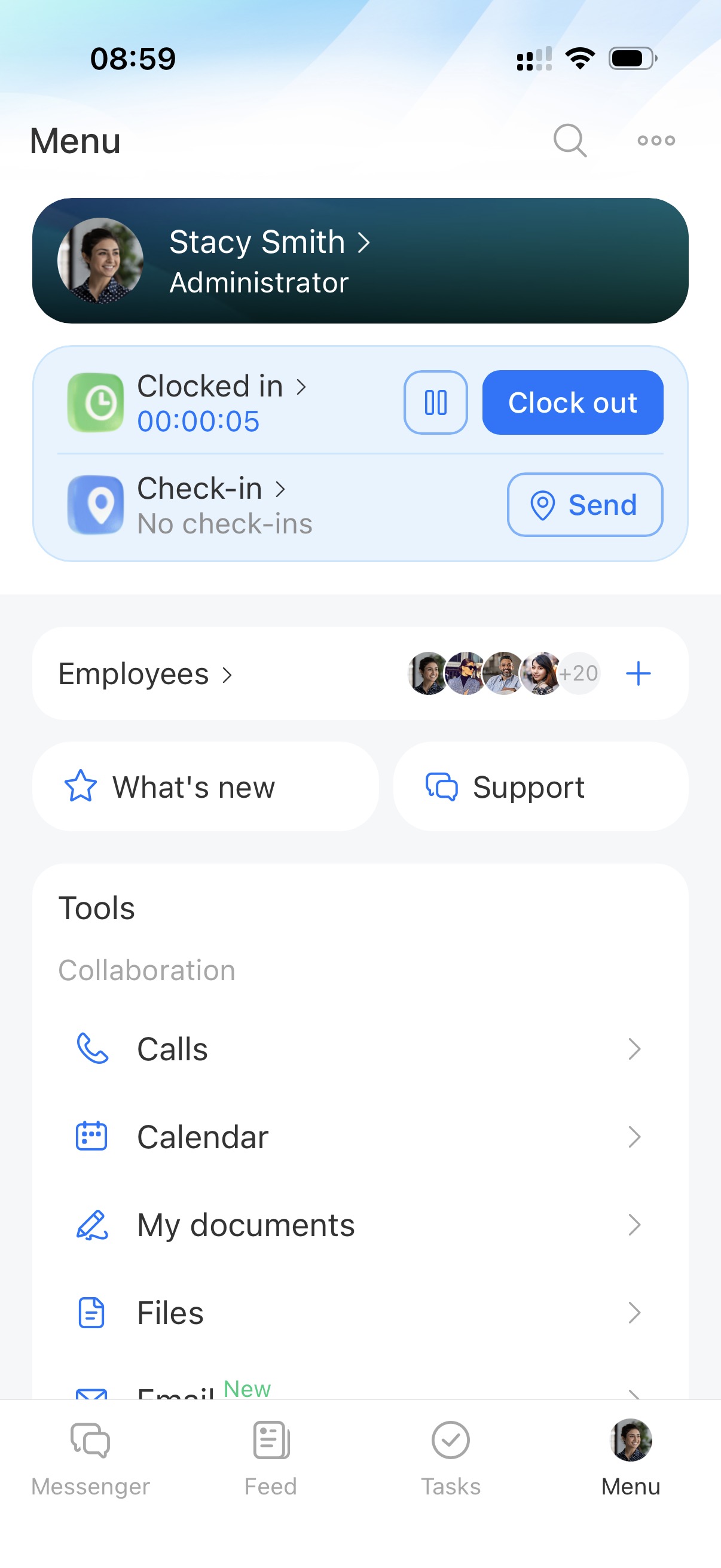
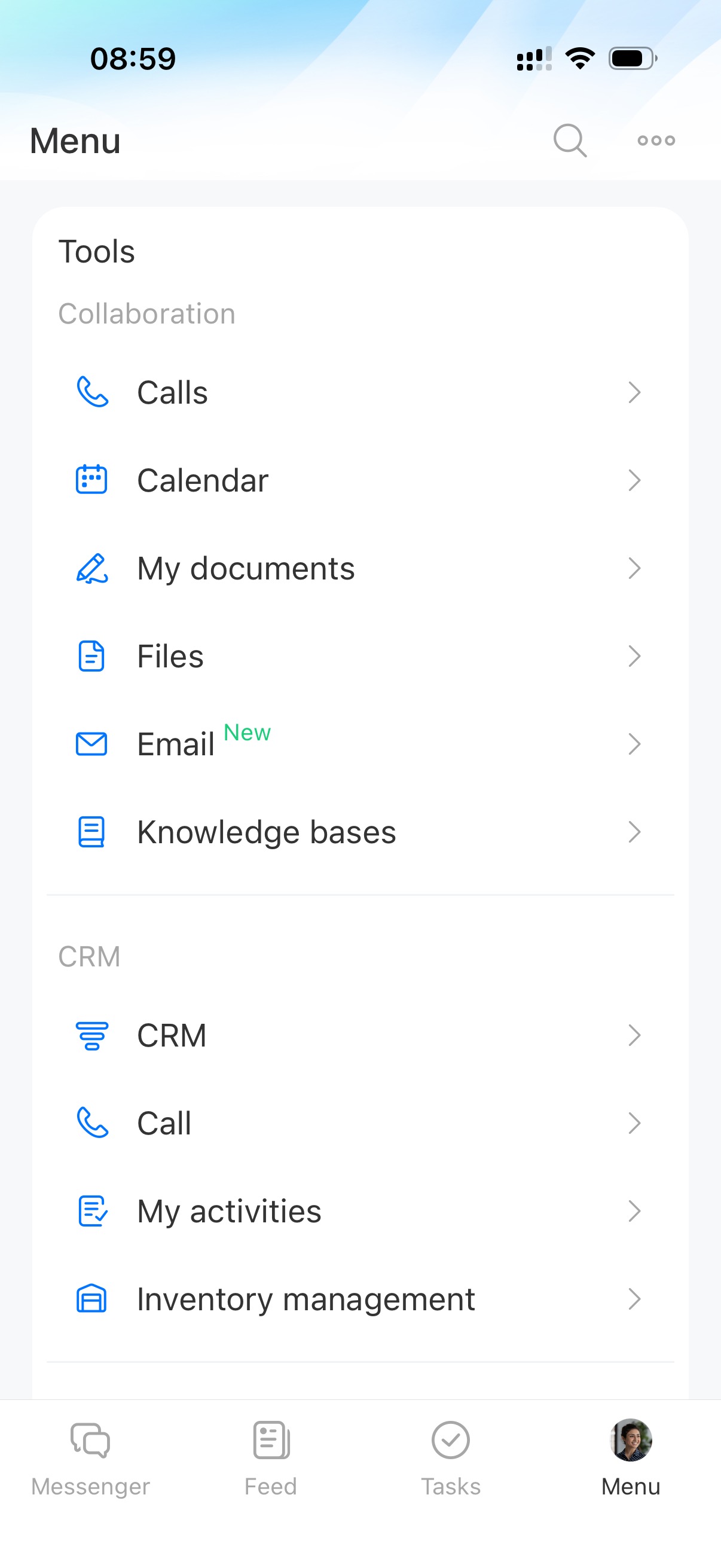
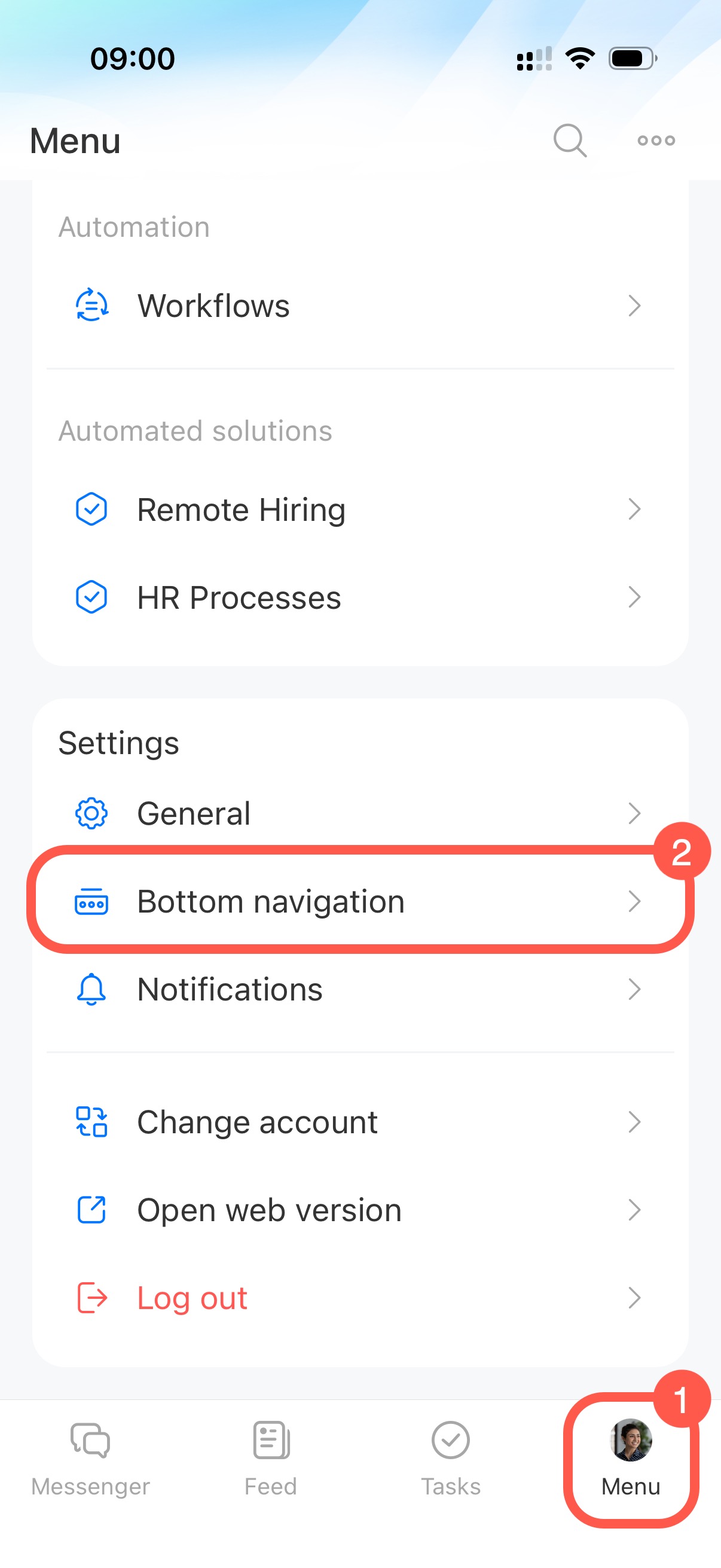
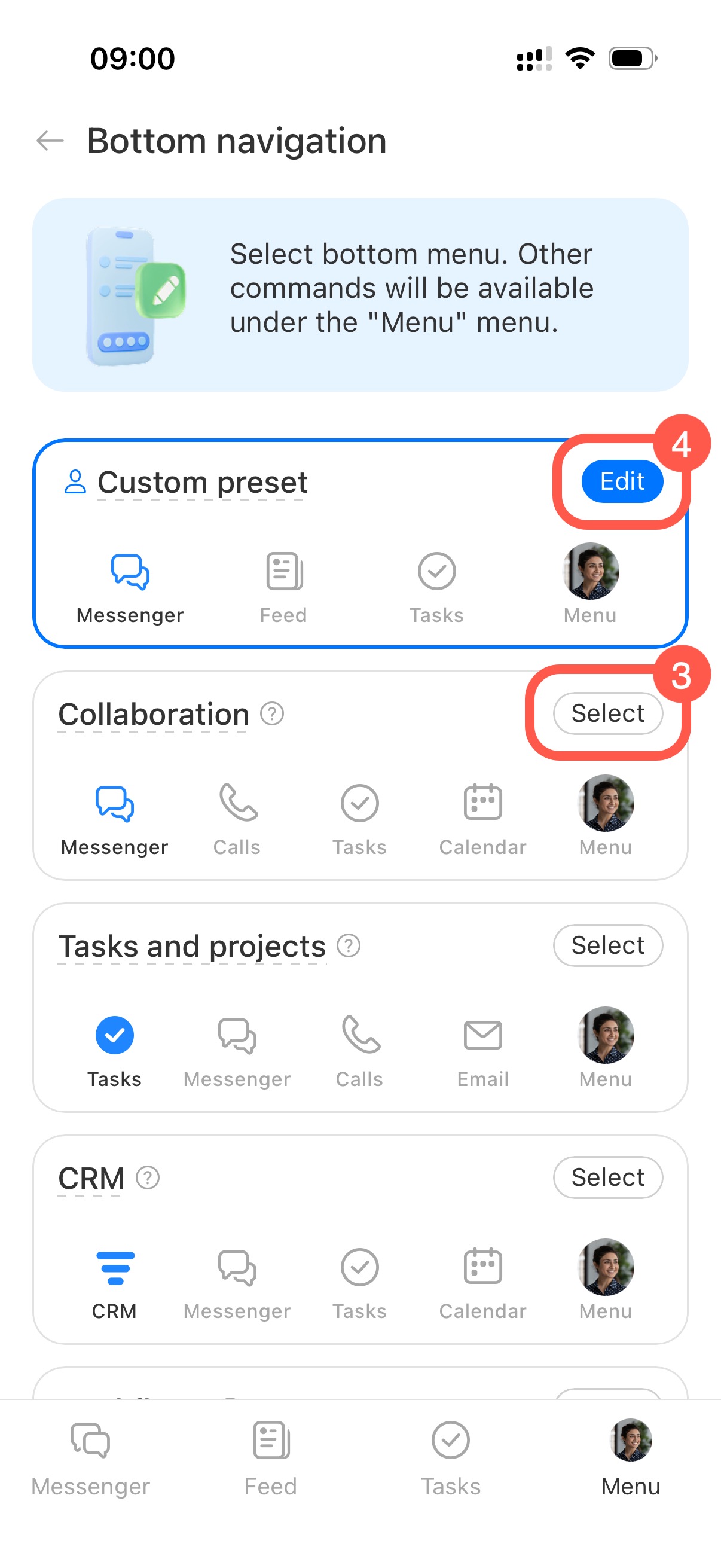
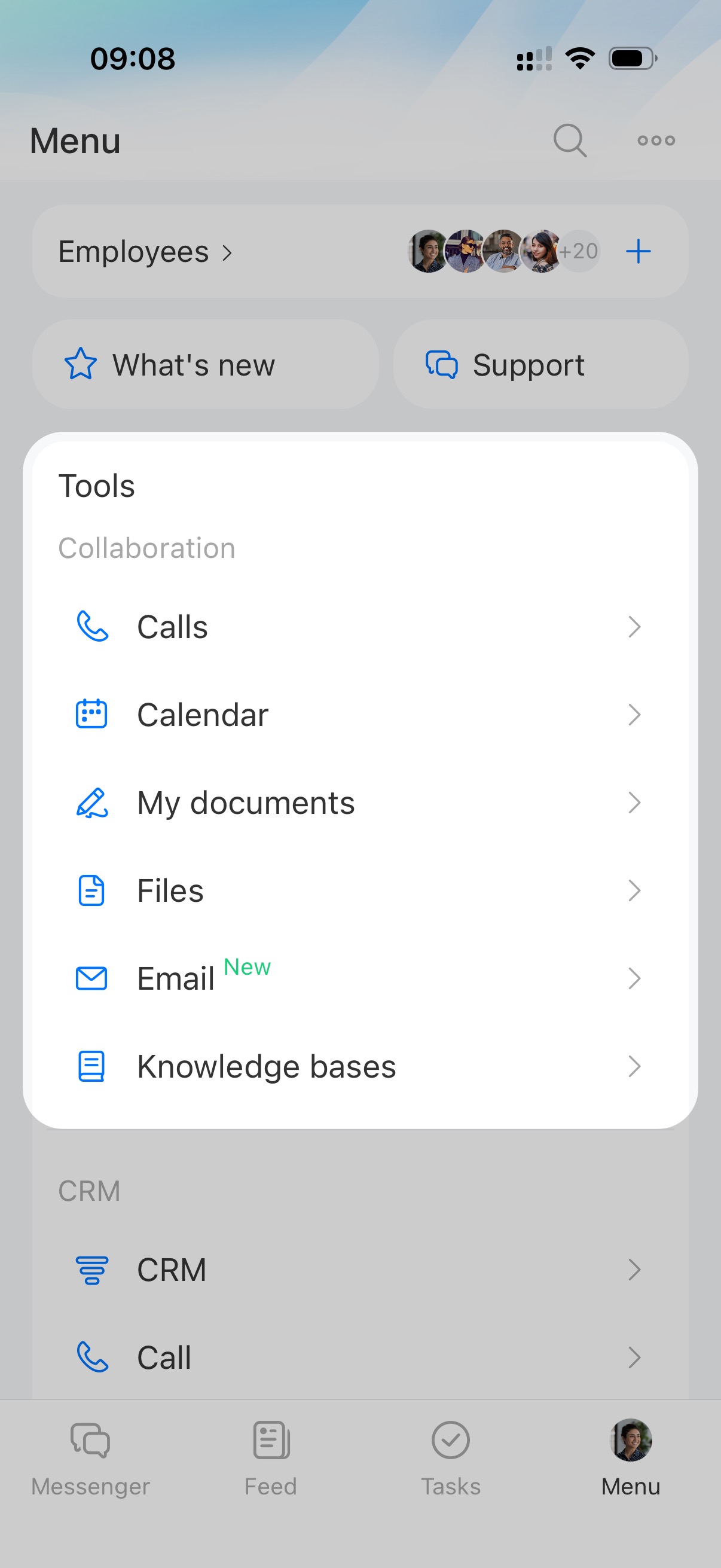
You can also customize quick access to tools. Add the sections you use most to the bottom menu. Choose a preset menu or create your own. Selected sections remain available from anywhere in the app. All other sections stay in the main menu.
To change the bottom menu:
- Tap Menu > Bottom navigation.
- Choose one of the preset menus.
- Tap Edit in Custom preset to build your own set of tools.
In this article:
Employee profile
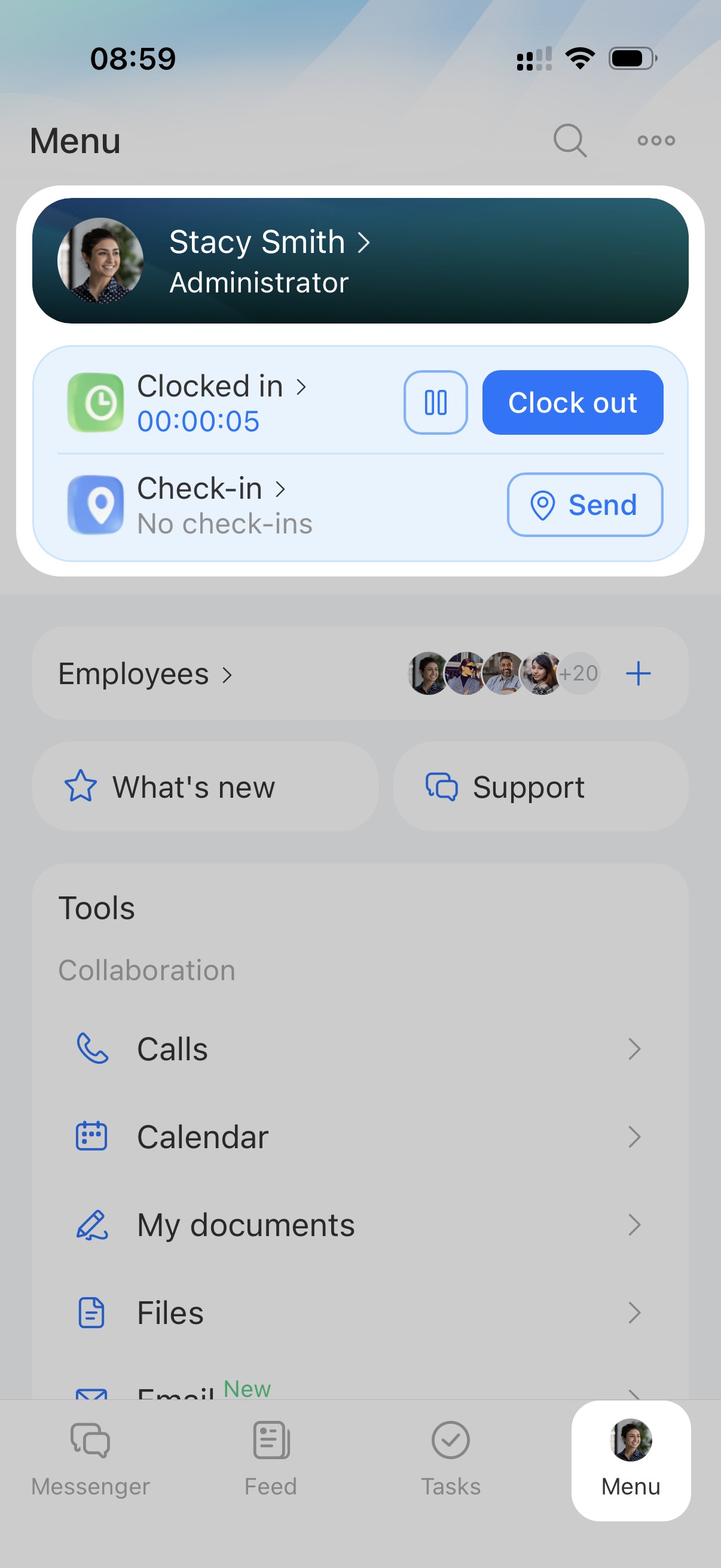
Profile
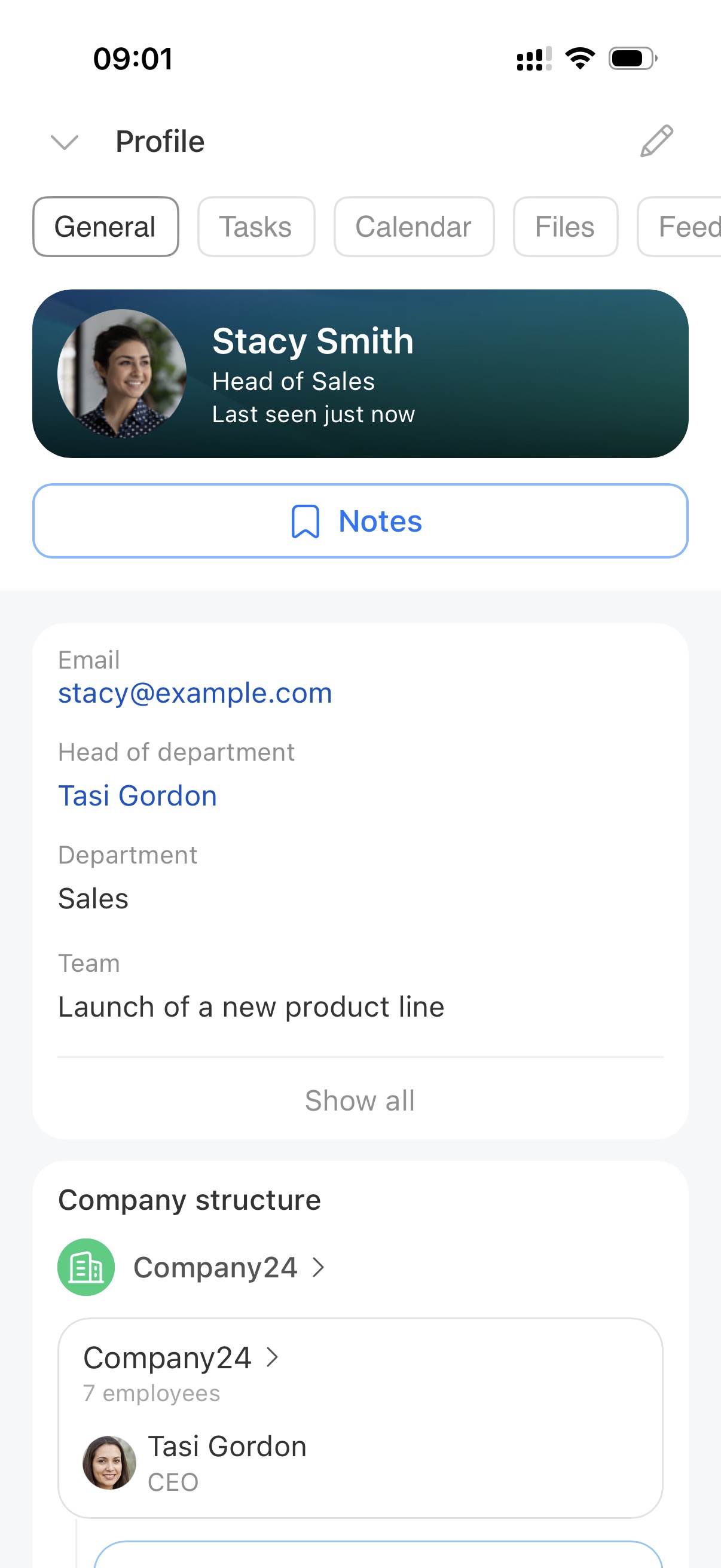
Use your profile to update personal details like your job title, contact information, or photo. In a coworker’s profile, you can see their department, phone number, interests, and other details.
Profile page
Time tracking
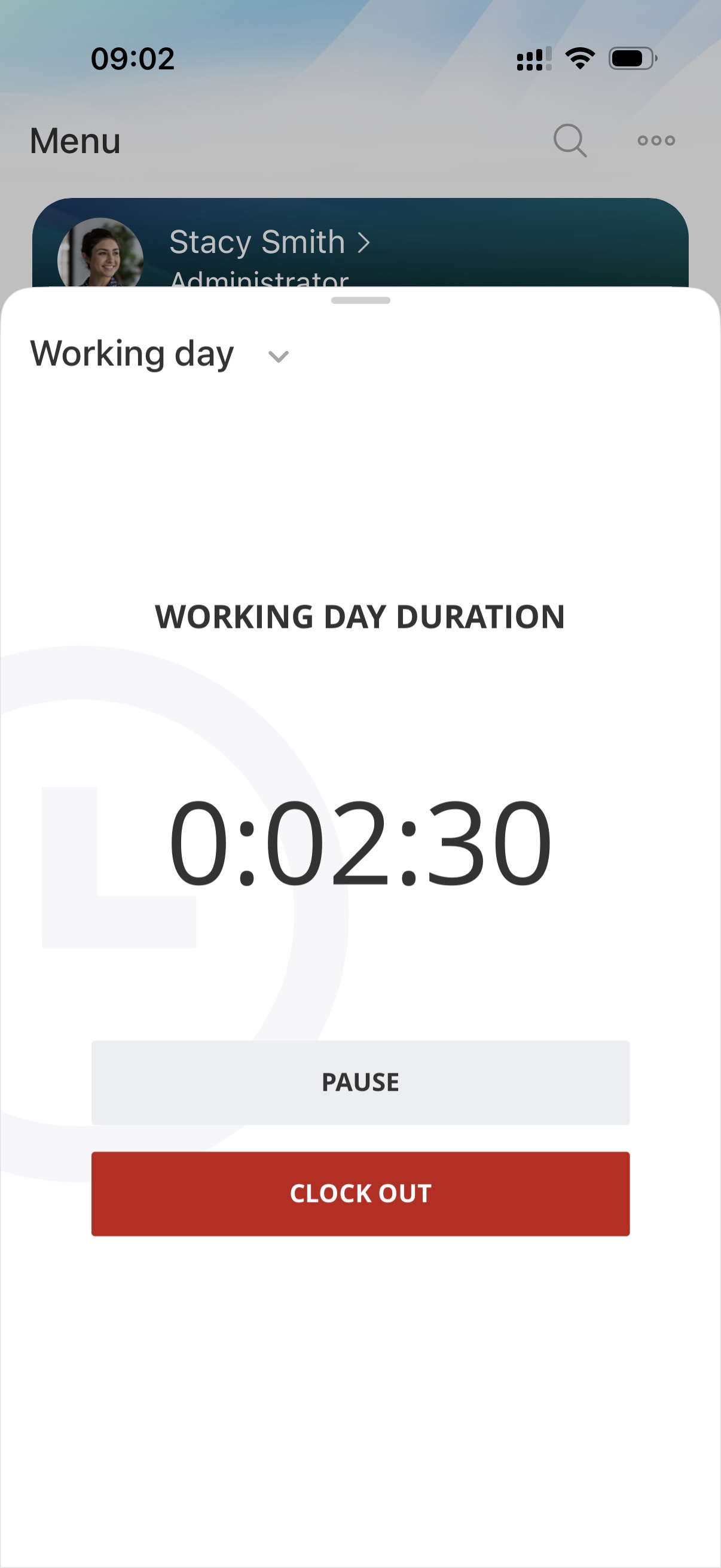
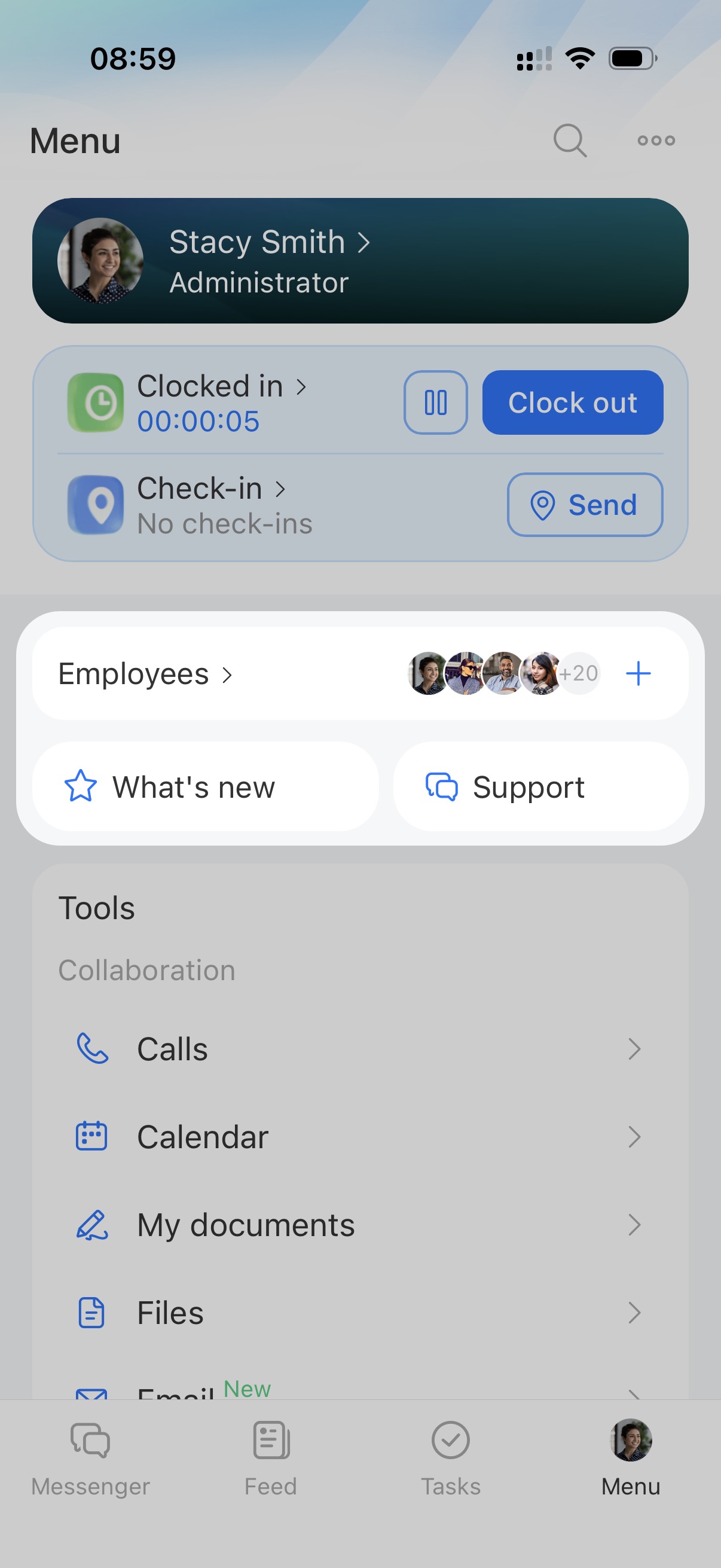
Record the start and end of your workday directly in the mobile app. View hours worked at any time. This is helpful if you work remotely or start the day away from your computer.
Worktime tracking in Bitrix24
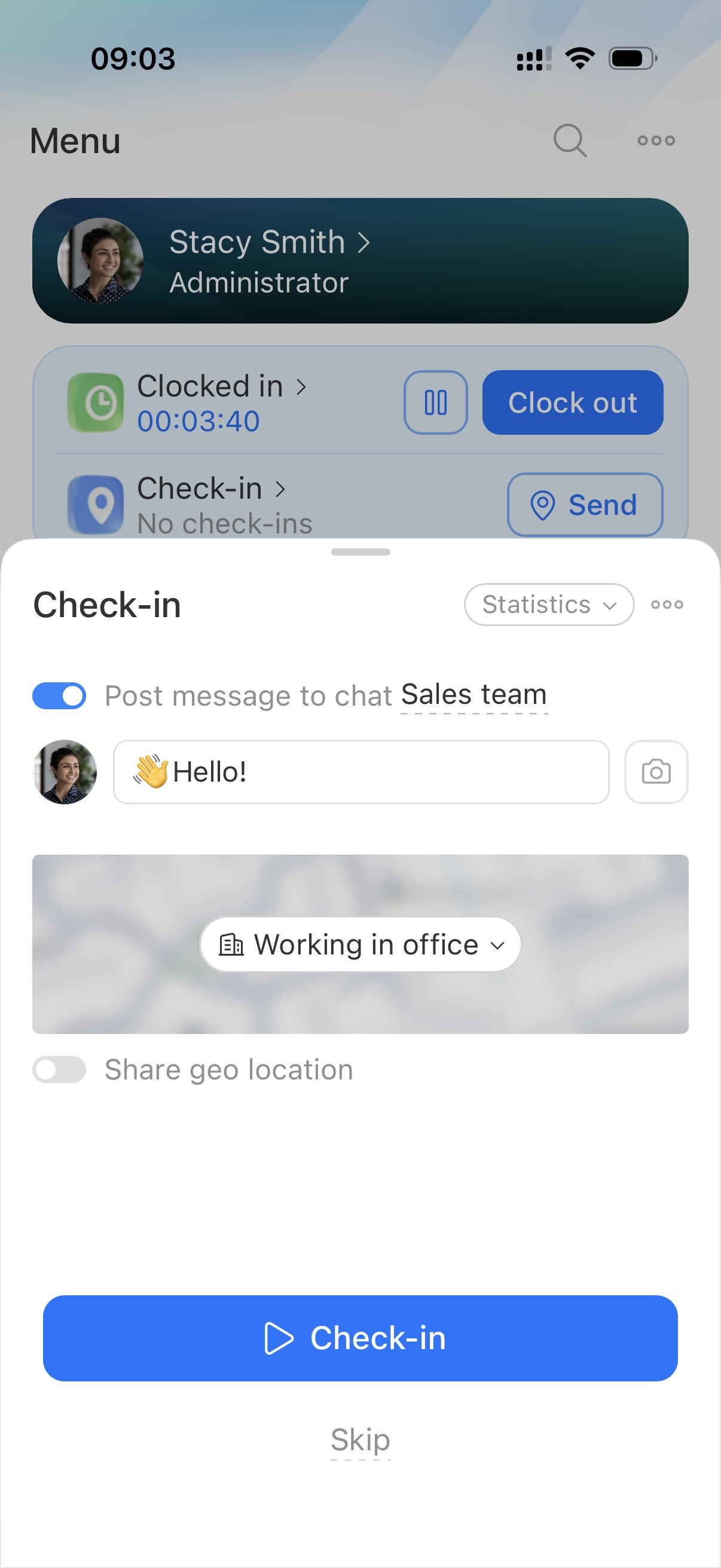
Check-in
Mark the start of the workday with a check-in. Specify time and location and add a photo. Colleagues and the supervisor can see the check-in status. Check-in informs the team but does not replace time tracking.
Check-in
Employees and Support
Employees
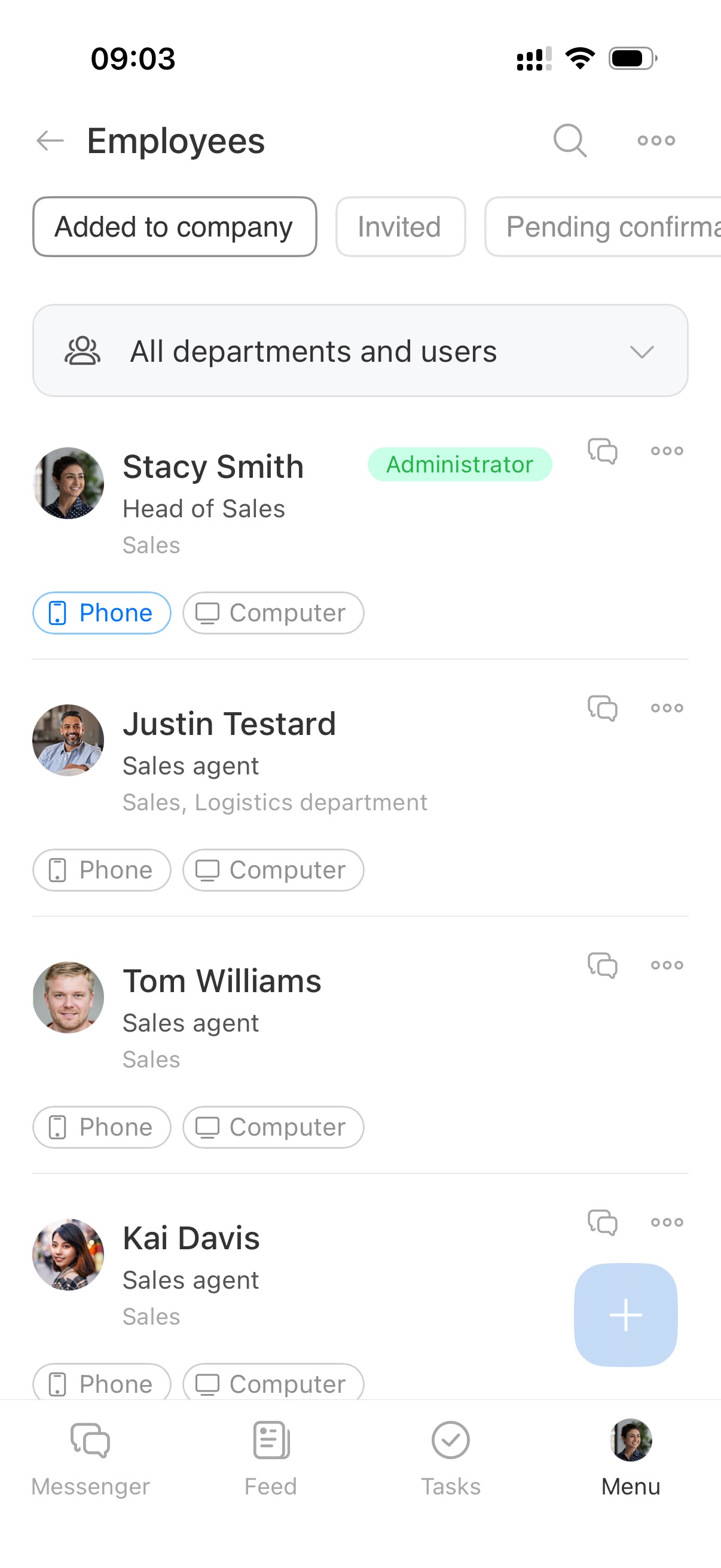
View employee information such as name, position, and status. Open profiles, invite new users, and view active, invited, or dismissed employees.
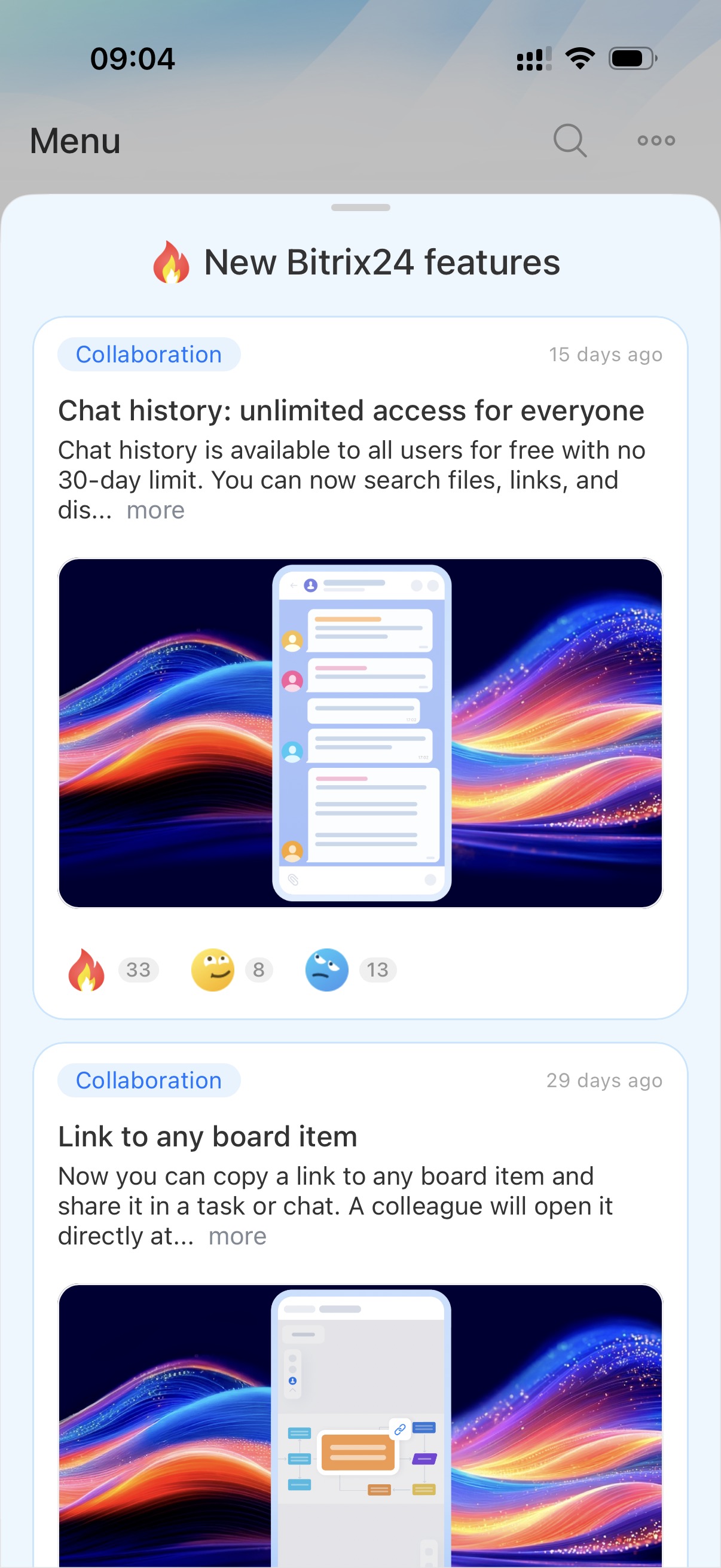
What’s new
Learn about recent product updates.
Support
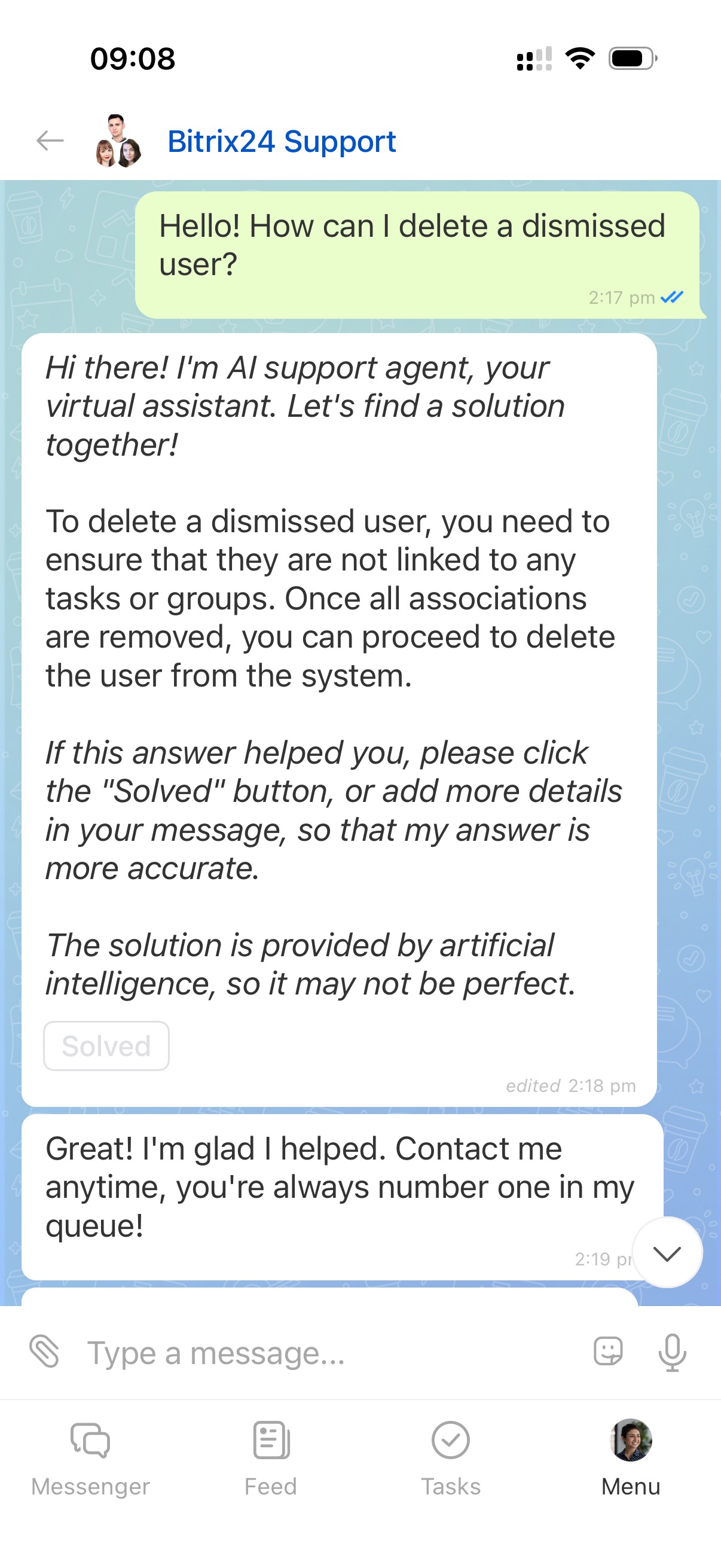
Contact support in chat if you have questions about Bitrix24.
AI support agent in Bitrix24 Support chat
Contact Bitrix24 Support
Collaboration
Calls
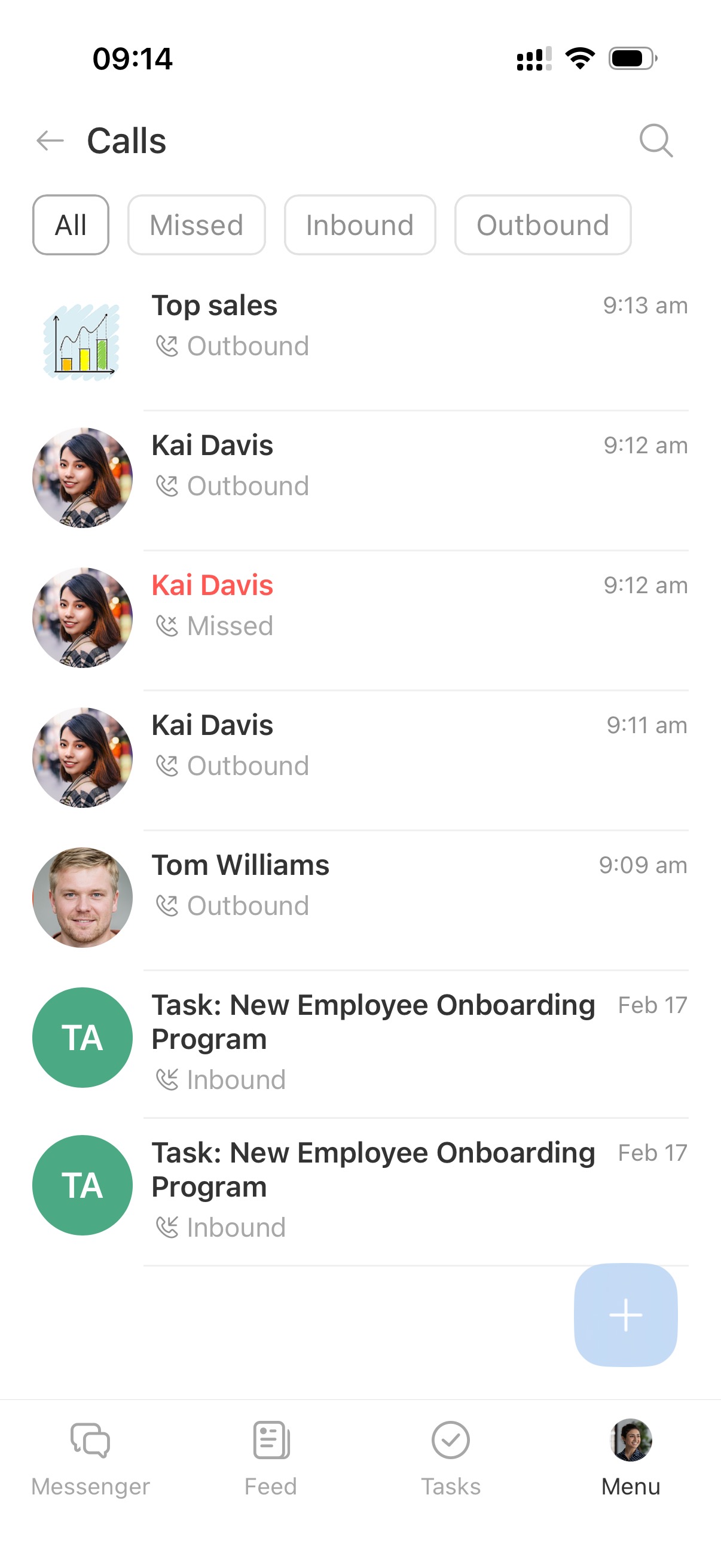
View call history with colleagues. Calls are grouped into All, Missed, Inbound, and Outbound tabs. Use search to find calls by employee name or chat title.
Call list in the mobile app
Feed
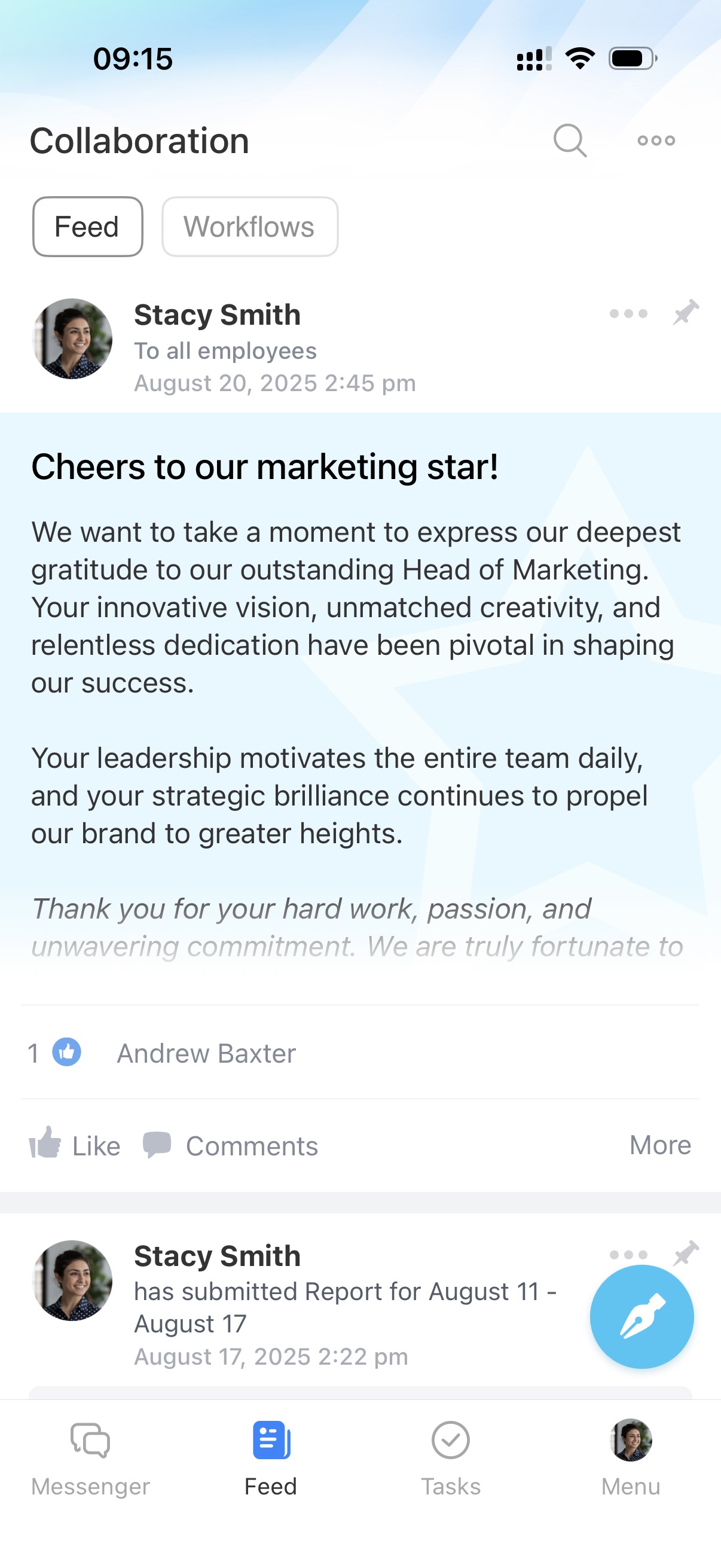
The Feed is the main space for company communication. View posts, shared events, reports, and workflows. Publish posts, leave comments, and add reactions.
Feed in Bitrix24
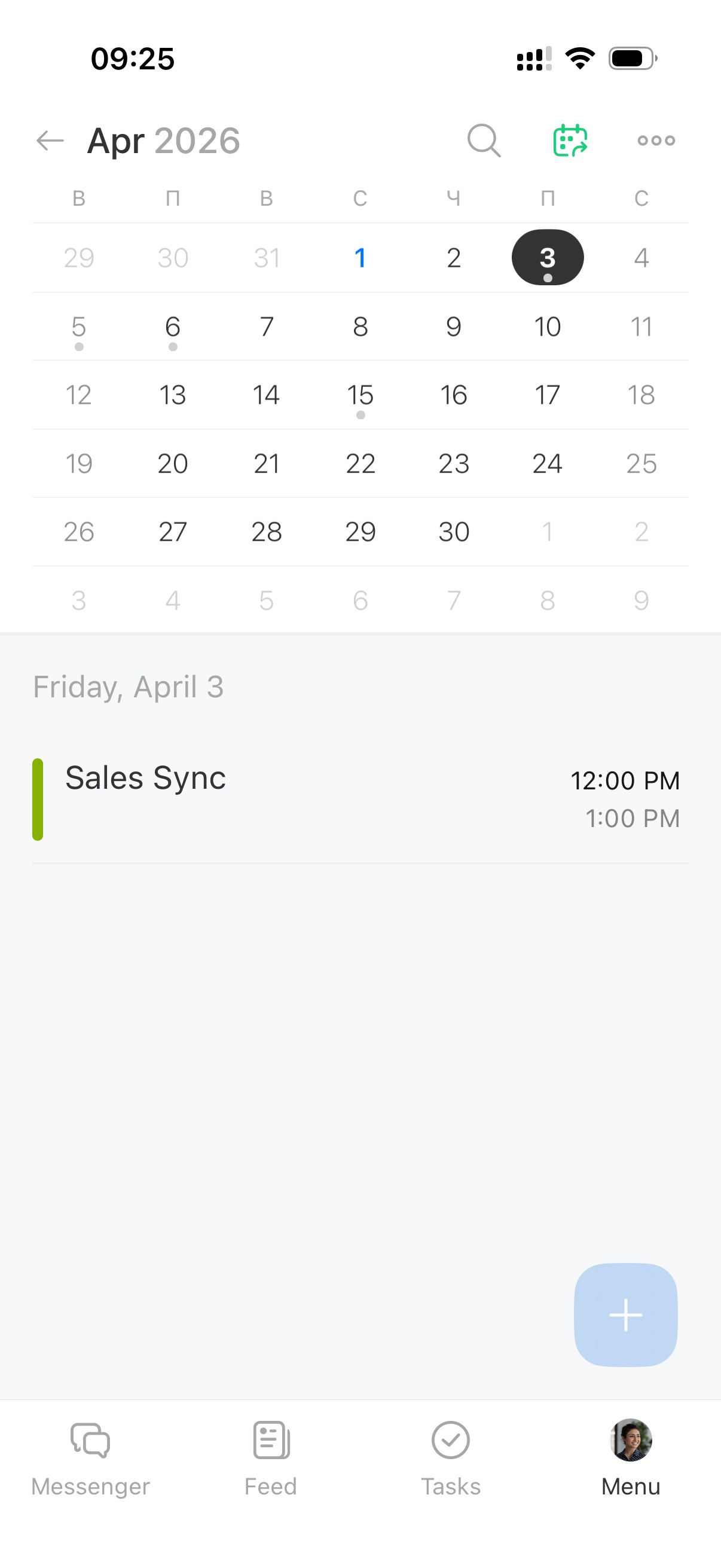
Calendar
Plan meetings and personal events in the mobile calendar. Create events, invite participants, and share open slots.
Calendar in Bitrix24 mobile app
Open slots in Bitrix24 calendar
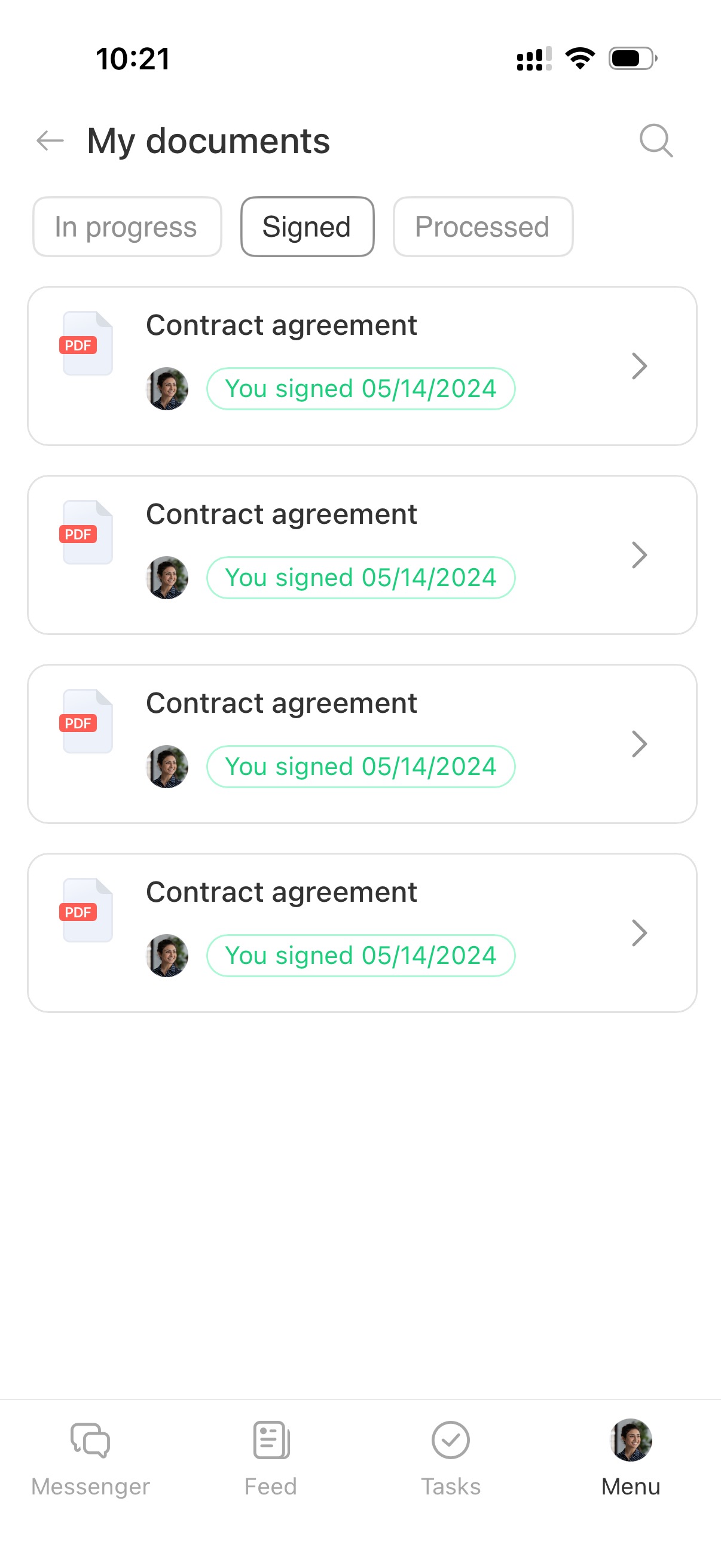
My documents
Work with HR documents. Send documents for signature, sign them, track status, and download files.
Bitrix24 e-Signature for HR: Getting Started
Files
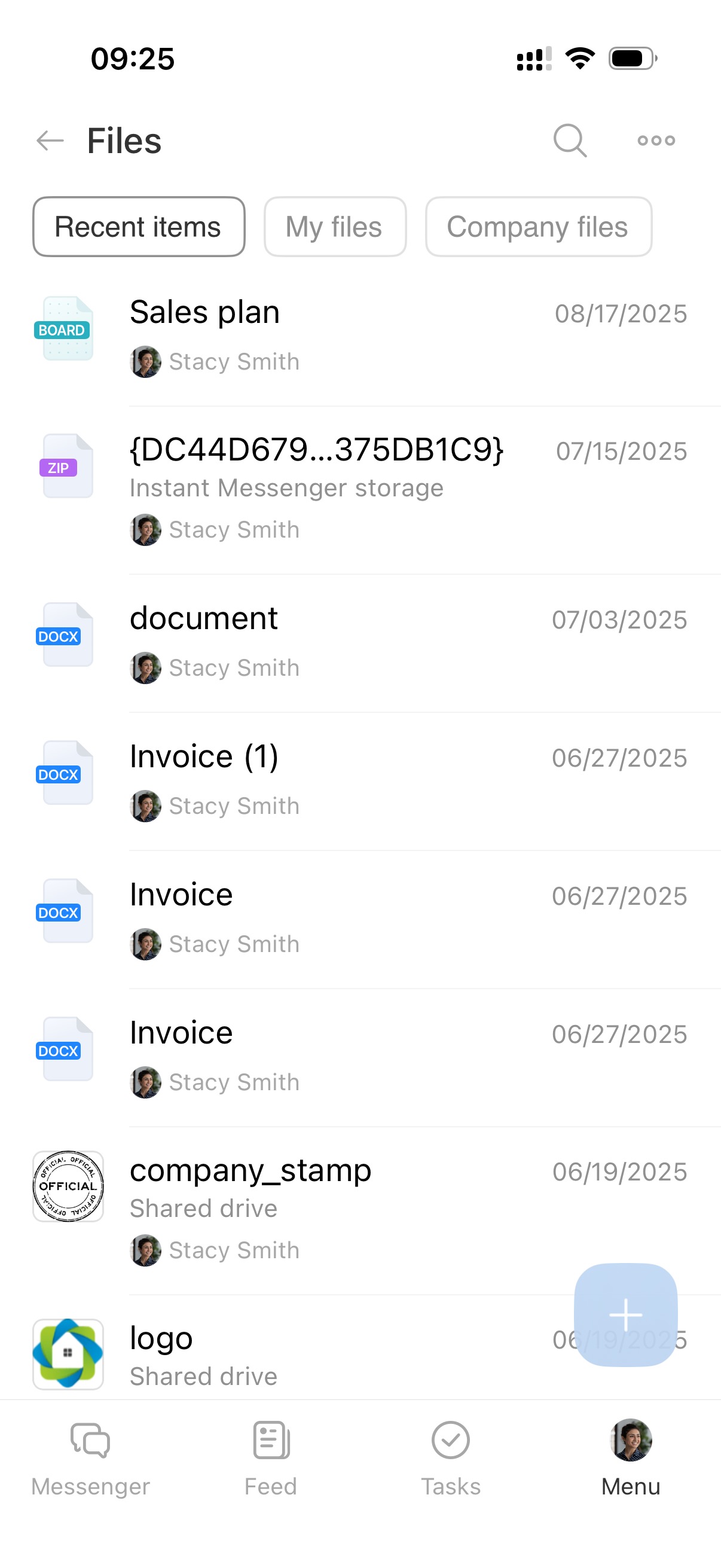
Access files in your personal Drive and Company Drive. Use files in tasks, chats, and CRM.
Company Drive overview
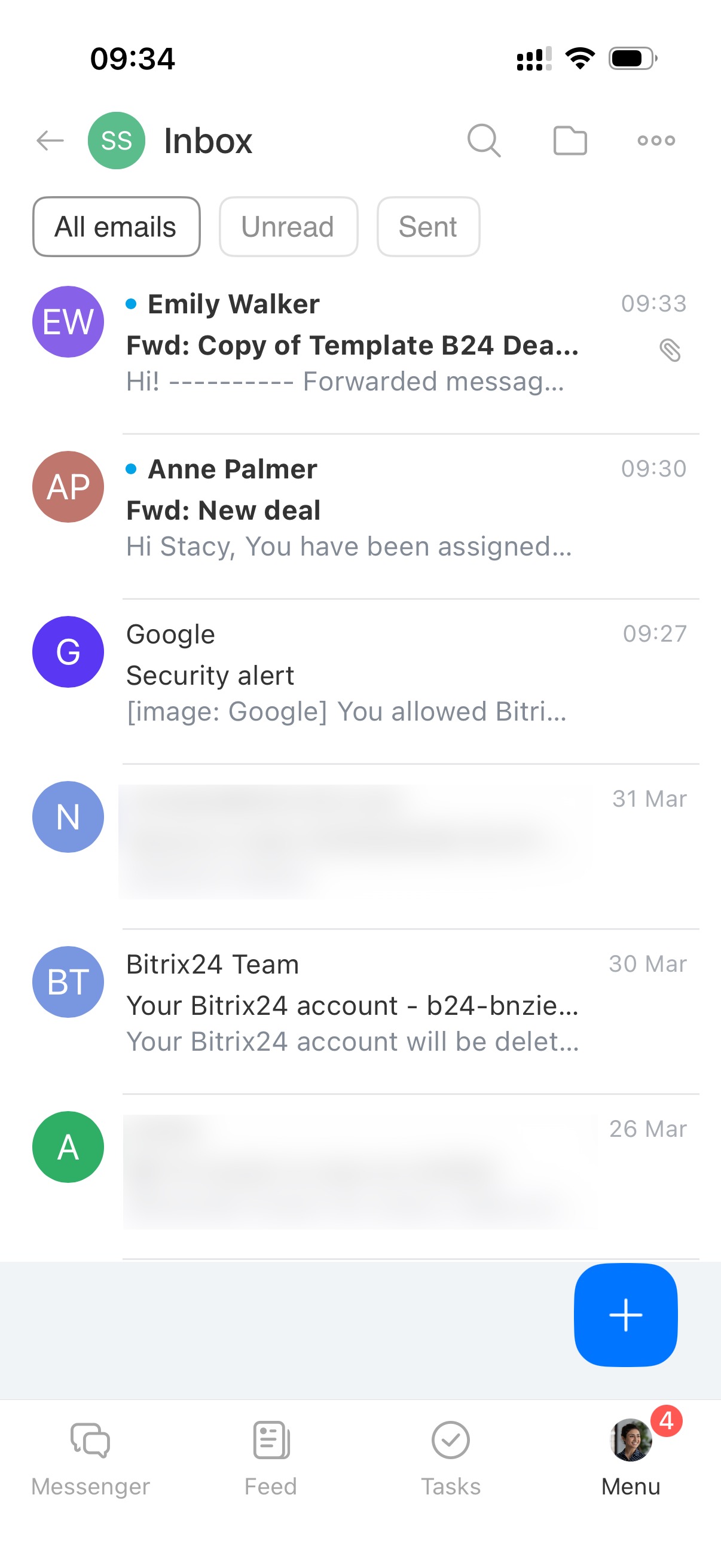
Connect mailboxes and manage email. Send messages, forward emails, create tasks from emails, and link emails to CRM items.
Mail in Bitrix24 mobile app
Knowledge bases
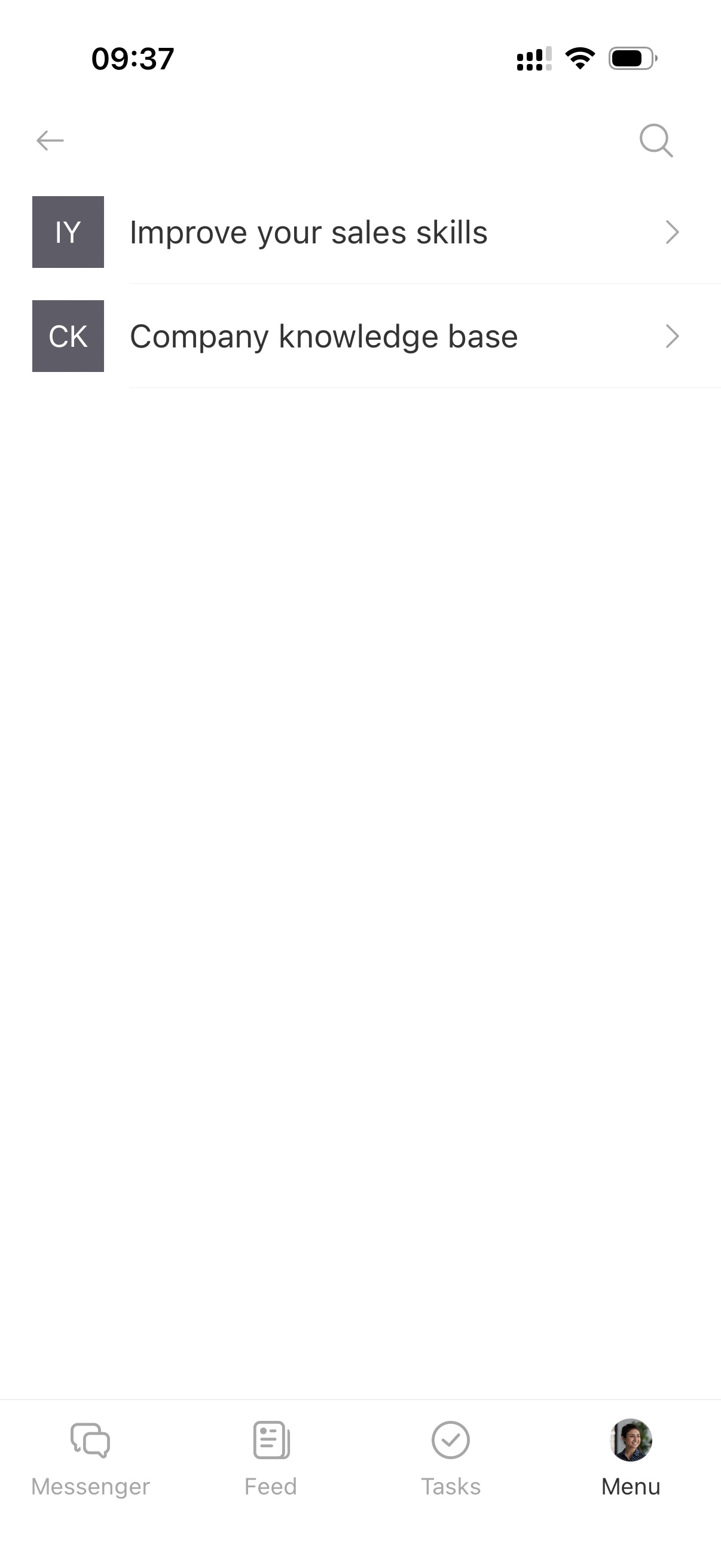
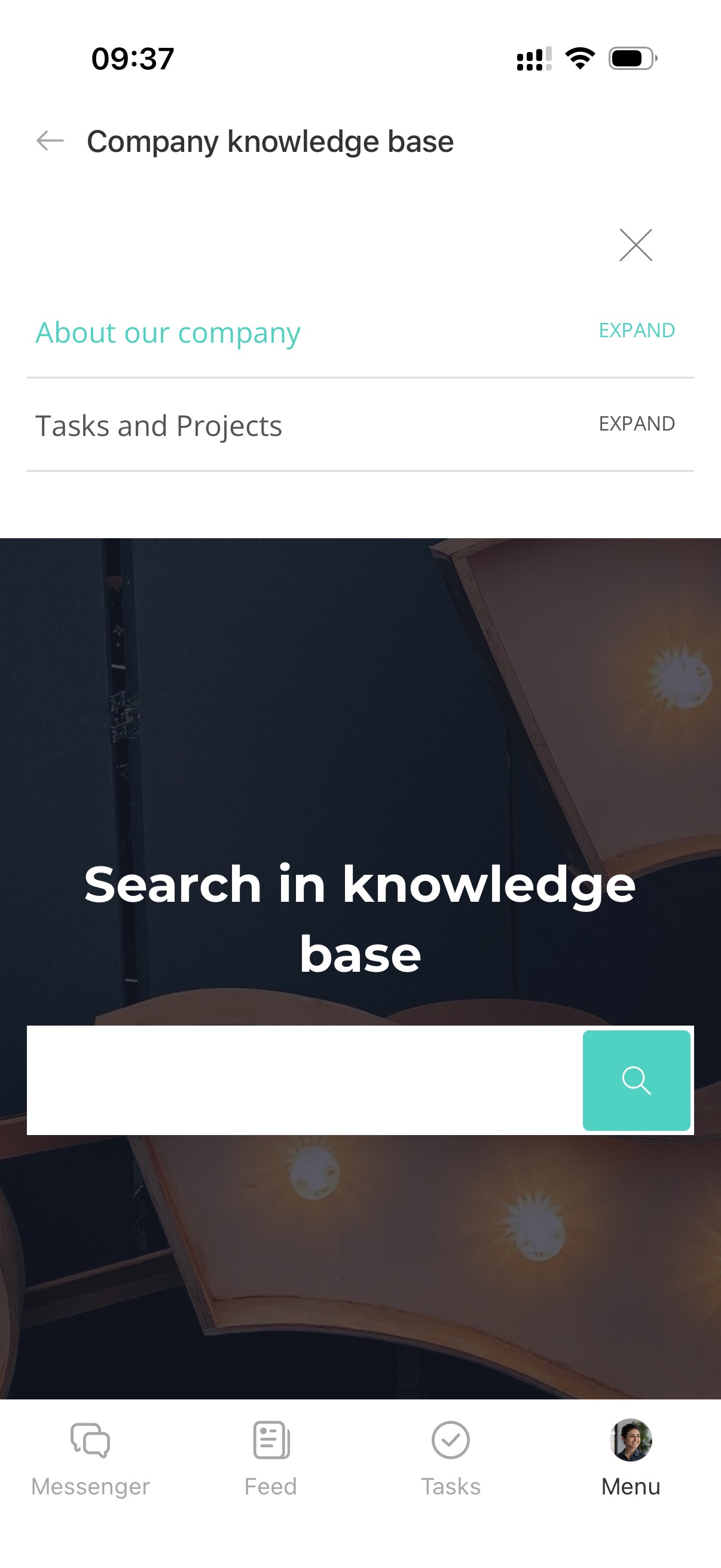
View company instructions and internal documentation. Search articles and use guidelines in daily work.
Tasks and Projects
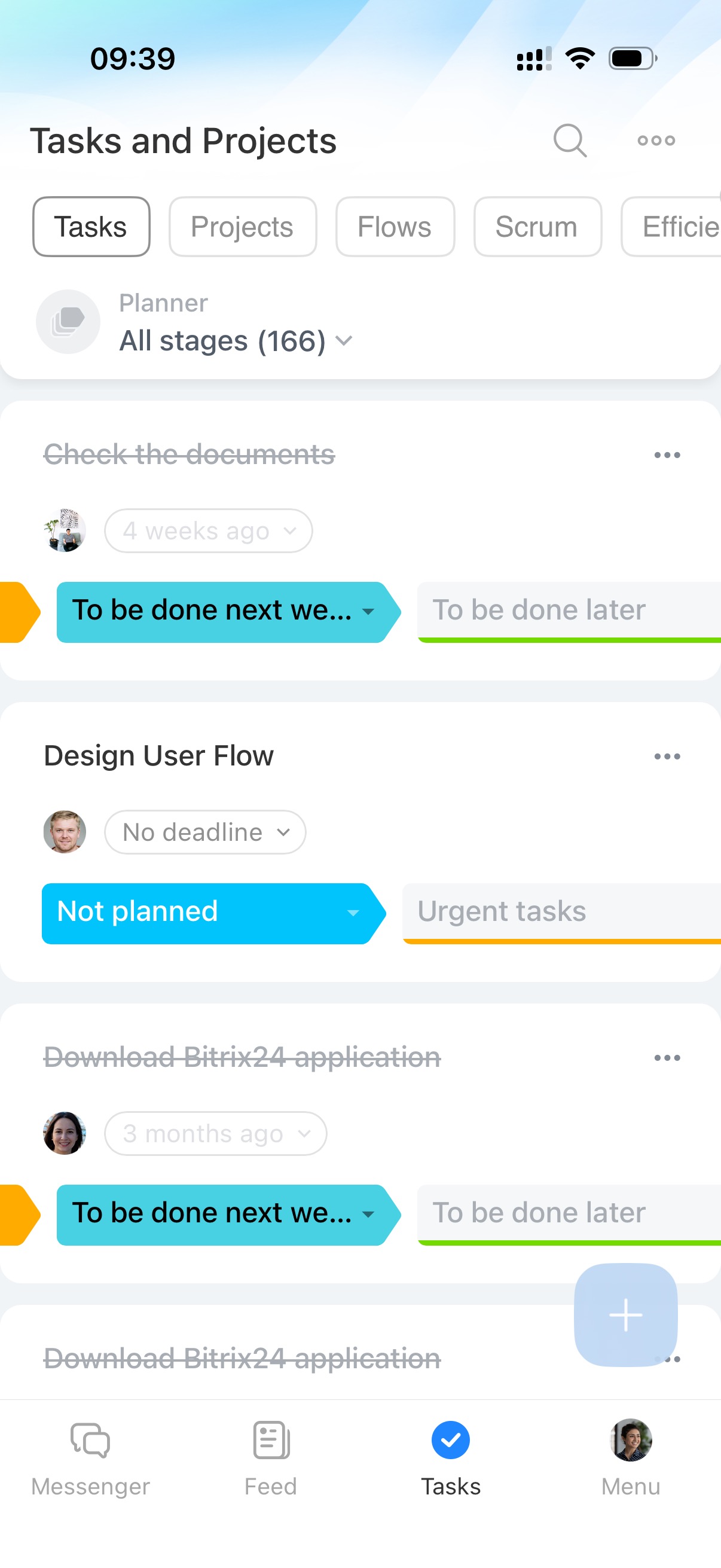
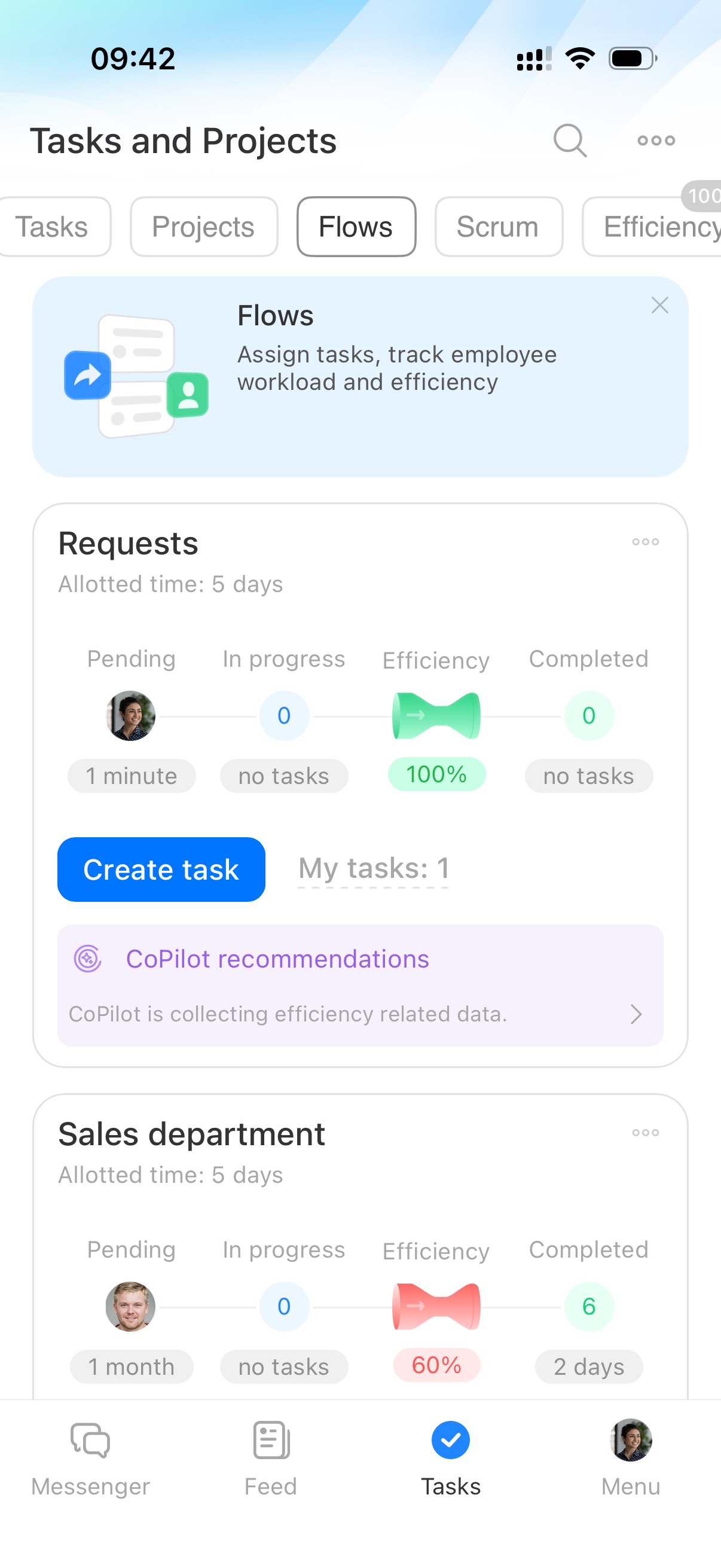
Create tasks and organize them into projects or flows. Assign work, track deadlines, monitor status, and discuss details in tasks. Manage work even when you are away from the office.
Tasks in Bitrix24
Bitrix24 Flows: Get started
Messenger
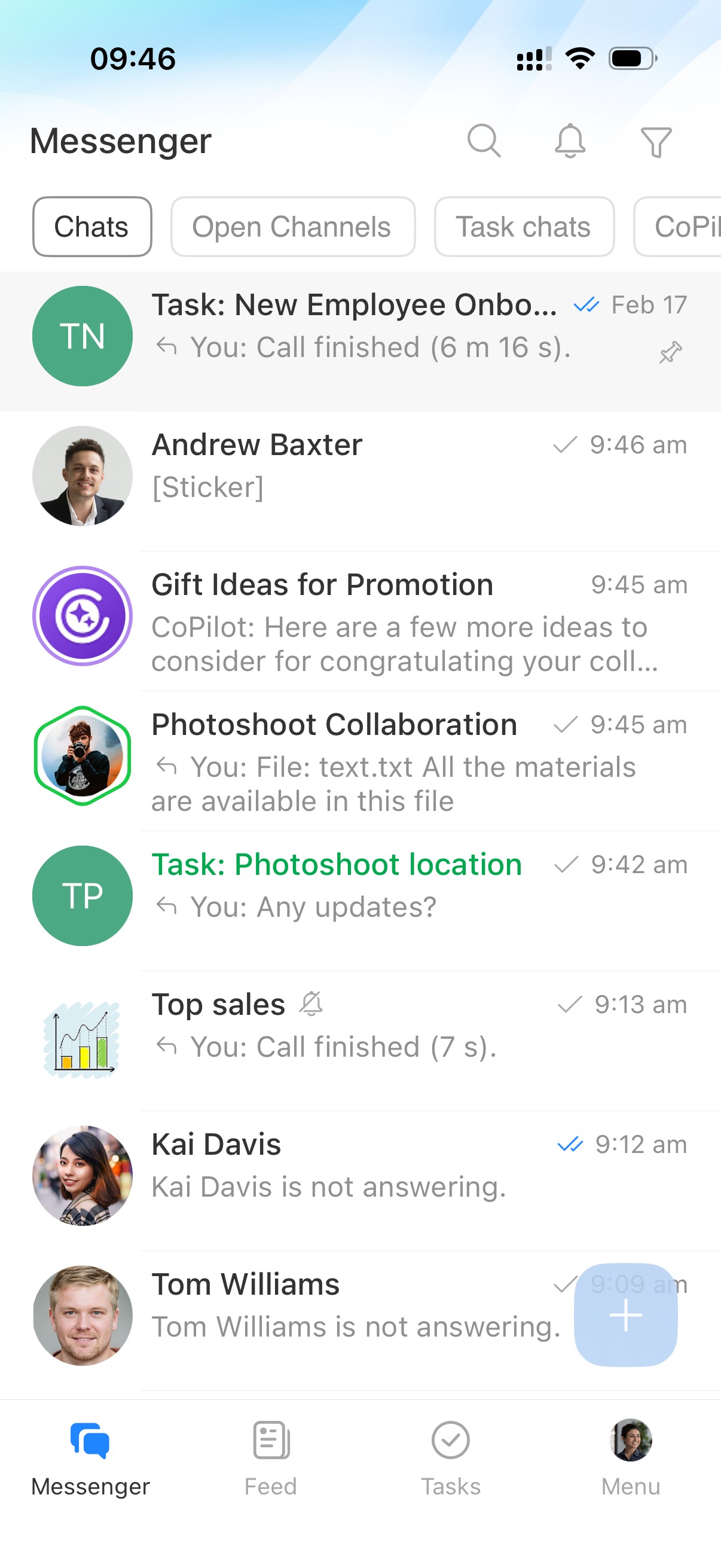
Communicate securely with colleagues. Send messages, share files, create tasks, and schedule meetings directly from chats.
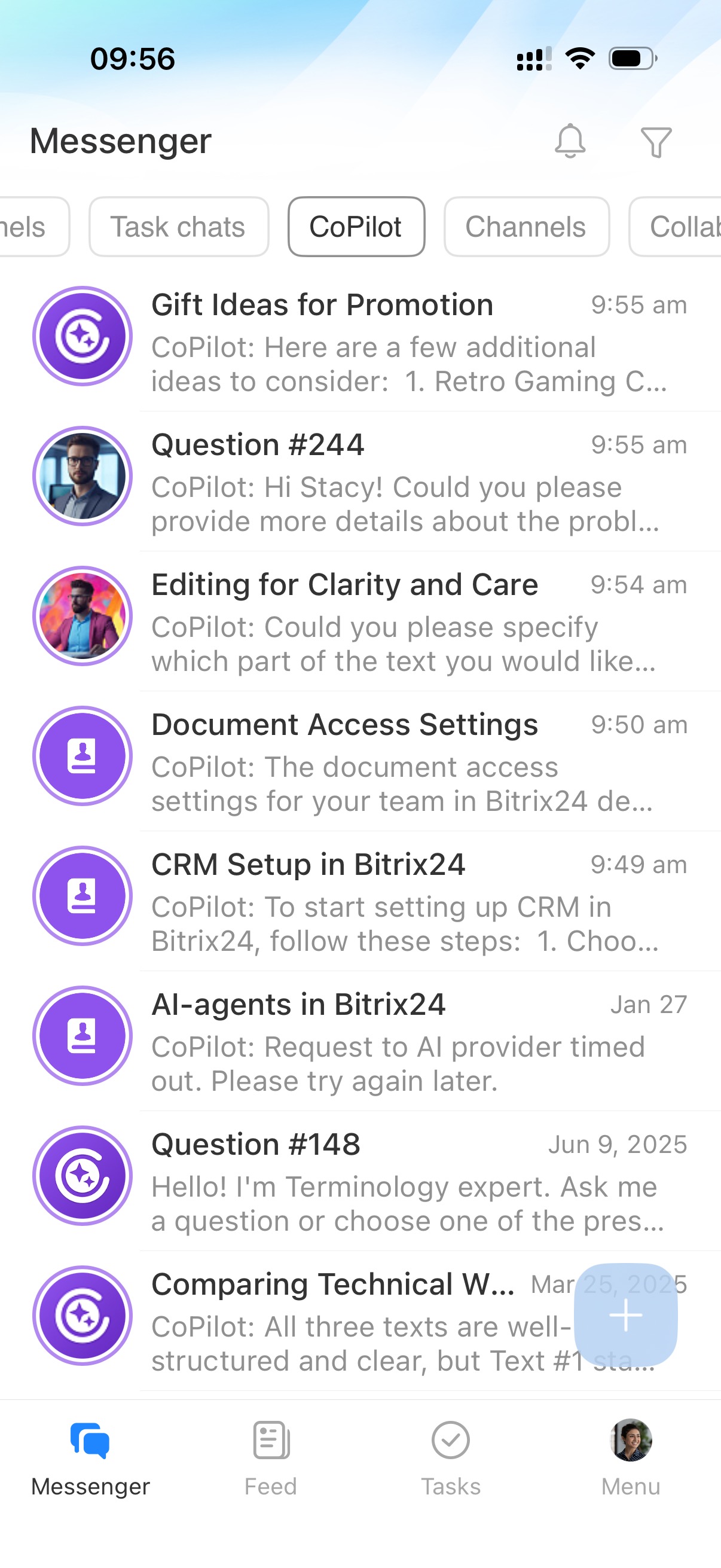
Use personal chats, group chats, channels, collabs, chats with CoPilot, and video calls.
Notifications and search help you stay updated and quickly find information.
Bitrix24 Chat: new interface and features
Chat with CoPilot
Collabs: Getting started
CRM
CRM
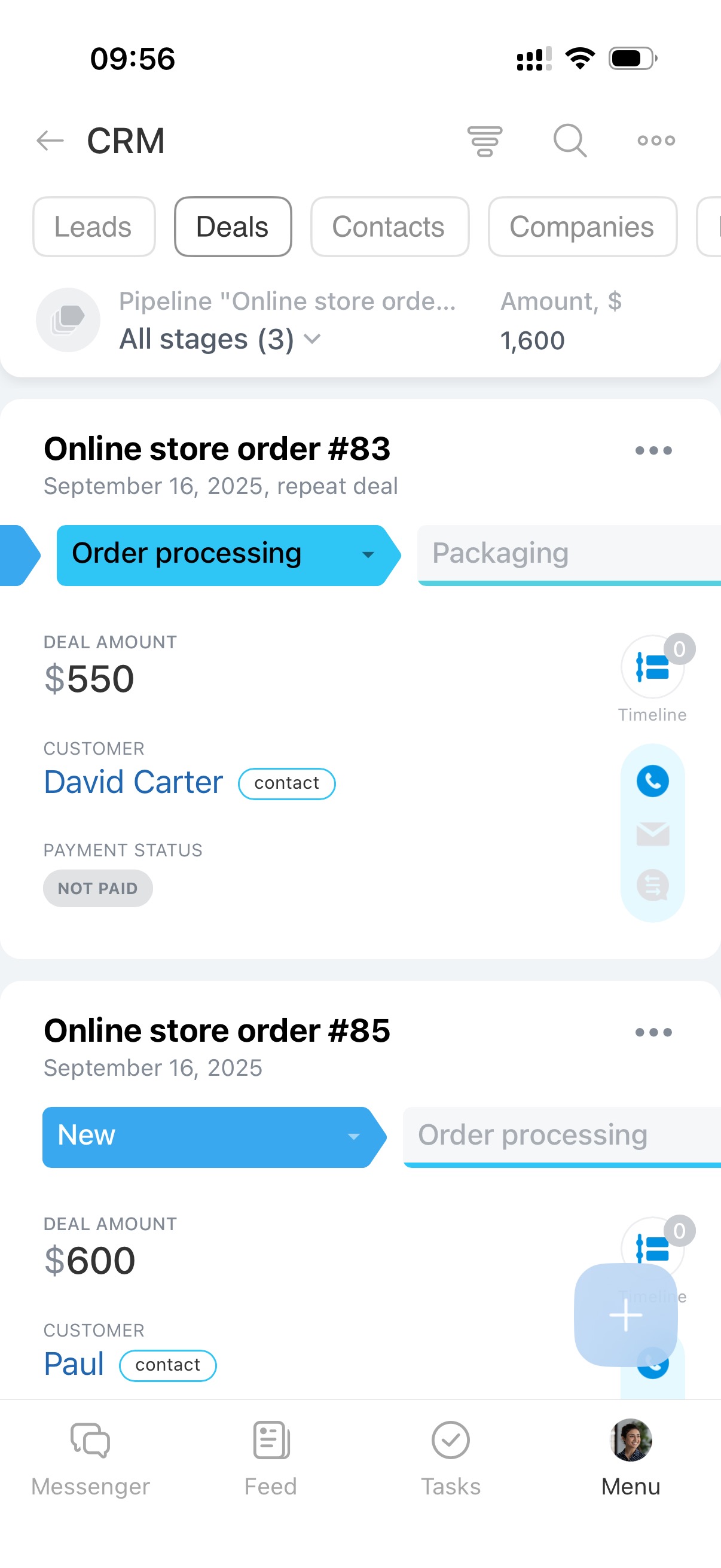
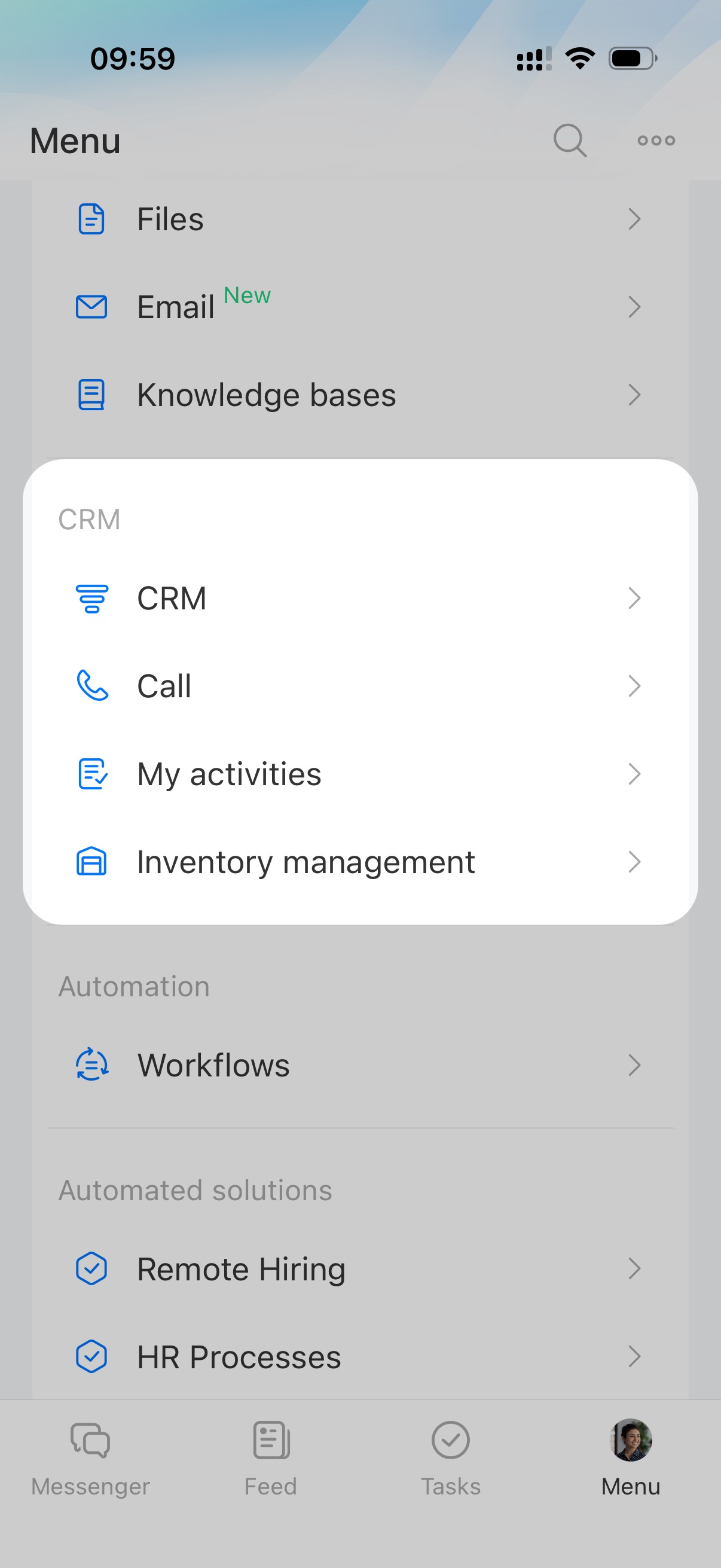
Work with CRM on mobile just like on desktop. Create and edit deals, assign responsible employees, change stages, plan activities, issue invoices, and accept payments.
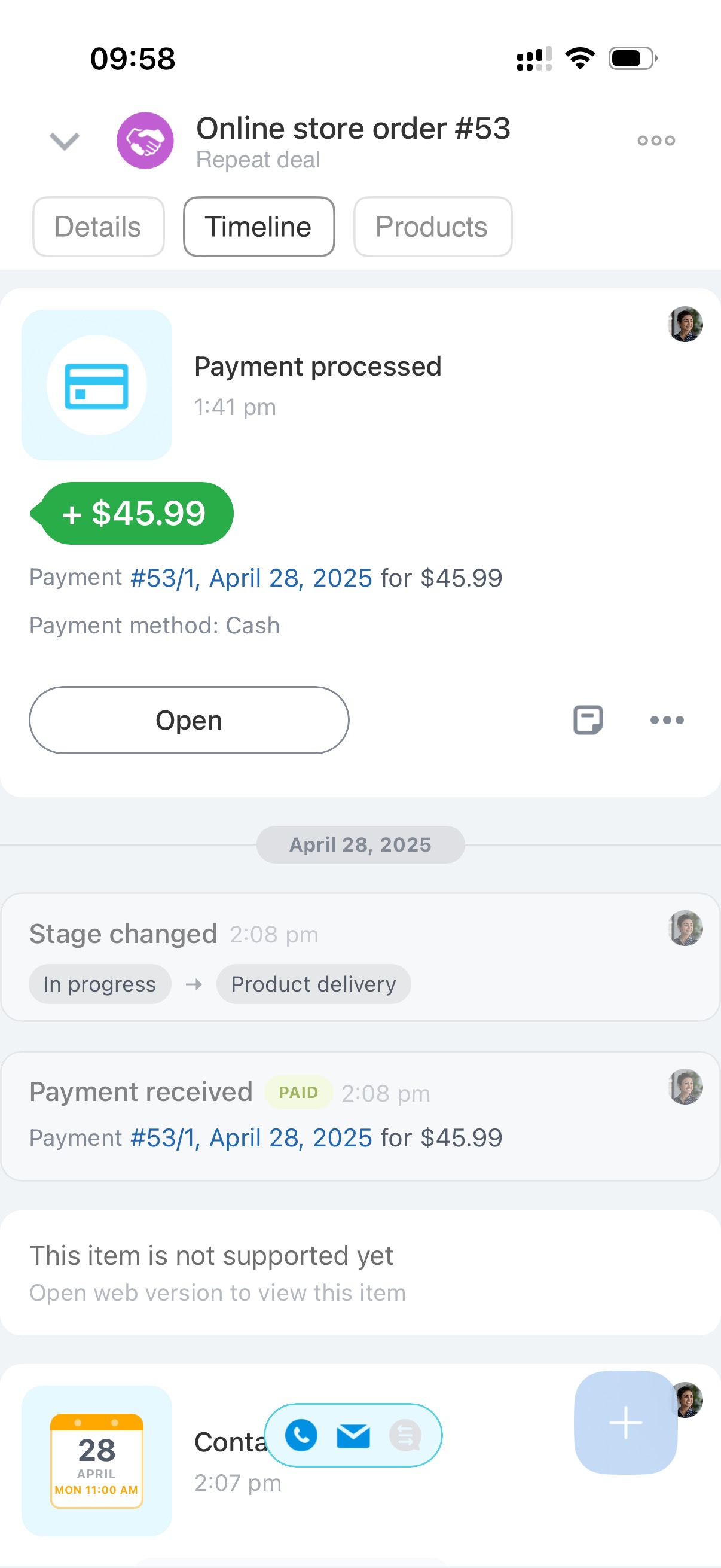
View the full customer interaction history in the timeline of the CRM item form.
CRM overview
Call
Call customers directly from CRM. Call history is saved automatically.
Make calls from the mobile app
My activities
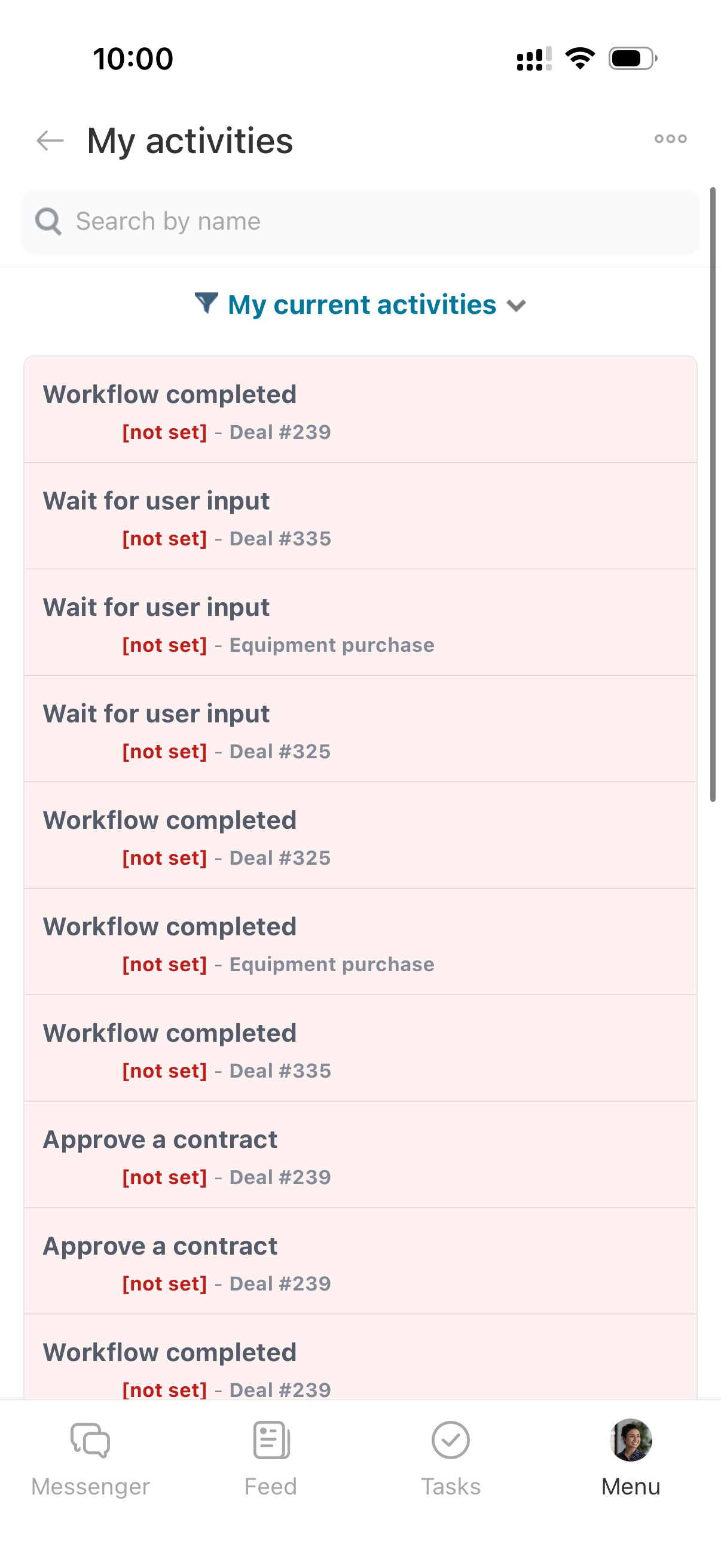
View all planned and completed customer activities such as calls, meetings, tasks, and emails. Filter activities and open related CRM items.
My activities in CRM
Inventory management
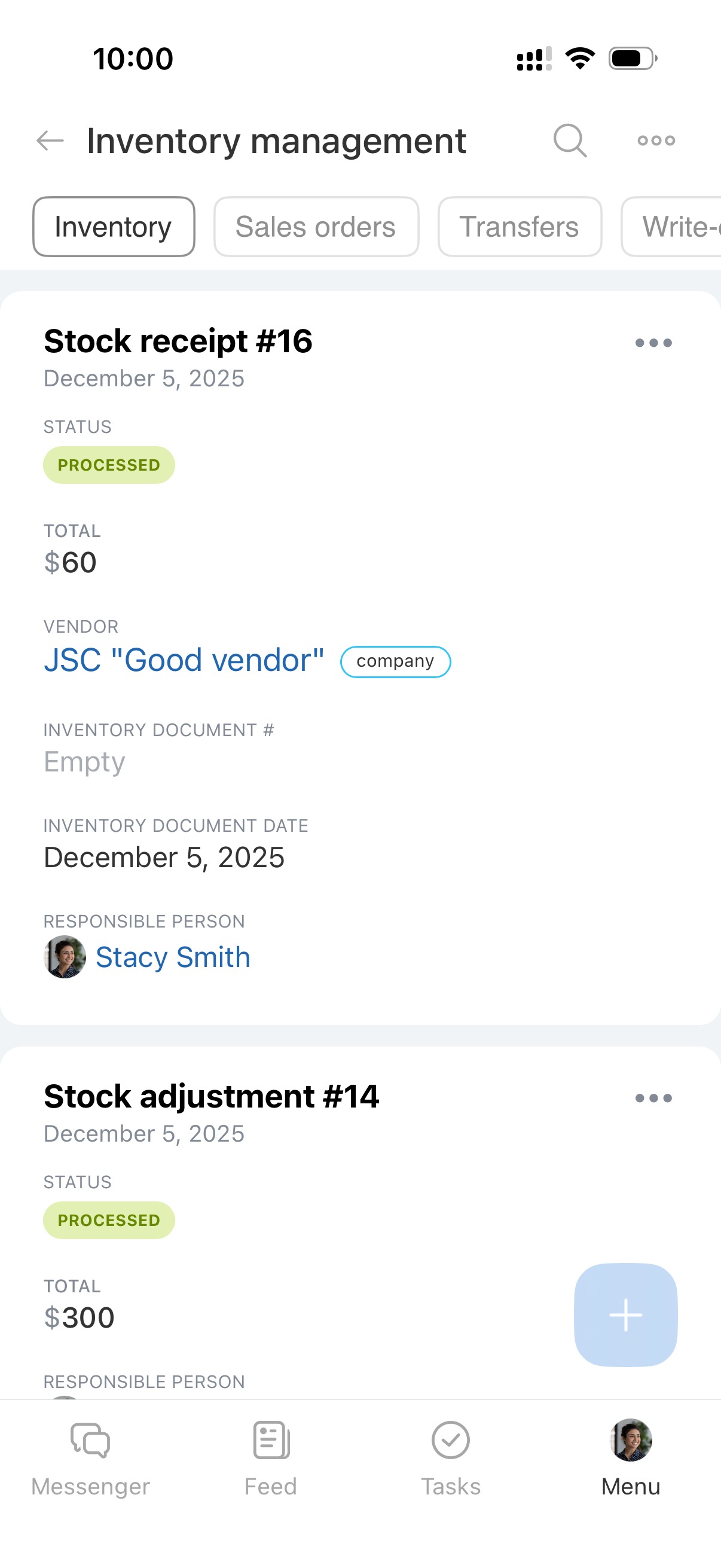
Track product receipt, transfer, sales, and write-off.
Automation
Workflows
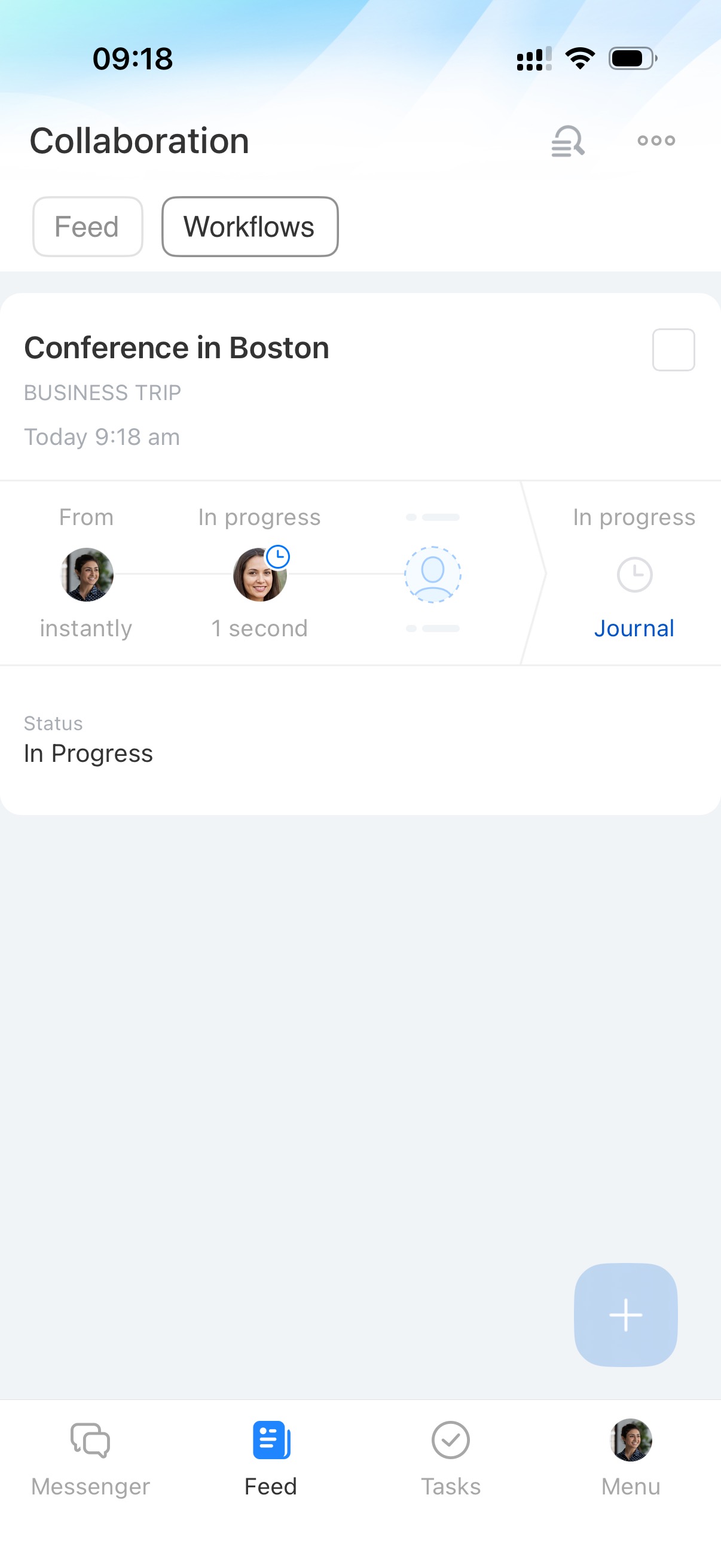
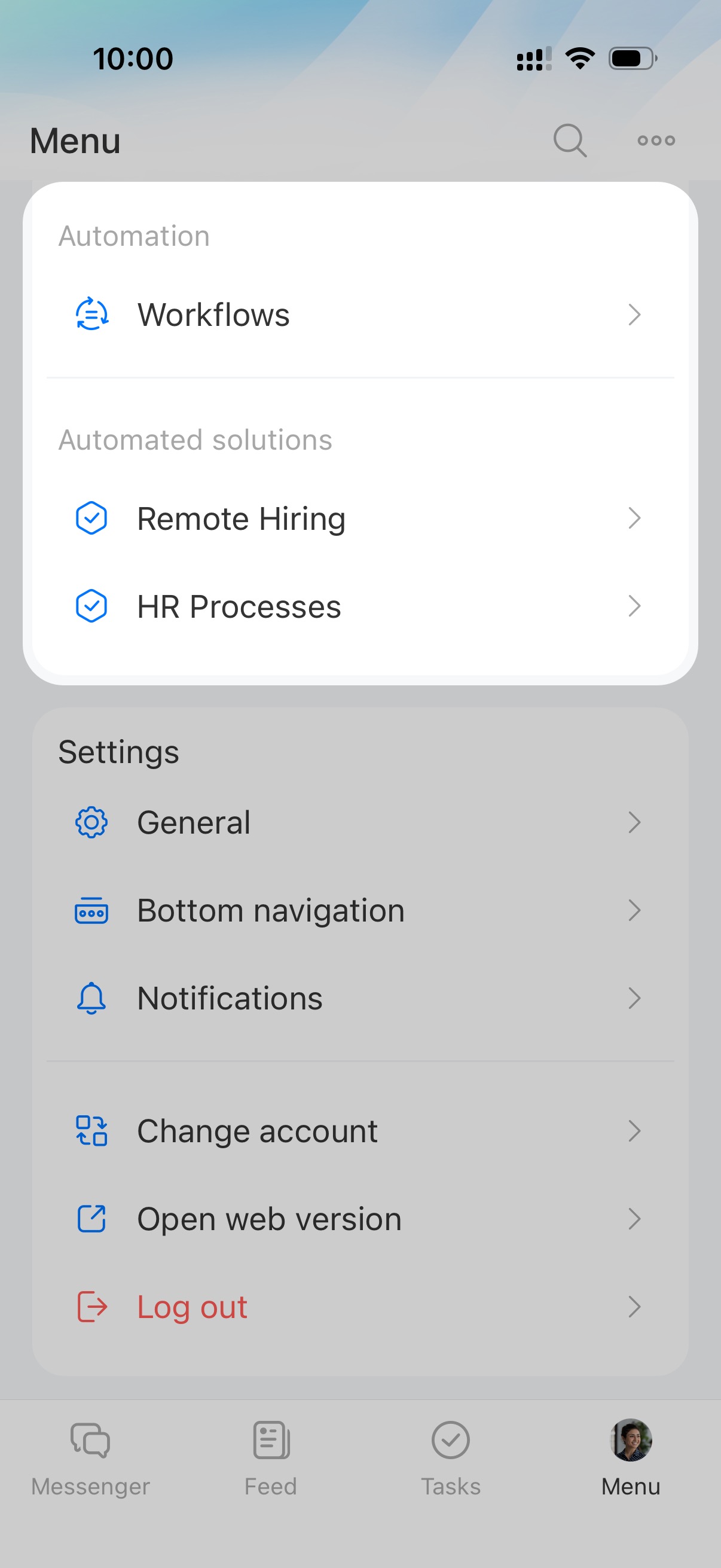
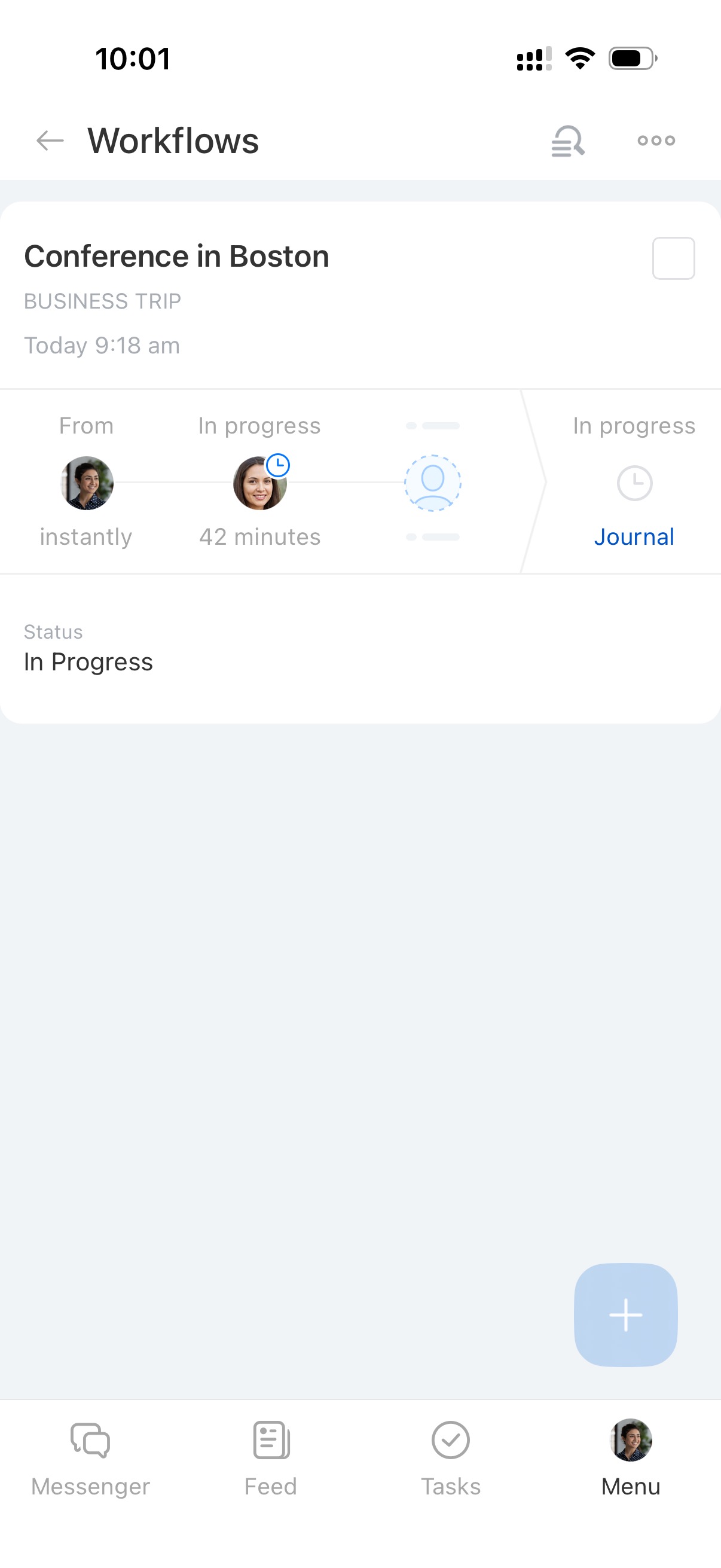
Approve and process documents directly in the mobile app. Complete multiple assignments at once without opening each workflow separately. For example, a supervisor can approve several travel requests or invoices in one action.
Workflows: group actions in Bitrix24 mobile app
Automated solutions
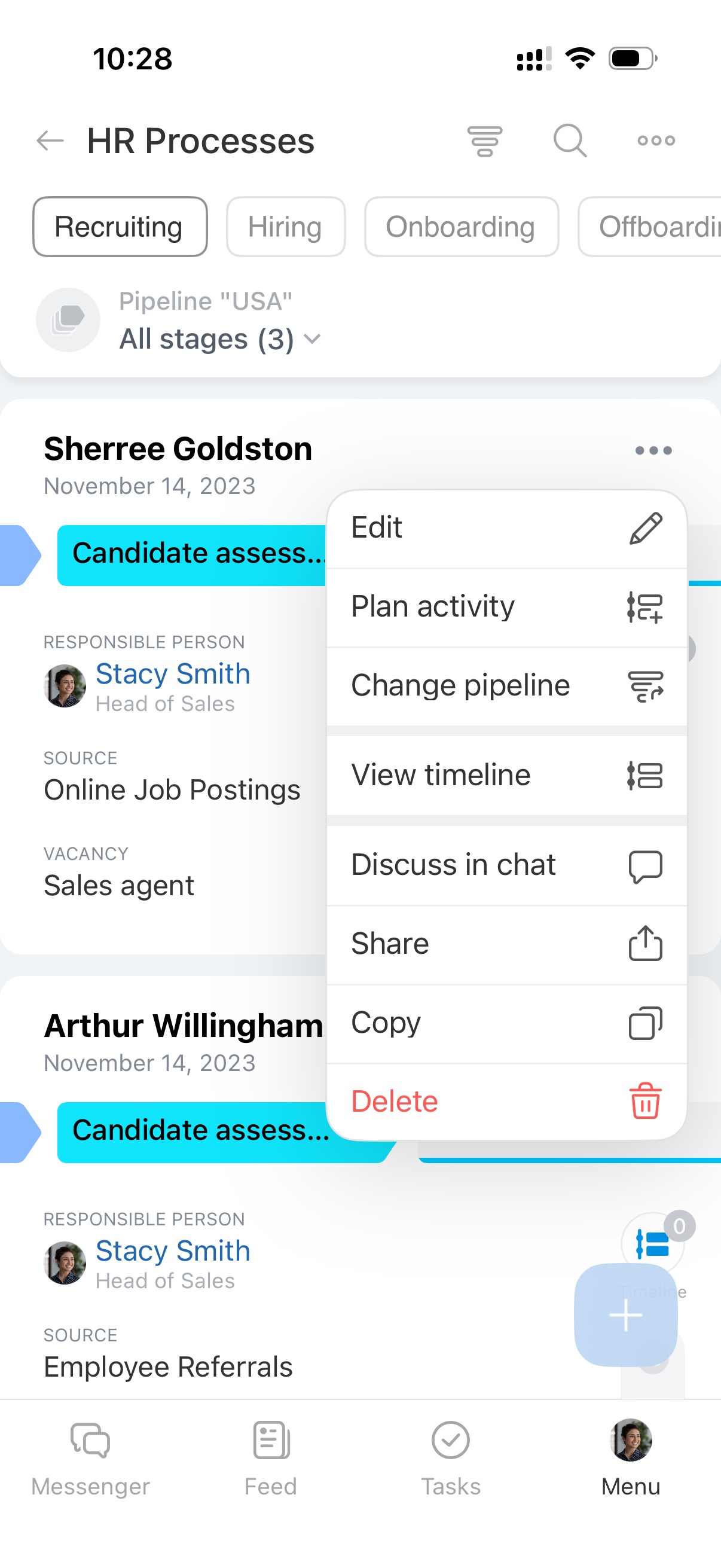
Use SPA to automate processes in any department. For example, HR teams can manage hiring processes.
Automated solutions: automate work of company departments
Create, edit, move, and delete process forms and plan activities for them.
Settings
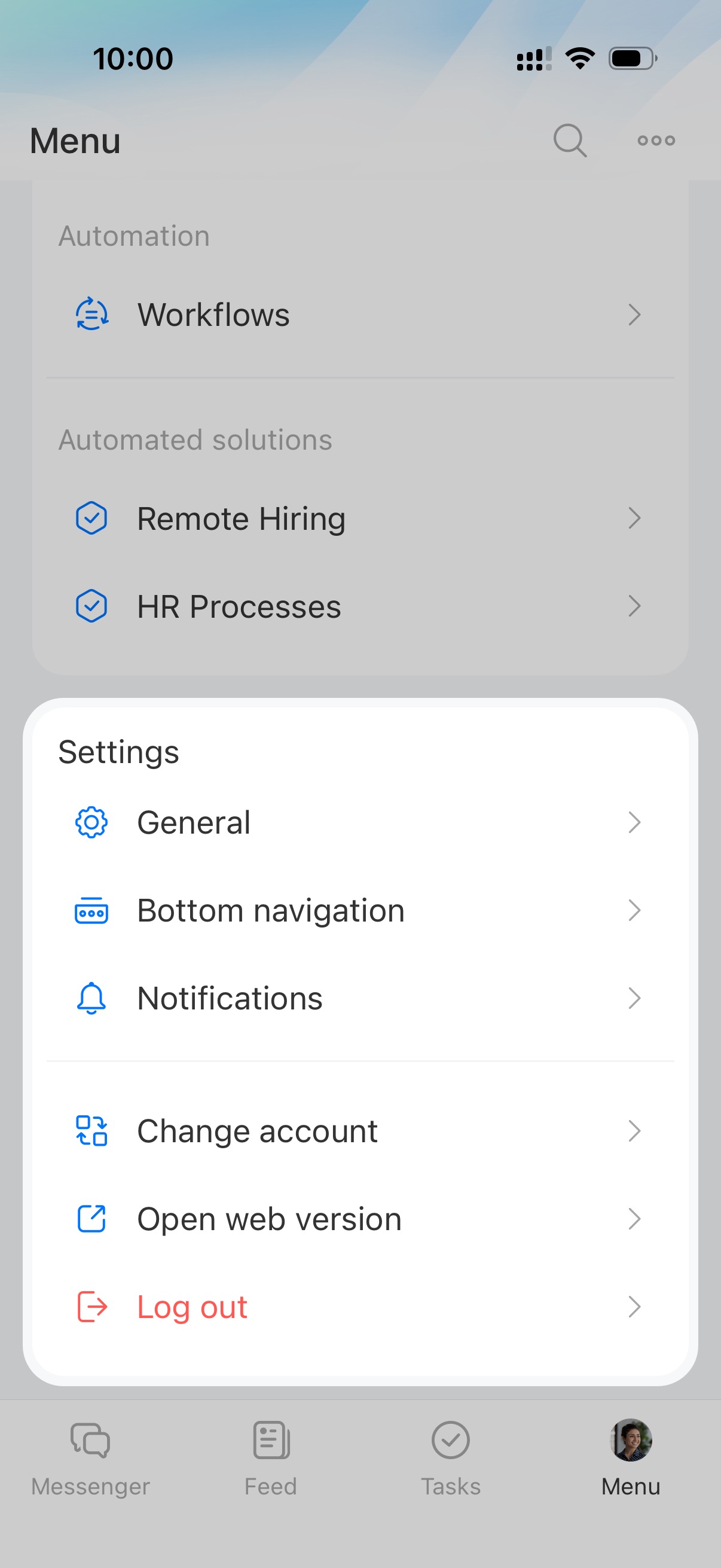
General
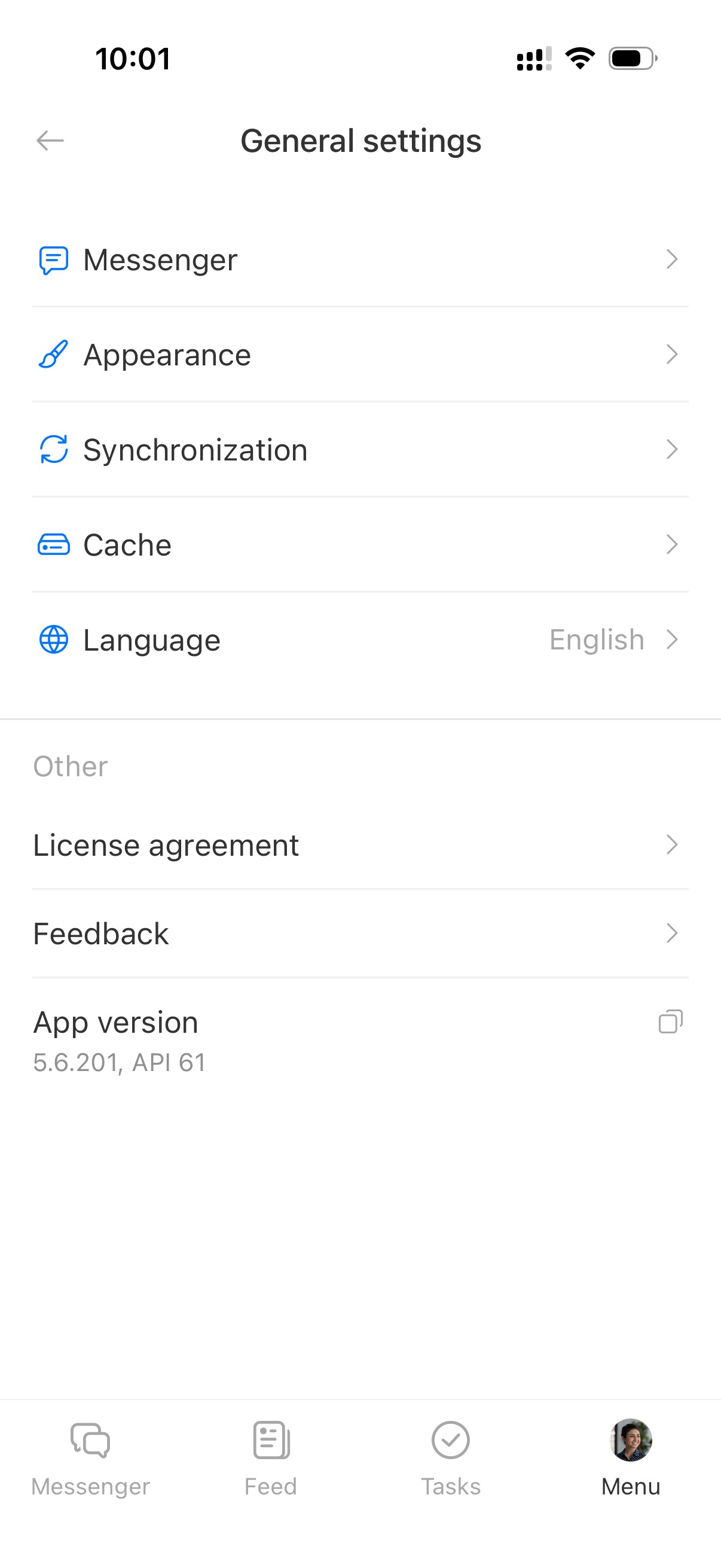
Configure the mobile app. Change theme, set up chat, sync contacts and calendars, and select the language.
Set up the Bitrix24 mobile app
Notifications
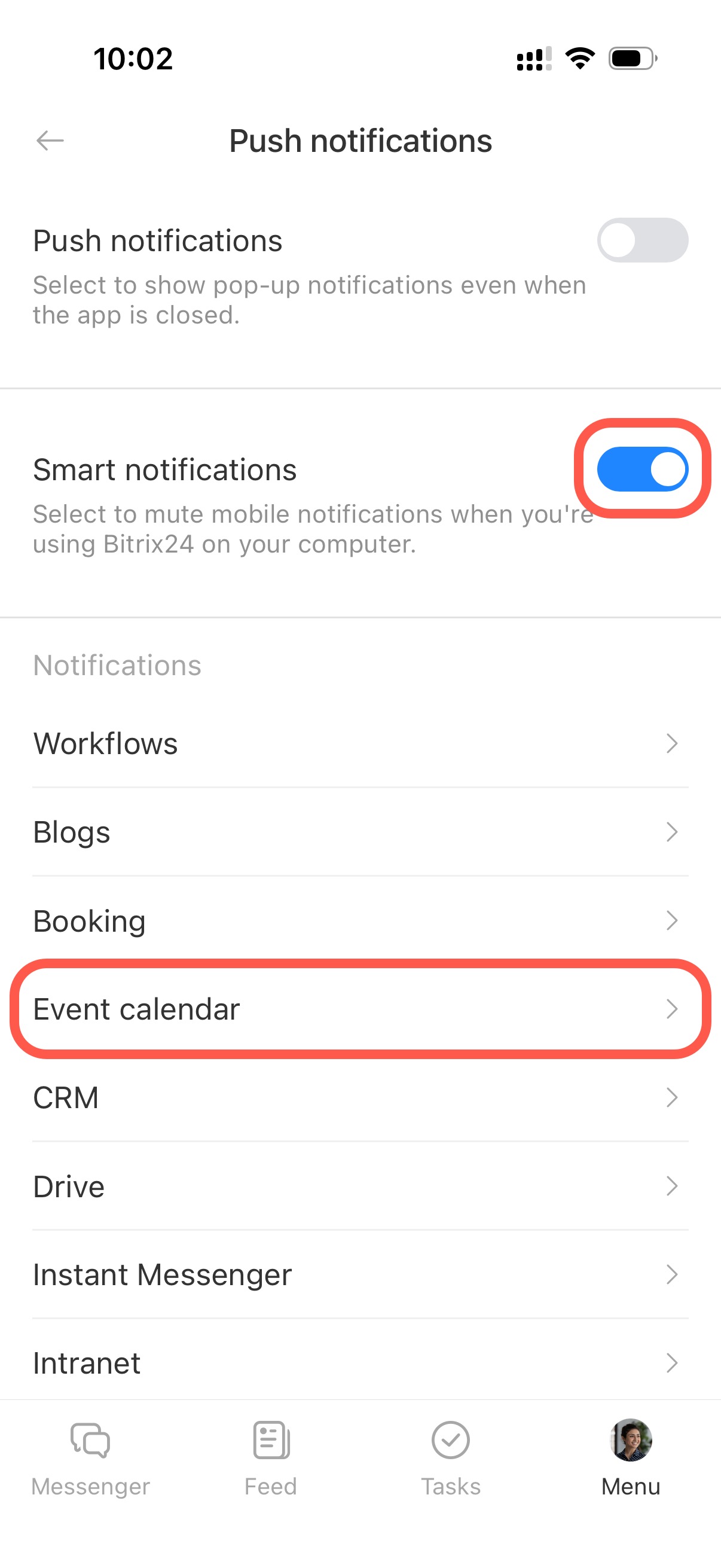
Choose which notifications you want to receive. Enable Smart notifications to avoid mobile notifications while working in Bitrix24 on desktop.
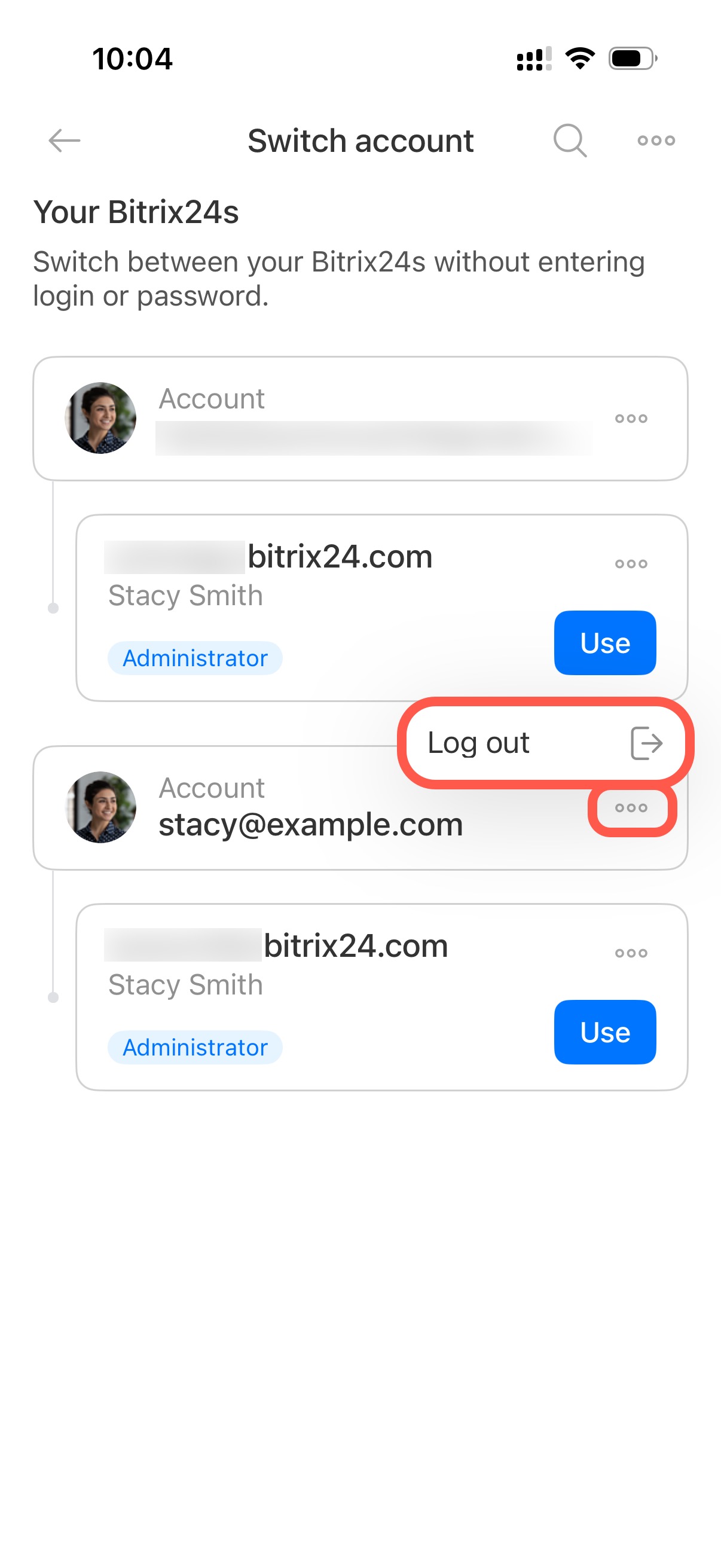
Change account
Quickly switch between multiple Bitrix24 accounts.
Open web version
Open Bitrix24 on your computer without entering login details manually. Authorization happens automatically.
Log out
After logout, sign in again when you reopen the mobile app.
In brief
- The Bitrix24 mobile app lets you work with key tools on your smartphone. Communicate with colleagues, manage tasks and CRM deals, work with documents, email, and the calendar, accept payments, and approve workflows.
- Customize the bottom menu for faster access to frequently used tools.
- The mobile app includes access to Profile, Employees and Support, Tasks and Projects, CRM, Messenger, Automation, and Settings.
