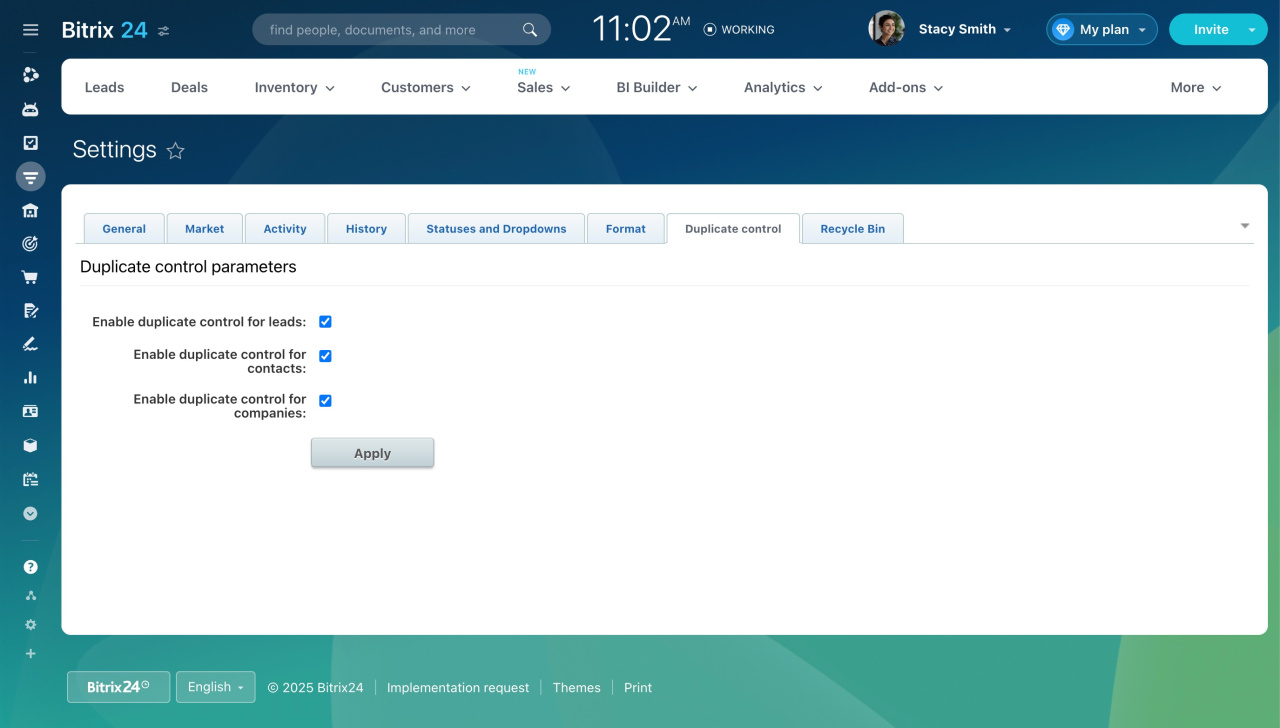
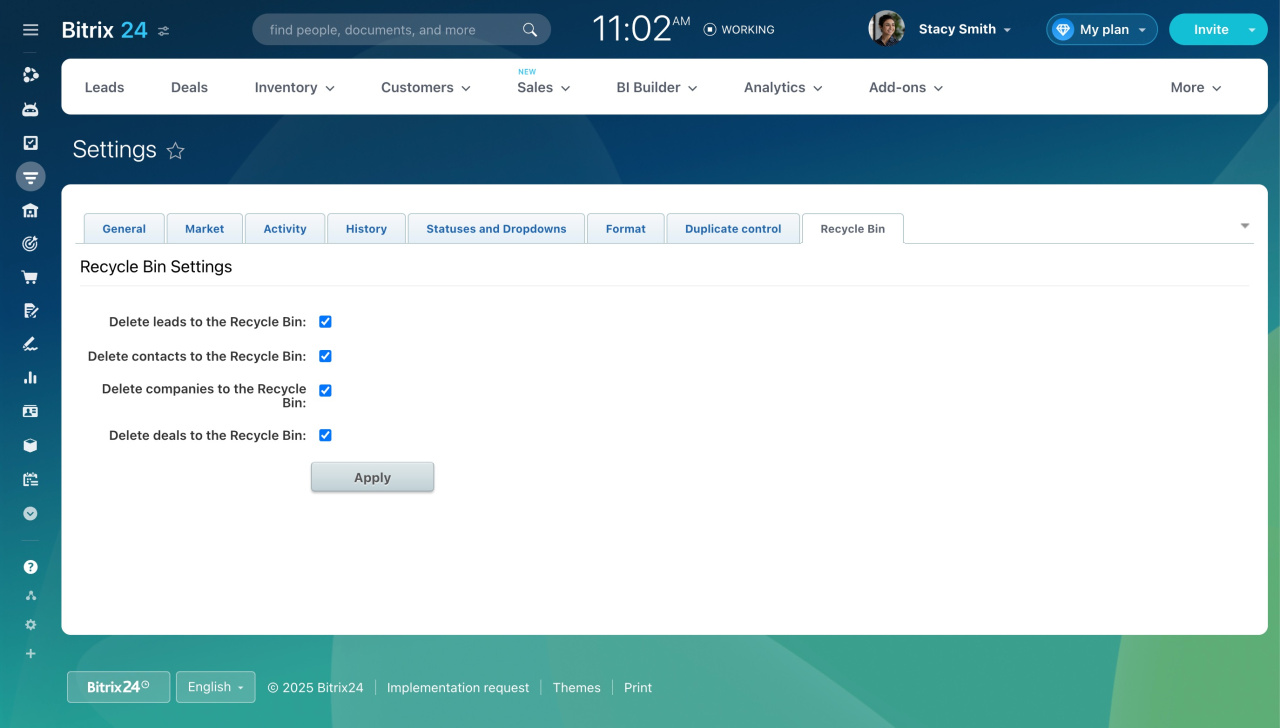
The Other settings section in CRM lets you manage key options. You can control how data appears, how records are created, and how the system behaves.
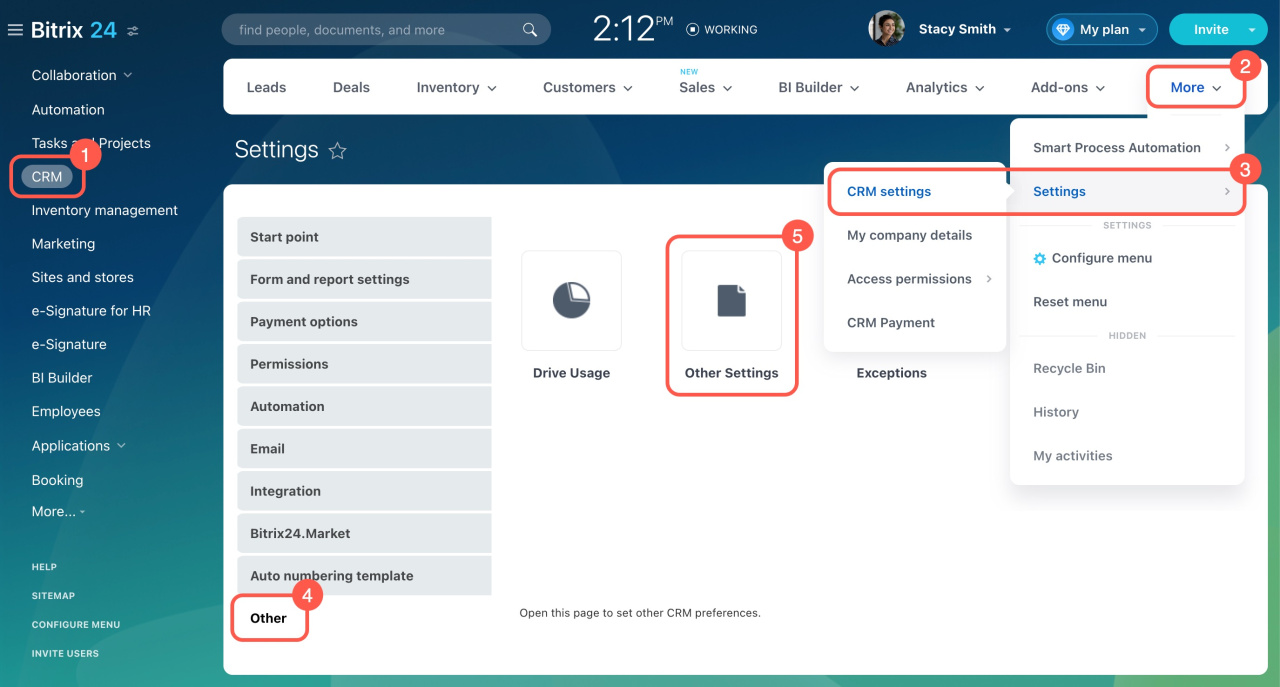
To open Other settings:
- Go to CRM.
- Open More.
- Click Settings and select CRM settings.
- Open the Other tab.
- Click Other Settings.
Settings are grouped into sections. Use the arrow in the top-right corner to expand all options on one page.
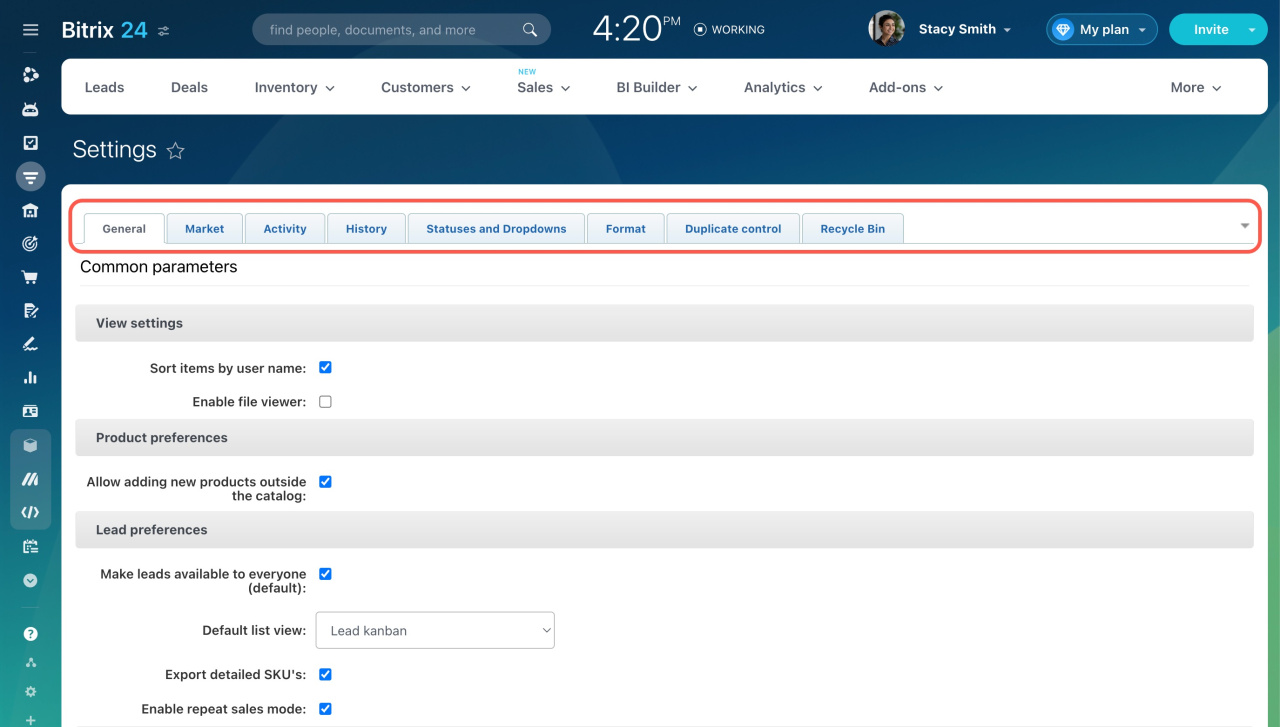
General
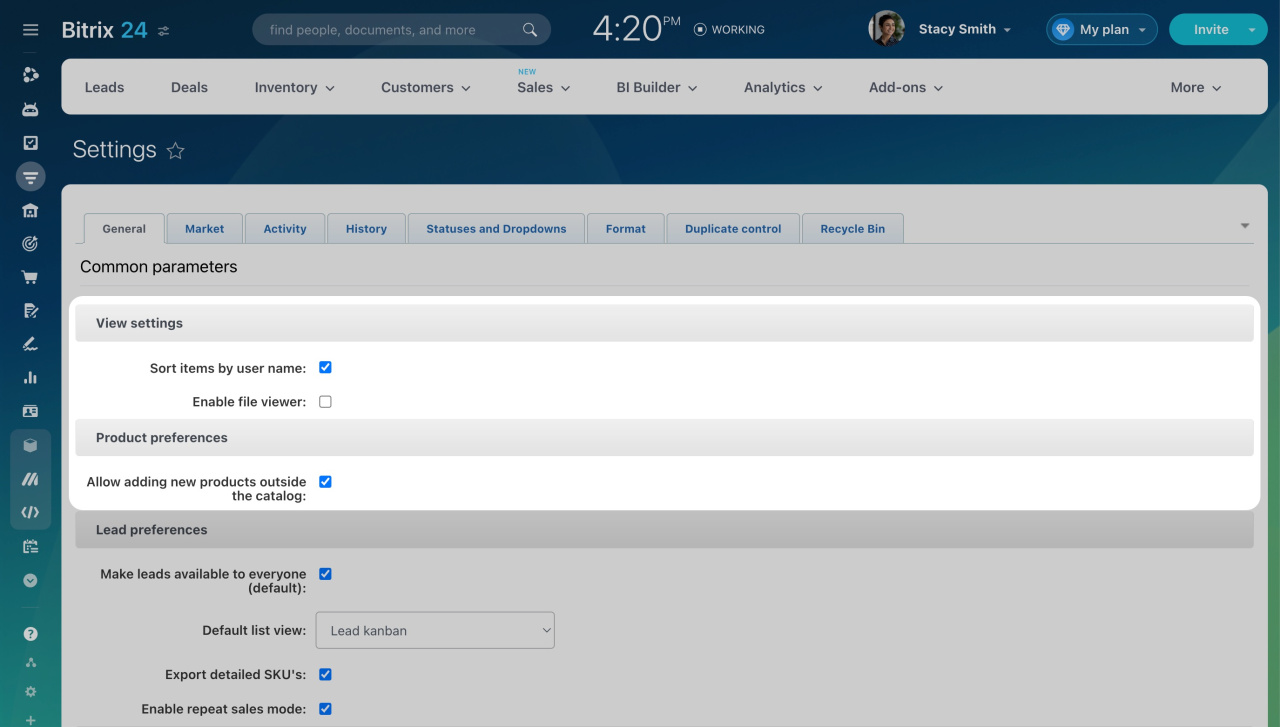
View settings
-
Sort items by user name: Sort CRM items by the responsible user’s name instead of ID.
Product preferences
-
Allow adding new products outside the catalog: Add products in CRM without adding them to the product catalog.
Access permissions to product catalog
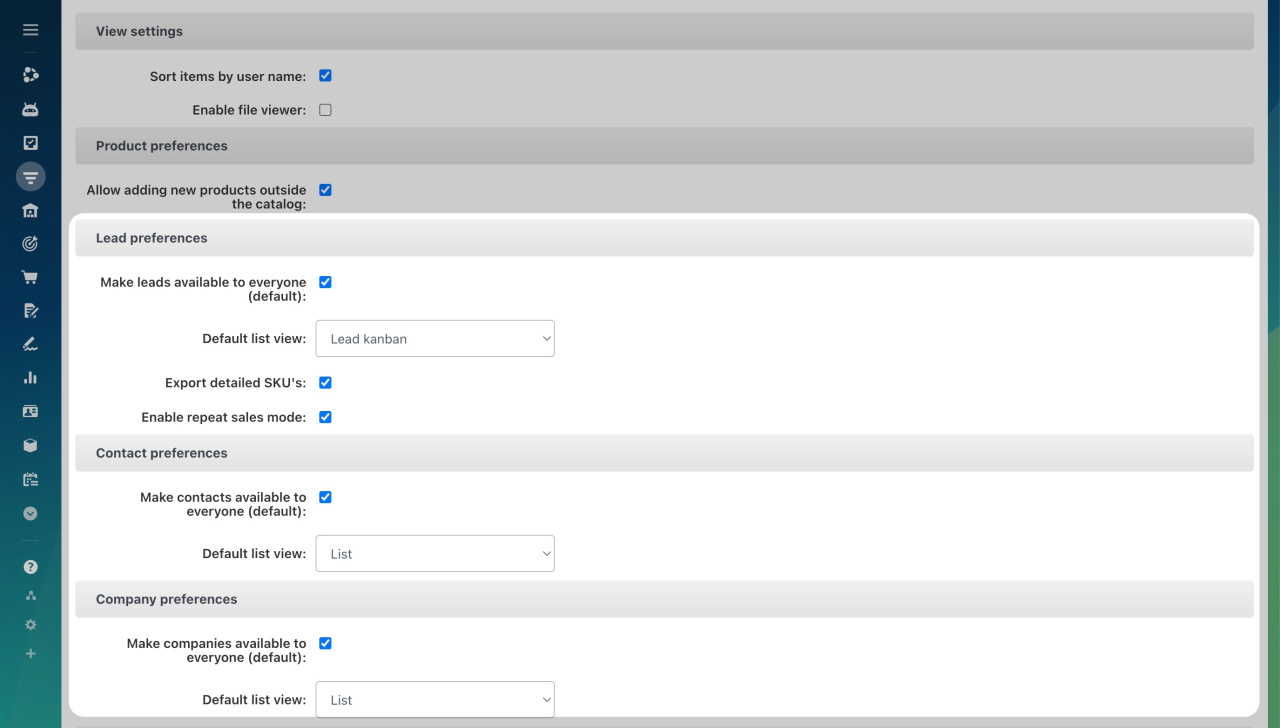
CRM item preferences
Make items available to everyone (default): Users with All open access can view all items.
Access Permissions in CRM
Default list view type: Choose List or Kanban for leads, deals, and invoices.
List view in CRM
Export detailed SKU's: Include product details when exporting leads and deals.
Export CRM data
Lead preferences
Enable repeat sales mode: Create repeat leads when clients contact you again after a lead is closed.
Repeat leads
Deal preferences
-
Update deal close date when the deal reaches final stage: Automatically set the completion date when a deal reaches the final stage.
Invoice preferences
Show Bitrix24 signature on the invoice view form: Display the Bitrix24 signature on old public invoices.
Show legacy invoices menu: Enable the old invoice interface.
New invoices in CRM
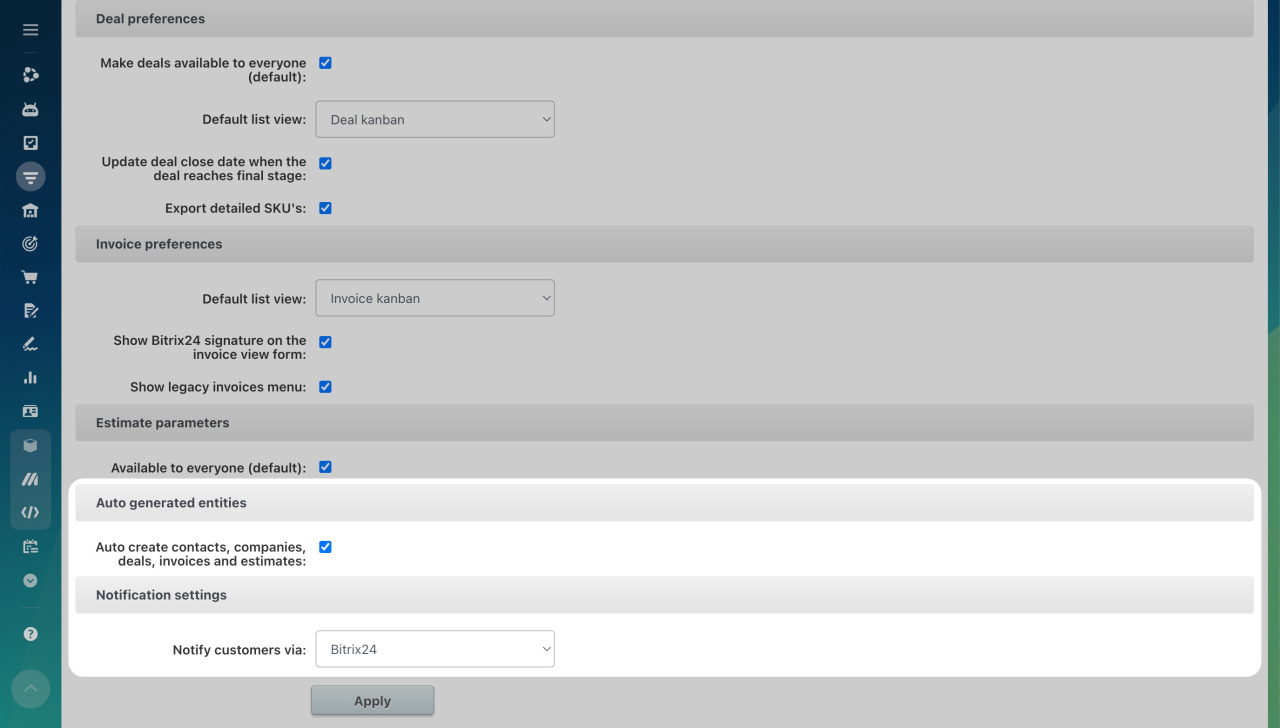
Auto generated entities
Auto create contacts, companies, deals, invoices and estimates: Automatically create contacts, companies, deals, invoices, or estimates if all required fields are filled.
Notification settings
Notify customers via: Choose a provider for sending messages in Sales Center scenarios.
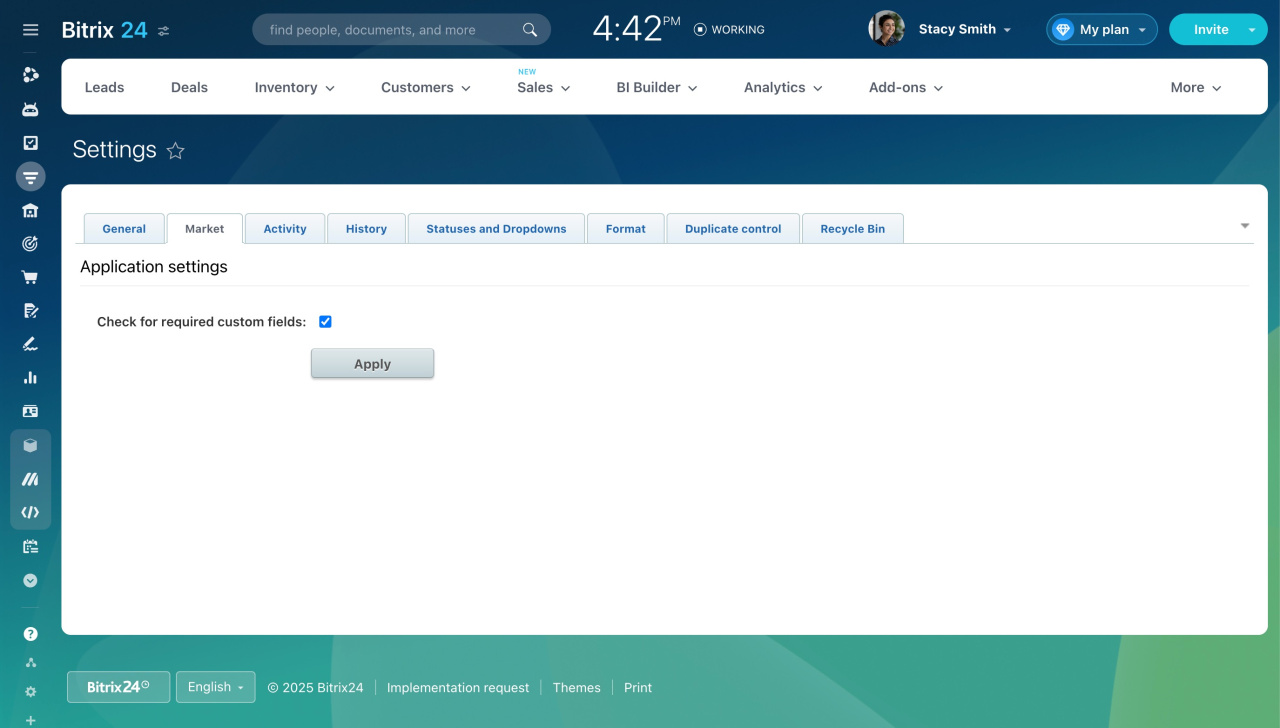
Market
Application settings
-
Check for required custom fields: Block external apps from running if required fields are missing.
Activity
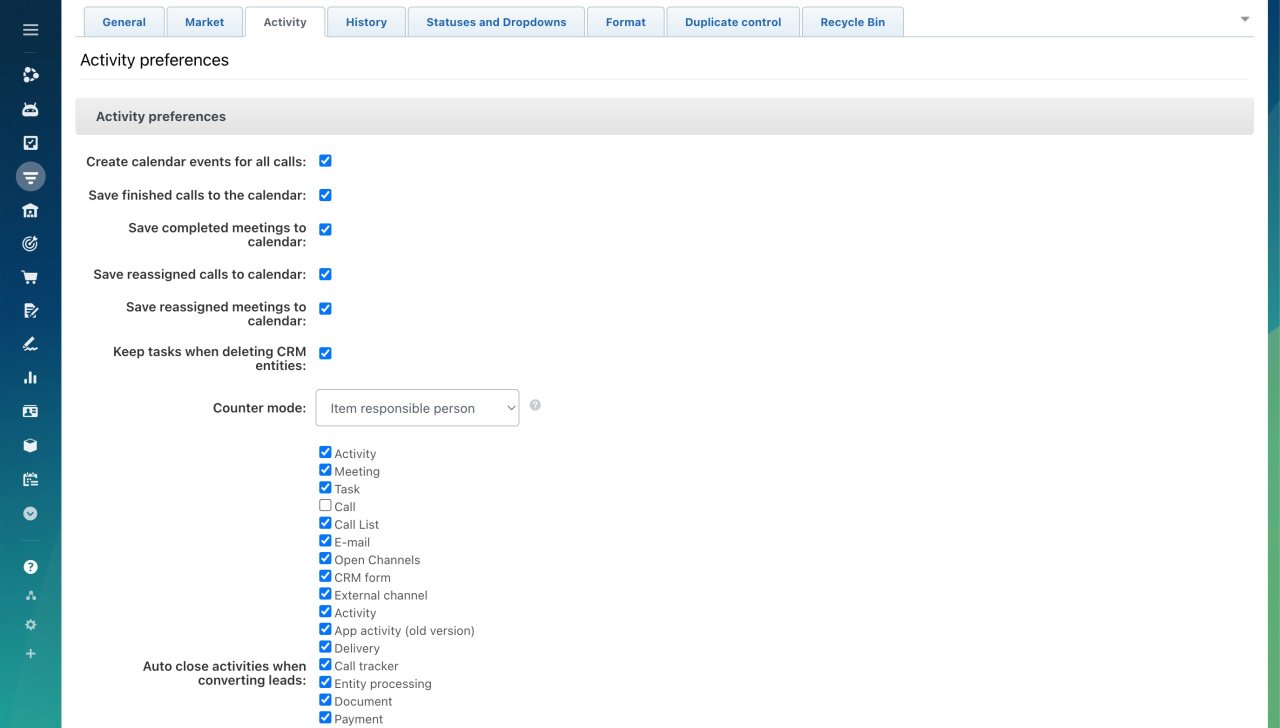
Activity preferences
-
Create calendar events for all calls: Turn off to stop creating events for calls.
Disable showing CRM calls in calendar -
Save completed calls and meetings to calendar: Log activities in personal calendars.
-
Save reassigned calls and meetings to calendar: Show events in both users’ calendars.
-
Keep tasks when deleting CRM entities: Tasks remain even if the related item is deleted.
-
Counter mode: Choose which notifications to receive.
Counter modes in CRM -
Auto close activities when converting leads: Select which activities close automatically.
-
Default list view: Show activities as a list or reports.
-
Hide activity status on kanban tiles and list items: Control how long activity statuses remain visible.
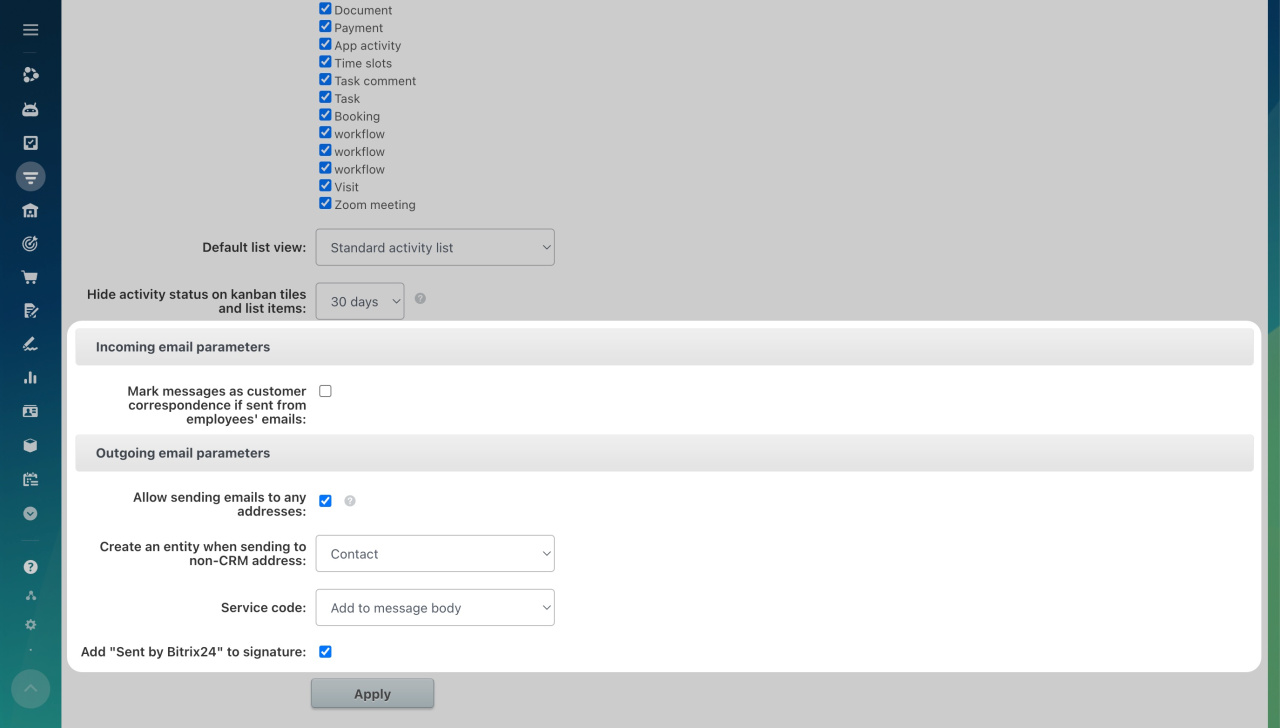
Incoming email parameters
Mark messages as customer correspondence if sent from employees' emails: Label forwarded emails as customer emails.
Outgoing email parameters
-
Allow sending emails to any address: Send emails to any address from CRM forms.
Select email recipients in CRM -
Create an entity when sending to non-CRM address: Create a lead or contact when emailing unknown addresses.
-
Service code: Include or exclude the service code in emails.
- Add "Sent by Bitrix24" to signature: Add this signature to outgoing emails.
Remove "Sent by Bitrix24" caption from outgoing email
History
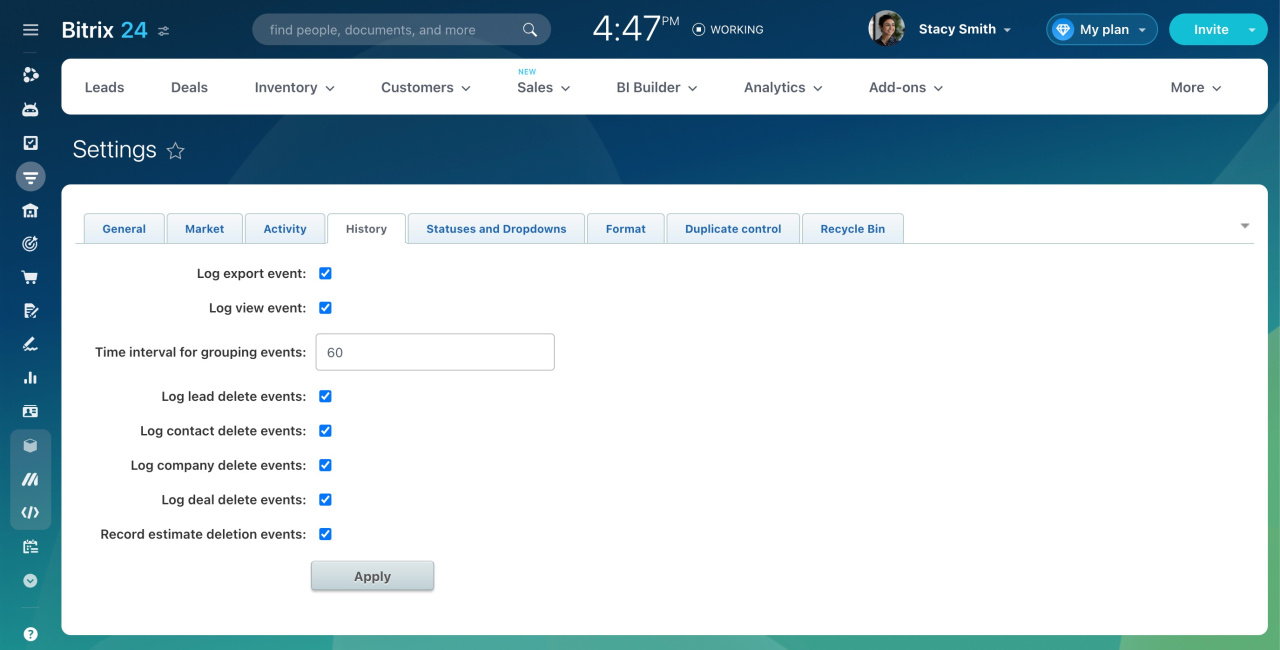
Choose which events to log:
- Log export event
- Log view event
- Log lead delete events
- Log contact delete events
- Log company delete events
- Log deal delete events
- Record estimate deletion events
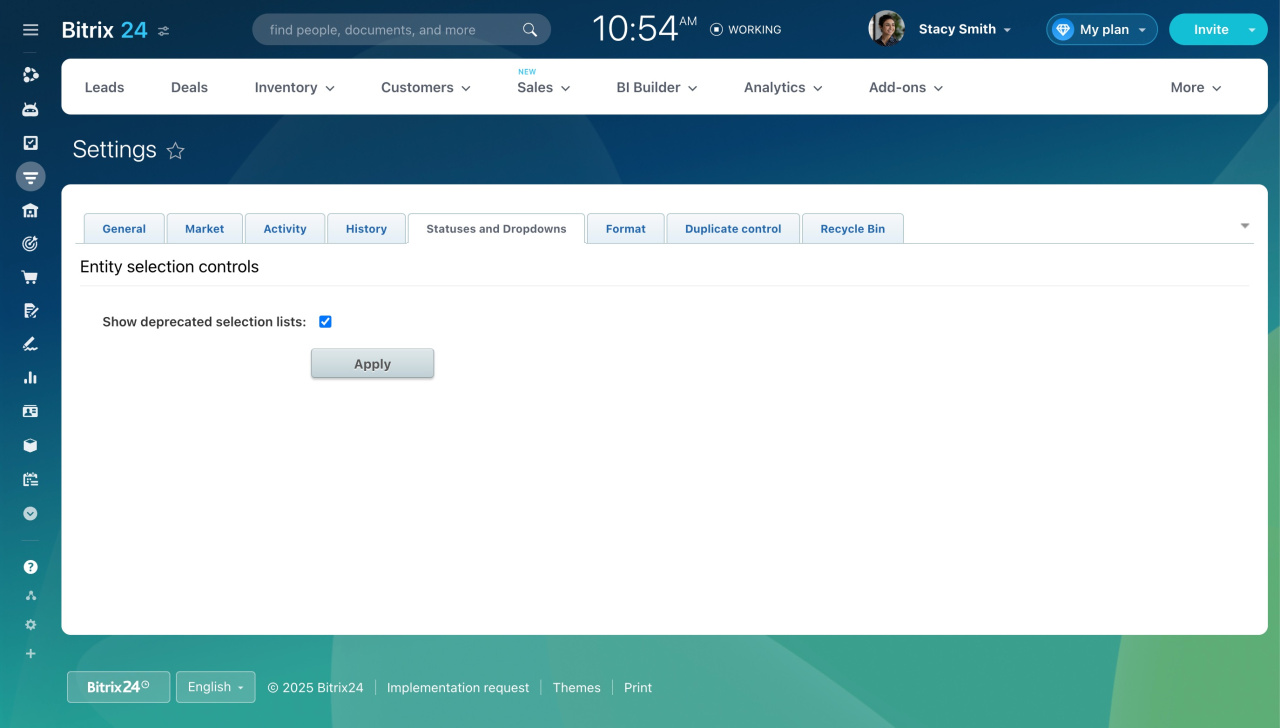
Statuses and Dropdowns
Entity selection control
-
Show deprecated selection lists: Display old lists in settings. Using the Product catalog is recommended.
Product catalog in CRM
Format
Format parameters
-
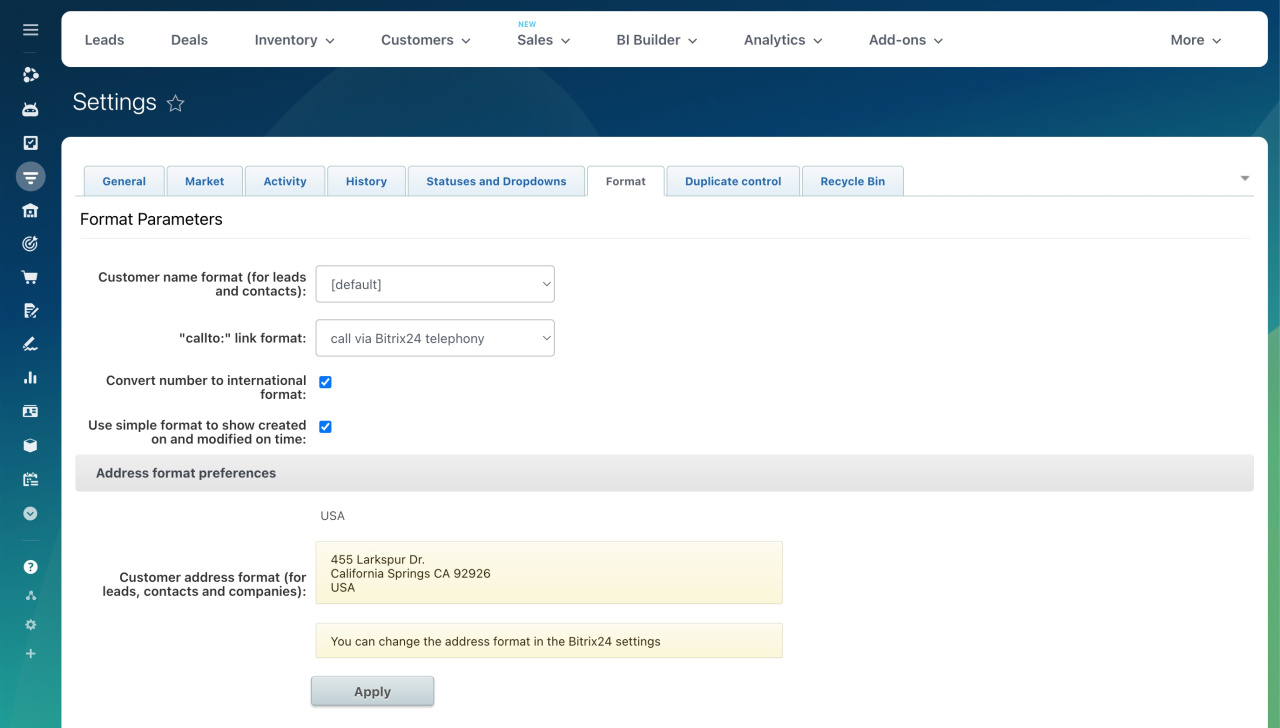
Customer name format (for leads and contacts): Set how names appear for leads and contacts.
Change contact name format -
"callto:" link format: Define how phone links work.
-
Convert number to international format: Standardize phone numbers.
-
Use simple format to show created on and modified on time: Show created and modified dates without exact time.
Address format preferences
Configure address display in general Bitrix24 settings.
Bitrix24 Settings: New single section