
Tasks in Bitrix24 provide a unified space to organize team work: assign tasks and manage projects. The task form allows you to track employee progress, monitor deadlines, distribute responsibilities, and discuss work in the chat.
In this article:
Go to the Tasks and Projects section > Tasks and click Create. A mini task form will open.
Bitrix24 offers two ways to create a task:
- Short form. Use it for quick and simple assignments. It includes only the essentials: title, description, assignee, and deadline. You can also add files, a checklist, and link it to a project if needed.
Quick task creation form - Detailed form. It is suitable for tasks requiring additional parameters, such as adding observers, participants, and setting reminders.

Follow these three steps to create a detailed task:
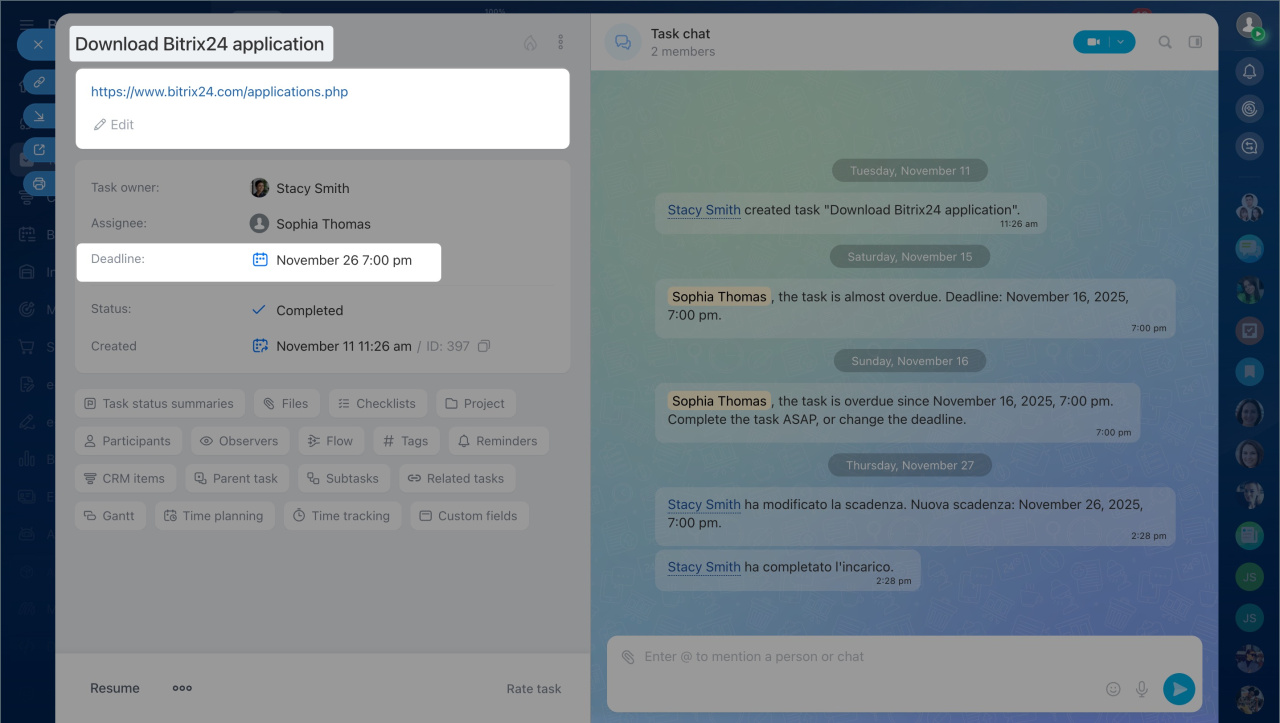
1. Fill in the main parameters. Start by specifying the title, description, and deadline.
Title. This is the first thing the assignee sees in the task list. The title should clearly indicate what needs to be done. If you revisit the task a week later, the title alone should be enough to recall its purpose without reading the description.
Description. Briefly provide context and the expected result: what to do, why, and in what format the outcome is needed. Use CoPilot to structure the text, refine wording, or turn the description into a checklist if necessary.
CoPilot in Tasks
Deadline and task settings. Specify the date and time by which the task should be completed. You can choose a preset option or select a date from the calendar.
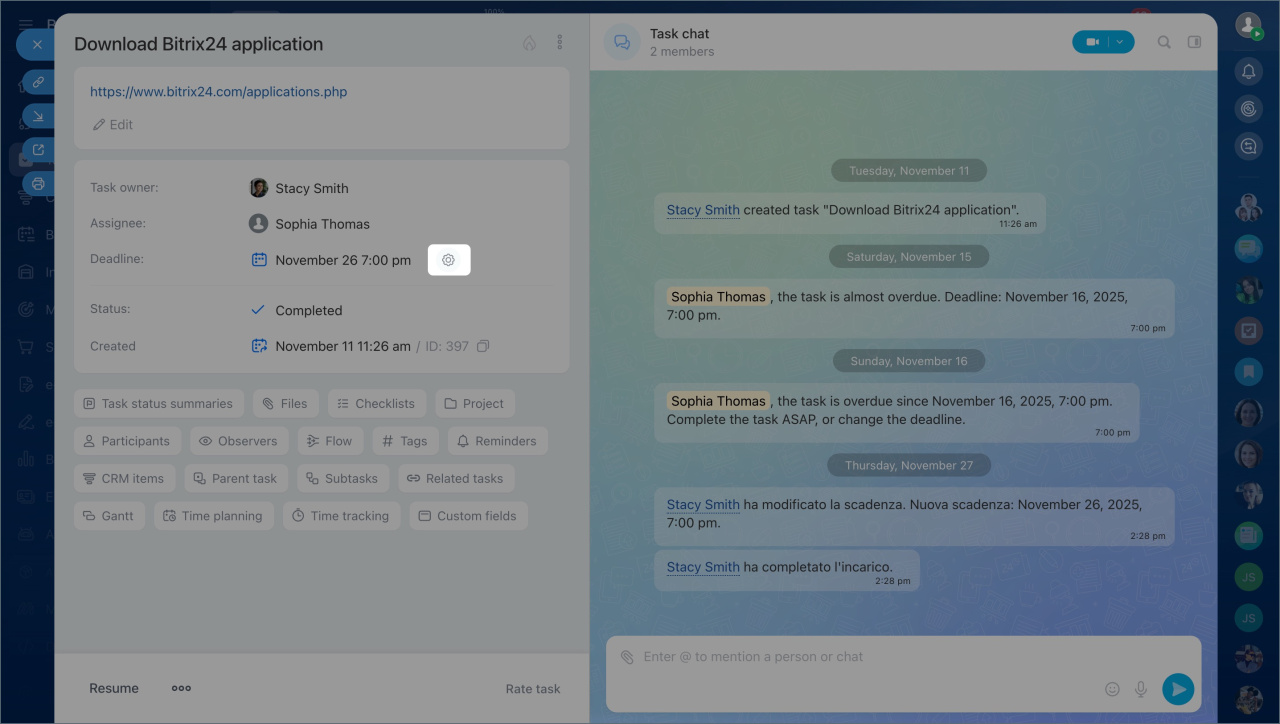
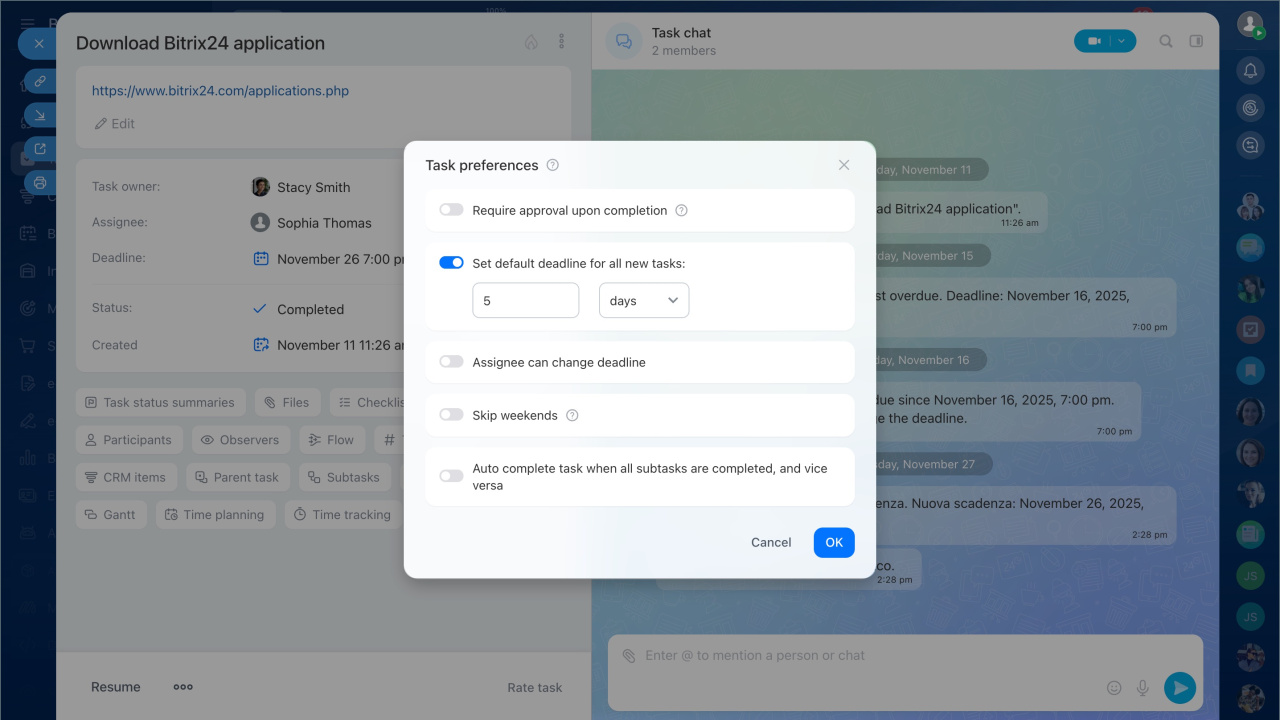
Click Settings (⚙️) next to the deadline to enable additional parameters for monitoring results and deadlines:
- Require approval upon completion — once the assignee completes the task, it will return to the creator for review. The creator can accept the result or send it back for revision. If the creator and assignee are the same person, the task will not return for review. Administrators, the creator’s supervisor, and the assignee’s supervisor can also complete and accept the task.
- Set default deadline for all new tasks — a default deadline, such as five business days, will be applied to each new task. This helps avoid forgetting deadlines and eliminates the need to fill in the field manually.
- Assignee can change deadline — the assignee can reschedule the task’s completion date. You can also configure a reason request for changes and limit the deadline changes by date or frequency.
- Skip weekends — if the deadline falls on a weekend or holiday, the task will be due on the next business day according to the company’s schedule.
- Auto complete task when all subtasks are completed, and vice versa — when all subtasks are completed, the main task will automatically close. Similarly, completing the main task will close all its subtasks in Bitrix24.
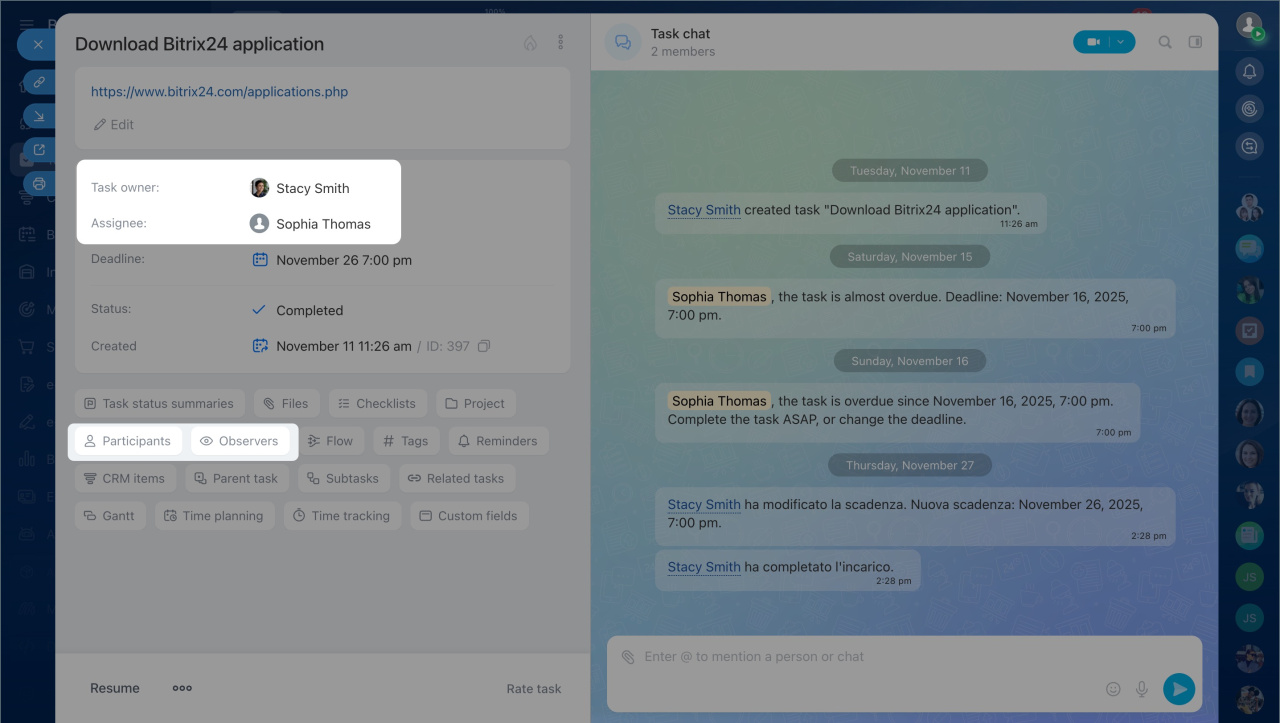
2. Add participants. Tasks can include several roles, indicating who performs the work, who assists, and who monitors the results.
- Creator — assigns the task and reviews the result. By default, this is the person creating the task.
- Assignee — responsible for completing the task. Each task has one assignee. If multiple assignees are specified, Bitrix24 creates separate tasks for each, and the creator sees them as linked tasks.
- Participants — collaborate with the assignee to complete the task.
- Observers — monitor the task’s progress, view comments and files, but do not perform the work.
To specify Participants and Observers in a task, select the parameters in the lower block with additional options.
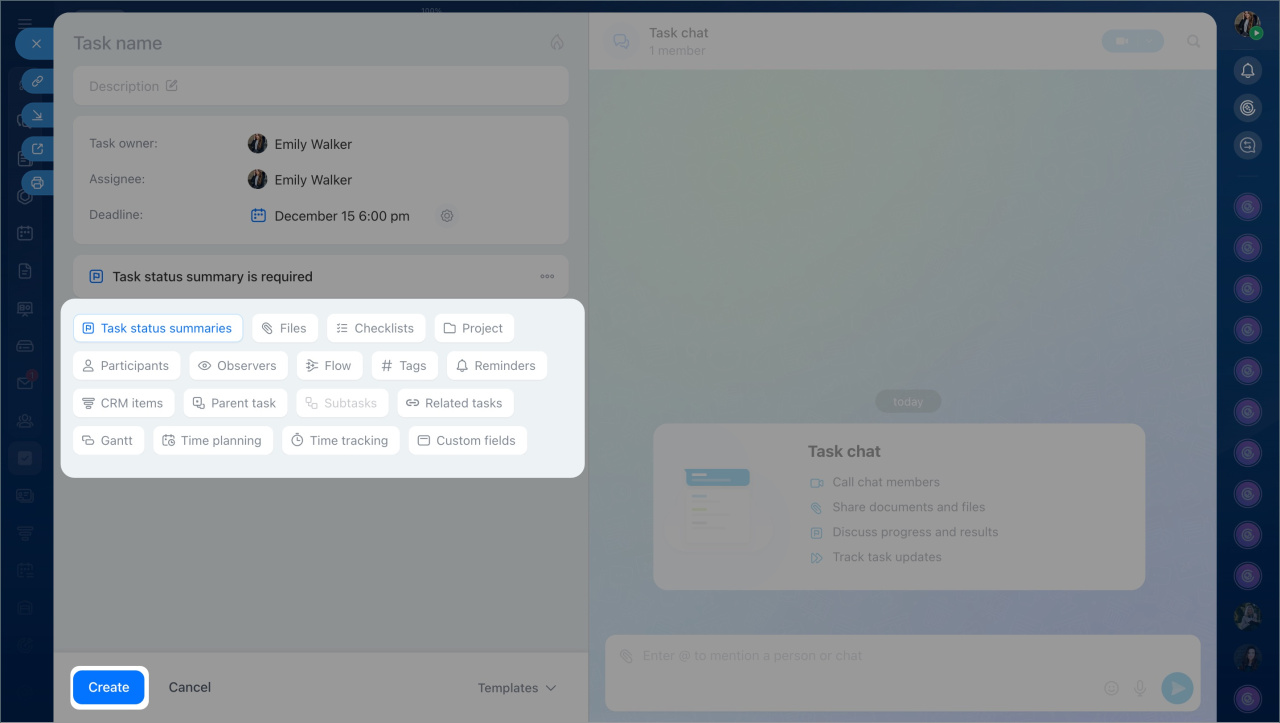
3. Use additional features. The full task form includes tools to structure work, keep materials organized, and monitor results.
- Task status summaries— record the outcome in a separate block to avoid losing it in comments and quickly verify task completion.
Task status summary option - Files — attach documents, images, and other materials. All participants work with the latest version, and changes sync with Bitrix24 Drive.
New task form - Checklists — break the task into steps, add sub-items, assign responsibilities, and attach files. Checklists help track progress and ensure nothing is missed.
Checklists in tasks - Projects — link the task to a workgroup or project to keep related tasks and materials in one place.
Working with tasks in projects - Participants and observers — add employees who assist with the task or need to monitor its progress. Participants perform part of the work, while observers see the entire progress.
- Flow — use department flows to automatically distribute similar tasks among employees, reducing the supervisor’s workload. For example, all "Contract review" tasks are sent to the legal department’s flow and distributed automatically.
Bitrix24 Flows: Get started - Tags — group tasks by topics and quickly filter them in the list.
Tags in tasks and projects - Reminders — set reminders for the assignee, creator, or participants to ensure tasks are completed on time. For example, a manager can set a reminder three hours before the deadline to prepare a report.
Task reminders - CRM items — link tasks to deals, leads, contacts, and companies to unify department work. For instance, a sales manager can assign a task to accounting to "Prepare an invoice" and link it to a specific deal.
Work with tasks in CRM - Parent task — use this if the task is part of a larger process. The parent task helps see the context and connections. For example, the task "Prepare a promotion" may include subtasks like design, legal review, and campaign preparation.
- Subtasks — create separate tasks within the main one for independent work stages. For example, in the task "Organize an event," you can create subtasks like "Book a venue," "Prepare the program," and "Gather participants."
Create a subtask - Linked tasks — connect tasks to show when the next work stage should begin. This helps visualize dependencies. For example, the task "Launch an ad campaign" is linked to "Prepare banners."
Additional task features - Gantt — add dependencies between tasks on the Gantt chart to plan projects. For example, website development starts only after the design is approved.
Gantt chart - Deadline planning — specify the start date and duration, and Bitrix24 will calculate the completion date automatically.
- Time tracking — record time spent on tasks automatically or manually. This helps see the team’s actual workload and plan resources more accurately.
Time tracking option in tasks - Custom fields — add your own fields to adapt tasks to your company’s processes. For example, the procurement department can add fields like "Purchase number" or "Vendor."
Custom fields for tasks
Use only the tools needed for a specific task. You can add others later. Once everything is set up, click Create. The task will appear in the list, and communication about it will continue in the chat.
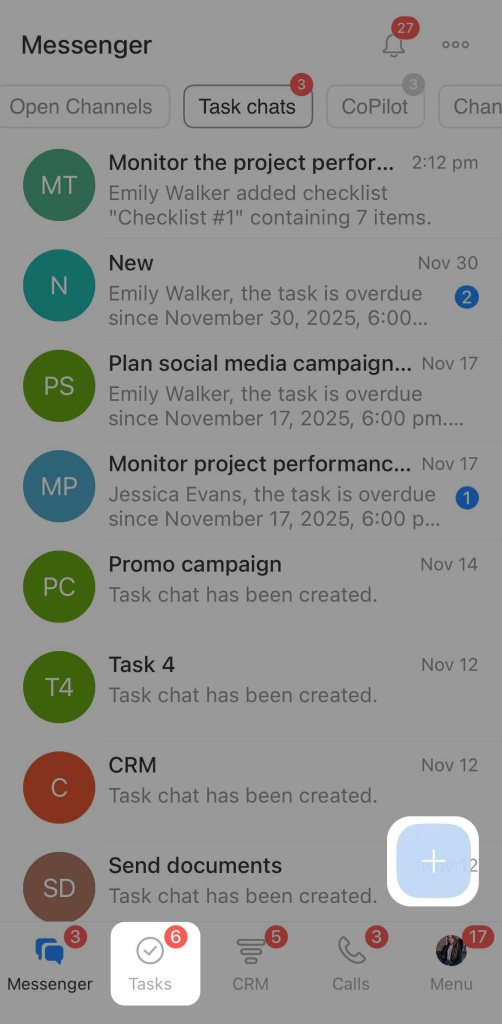
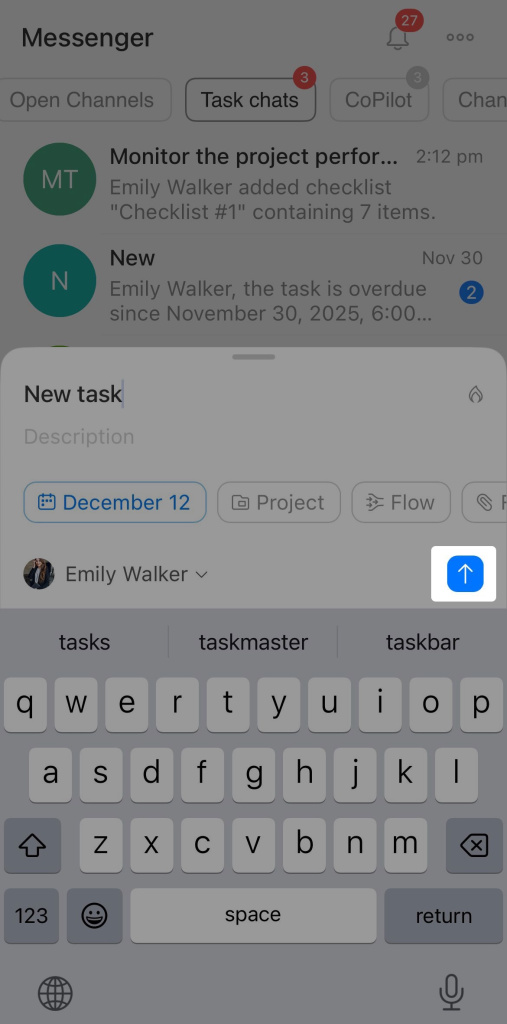
In the Bitrix24 mobile app, you can create a task in a few steps. It is convenient for quickly recording assignments without using a computer. Go to the Tasks tab. Tap + to create a new task.
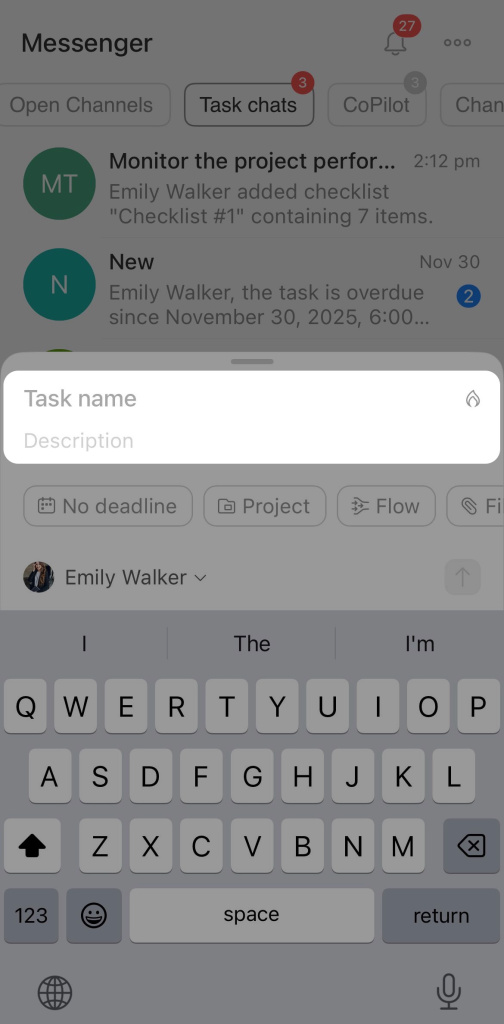
Enter the task title and a brief description to clarify what needs to be done. Select the assignee and set a deadline: today, tomorrow, the end of the week, or choose a date from the calendar.
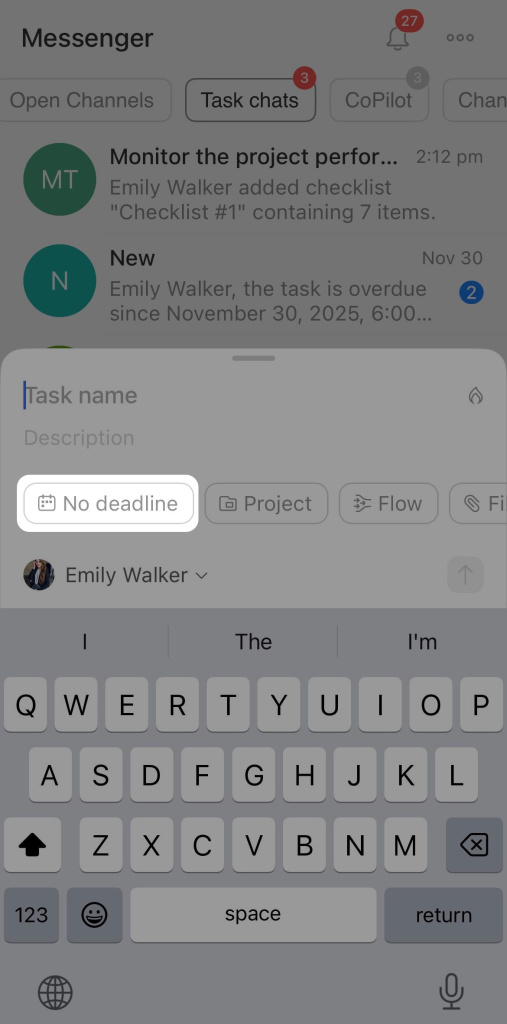
If needed, use additional task features to add:
- Project — link the task to the appropriate workgroup or project to include it in the team’s tasks.
- Flow — send the task to a department flow for automatic distribution among employees.
- Files — attach documents and images from the gallery, "My files," or Bitrix24 Drive.
- Checklists — break the task into steps and mark completed items.
- Participants and observers — add those assisting with the task or monitoring its progress.
- Tags — label the task for easier filtering in the list.
- Custom fields — fill in additional fields configured for tasks in your company.
- CRM items — link the task to a specific deal, lead, contact, or company.
- Time tracking — enable time tracking or planning if monitoring effort is important.
- Deadline planning — set the start date, end date, and task duration.
Once all parameters are set, tap the arrow icon. The task will appear in the list.
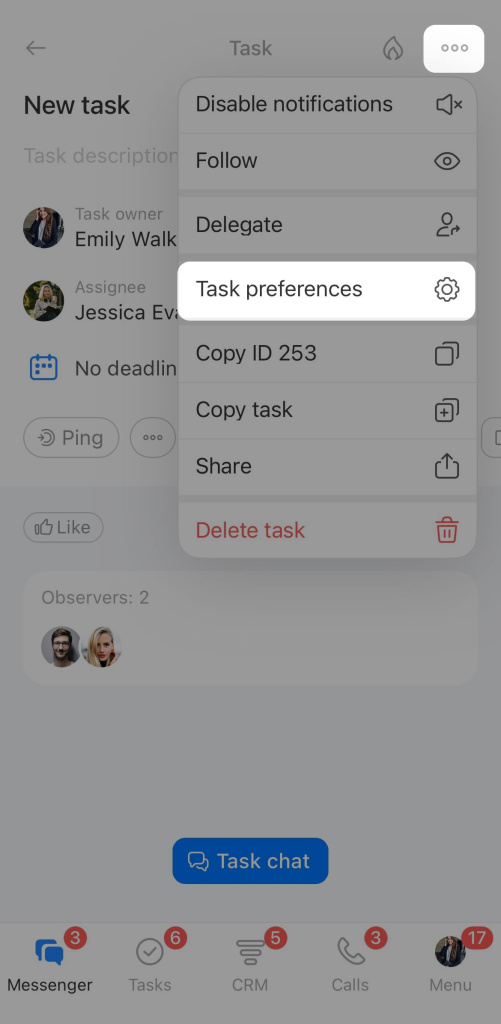
To set task execution and control rules, open the task and tap Three dots (…) > Additional settings. Here, you can enable parameters like:
- Require task status summary. Assignee will have to add a status summary to mark the task as completed.
- Require approval upon completion. After completion, the task will be sent to the creator for review. The owner can accept the result or return the task for revision.
- Allow deadline changes. The assignee can reschedule the deadline without approval. Use this if flexible deadlines are acceptable.
- Skip weekends. The deadline will automatically shift if it falls on a weekend or holiday.

In brief
- Tasks in Bitrix24 help record assignments, distribute roles, and monitor deadlines in one place.
- You can create tasks in a quick or detailed form.
- Tasks include a title, description, assignee, and deadline, with options for control and requiring results before completion.
- Additional task features like checklists, tags, time tracking, and deadline planning help keep materials organized and monitor progress.
- The Bitrix24 mobile app allows you to quickly create tasks, configure parameters, and use additional features.
