
With the MCP server, you can connect Bitrix24 to external AI systems you already use, such as ChatGPT or Manus AI. This is convenient if you want to manage tasks directly from a chat with your virtual assistant.
For example, if you are creating a work plan in ChatGPT, you can immediately ask the AI assistant to create tasks in Bitrix2 with the required names, deadlines, and assignees. This way, you can continue working without switching between applications, as all tasks will appear in Bitrix24.
This integration helps complete tasks faster and use AI wherever it is most convenient for you.
In this article:
- Enable or disable integration with external AI systems
- Connect your Bitrix24 to a virtual assistant
- Use the integration
- Disconnect your Bitrix24 from an external AI system
Enable or disable integration with external AI systems
By default, working in Bitrix24 from external AI systems is disabled, but an administrator can enable this option.
- In the top menu, click the icon next to your Bitrix24 account name.
- Go to the Settings (⚙️) > MCP servers.
- Enable the Allow connection of external AIs to Bitrix24 option.
- Click Save.
Each employee will be able to set up integration with Bitrix24 and manage tasks from a chat with an external AI assistant.
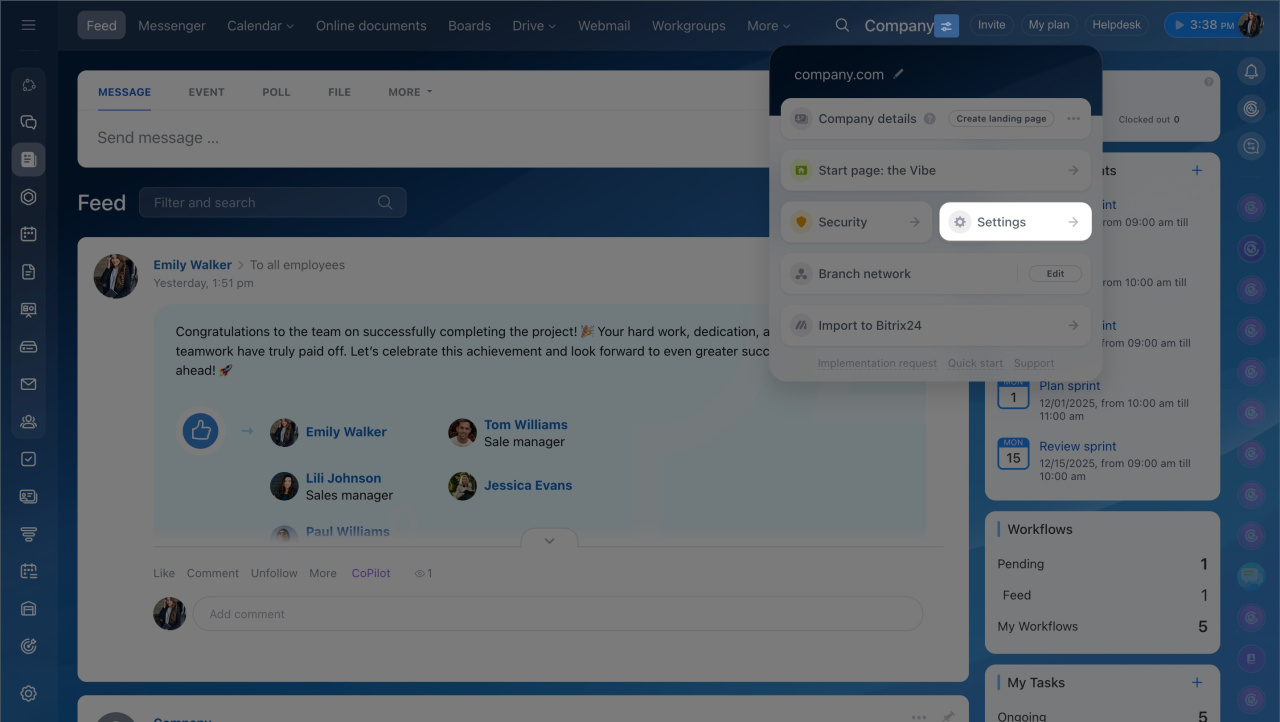
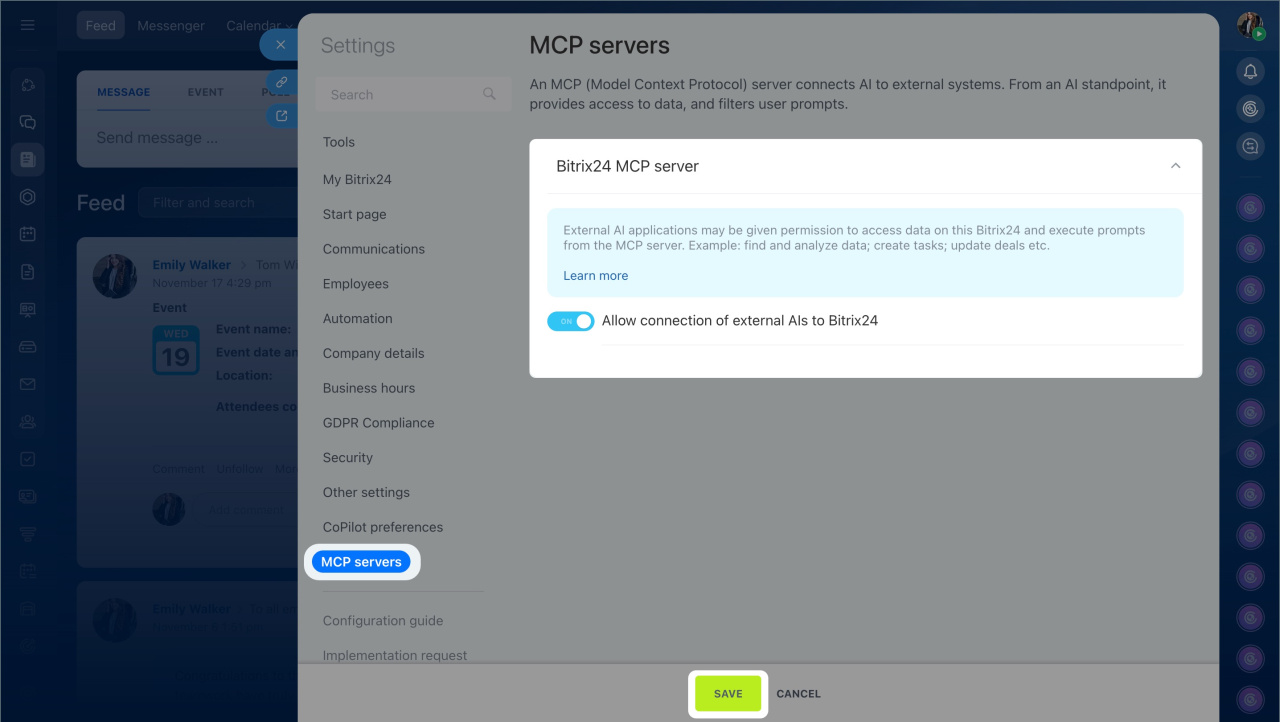
To disable working in Bitrix24 from a chat with external AI assistants, turn off the option. The integrations will remain, but employees will not be able to use them until the administrator re-enables the option. Tasks already created will remain in Bitrix24.
Connect Bitrix24 to an external AI system
You can manage tasks from a chat with ChatGPT or Manus AI. The list of integrations, available sections, and actions will gradually expand.
The connection method depends on the external AI system. Some virtual assistants support OAuth, while others require a token.
Connecting via OAuth
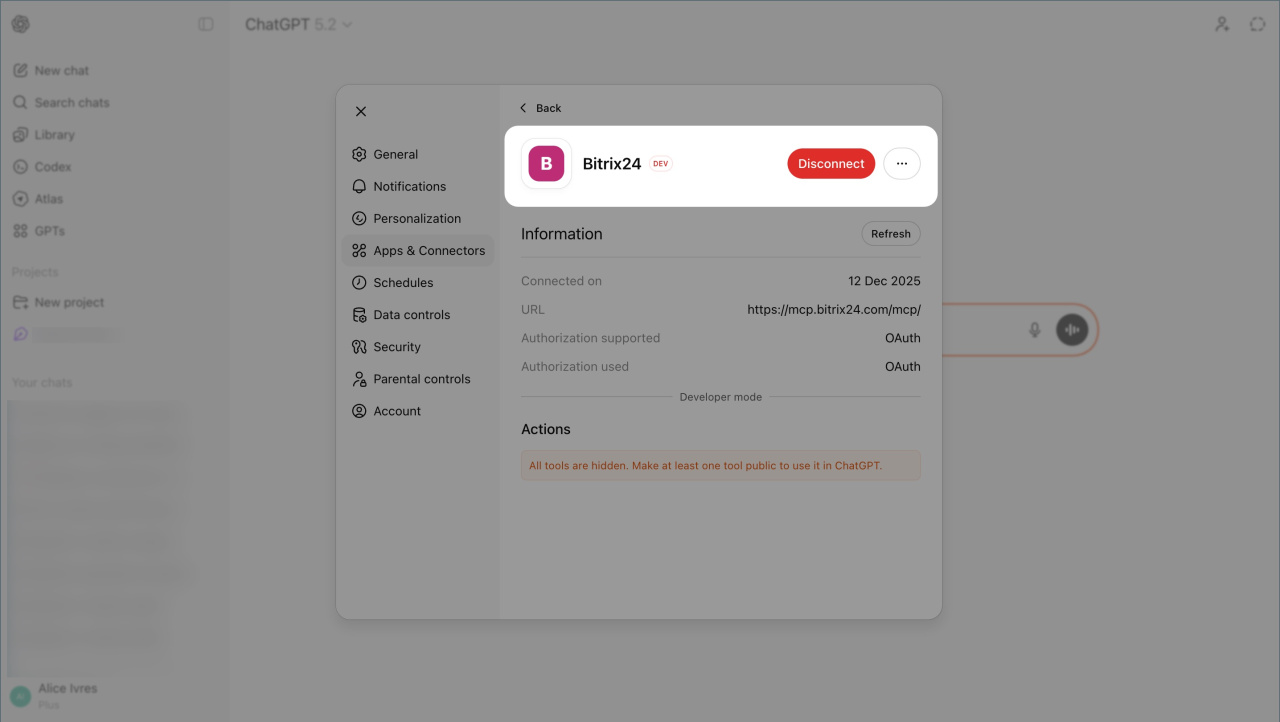
We will explain the connection process using the example of integrating Bitrix24 with ChatGPT. This setup is available for ChatGPT Plus and Pro subscriptions.
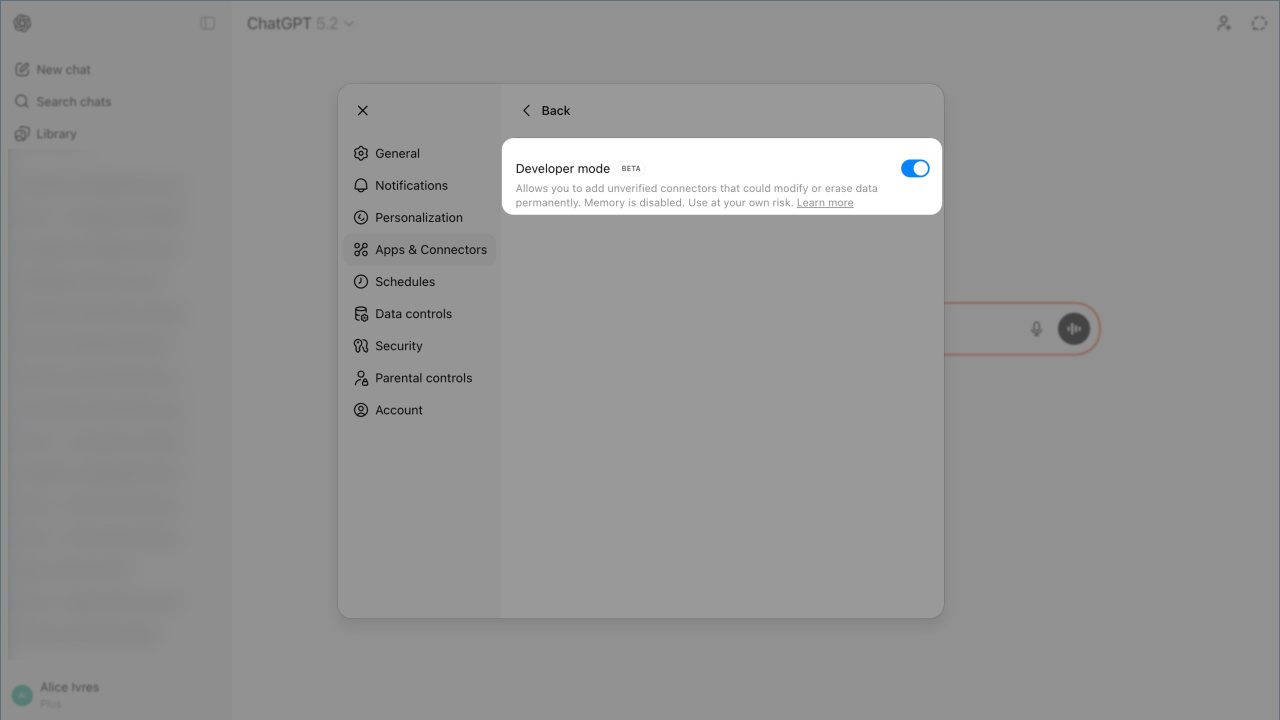
Enable developer mode — this will allow you to create a new connector.
- Open ChatGPT and go to your profile.
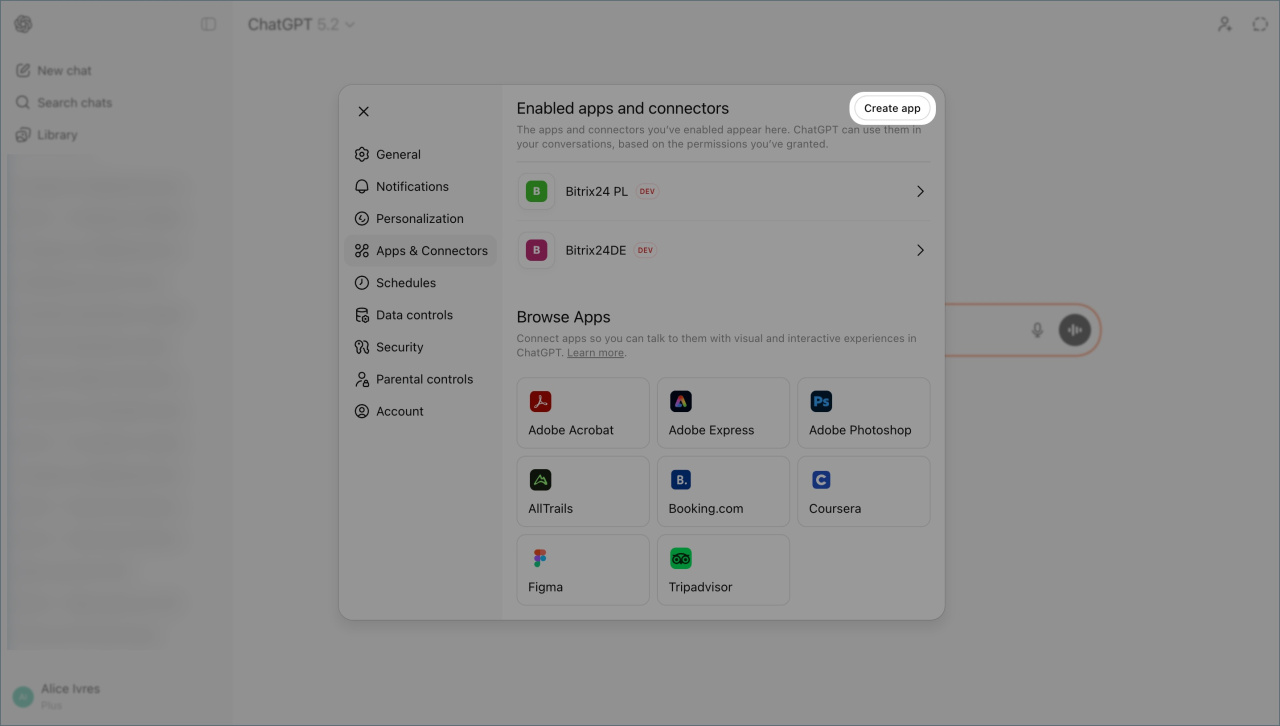
- Click Settings (⚙️) > Apps and connectors > Advanced settings.
- Enable the Developer mode option and click Back to return to the connector list.
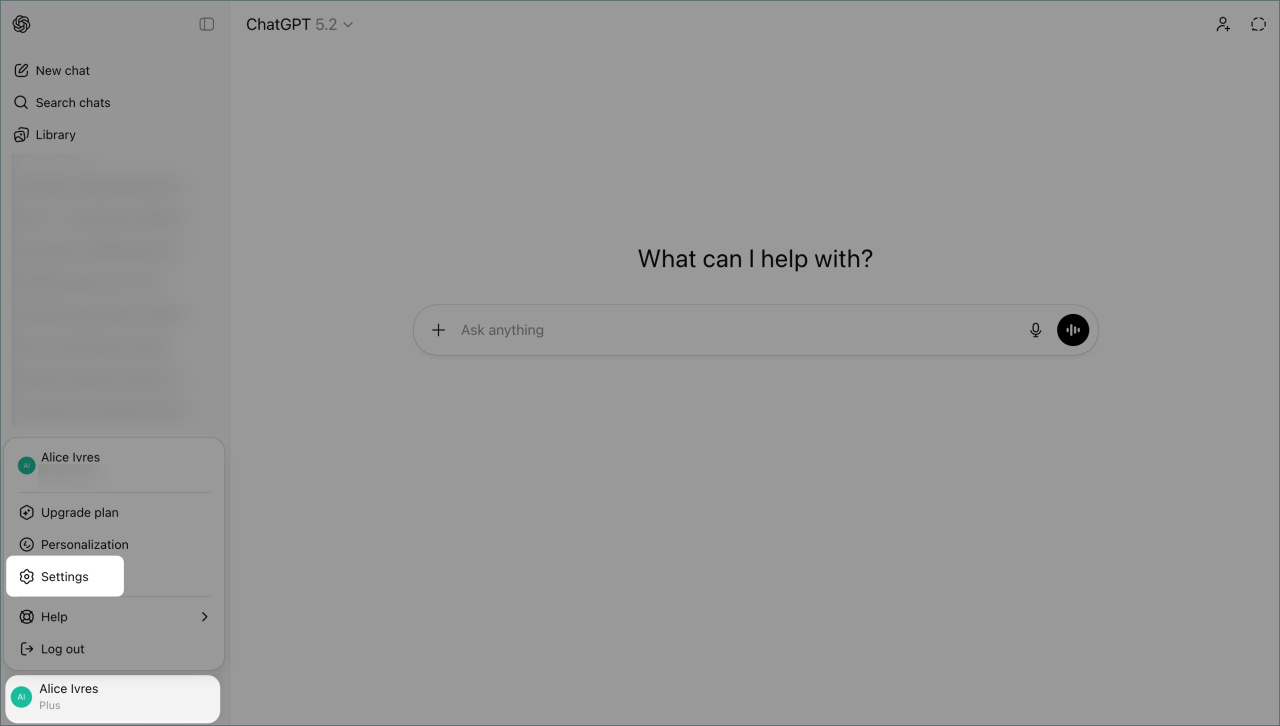
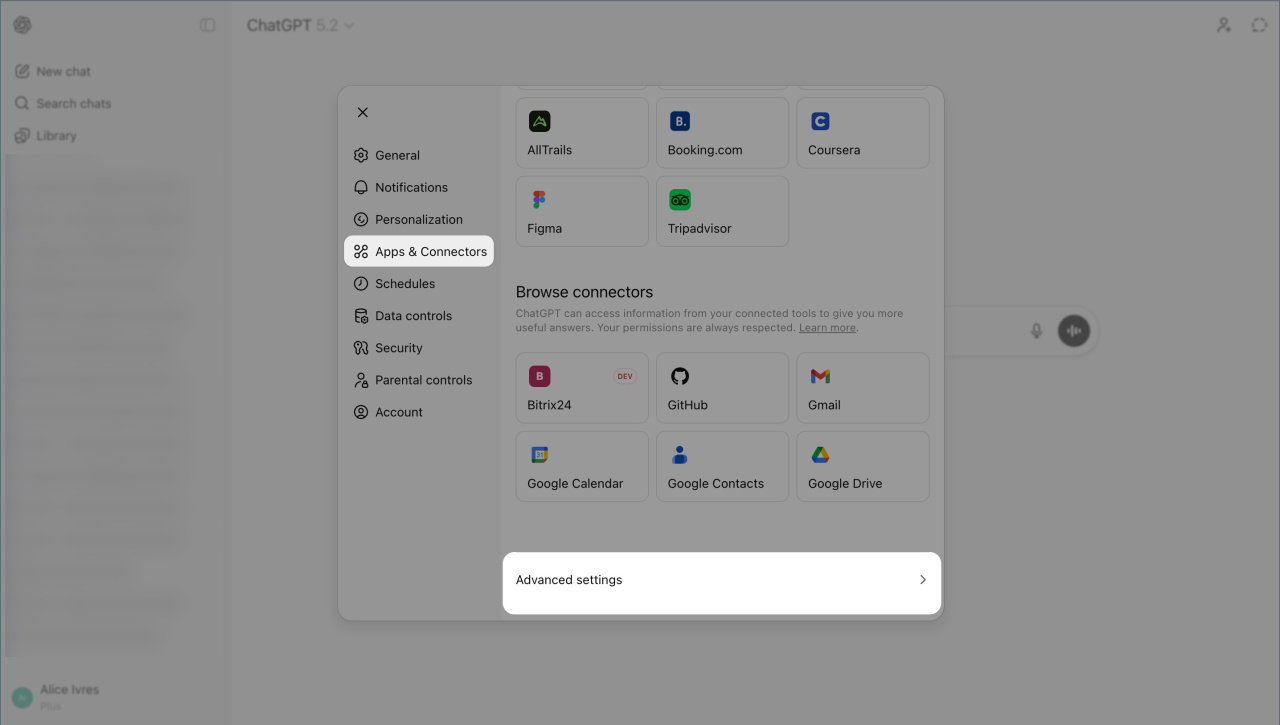
Create a new connector—this will link Bitrix24 to the external AI system.
- Click Create app.
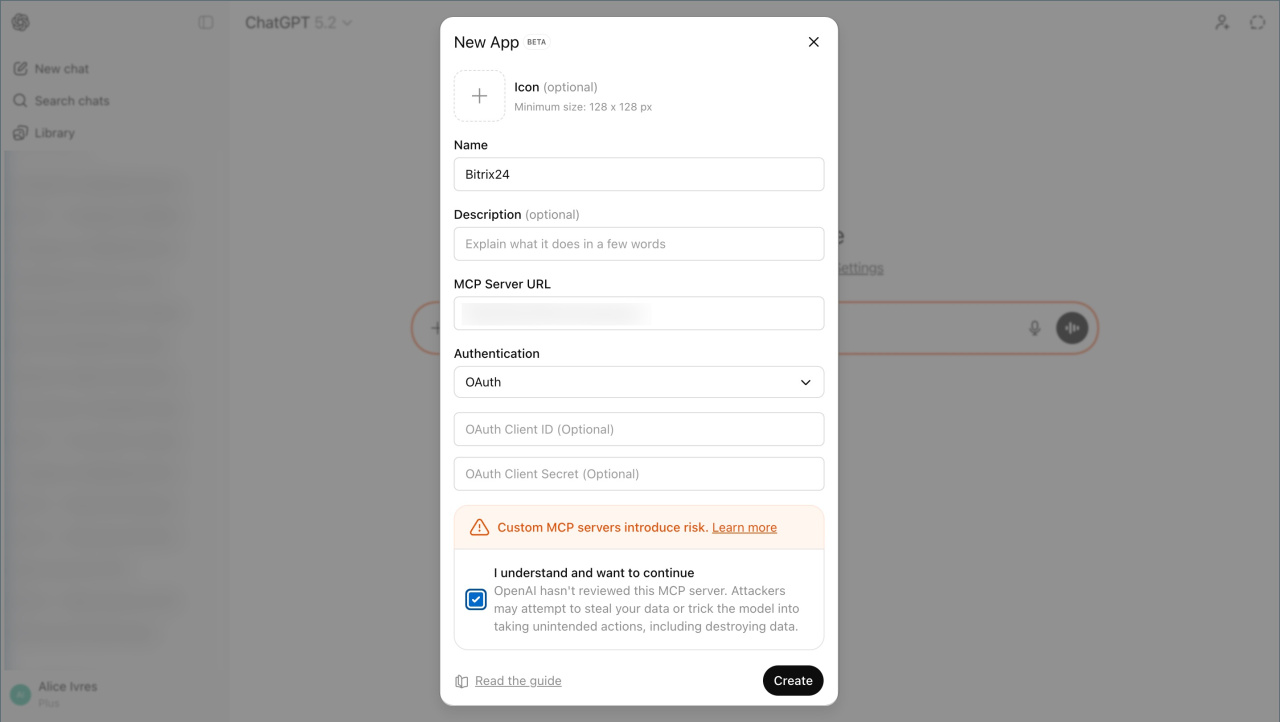
- Enter the connection details:
- Name — if you have multiple Bitrix24 accounts, include account information in the name.
- MCP server URL —
https://mcp.bitrix24.com/mcp/. - Authorization type — leave the value as
OAuth.
Check the box to agree to the security terms and click Create. A Bitrix24 authorization window will open.
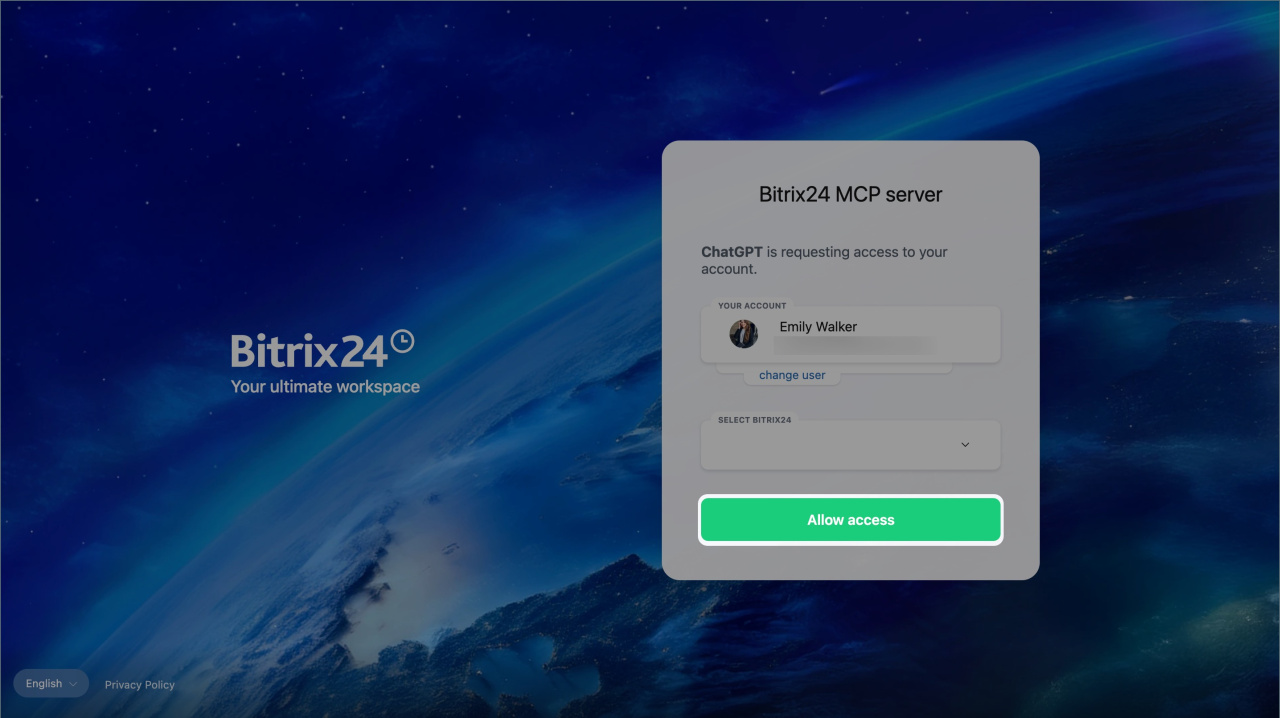
Authorize in Bitrix24. Log in to your account — Bitrix24 will connect to ChatGPT, and you will be able to manage tools from the AI assistant chat.
Connect using token
We will explain the connection process using the example of integrating Bitrix24 with Manus AI.
Copy the connection token — this will allow you to integrate your Bitrix24 with the external AI system.
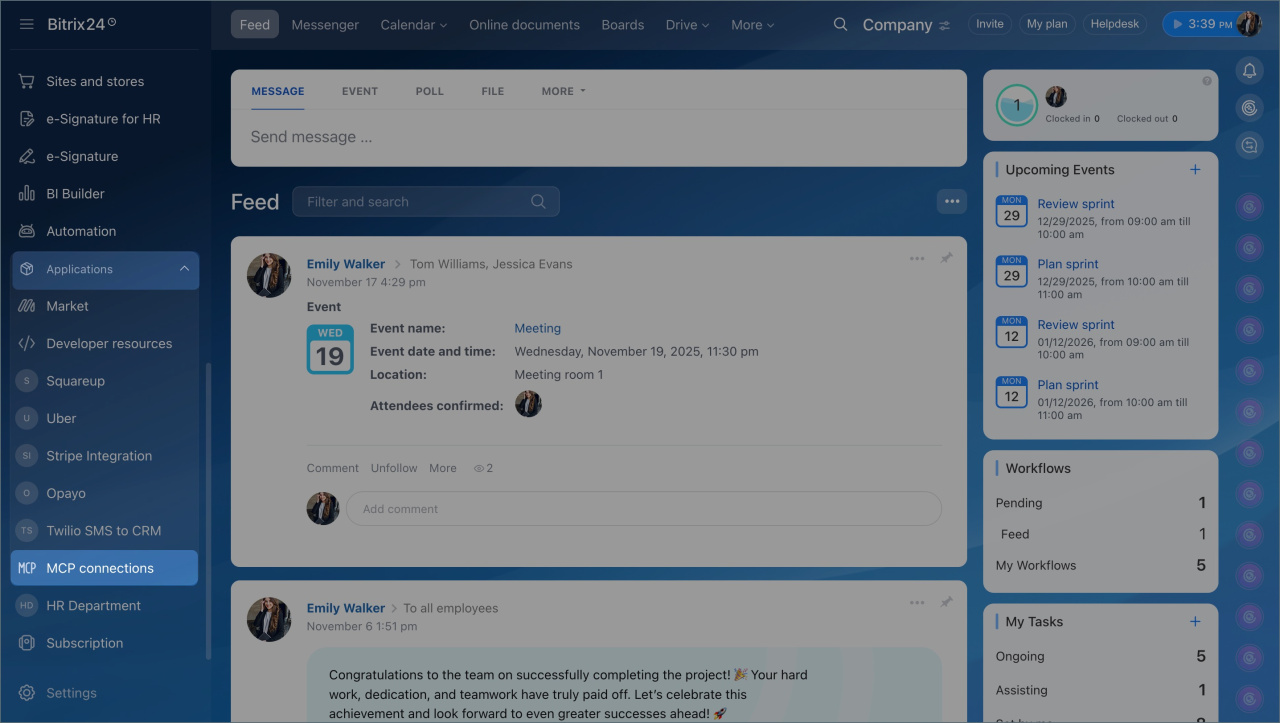
- Go to the Apps > MCP connections section.
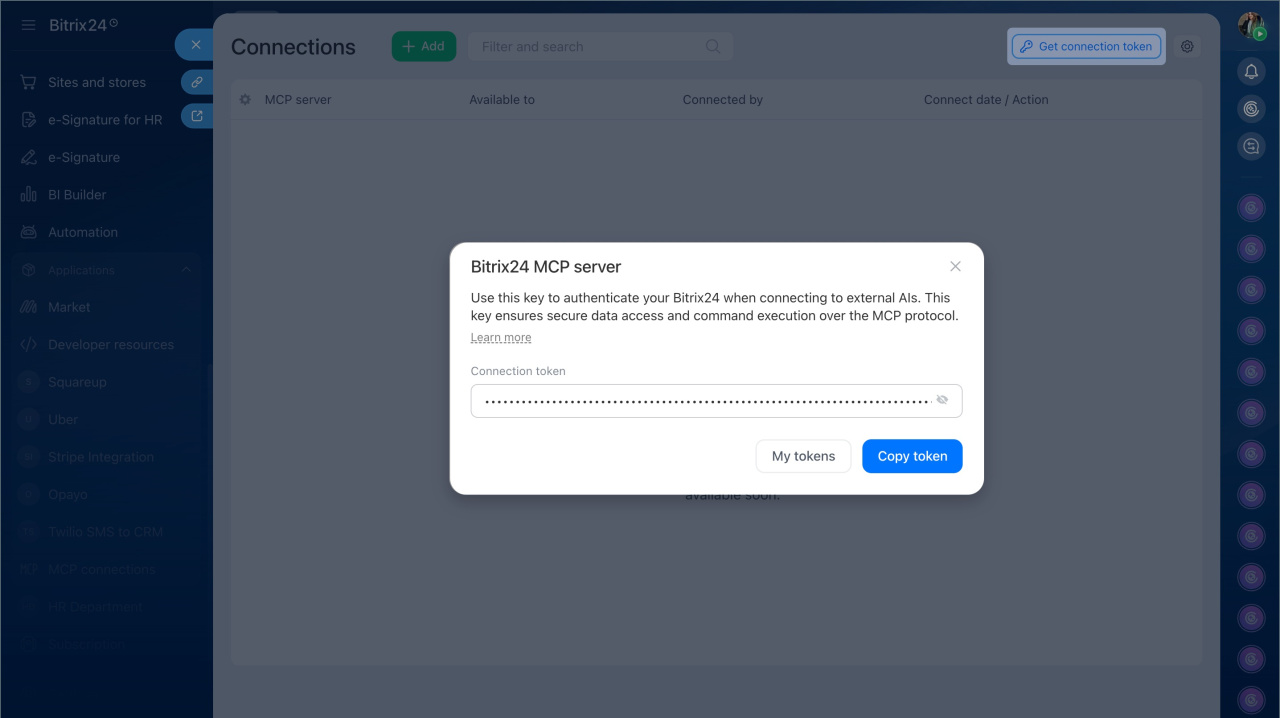
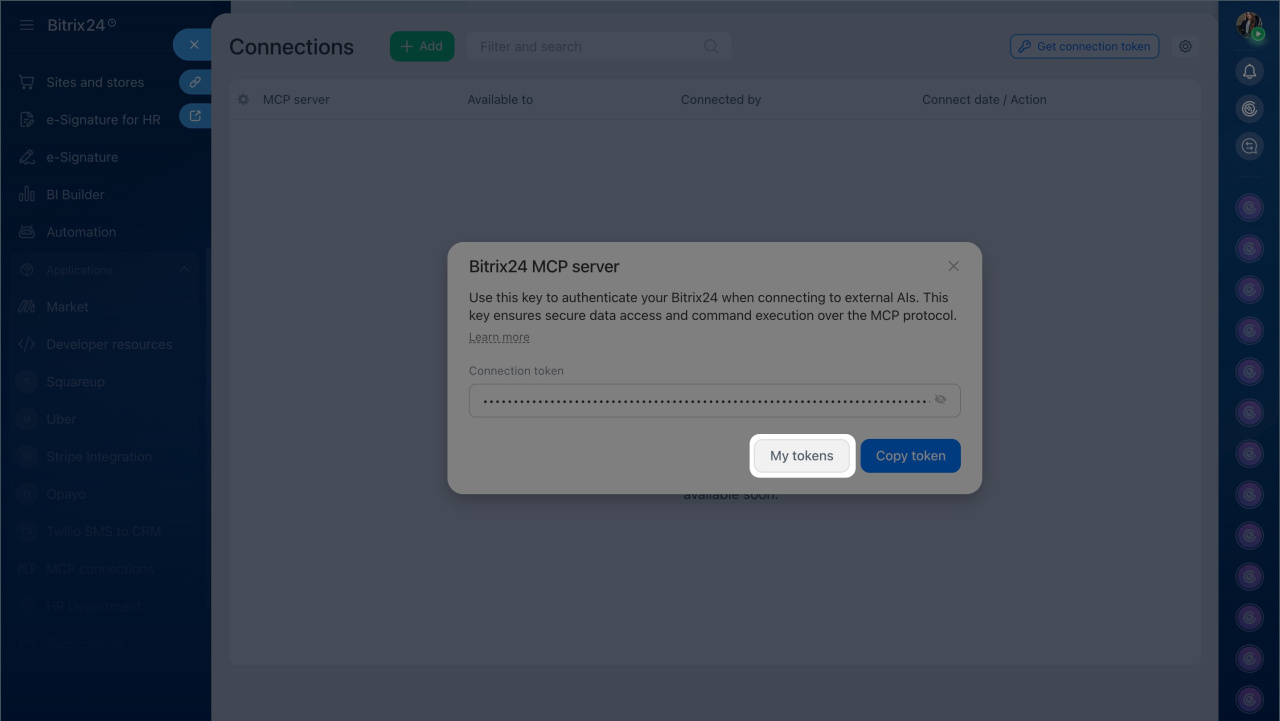
- Click Get connection token. If the button is inactive, the administrator has disabled integration of your Bitrix24 with external AI systems.
- Click Copy token to save it to the clipboard. You will need to enter it later in the MCP server settings.
Then log in to the external AI system.
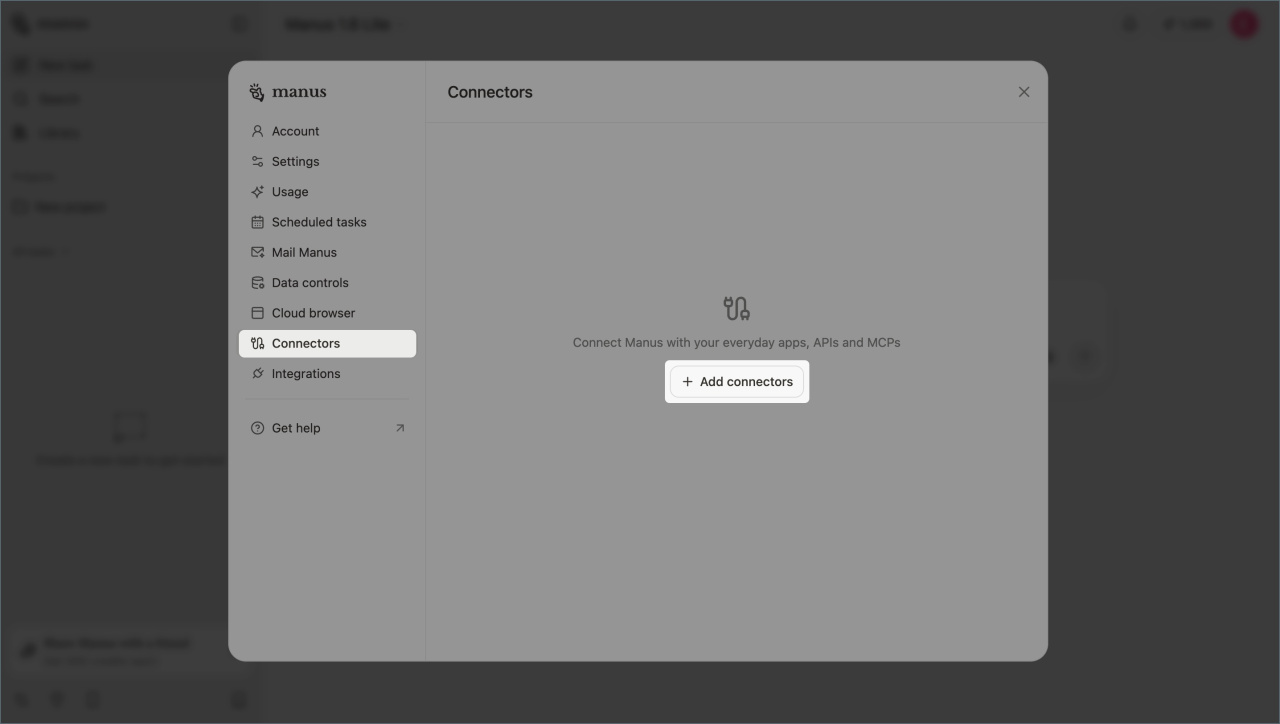
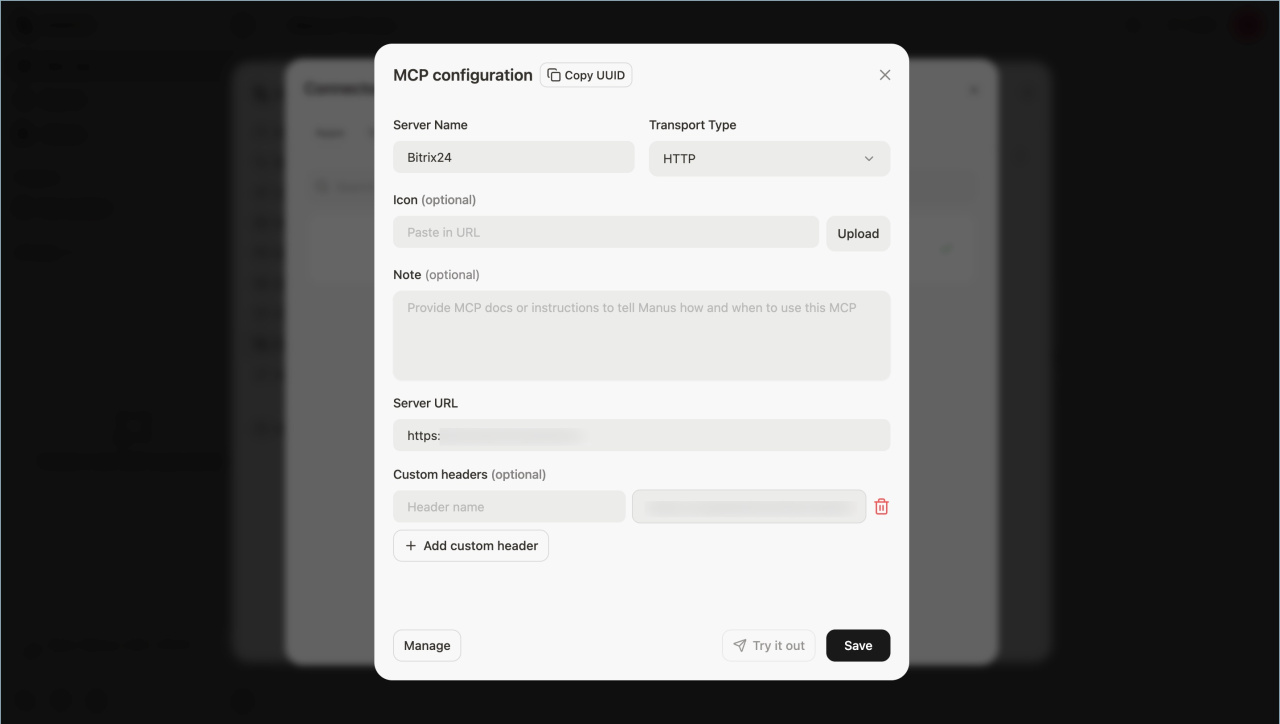
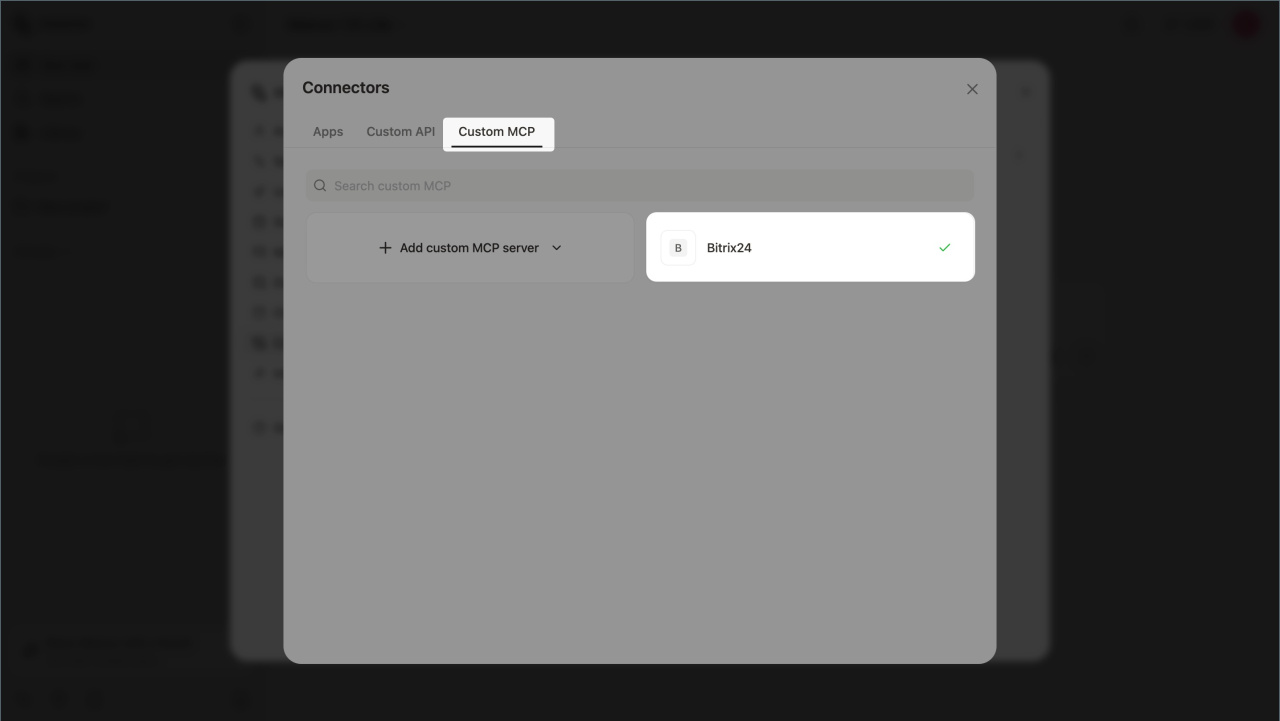
- Go to the Settings > Connectors and click Add connectors.
- Open the Custom MCP > Add custom MCP.
- Select Direct configuration.
- Fill in the fields:
- Transport type — select HTTP.
- URL —
https://mcp.bitrix24.com/mcp/. - Authorization type — access token.
- Custom Header > Header Value — paste the connection token copied from Bitrix24.
Save the changes.
How the integration works
The Bitrix24 MCP server connects the external AI system to your Bitrix24, allowing employees to manage tasks using a virtual assistant. Commands are executed only upon user request and according to their access permissions, ensuring all processes remain under control.
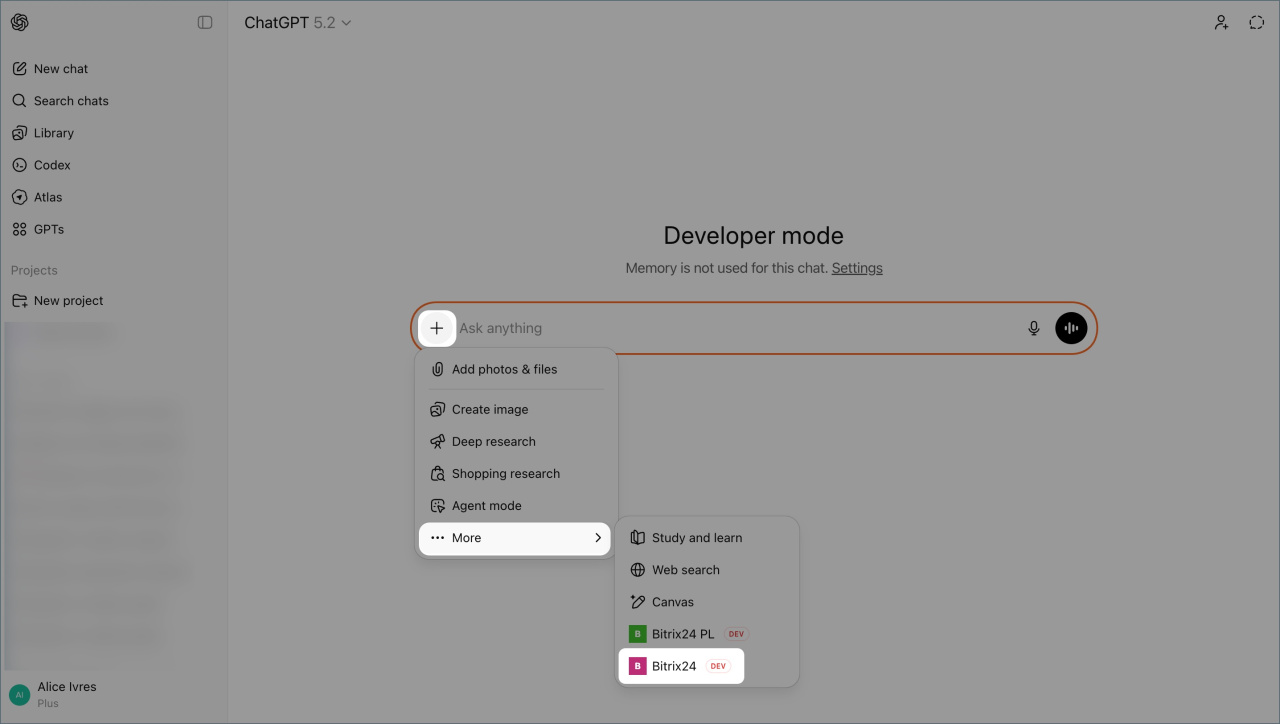
We will explain how to work with Bitrix24 in a chat with an AI assistant using the example of integration with ChatGPT.
- In the text input field, click ➕ > More (...) and select the integration with Bitrix24.
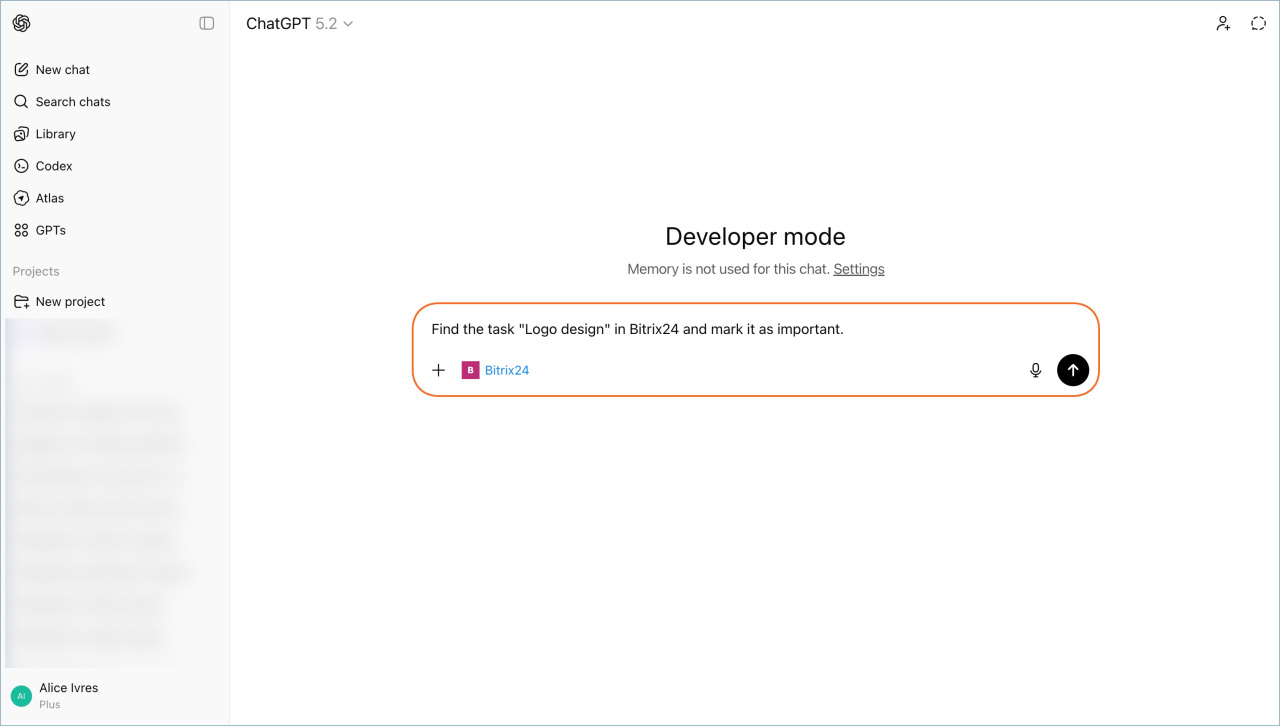
- Write what needs to be done. ChatGPT will process the request, ask for confirmation, and execute the command.
Disconnect Bitrix24 from an external AI system
You can disconnect your Bitrix24 from an external AI system in the Bitrix24 Network profile. Tasks created will remain after disconnection.
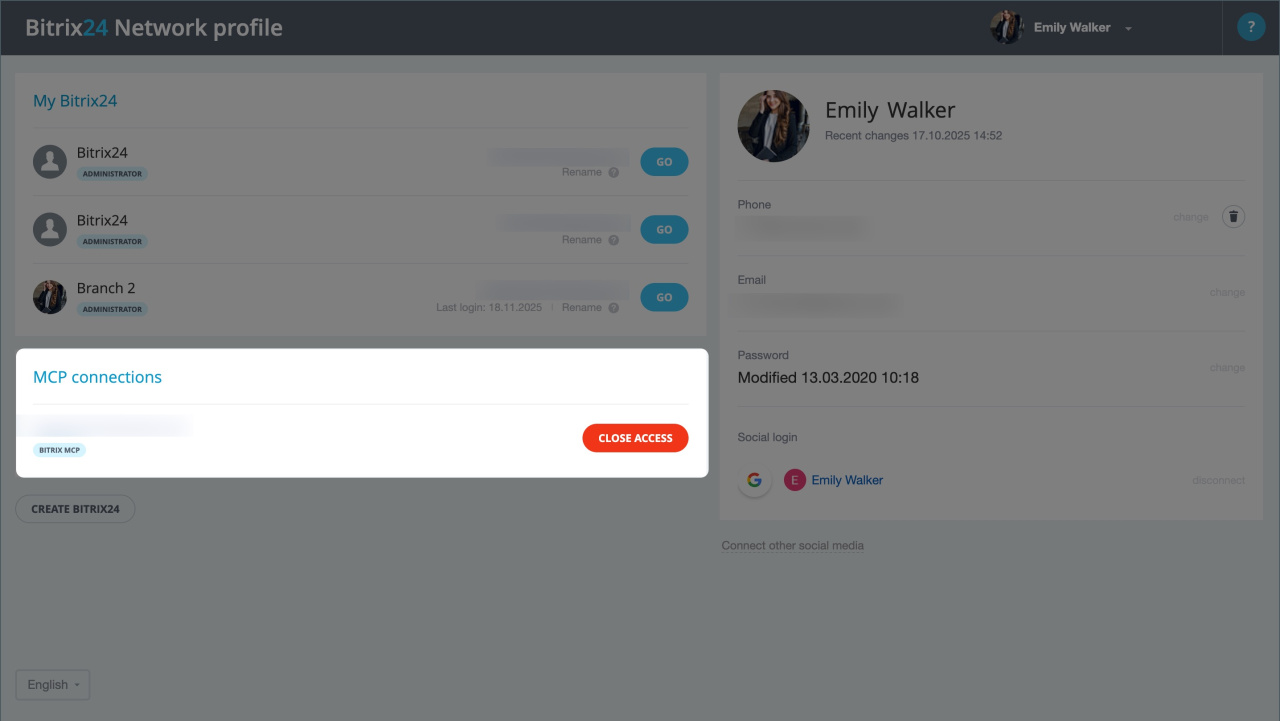
- Go to Apps > MCP connections > Get connection token > My tokens. The Bitrix24 Network profile will open.
- In the MCP connections section, find the integration you want to disconnect and click Close access.
In brief
- With the MCP server, you can connect Bitrix24 to external AI systems like ChatGPT or Manus AI. This allows you to manage tasks directly from a chat with an AI assistant.
- By default, working in Bitrix24 from external AI systems is disabled.
- An administrator can enable or disable integrations with external AI systems in Bitrix24 settings. Open the MCP servers section, enable or disable the option Allow connection of external AIs to Bitrix24, and save the changes.
- The connection method depends on the external AI system. To connect Bitrix24 to an external AI system using OAuth, create a new connector in its interface and specify the MCP server address—
https://mcp.bitrix24.com/mcp/. - To set up integration using a token, click Apps > MCP connections > Get connection token > Copy token and specify it during the connection process.
- To work with Bitrix24 in a chat with an AI assistant, select the integration with Bitrix24 and write a request. The virtual assistant will ask for confirmation, execute the command, and send a report with the results to the chat.
- You can disconnect your Bitrix24 from an external AI system. Click Apps > MCP connections > Get connection token > My tokens. In the Bitrix24 Network profile, find the required connection in the MCP connections section and click Revoke access.
