
In Bitrix24, customer inquiries come from various channels such as messengers, social networks, email, telephony, and CRM forms. To ensure employees can handle requests efficiently and workload is distributed evenly, you can set up queues for each channel.
In this article:
Distributing inquiries from open channels
Open channels collect and distribute inquiries from messengers and social networks among employees.
Access permissions for Open Channels
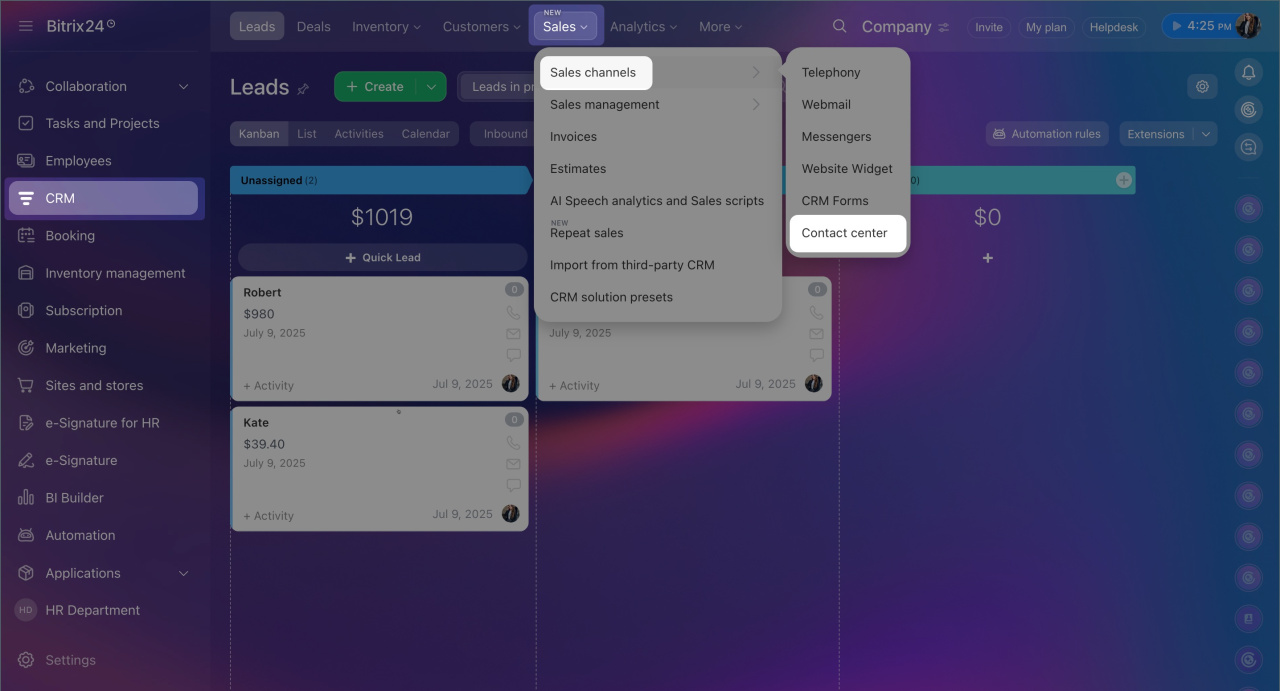
1. Go to CRM > Sales > Sales Channels > Contact Center.
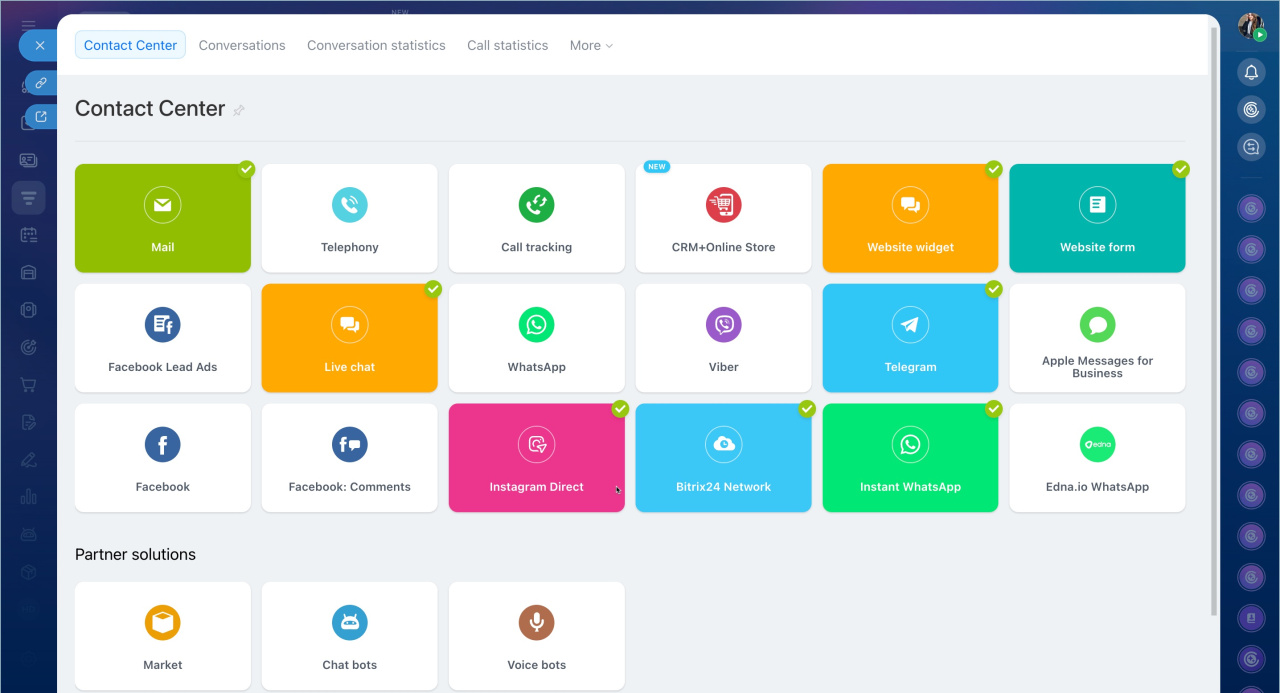
2. Select the channel connected to the open channel you want to configure.
Connect Open Channels
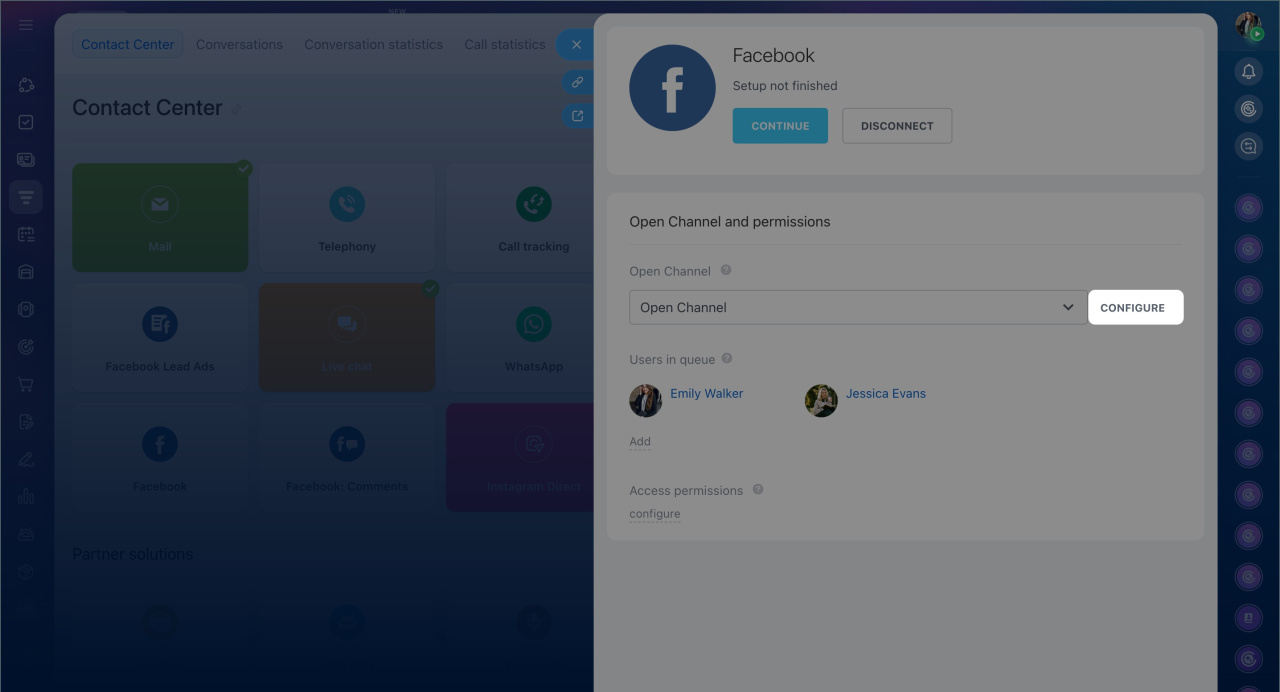
3. Click Configure.
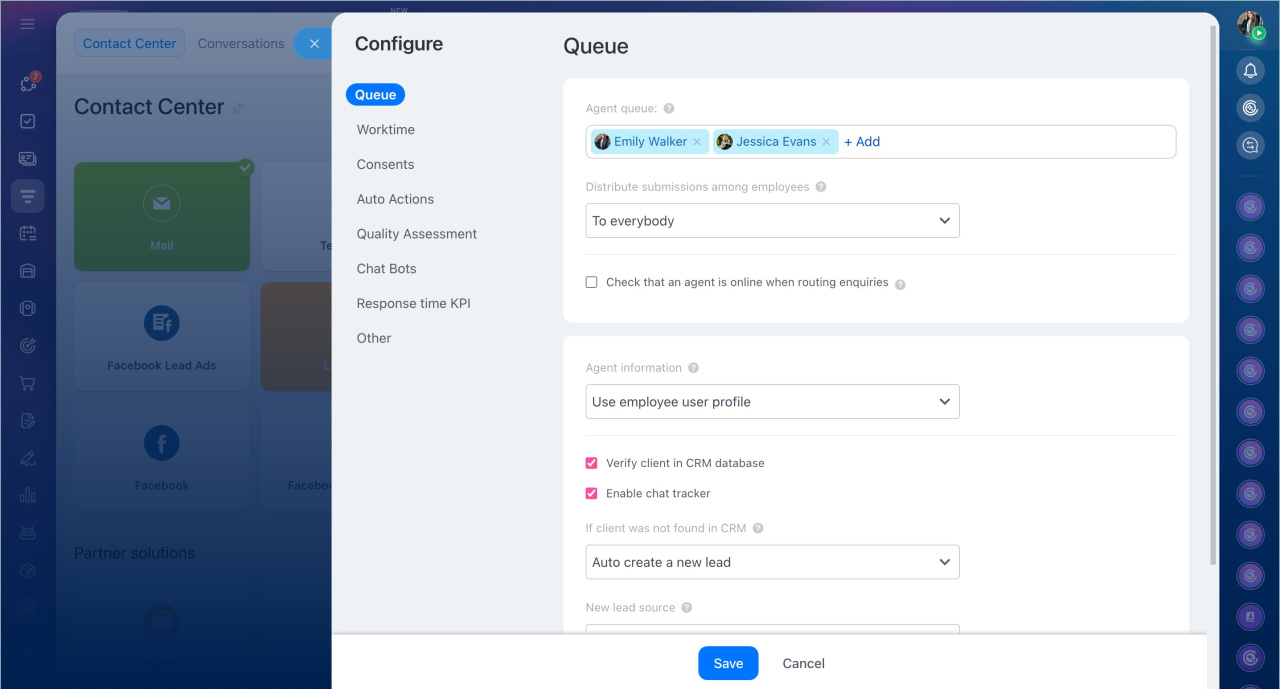
4. In the open channel settings, specify:
- Agent queue— users who will handle inquiries.
- Distribute submissions among employees: strictly by order, evenly, or simultaneously to all.
- Time before transferring an inquiry to the next employee in the queue — how long before the inquiry moves to the next agent if the current one doesn’t respond.
- Check that an agent is online when routing inquiries won’t be assigned to employees who are currently unavailable.
Check Open Channel agent availability - Limit the number of simultaneous inquiries per operator — sets the maximum workload for one employee.
Limit on the number of unclosed conversations - Check the client in the CRM database — links the inquiry to an existing client form.
- Enable chat tracker — helps identify the client even if they contact you from another channel.
Chat tracker - Route inquiries to the responsible employee if the client is identified — the conversation is immediately assigned to the employee already working with the client.
- Automatically change the responsible person for a lead or deal when manually transferring an inquiry to another agent — the responsible person in the CRM form changes when the conversation is transferred.
Create and configure Open Channels
9. Save the changes.
After saving, Bitrix24 will automatically distribute inquiries based on the specified rules.
Distributing inquiries from email
If an email account is connected to Bitrix24 and integrated with CRM, you can automatically distribute emails among employees and assign responsible persons for new inquiries.
Connect your email address to Bitrix24
Configure access permissions to Bitrix24 Mail
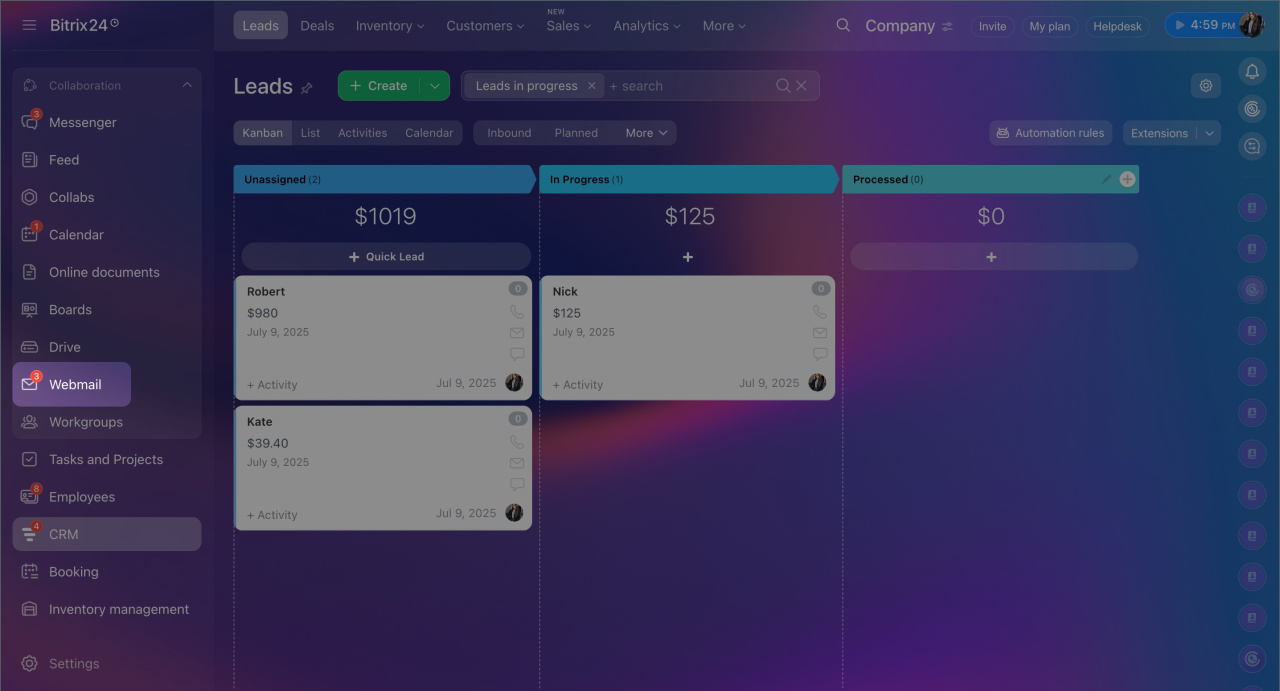
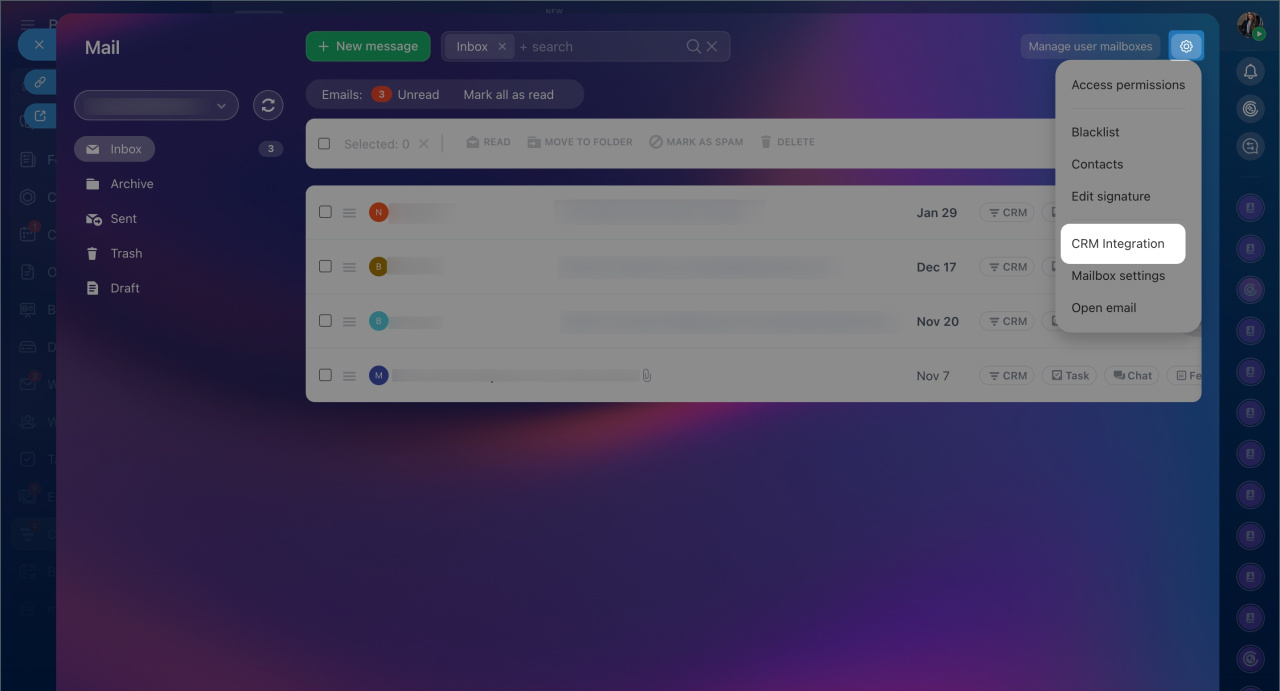
1. Go to Email > Settings (⚙️) > CRM Integration.
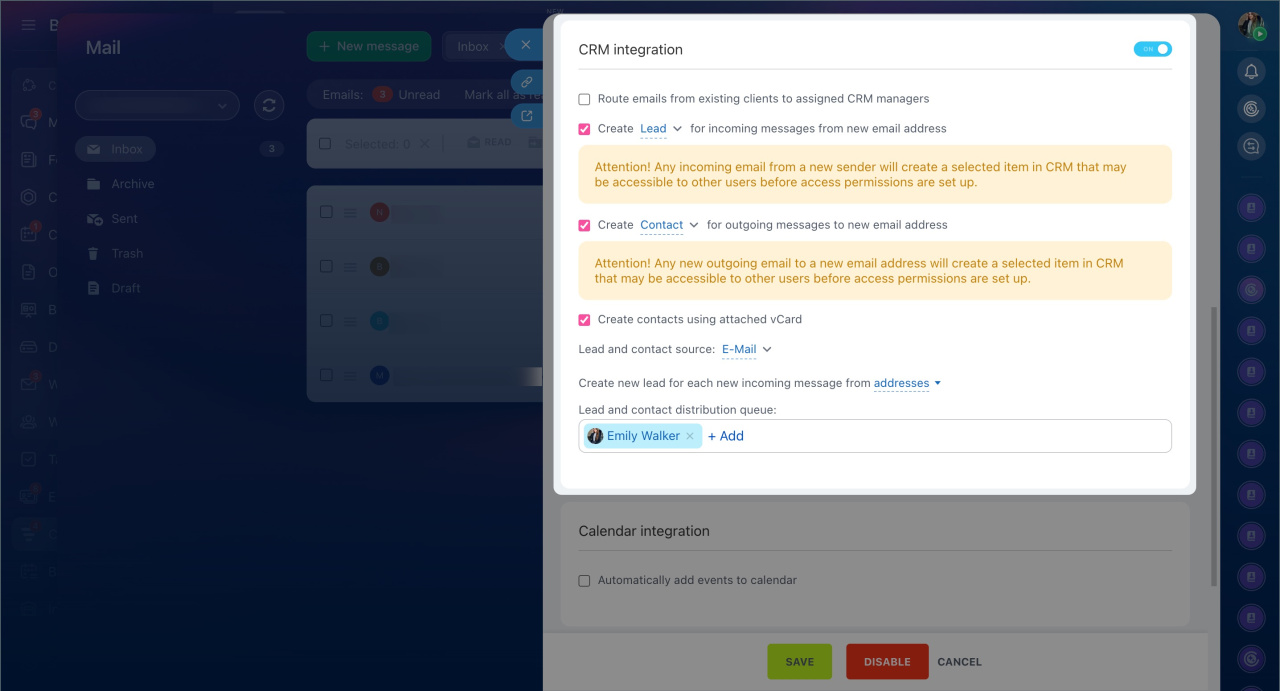
2. Set the required parameters:
- Assign emails from known clients to responsible employees — if the client exists in CRM, the email is linked to their form, and the responsible employee is the one already working with the client.
- Queue for distributing leads and contacts — select employees to whom CRM will assign inquiries. New CRM items will be distributed among employees in the order their names are listed.
3. Click Save.
After this, CRM will automatically assign responsible employees for inquiries from email.
Distributing inquiries from CRM forms
When a client submits a CRM form, Bitrix24 automatically creates a lead, deal, or another item. This ensures no inquiries are lost and responsible employees are assigned immediately.
Configure access permissions for CRM forms
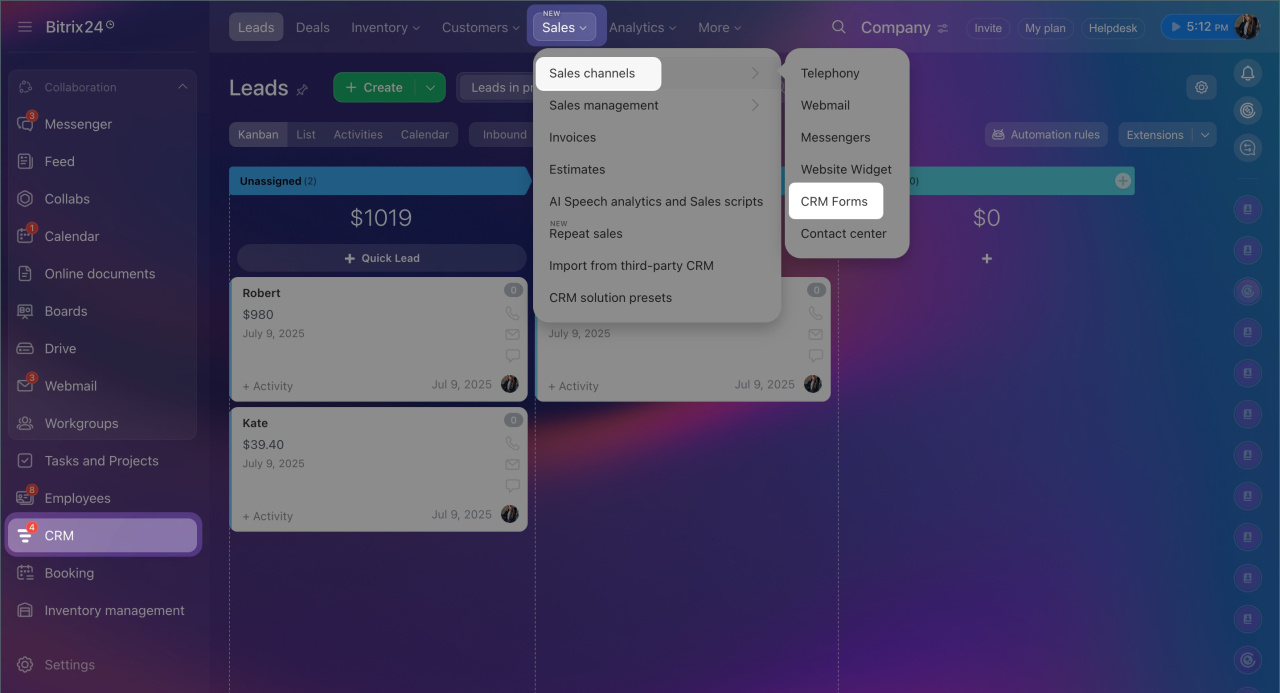
1. Go to CRM > Sales > Sales Channels > CRM Forms.
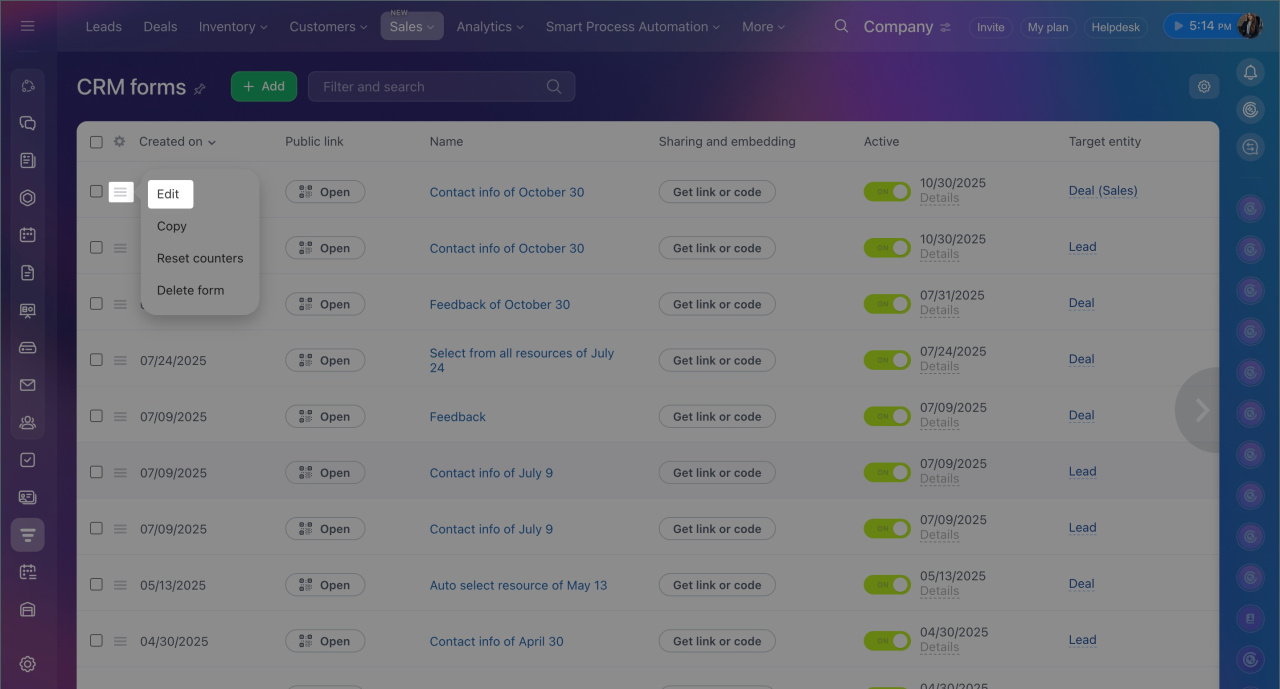
2. Click Menu (≡) > Edit next to the required form.
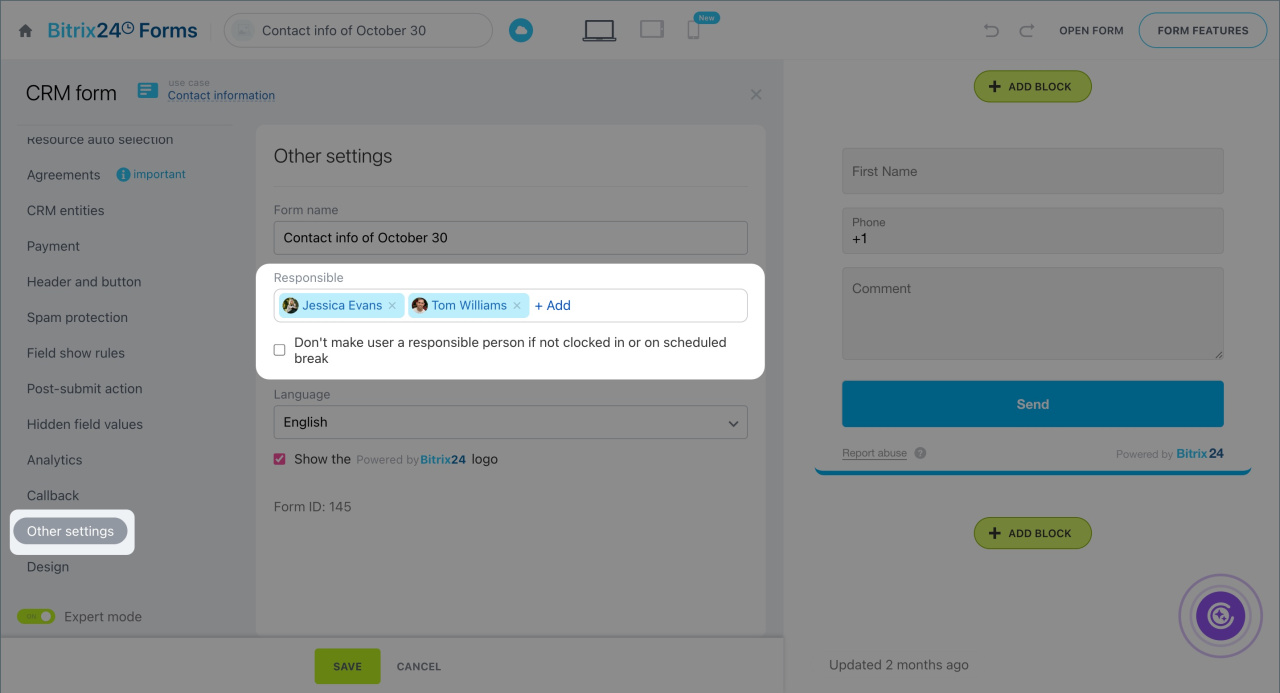
3. Go to the Other settings section.
4. Specify the following in the settings:
- Responsible — select employees from the list. Items created in CRM after form submission will be distributed among responsible employees in order.
- If quick client response is important, check Do not assign as responsible if the workday hasn’t started or during a break. If all responsible employees are unavailable or your plan doesn’t include work time tracking, requests will be distributed in order.
5. Save the settings.
After saving, CRM will automatically create items and assign responsible employees based on the selected rules.
Distributing calls from telephony
Telephony helps distribute incoming calls among employees, log inquiries in CRM, and automatically assign responsible employees. This prevents missed calls and ensures even workload distribution.
General telephony settings
Configure access permissions to Telephony
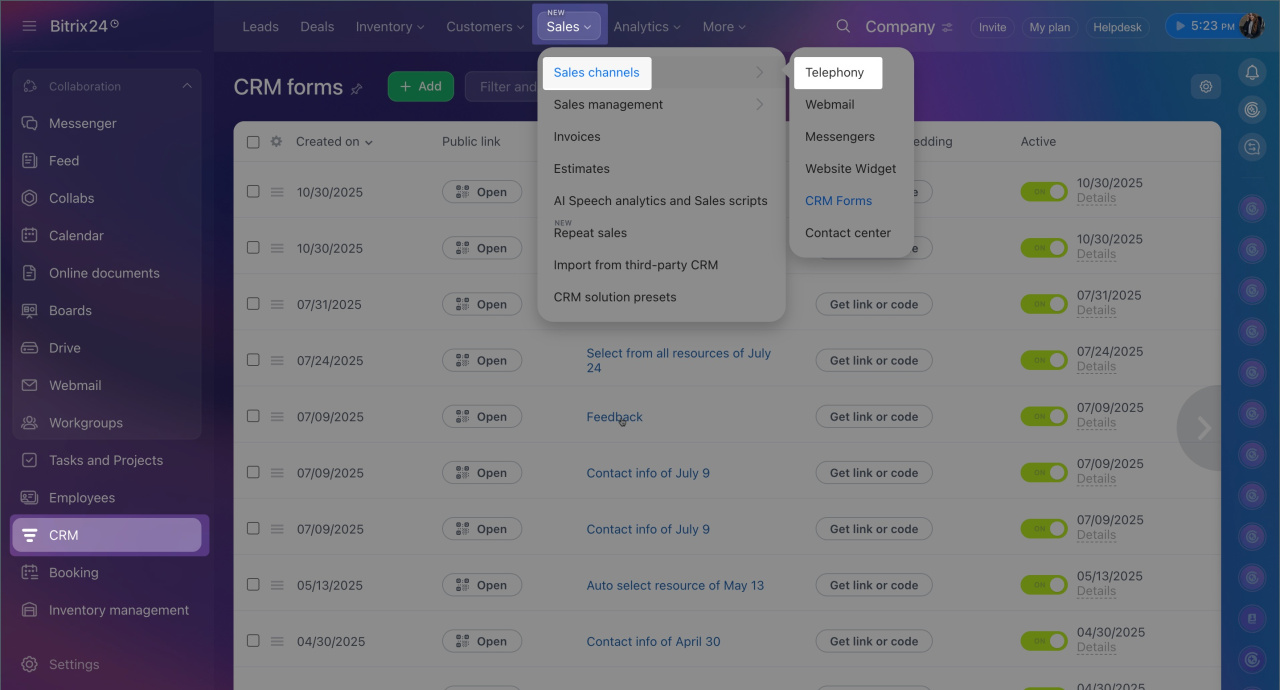
1. Go to CRM > Sales > Sales Channels > Telephony.
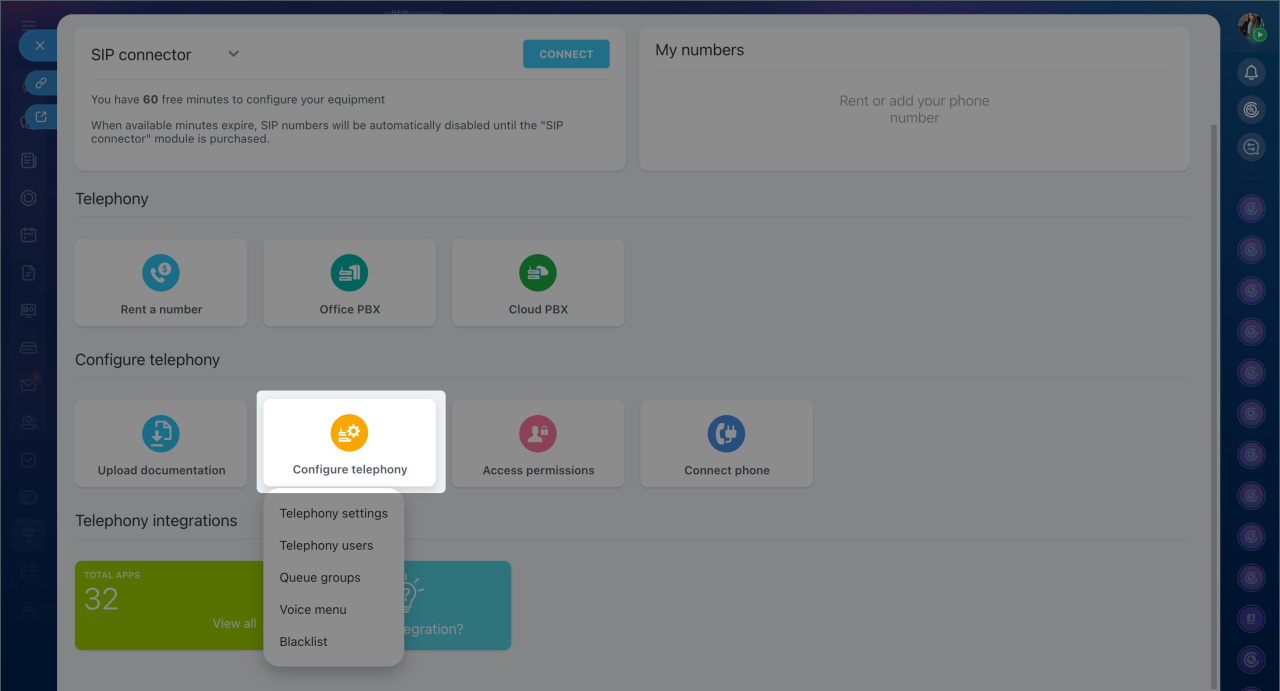
2. Click Number settings and select the number for which you want to configure call distribution.
3. Open the Incoming call routing tab.
4. In the Route incoming call to group block, select the required group and click Group settings.
5. Specify employees who will handle calls. The order of employees is important for the Strictly by order distribution option.
6. Configure the options:
- Call distribution among group employees — strictly by order, evenly, or simultaneously to all.
- Number of rings before transferring — how many rings before the call moves to the next employee in the group.
- Missed call handling — choose an action if no one answers.
- Allow call interception — enable if employees should be able to take a call from a colleague.
7. Save the settings.
8. After configuring call distribution, go to the CRM Integration tab.
9. Enable the Automatically change the responsible person for a lead when manually transferring a call to another employee option if you want to change the responsible person when transferring a call.
10. Click Save.
In brief
- Inquiries from messengers, social networks, email, CRM forms, and telephony can be automatically distributed among employees in Bitrix24.
- Configuring employee queues helps manage workload and avoid situations where all inquiries go to one manager.
- Bitrix24 administrators and employees with the appropriate permissions can set up how inquiries are distributed within the team.
- Distribution of inquiries from messengers and social networks is configured in CRM > Sales > Sales Channels > Contact Center. Select the required channel and click Configure.
- To configure email inquiry distribution, go to Email > Settings (⚙️) > CRM Integration.
- Assigning responsible employees for CRM form requests is configured in CRM > Sales > Sales Channels > CRM Forms. Select the required form and click Menu (≡) > Edit. Go to the Other settings section.
- Distribution of incoming calls among employees is set up in CRM > Sales > Sales Channels > Telephony > Number settings. Select the number, then go to the Incoming call routing and CRM Integration tabs.
