
Bitrix24 has separate access permissions for CRM forms. Choose who can view, create, and edit forms.
By default, only the Bitrix24 administrator can manage access permissions and grant access to other employees.
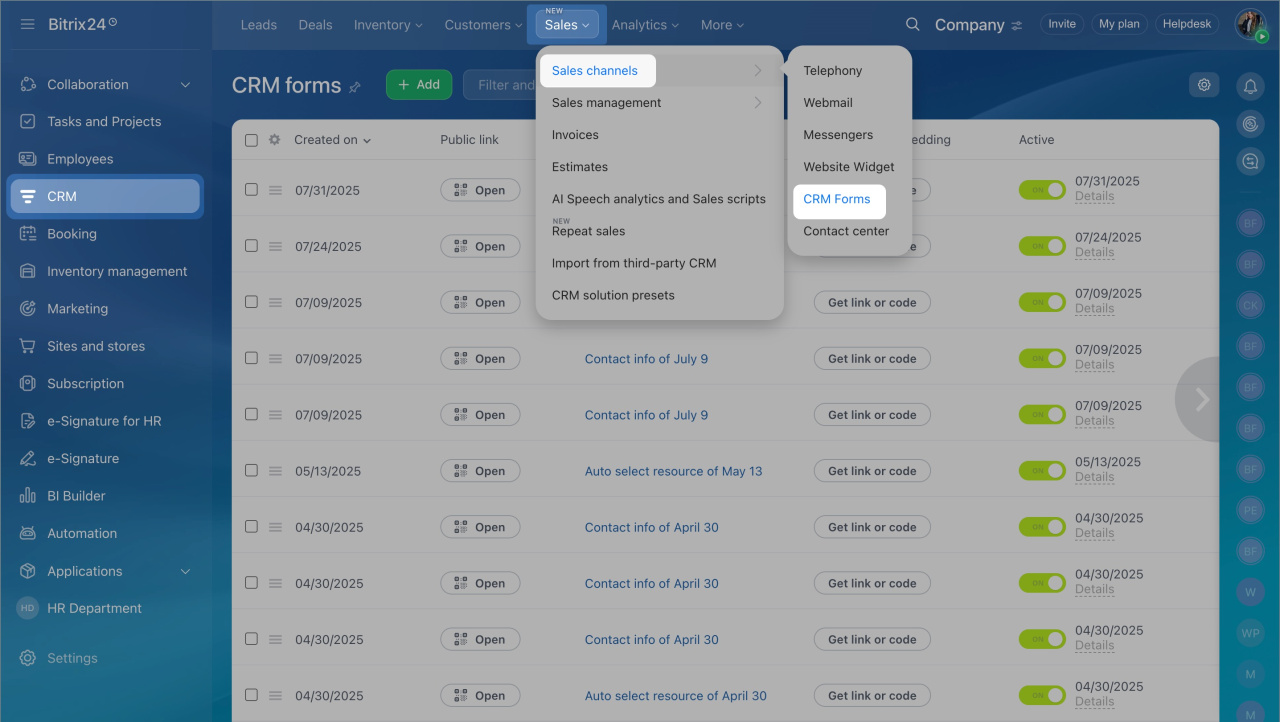
- Go to CRM > Sales > Sales channels > CRM forms.
- Click Settings > Access permissions.
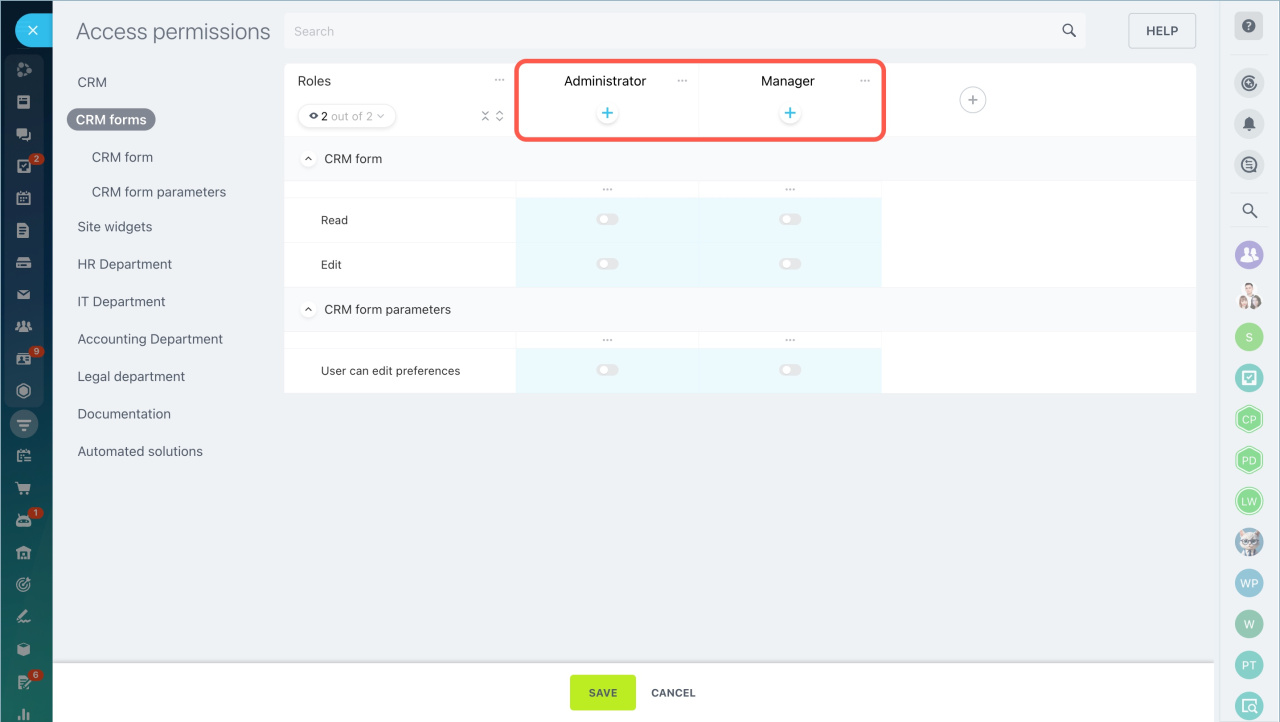
Select standard roles
A role defines a set of permissions for a user. Two roles are available by default:
- Administrator
- Manager
If you created additional roles in CRM permissions, they appear here automatically.
Configure roles
You can use standard roles, copy them, or create new ones.
Add a new role. Select this option in the menu and enter a name.
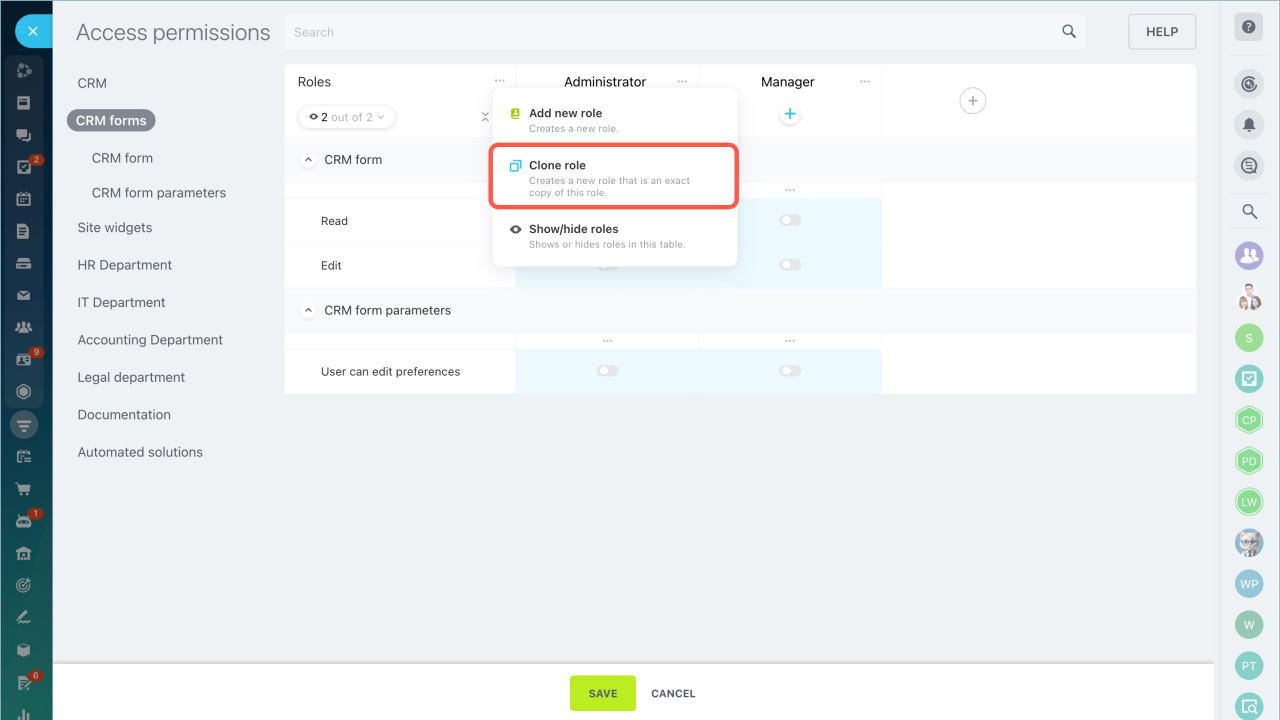
Copy a role.
- Click Clone role.
- Select a role to copy.
- The system copies all permissions to the new role.
Show or hide roles. Display only the roles you need. This helps when you compare or edit roles.
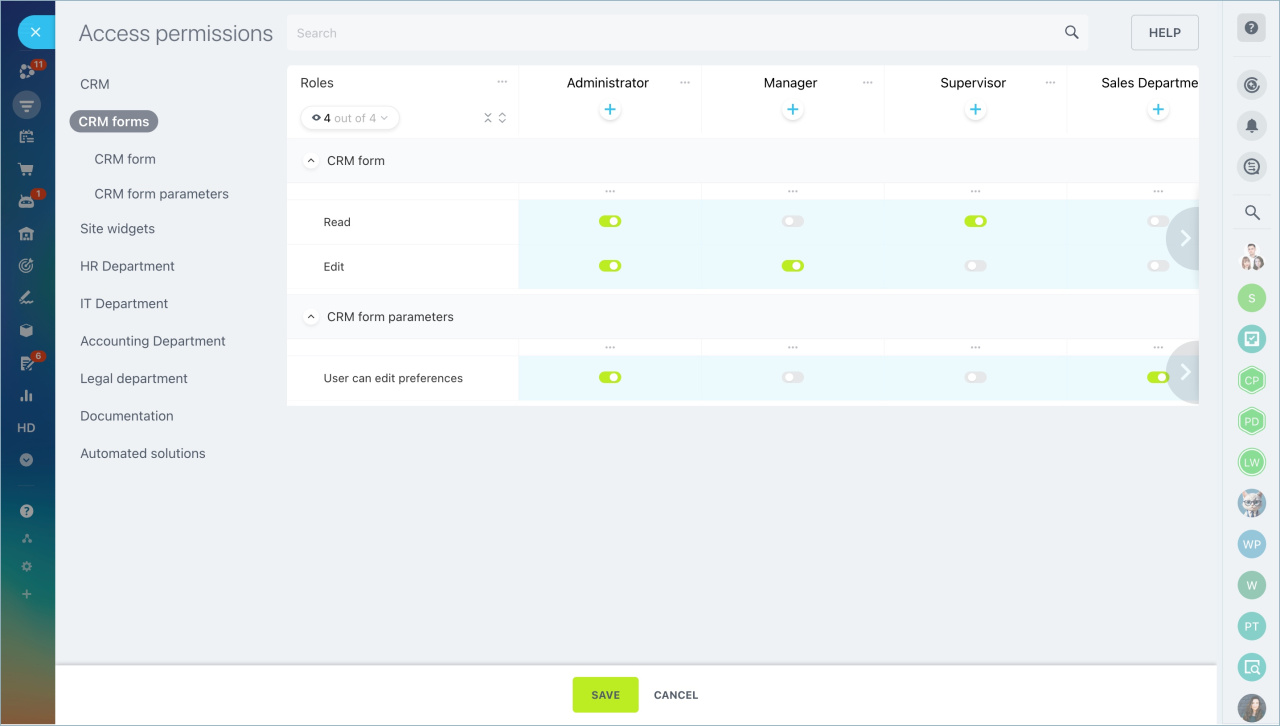
Set permissions.
- Read - view the list of CRM forms.
- Edit - create, edit, and delete forms.
- User can edit preferences - manage access permissions.
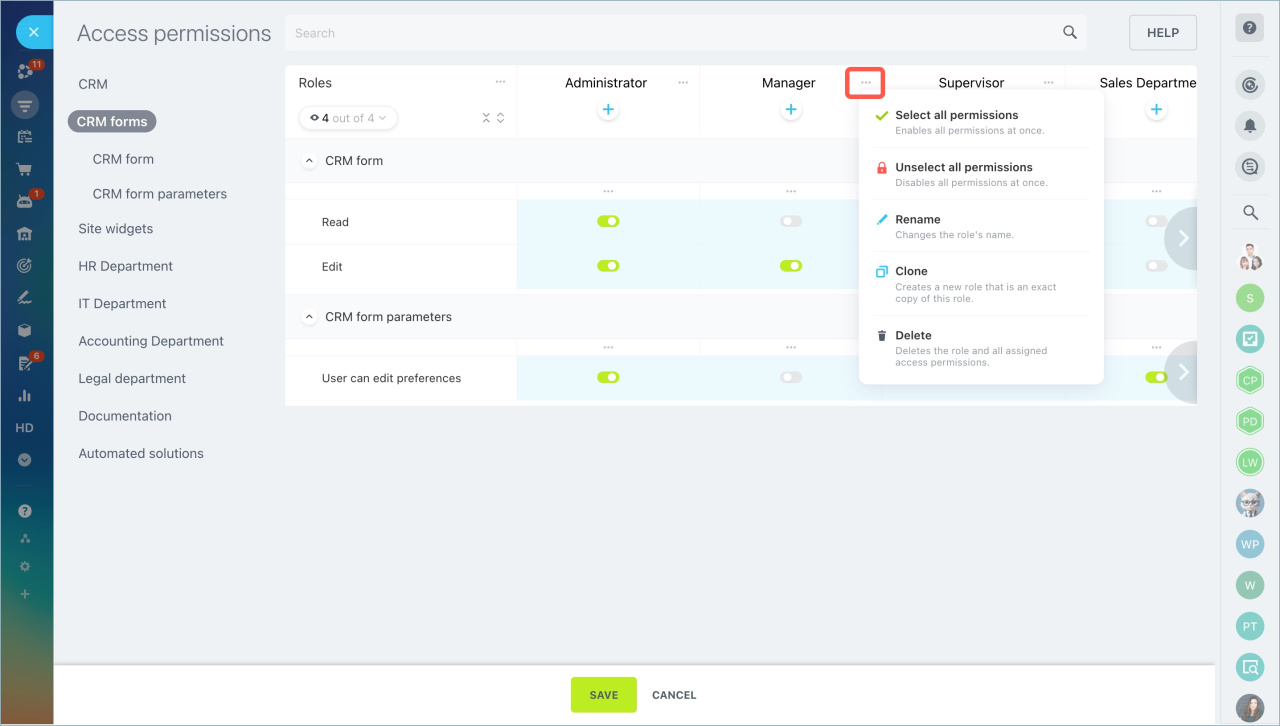
For each role, open the menu with the three dots and choose:
- Select all permissions - enable all actions.
- Unselect all permissions - disable all actions.
- Rename - change the role name.
- Clone - copy the role.
- Delete - remove the role.
Add users
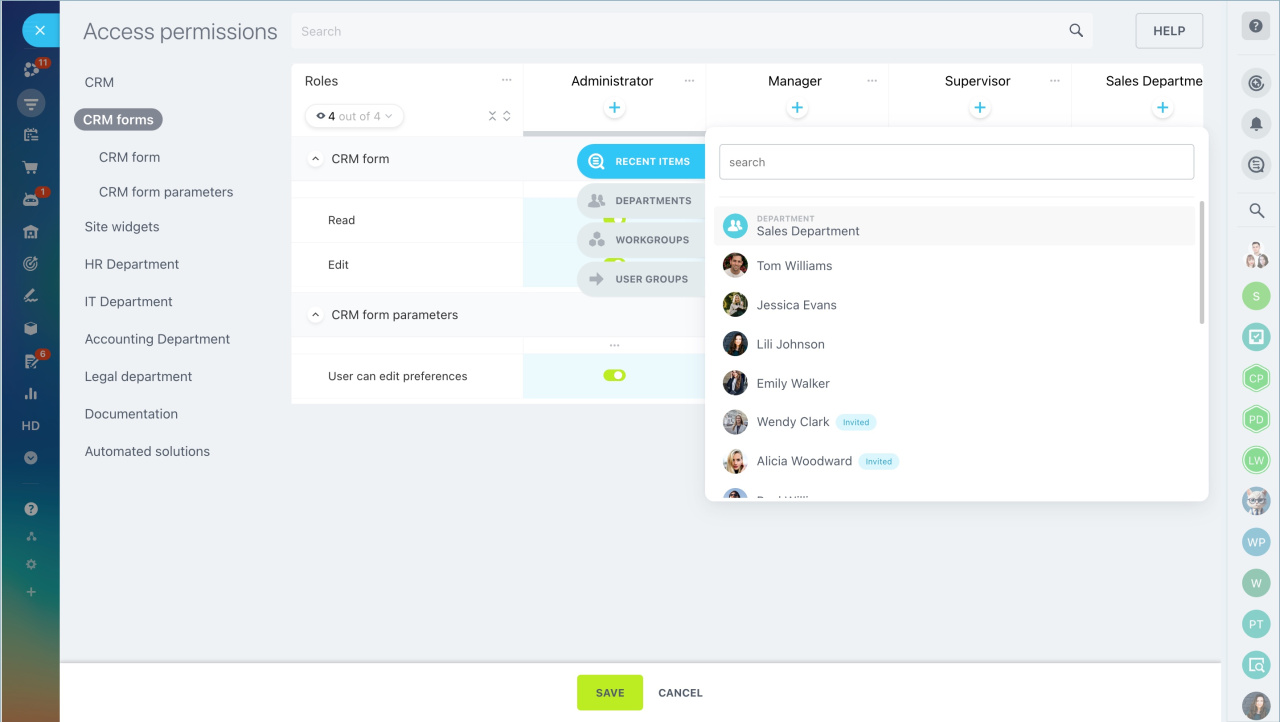
Click the plus icon under a role. Select an employee, department, or group.
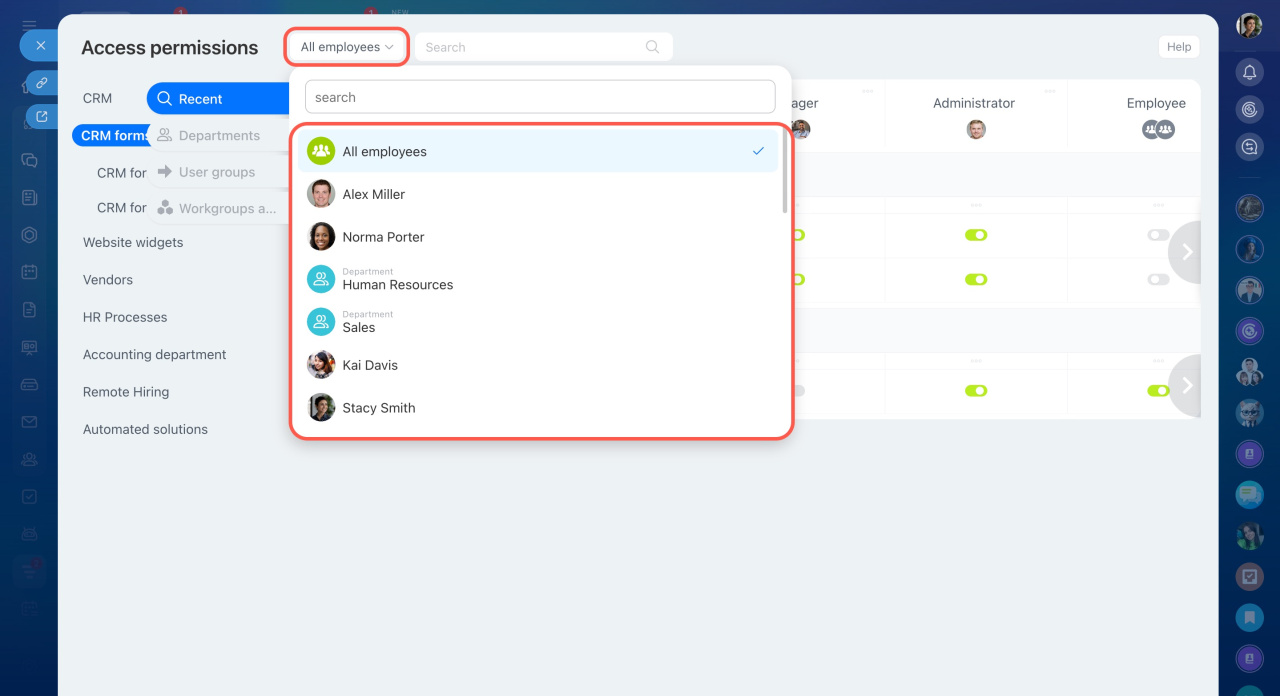
To check permissions, select an employee next to the search bar. A panel shows their assigned roles and permissions.
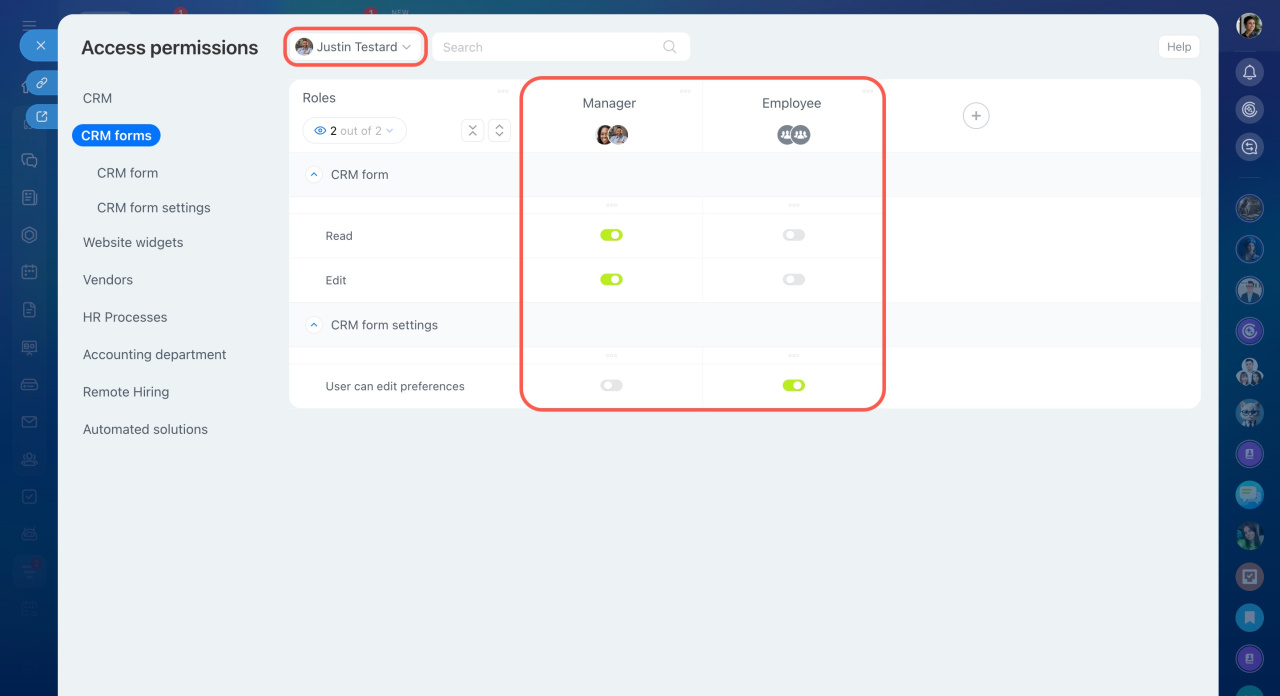 In this example, an employee has two types of roles with different access levels.
In brief
- CRM forms have separate access permissions.
- Only the administrator can manage permissions by default.
- Two roles are available by default: Administrator and Manager.
- Roles from CRM permissions appear here automatically.
- You can use, copy, or create roles.
