
Counters show the number of incoming and scheduled activities in CRM. They help you focus on work that needs attention instead of showing constant reminders.
This article is part of a CRM counters series:
- Counters in CRM
- How counters work in CRM
- Counter modes in CRM
- Counters in the mobile CRM
- Notification center: How to get activity reminders
Activity counters appear 15 minutes before the deadline by default. You can change this time in the CRM reminder settings.
Personalize activity reminders in CRM
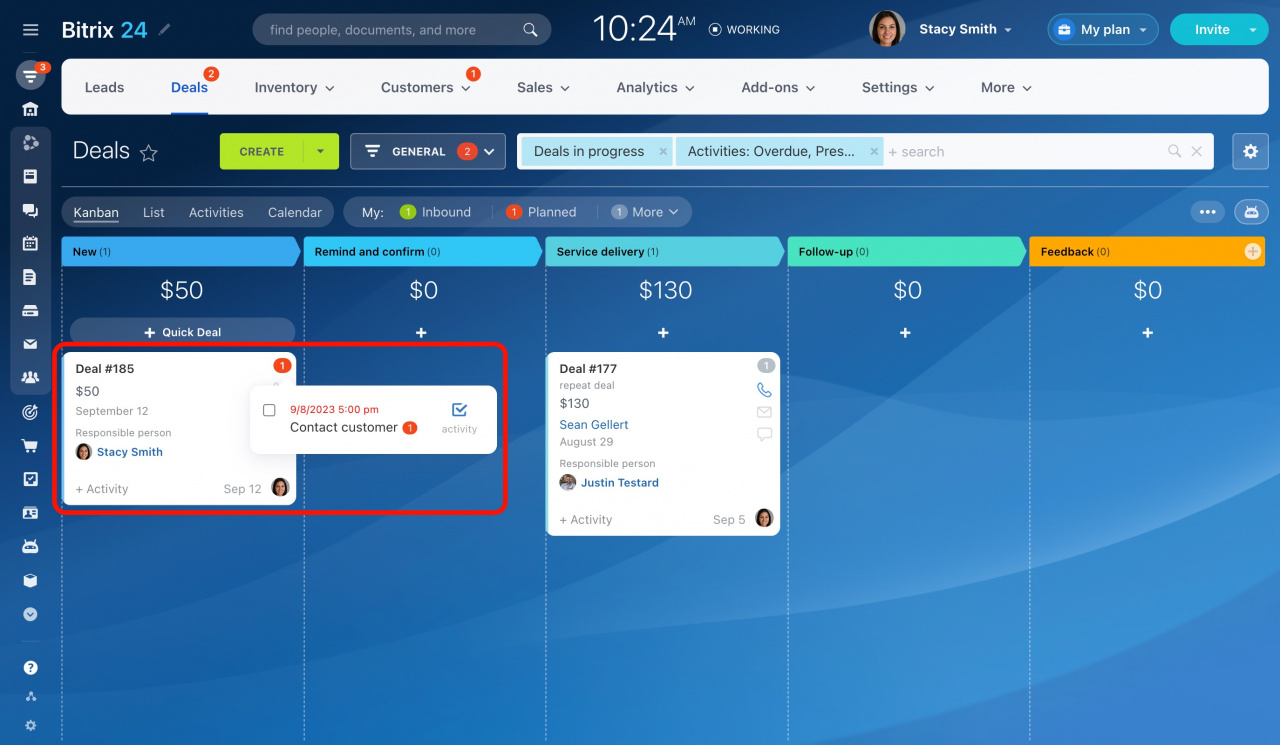
For example, you create an activity in a deal and set the deadline to 5:00 PM. At 4:45 PM, the deal card moves to the top of the list and the counter icon turns red.
If you create an activity that starts in less than 15 minutes, CRM marks it as pressing right away. A red counter appears for the related CRM item.
Click the counter icon to open activity details.
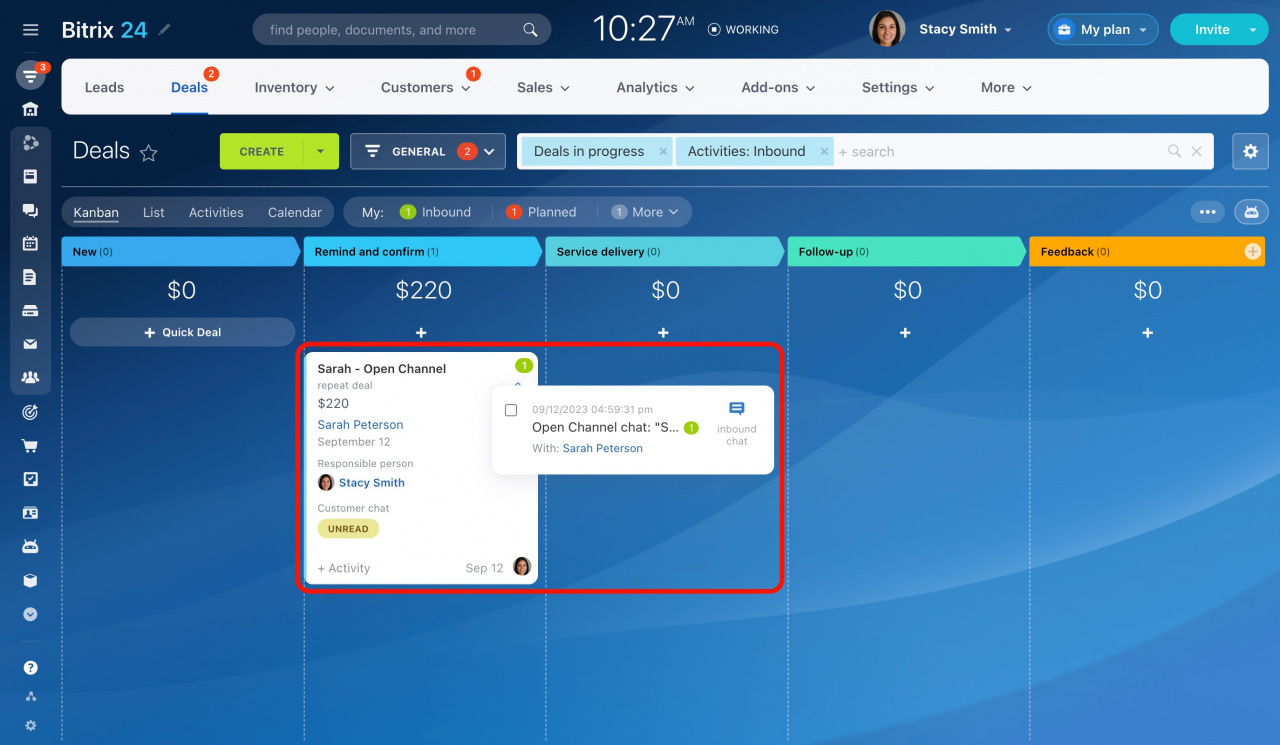
When you receive an inquiry, the counter icon turns green. Incoming activities do not have deadlines. The counter stays active until you complete the activity.
Filter activities
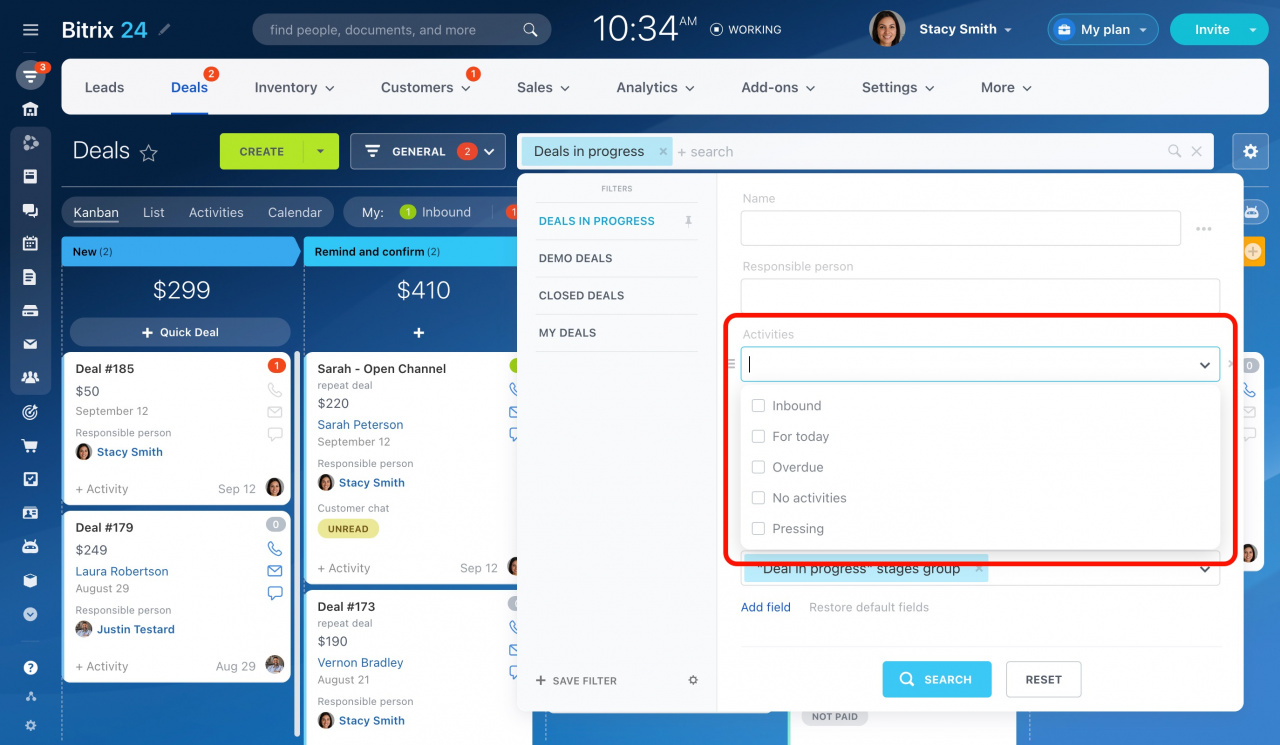
Use the Activities field in filters to find activities by status.
Open the search bar and select one or more of these options:
- Inbound — Shows the same items as the Inbound counter.
- For today — Shows CRM items with overdue activities and activities due today.
- Overdue — Shows CRM items with activities overdue by more than 24 hours.
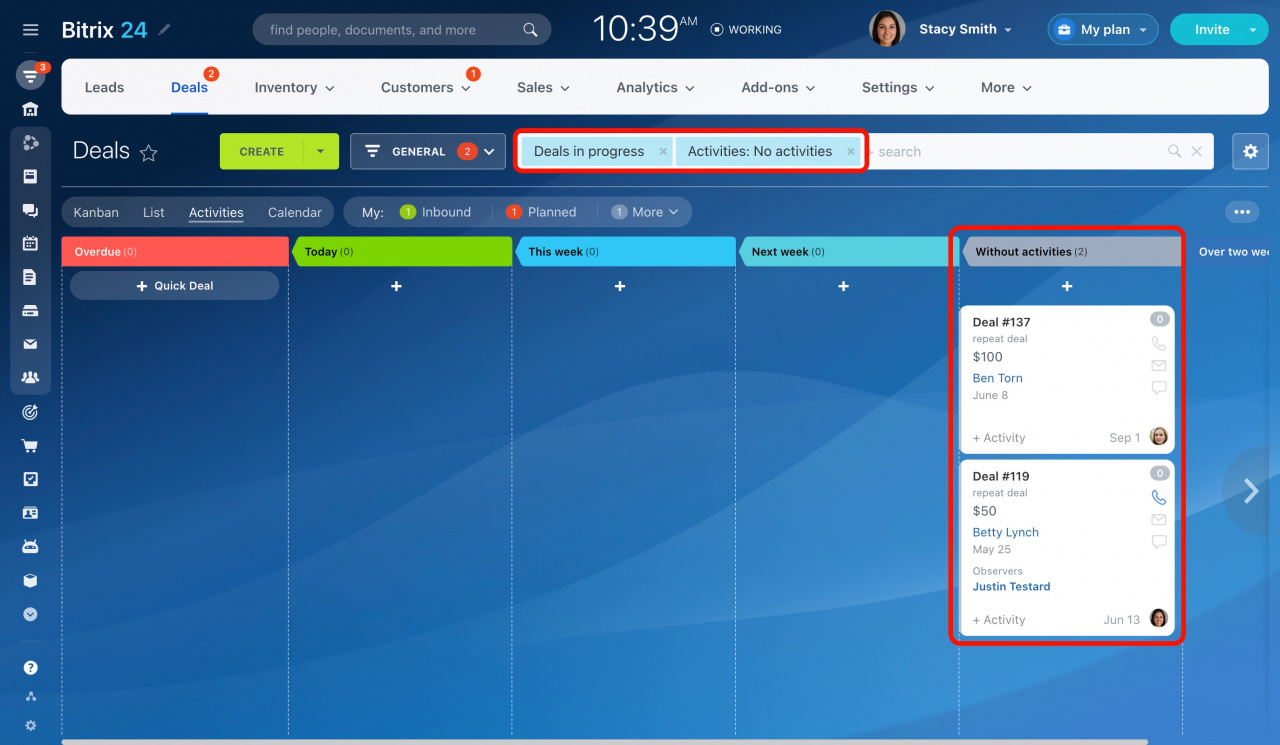
- No activities — Shows CRM items without activities.
- Pressing — Shows CRM items with activities due within 15 minutes or activities overdue today.
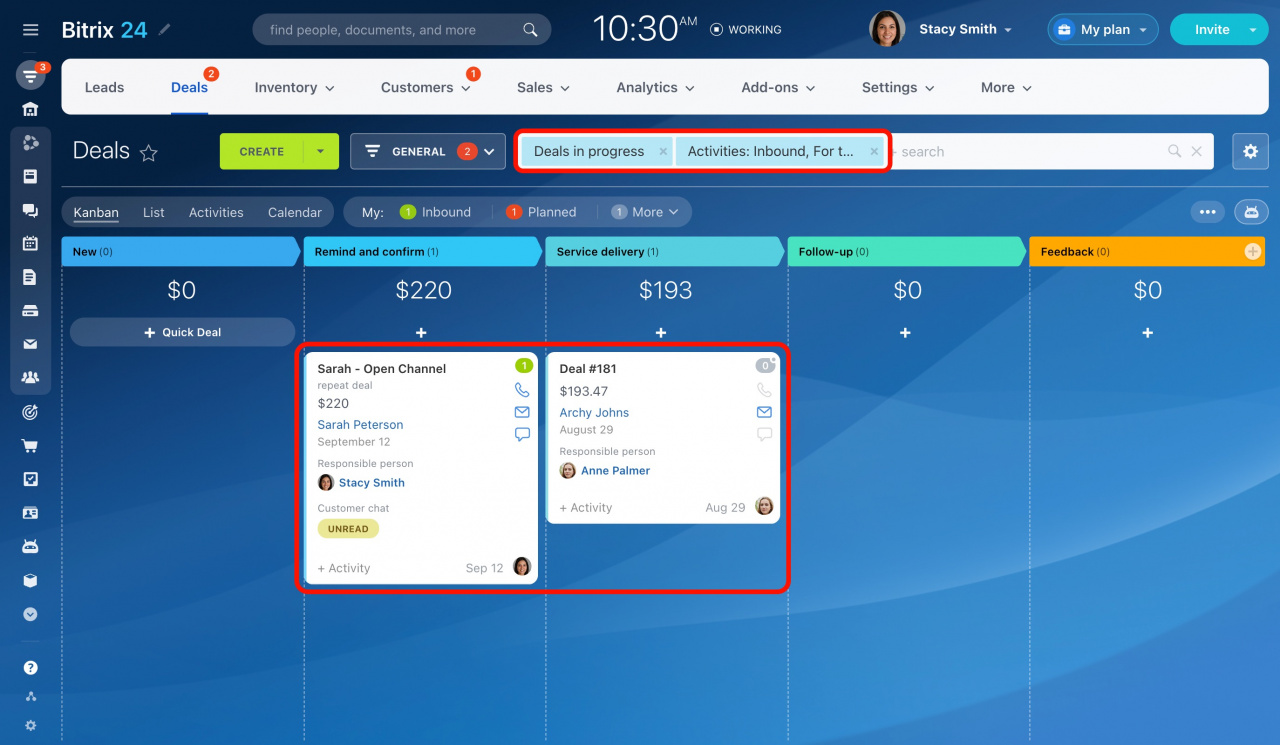
You can combine filters to narrow results. For example, if you select Overdue and Pressing, the results match the Planned counter.
To see all activities that need attention today, use these filters together: Inbound and For today.
Select No activities to find CRM items without scheduled activities. You can also switch to the Activities view to see these items in a separate column.
Activities view in Deals and Leads
In brief
- Counters remind you about incoming and scheduled activities.
- A counter appears only when an activity needs attention.
- The Planned counter appears 15 minutes before the deadline by default.
- Incoming inquiries display a green counter.
- Incoming activities stay active until completed because they do not have deadlines.
- Use the Activities filter to find CRM items with specific activity statuses.
